Home » Customization (Page 10)
Category Archives: Customization
Publish Items With the Sitecore Item Web API Using a Custom ResolveAction itemWebApiRequest Pipeline Processor
At the end of last week, when many people were probably thinking about what to do over the weekend, or were making plans with family and/or friends, I started thinking about what I might need to do next on the project I’m working on.
I realized I might need a way to publish Sitecore items I’ve touched via the Sitecore Item Web API — a feature that appears to be missing, or I just cannot figure out how to use from its documentation (if there is a way to do this “out of the box”, please share in a comment below).
After some digging around in Sitecore.ItemWebApi.dll and \App_Config\Include\Sitecore.ItemWebApi.config, I thought it would be a good idea to define a new action that employs a request method other than get, post, put, delete — these request methods are used by a vanilla install of the Sitecore Item Web API.
Where would one find a list of “standard” request methods? Of course Google knows all — I learned about the patch request method, and decided to use it.
According to Wikipedia — see this entry subsection discussing request methods — the patch request method is “used to apply partial modifications to a resource”, and one could argue that a publishing an item in Sitecore is a partial modification to that item — it’s being pushed to another database which is really an update on that item in the target database.
Now that our research is behind us — and we’ve learned about the patch request method — let’s get our hands dirty with some code.
Following the pipeline processor convention set forth in code for the Sitecore Item Web API for other request methods, I decide to box our new patch requests into a new pipeline, and doing this called for creating a new data transfer object for the new pipeline processor we will define below:
using Sitecore.Data.Items;

using Sitecore.ItemWebApi.Pipelines;

namespace Sitecore.Sandbox.ItemWebApi.Pipelines.Patch.DTO
{
    public class PatchArgs : OperationArgs
    {
        public PatchArgs(Item[] scope)
            : base(scope)
        {
        }
    }
}
Next, I created a base class for our new patch processor:
using Sitecore.ItemWebApi.Pipelines;

using Sitecore.Sandbox.ItemWebApi.Pipelines.Patch.DTO;

namespace Sitecore.Sandbox.ItemWebApi.Pipelines.Patch
{
    public abstract class PatchProcessor : OperationProcessor<PatchArgs>
    {
        protected PatchProcessor()
        {
        }
    }
}
I then created a new pipeline processor that will publish items passed to it:
using System;
using System.Collections.Generic;
using System.Linq;

using Sitecore.Configuration;
using Sitecore.Data;
using Sitecore.Data.Items;
using Sitecore.Diagnostics;
using Sitecore.ItemWebApi;
using Sitecore.Publishing;
using Sitecore.Web;

using Sitecore.Sandbox.ItemWebApi.Pipelines.Patch.DTO;

namespace Sitecore.Sandbox.ItemWebApi.Pipelines.Patch
{
    public class PublishScope : PatchProcessor
    {
        private string DefaultTargetDatabase { get; set; }

        public override void Process(PatchArgs arguments)
        {
            Assert.ArgumentNotNull(arguments, "arguments");
            Assert.IsNotNull(arguments.Scope, "The scope is null!");
            PublishItems(arguments.Scope, GetTargetDatabase());
            arguments.Result = GetResult(arguments.Scope);
        }

        private Database GetTargetDatabase()
        {
            return Factory.GetDatabase(GetTargetDatabaseName());
        }

        private string GetTargetDatabaseName()
        {
            string databaseName = WebUtil.GetQueryString("sc_target_database");
            if(!string.IsNullOrWhiteSpace(databaseName))
            {
                return databaseName;
            }

            Assert.IsNotNullOrEmpty(DefaultTargetDatabase, "DefaultTargetDatabase must be set!");
            return DefaultTargetDatabase;
        }

        private static void PublishItems(IEnumerable<Item> items, Database database)
        {
            foreach(Item item in items)
            {
                PublishItem(item, database);
            }
        }

        private static void PublishItem(Item item, Database database)
        {
           PublishOptions publishOptions = new PublishOptions
           (
               item.Database,
               database,
               Sitecore.Publishing.PublishMode.SingleItem,
               item.Language,
               DateTime.Now
           );

            Publisher publisher = new Publisher(publishOptions);
            publisher.Options.RootItem = item;
            publisher.Publish();
        }

        private static Dynamic GetResult(IEnumerable<Item> scope)
        {
            Assert.ArgumentNotNull(scope, "scope");
            Dynamic dynamic = new Dynamic();
            dynamic["statusCode"] = 200;
            dynamic["result"] = GetInnerResult(scope);
            return dynamic;
        }

        private static Dynamic GetInnerResult(IEnumerable<Item> scope)
        {
            Assert.ArgumentNotNull(scope, "scope");
            Dynamic dynamic = new Dynamic();
            dynamic["count"] = scope.Count();
            dynamic["itemIds"] = scope.Select(item => item.ID.ToString());
            return dynamic;
        }
    }
}
The above pipeline processor class serially publishes each item passed to it, and returns a Sitecore.ItemWebApi.Dynamic instance containing information on how many items were published; a collection of IDs of the items that were published; and an OK status code.
If the calling code does not supply a publishing target database via the sc_target_database query string parameter, the processor will use the value defined in DefaultTargetDatabase — this value is set in \App_Config\Include\Sitecore.ItemWebApi.config, which you will see later when I show changes I made to this file.
It had been awhile since I’ve had to publish items in code, so I searched for a refresher on how to do this.
In my quest for some Sitecore API code, I rediscovered this article by Sitecore MVP
Brian Pedersen showing how one can publish Sitecore items programmatically — many thanks to Brian for this article!
If you haven’t read Brian’s article, you should go check it out now. Don’t worry, I’ll wait. 🙂
I then created a new ResolveAction itemWebApiRequest pipeline processor:
using System;

using Sitecore.Diagnostics;
using Sitecore.Exceptions;
using Sitecore.ItemWebApi.Pipelines.Request;
using Sitecore.ItemWebApi.Security;
using Sitecore.Pipelines;

using Sitecore.Sandbox.ItemWebApi.Pipelines.Patch.DTO;

namespace Sitecore.Sandbox.ItemWebApi.Pipelines.Request
{
    public class ResolveAction : Sitecore.ItemWebApi.Pipelines.Request.ResolveAction
    {
        public override void Process(RequestArgs requestArgs)
        {
            Assert.ArgumentNotNull(requestArgs, "requestArgs");
            string method = GetMethod(requestArgs.Context);
            AssertOperation(requestArgs, method);

            if(IsCreateRequest(method))
            {
	            ExecuteCreateRequest(requestArgs);
	            return;
            }

            if(IsReadRequest(method))
            {
	            ExecuteReadRequest(requestArgs);
	            return;
            }

            if(IsUpdateRequest(method))
            {
               ExecuteUpdateRequest(requestArgs);
               return;
            }

            if(IsDeleteRequest(method))
            {
	            ExecuteDeleteRequest(requestArgs);
	            return;
            }

            if (IsPatchRequest(method))
            {
	            ExecutePatchRequest(requestArgs);
	            return;
            }
        }

        private static void AssertOperation(RequestArgs requestArgs, string method)
        {
            Assert.ArgumentNotNull(requestArgs, "requestArgs");
            if (requestArgs.Context.Settings.Access == AccessType.ReadOnly && !AreEqual(method, "get"))
            {
                throw new AccessDeniedException("The operation is not allowed.");
            }
        }

        private static bool IsCreateRequest(string method)
        {
            return AreEqual(method, "post");
        }

        private static bool IsReadRequest(string method)
        {
            return AreEqual(method, "get");
        }

        private static bool IsUpdateRequest(string method)
        {
            return AreEqual(method, "put");
        }

        private static bool IsDeleteRequest(string method)
        {
            return AreEqual(method, "delete");
        }

        private static bool IsPatchRequest(string method)
        {
            return AreEqual(method, "patch");
        }

        private static bool AreEqual(string one, string two)
        {
            return string.Equals(one, two, StringComparison.InvariantCultureIgnoreCase);
        }

        protected virtual void ExecutePatchRequest(RequestArgs requestArgs)
        {
            Assert.ArgumentNotNull(requestArgs, "requestArgs");
            PatchArgs patchArgsArgs = new PatchArgs(requestArgs.Scope);
            CorePipeline.Run("itemWebApiPatch", patchArgsArgs);
            requestArgs.Result = patchArgsArgs.Result;
        }

        private string GetMethod(Sitecore.ItemWebApi.Context context)
        {
            Assert.ArgumentNotNull(context, "context");
            return context.HttpContext.Request.HttpMethod.ToLower();
        }
    }
}
The class above contains the same logic as Sitecore.ItemWebApi.Pipelines.Request.ResolveAction, though I refactored it a bit — the nested conditional statements in the Process method were driving me bonkers, and I atomized logic by placing into new methods.
Plus, I added an additional check to see if the request we are to execute is a patch request — this is true when HttpContext.Request.HttpMethod.ToLower() in our Sitecore.ItemWebApi.Context instance is equal to “patch” — and call our new patch pipeline if this is the case.
I then added the new itemWebApiPatch pipeline with its new PublishScope processor, and replaced /configuration/sitecore/pipelines/itemWebApiRequest/processor[@type=”Sitecore.ItemWebApi.Pipelines.Request.ResolveAction, Sitecore.ItemWebApi”] with /configuration/sitecore/pipelines/itemWebApiRequest/processor[@type=”Sitecore.Sandbox.ItemWebApi.Pipelines.Request.ResolveAction, Sitecore.Sandbox”] in \App_Config\Include\Sitecore.ItemWebApi.config:
<?xml version="1.0" encoding="utf-8"?>
	<configuration xmlns:patch="http://www.sitecore.net/xmlconfig/">
		<sitecore>
			<pipelines>
				<itemWebApiRequest>
					<!-- stuff is defined up here -->
					<processor type="Sitecore.Sandbox.ItemWebApi.Pipelines.Request.ResolveAction, Sitecore.Sandbox" />
					<!-- stuff is defined right here -->
				</itemWebApiRequest>
				<!-- more stuff is defined here -->
				<itemWebApiPatch>
					<processor type="Sitecore.Sandbox.ItemWebApi.Pipelines.Patch.PublishScope, Sitecore.Sandbox">
						<DefaultTargetDatabase>web</DefaultTargetDatabase>
					</processor>
				</itemWebApiPatch>
			</pipelines>
			<!-- there's even more stuff defined down here -->
		</sitecore>
	</configuration>
Let’s test this out, and see how we did.
We’ll be publishing these items:

As you can see, they aren’t in the web database right now:

I had to modify code in my copy of the console application written by Kern Herskind Nightingale, Director of Technical Services at Sitecore UK, to use the patch request method for the ancestor home item shown above, and set a scope of self and recursive (scope=s|r) — checkout out this post where I added the recursive axe to the Sitecore Item Web API. I am excluding the console application code modification for the sake of brevity.
I then ran the console application above, and saw this:

All of these items now live in the web database:

If you have any thoughts on this, or ideas on other useful actions for the Sitecore Item Web API, please drop a comment.
Expand Your Scope: Add Additional Axes Via a Custom Sitecore Item Web API itemWebApiRequest Pipeline Processor
The Sitecore Item Web API offers client code the choice of retrieving an Item’s parent, the Item itself, all of its children, or any combination of these by simply setting the scope query string parameter in the request.
For example, if you want an Item’s children, you would only set the scope query string parameter to be the axe “c” — this would be scope=c — or if you wanted all data for the Item and its children, you would just set the scope query string parameter to be the self and children axes separated by a pipe — e.g. scope=s|c. Multiple axes must be separated by a pipe.
The other day, however, for my current project, I realized I needed a way to retrieve all data for an Item and all of its descendants via the Sitecore Item Web API.
The three options that ship with the Sitecore Item Web API cannot help me here, unless I want to make multiple requests to get data for an Item and all of it’s children, and then loop over all children and get their children, ad infinitum (well, hopefully it does stop somewhere).
Such a solution would require more development time — I would have to write additional code to do all of the looping — and this would — without a doubt — yield poorer performance versus getting all data upfront in a single request.
Through my excavating efforts in \App_Config\Include\Sitecore.ItemWebApi.config and Sitecore.ItemWebApi.dll, I discovered we can replace this “out of the box” functionality — this lives in /configuration/sitecore/pipelines/itemWebApiRequest/processor[@type=”Sitecore.ItemWebApi.Pipelines.Request.ResolveScope, Sitecore.ItemWebApi”] in the Sitecore.ItemWebApi.config — via a custom itemWebApiRequest pipeline processor.
I thought it would be a good idea to define each of our scope operations in its own pipeline processor, albeit have all of these pipeline processors be nested within our itemWebApiRequest pipeline processor.
For the lack of a better term, I’m calling each of these a scope sub-pipeline processor (if you can think of a better name, or have seen this approach done before, please drop a comment).
The first thing I did was create a custom processor class to house two additional properties for our sub-pipeline processor:
using System.Xml;

using Sitecore.Pipelines;
using Sitecore.Diagnostics;

namespace Sitecore.Sandbox.ItemWebApi.Pipelines.Request
{
    public class ScopeProcessor : Processor
    {
        public string Suppresses { get; private set; }
        public string QueryString { get; private set; }

        public ScopeProcessor(XmlNode configNode)
            : base(GetAttributeValue(configNode, "name"), GetAttributeValue(configNode, "type"), GetAttributeValue(configNode, "methodName"))
        {
            Suppresses = GetAttributeValue(configNode, "suppresses");
            QueryString = GetAttributeValue(configNode, "queryString");
        }
        public ScopeProcessor(string name, string type, string methodName, string suppresses, string queryString)
            : base(name, type, methodName)
        {
            Suppresses = suppresses;
            QueryString = queryString;
        }

        private static string GetAttributeValue(XmlNode configNode, string attributeName)
        {
            Assert.ArgumentNotNull(configNode, "configNode");
            Assert.ArgumentNotNullOrEmpty(attributeName, "attributeName");
            XmlAttribute attribute = configNode.Attributes[attributeName];

            if (attribute != null)
            {
                return attribute.Value;
            }

            return string.Empty;
        }
    }
}
The QueryString property will contain the axe for the given scope, and Suppresses property maps to another scope sub-pipeline processor query string value that will be ignored when both are present.
I then created a new PipelineArgs class for the scope sub-pipeline processors:
using System.Collections.Generic;

using Sitecore.Data.Items;
using Sitecore.Pipelines;

namespace Sitecore.Sandbox.ItemWebApi.Pipelines.Request.DTO
{
    public class ScopeProcessorRequestArgs : PipelineArgs
    {
        private List<Item> _Items;
        public List<Item> Items
        {
            get
            {
                if (_Items == null)
                {
                    _Items = new List<Item>();
                }

                return _Items;
            }
            set
            {
                _Items = value;
            }
        }


        private List<Item> _Scope;
        public List<Item> Scope
        {
            get
            {
                if (_Scope == null)
                {
                    _Scope = new List<Item>();
                }

                return _Scope;
            }
            set
            {
                _Scope = value;
            }
        }

        public ScopeProcessorRequestArgs()
        {
        }
    }
}
Basically, the above class just holds Items that will be processed, and keeps track of Items in scope — these Items are added via the scope sub-pipeline processors for the supplied axes.
Now it’s time for our itemWebApiRequest pipeline processor:
using System.Collections.Generic;
using System.Linq;
using System.Xml;

using Sitecore.Data.Items;
using Sitecore.Diagnostics;
using Sitecore.ItemWebApi;
using Sitecore.ItemWebApi.Pipelines.Request;
using Sitecore.Web;

using Sitecore.Sandbox.ItemWebApi.Pipelines.Request.DTO;

namespace Sitecore.Sandbox.ItemWebApi.Pipelines.Request
{
    public class ResolveScope : RequestProcessor
    {
        private IDictionary<string, ScopeProcessor> _ScopeProcessors;
        private IDictionary<string, ScopeProcessor> ScopeProcessors
        {
            get
            {
                if(_ScopeProcessors == null)
                {
                    _ScopeProcessors = new Dictionary<string, ScopeProcessor>();
                }

                return _ScopeProcessors;
            }
        }

        public override void Process(RequestArgs arguments)
        {
            if(!HasItemsInSet(arguments))
            {
                return;
            }

            arguments.Scope = GetItemsInScope(arguments).ToArray();
        }

        private static bool HasItemsInSet(RequestArgs arguments)
        {
            Assert.ArgumentNotNull(arguments, "arguments");
            Assert.ArgumentNotNull(arguments.Items, "arguments.Items");
            if (arguments.Items.Length < 1)
            {
                Logger.Warn("Cannot resolve the scope because the item set is empty.");
                arguments.Scope = new Item[0];
                return false;
            }

            return true;
        }

        private IEnumerable<Item> GetItemsInScope(RequestArgs arguments)
        {
            List<Item> itemsInScope = new List<Item>();
            foreach (Item item in arguments.Items)
            {
                ScopeProcessorRequestArgs args = new ScopeProcessorRequestArgs();
                args.Items.Add(item);
                GetItemsInScope(args);
                itemsInScope.AddRange(args.Scope);
            }

            return itemsInScope;
        }

        private void GetItemsInScope(ScopeProcessorRequestArgs arguments)
        {
            IEnumerable<ScopeProcessor> scopeProcessors = GetScopeProcessorsForRequest();
            foreach (ScopeProcessor scopeProcessor in scopeProcessors)
            {
                scopeProcessor.Invoke(arguments);
            }
        }

        private IEnumerable<ScopeProcessor> GetScopeProcessorsForRequest()
        {
            List<ScopeProcessor> scopeProcessors = GetScopeProcessorsForAxes();
            List<ScopeProcessor> scopeProcessorsForRequest = new List<ScopeProcessor>();
            foreach(ScopeProcessor scopeProcessor in scopeProcessors)
            {
                bool canAddProcessor = !scopeProcessors.Exists(processor => processor.Suppresses.Equals(scopeProcessor.QueryString));
                if (canAddProcessor)
                {
                    scopeProcessorsForRequest.Add(scopeProcessor);
                }
            }

            return scopeProcessorsForRequest;
        }

        private List<ScopeProcessor> GetScopeProcessorsForAxes()
        {
            List<ScopeProcessor> scopeProcessors = new List<ScopeProcessor>();
            foreach (string axe in GetAxes())
            {
                ScopeProcessor scopeProcessor;
                ScopeProcessors.TryGetValue(axe, out scopeProcessor);
                if(scopeProcessor != null && !scopeProcessors.Contains(scopeProcessor))
                {
                    scopeProcessors.Add(scopeProcessor);
                }
            }

            return scopeProcessors;
        }

        private IEnumerable<string> GetAxes()
        {
            string queryString = WebUtil.GetQueryString("scope", null);
            if (string.IsNullOrWhiteSpace(queryString))
            {
                return new string[] { "s" };
            }

            return queryString.Split(new char[] { '|' }).Distinct();
        }

        private IEnumerable<string> GetScopeProcessorQueryStringValues()
        {
            return ScopeProcessors.Values.Select(scopeProcessors => scopeProcessors.QueryString).ToList();
        }

        public virtual void AddScopeProcessor(XmlNode configNode)
        {
            ScopeProcessor scopeProcessor = new ScopeProcessor(configNode);
            bool canAdd = !string.IsNullOrEmpty(scopeProcessor.QueryString)
                            && !ScopeProcessors.ContainsKey(scopeProcessor.QueryString);

            if (canAdd)
            {
                ScopeProcessors.Add(scopeProcessor.QueryString, scopeProcessor);
            }
        }

        public virtual void AddItemSelf(ScopeProcessorRequestArgs arguments)
        {
            foreach (Item item in arguments.Items)
            {
                arguments.Scope.AddRange(GetCanBeReadItems(new Item[] { item }));
            }
        }

        public virtual void AddItemParent(ScopeProcessorRequestArgs arguments)
        {
            foreach (Item item in arguments.Items)
            {
                arguments.Scope.AddRange(GetCanBeReadItems(new Item[] { item.Parent }));
            }
        }

        public virtual void AddItemDescendants(ScopeProcessorRequestArgs arguments)
        {
            foreach (Item item in arguments.Items)
            {
                arguments.Scope.AddRange(GetCanBeReadItems(item.Axes.GetDescendants()));
            }
        }

        public virtual void AddItemChildren(ScopeProcessorRequestArgs arguments)
        {
            foreach(Item item in arguments.Items)
            {
                arguments.Scope.AddRange(GetCanBeReadItems(item.GetChildren()));
            }
        }

        private static IEnumerable<Item> GetCanBeReadItems(IEnumerable<Item> list)
        {
            if (list == null)
            {
                return new List<Item>();
            }

            return list.Where(item => CanReadItem(item));
        }

        private static bool CanReadItem(Item item)
        {
            return Context.Site.Name != "shell"
                    && item.Access.CanRead()
                    && item.Access.CanReadLanguage();
        }
    }
}
When this class is instantiated, each scope sub-pipeline processor is added to a dictionary, keyed by its query string axe value.
When this processor is invoked, it performs some validation — similarly to what is being done in the “out of the box” Sitecore.ItemWebApi.Pipelines.Request.ResolveScope class — and determines which scope processors are applicable for the given request. Only those that found in the dictionary via the supplied axes are used, minus those that are suppressed.
Once the collection of scope sub-pipeline processors is in place, each are invoked with a ScopeProcessorRequestArgs instance containing an Item to be processed.
When a scope sub-pipeline processor is done executing, Items that were retrieved from it are added into master list of scope Items to be returned to the caller.
I then glued all of this together — including the scope sub-pipeline processors — in \App_Config\Include\Sitecore.ItemWebApi.config:
<?xml version="1.0" encoding="utf-8"?>
<configuration xmlns:patch="http://www.sitecore.net/xmlconfig/">
  <sitecore>
    <pipelines>
      <!-- stuff is defined up here too -->
      <itemWebApiRequest>
		<!-- stuff is defined up here -->
		<processor type="Sitecore.Sandbox.ItemWebApi.Pipelines.Request.ResolveScope, Sitecore.Sandbox">
		  <scopeProcessors hint="raw:AddScopeProcessor">
			<scopeProcessor type="Sitecore.Sandbox.ItemWebApi.Pipelines.Request.ResolveScope, Sitecore.Sandbox" methodName="AddItemSelf" name="self" queryString="s" />
			<scopeProcessor type="Sitecore.Sandbox.ItemWebApi.Pipelines.Request.ResolveScope, Sitecore.Sandbox" methodName="AddItemParent" name="parent" queryString="p" />
			<scopeProcessor type="Sitecore.Sandbox.ItemWebApi.Pipelines.Request.ResolveScope, Sitecore.Sandbox" methodName="AddItemDescendants" name="recursive" queryString="r" suppresses="c" />
			<scopeProcessor type="Sitecore.Sandbox.ItemWebApi.Pipelines.Request.ResolveScope, Sitecore.Sandbox" methodName="AddItemChildren" name="children" queryString="c" />
		  </scopeProcessors>
		</processor>
		<!-- some stuff is defined down here -->
		</itemWebApiRequest>
    </pipelines>
      <!-- there's more stuff defined down here -->
  </sitecore>
</configuration>
Let’s take the above for a spin.
First we need some items for testing. Lucky for me, I hadn’t cleaned up after myself when creating a previous blog post — yes, now I have a legitimate excuse for not picking up after myself — so let’s use these for testing:

After modifying some code in my copy of the console application written by Kern Herskind Nightingale, Director of Technical Services at Sitecore UK — I updated which item we are requesting conjoined for our scope query string parameter (scope=r) — I launched it to retrieve our test items:

If you have any thoughts on this, or ideas on improving the above, please leave a comment.
Enforce Password Expiration in the Sitecore CMS
I recently worked on a project that called for a feature to expire Sitecore users’ passwords after an elapsed period of time since their passwords were last changed.
The idea behind this is to lessen the probability that an attacker will infiltrate a system — or multiple systems if users reuse their passwords across different applications (this is more common than you think) — within an organization by acquiring old database backups containing users’ passwords.
Since I can’t show you what I built for that project, I cooked up another solution — a custom loggingin processor that determines whether a user’s password has expired in Sitecore:
using System;
using System.Web.Security;

using Sitecore.Diagnostics;
using Sitecore.Pipelines.LoggingIn;
using Sitecore.Web;

namespace Sitecore.Sandbox.Pipelines.LoggingIn
{
    public class CheckPasswordExpiration
    {
        private TimeSpan TimeSpanToExpirePassword { get; set; }
        private string ChangePasswordPageUrl { get; set; }

        public void Process(LoggingInArgs args)
        {
            Assert.ArgumentNotNull(args, "args");
            if (!IsEnabled())
            {
                return;
            }

            MembershipUser user = GetMembershipUser(args);
            if (HasPasswordExpired(user))
            {
                WebUtil.Redirect(ChangePasswordPageUrl);
            }
        }

        private bool IsEnabled()
        {
            return IsTimeSpanToExpirePasswordSet() && IsChangePasswordPageUrlSet();
        }

        private bool IsTimeSpanToExpirePasswordSet()
        {
            return TimeSpanToExpirePassword > default(TimeSpan);
        }

        private bool IsChangePasswordPageUrlSet()
        {
            return !string.IsNullOrWhiteSpace(ChangePasswordPageUrl);
        }

        private static MembershipUser GetMembershipUser(LoggingInArgs args)
        {
            Assert.ArgumentNotNull(args, "args");
            Assert.ArgumentNotNullOrEmpty(args.Username, "args.Username");
            return Membership.GetUser(args.Username, false);
        }

        private bool HasPasswordExpired(MembershipUser user)
        {
            return user.LastPasswordChangedDate.Add(TimeSpanToExpirePassword) <= DateTime.Now;
        }
    }
}
The processor above ascertains whether a user’s password has expired by adding a configured timespan — see the configuration file below — to the last date and time the password was changed, and if that date and time summation is in the past — this means the password should have been changed already — then we redirect the user to a change password page (this is configured to be the Change Password page in Sitecore).
I wired up the custom loggingin processor, its timespan on expiring passwords — here I am using 1 minute since I can’t wait around all day 😉 — and set the change password page to be the url of Sitecore’s Change Password page:
<?xml version="1.0" encoding="utf-8"?>
<configuration xmlns:patch="http://www.sitecore.net/xmlconfig/">
  <sitecore>
    <processors>
      <loggingin>
        <processor mode="on" type="Sitecore.Sandbox.Pipelines.LoggingIn.CheckPasswordExpiration, Sitecore.Sandbox"
					patch:before="processor[@type='Sitecore.Pipelines.LoggingIn.CheckStartPage, Sitecore.Kernel']">
          <!-- Number of days, hours, minutes and seconds after the last password change date to expire passwords -->
          <TimeSpanToExpirePassword>00:00:01:00</TimeSpanToExpirePassword>
          <ChangePasswordPageUrl>/sitecore/login/changepassword.aspx</ChangePasswordPageUrl>
        </processor>
      </loggingin>
    </processors>
  </sitecore>
</configuration>
Let’s test this out.
I went to Sitecore’s login page, and entered my username and password on the login form:

I clicked the Login button, and was redirected to the Change Password page as expected:

If you can think of any other security measures that should be added to Sitecore, please share in a comment.
Go Green: Put Items in the Recycle Bin When Deleting Via the Sitecore Item Web API
This morning I discovered that items are permanently deleted by the Sitecore Item Web API during a delete action. This is probably called out somewhere in its developer’s guide but I don’t recall having read this.
Regardless of whether it’s highlighted somewhere in documentation, I decided to investigate why this happens.
After combing through Sitecore Item Web API pipelines defined in \App_Config\Include\Sitecore.ItemWebApi.config and code in Sitecore.ItemWebApi.dll, I honed in on the following:
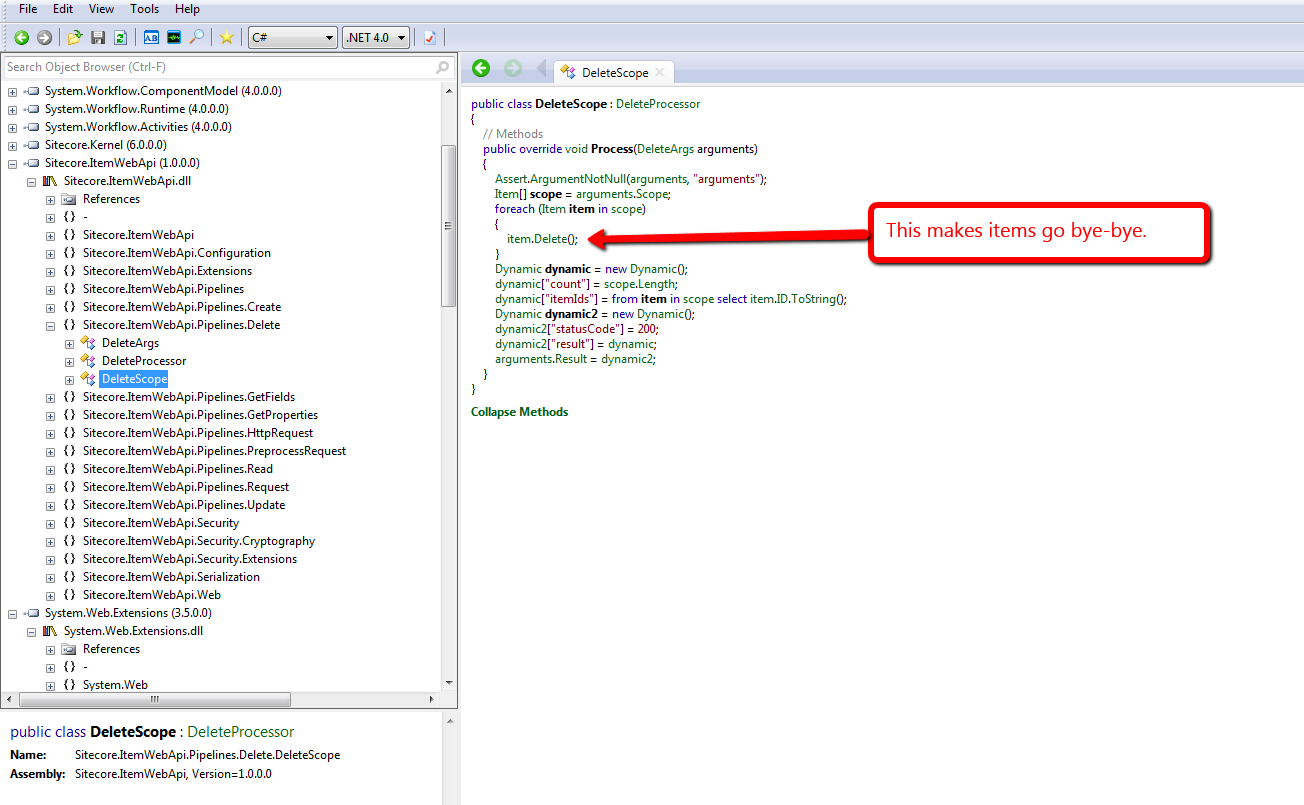
This above code lives in the only itemWebApiDelete pipeline processor that comes with the Sitecore Item Web API, and this processor can be found at /configuration/sitecore/pipelines/itemWebApiDelete/processor[@type=”Sitecore.ItemWebApi.Pipelines.Delete.DeleteScope, Sitecore.ItemWebApi”] in the \App_Config\Include\Sitecore.ItemWebApi.config file.
I don’t know about you, but I’m not always comfortable with deleting items permanently in Sitecore. I heavily rely on Sitecore’s Recycle Bin — yes, I have deleted items erroneously in the past, but recovered quickly by restoring them from the Recycle Bin (I hope I’m not the only one who has done this. :-/)
Unearthing the above prompted me to write a new itemWebApiDelete pipeline processor that puts items in the Recycle Bin when the Recycle Bin setting — see /configuration/sitecore/settings/setting[@name=”RecycleBinActive”] in the Web.config — is enabled:
using System.Collections.Generic;
using System.Linq;

using Sitecore.Configuration;
using Sitecore.Data;
using Sitecore.Data.Items;
using Sitecore.Diagnostics;
using Sitecore.ItemWebApi;
using Sitecore.ItemWebApi.Pipelines.Delete;

namespace Sitecore.Sandbox.ItemWebApi.Pipelines.Delete
{
    public class RecycleScope : DeleteProcessor
    {
        private const int OKStatusCode = 200;

        public override void Process(DeleteArgs arguments)
        {
            Assert.ArgumentNotNull(arguments, "arguments");
            IEnumerable<Item> itemsToDelete = arguments.Scope;
            DeleteItems(itemsToDelete);
            arguments.Result = GetStatusInformation(OKStatusCode, GetDeletionInformation(itemsToDelete));
        }

        private static void DeleteItems(IEnumerable<Item> itemsToDelete)
        {
            foreach (Item itemToDelete in itemsToDelete)
            {
                DeleteItem(itemToDelete);
            }
        }

        private static void DeleteItem(Item itemToDelete)
        {
            Assert.ArgumentNotNull(itemToDelete, "itemToDelete");

            // put items in the recycle bin if it's turned on
            if (Settings.RecycleBinActive)
            {
                itemToDelete.Recycle();
            }
            else
            {
                itemToDelete.Delete();
            }
        }

        private static Dynamic GetDeletionInformation(IEnumerable<Item> itemsToDelete)
        {
            return GetDeletionInformation(itemsToDelete.Count(), GetItemIds(itemsToDelete));
        }

        private static Dynamic GetDeletionInformation(int count, IEnumerable<ID> itemIds)
        {
            Dynamic deletionInformation = new Dynamic();
            deletionInformation["count"] = count;
            deletionInformation["itemIds"] = itemIds.Select(id => id.ToString());
            return deletionInformation;
        }

        private static IEnumerable<ID> GetItemIds(IEnumerable<Item> items)
        {
            Assert.ArgumentNotNull(items, "items");
            return items.Select(item => item.ID);
        }

        private static Dynamic GetStatusInformation(int statusCode, Dynamic result)
        {
            Assert.ArgumentNotNull(result, "result");
            Dynamic status = new Dynamic();
            status["statusCode"] = statusCode;
            status["result"] = result;
            return status;
        }
    }
}
There really isn’t anything magical about the code above. It utilizes most of the same logic that comes with the itemWebApiDelete pipeline processor that ships with the Sitecore Item Web API, although I did move code around into new methods.
The only major difference is the invocation of the Recycle method on item instances when the Recycle Bin is enabled in Sitecore. If the Recycle Bin is not enabled, we call the Delete method instead — as does the “out of the box” pipeline processor.
I then replaced the existing itemWebApiDelete pipeline processor in \App_Config\Include\Sitecore.ItemWebApi.config with our new one defined above:
<?xml version="1.0" encoding="utf-8"?>
<configuration xmlns:patch="http://www.sitecore.net/xmlconfig/">
  <sitecore>
    <pipelines>
      <!-- stuff is defined up here -->
      <itemWebApiDelete>
        <processor type="Sitecore.Sandbox.ItemWebApi.Pipelines.Delete.RecycleScope, Sitecore.Sandbox" />
	  </itemWebApiDelete>
      <!-- there's more stuff defined down here -->
  </sitecore>
</configuration>
Let’s see this in action.
We first need a test item. Let’s create one together:

I then tweaked the delete method in my copy of the console application written by Kern Herskind Nightingale, Director of Technical Services at Sitecore UK, to point to our test item in the master database — I have omitted this code for the sake of brevity — and then ran the console application calling the delete method only:

As you can see, our test item is now in the Recycle Bin:

If you have any thoughts on this, please leave a comment.
Add Additional Item Properties in Sitecore Item Web API Responses
The other day I was exploring pipelines of the Sitecore Item Web API, and took note of the itemWebApiGetProperties pipeline. This pipeline adds information about an item in the response returned by the Sitecore Item Web API. You can find this pipeline at /configuration/sitecore/pipelines/itemWebApiGetProperties in \App_Config\Include\Sitecore.ItemWebApi.config.
The following properties are set for an item in the response via the lonely pipeline processor — /configuration/sitecore/pipelines/itemWebApiGetProperties/processor[@type=”Sitecore.ItemWebApi.Pipelines.GetProperties.GetProperties, Sitecore.ItemWebApi”] — that ships with the Sitecore Item Web API:

Here’s an example of what the properties set by the above pipeline processor look like in the response — I invoked a read request to the Sitecore Item Web API via a copy of the console application written by Kern Herskind Nightingale, Director of Technical Services at Sitecore UK:

You might be asking “how difficult would it be to add in my own properties?” It’s not difficult at all!
I whipped up the following itemWebApiGetProperties pipeline processor to show how one can add more properties for an item:
using Sitecore.Data.Items;
using Sitecore.Diagnostics;
using Sitecore.ItemWebApi;
using Sitecore.ItemWebApi.Pipelines.GetProperties;

namespace Sitecore.Sandbox.ItemWebApi.Pipelines.GetProperties
{
    public class GetEvenMoreProperties : GetPropertiesProcessor
    {
        public override void Process(GetPropertiesArgs arguments)
        {
            Assert.ArgumentNotNull(arguments, "arguments");
            arguments.Properties.Add("ParentID", arguments.Item.ParentID.ToString());
            arguments.Properties.Add("ChildrenCount", arguments.Item.Children.Count);
            arguments.Properties.Add("Level", arguments.Item.Axes.Level);
            arguments.Properties.Add("IsItemClone", arguments.Item.IsItemClone);
            arguments.Properties.Add("CreatedBy", arguments.Item["__Created by"]);
            arguments.Properties.Add("UpdatedBy", GetItemUpdatedBy(arguments.Item));
        }

        private static Dynamic GetItemUpdatedBy(Item item)
        {
            Assert.ArgumentNotNull(item, "item");
            string[] usernamePieces = item["__Updated by"].Split('\\');

            Dynamic username = new Dynamic();
            if (usernamePieces.Length > 1)
            {
                username["Domain"] = usernamePieces[0];
                username["Username"] = usernamePieces[1];
            }
            else if (usernamePieces.Length > 0)
            {
                username["Username"] = usernamePieces[0];
            }

            return username;
        }
    }
}
The ParentID, ChildrenCount, Level and IsItemClone properties are simply added to the properties SortedDictionary within the GetPropertiesArgs instance, and will be serialized as is.
For the UpdatedBy property, I decided to leverage the Sitecore.ItemWebApi.Dynamic class in order to have the username set in the “__Updated by” field be represented by a JSON object. This JSON object sets the domain and username — without the domain — into different JSON properties.
As a side note — when writing your own service code for the Sitecore Item Web API — I strongly recommend using instances of the Sitecore.ItemWebApi.Dynamic class — or something similar — for complex objects. Developers writing code to consume your JSON will thank you many times for it. 🙂
I registered my new processor to the itemWebApiGetProperties pipeline in my Sitecore instance’s \App_Config\Include\Sitecore.ItemWebApi.config:
<?xml version="1.0" encoding="utf-8"?>
<configuration xmlns:patch="http://www.sitecore.net/xmlconfig/">
  <sitecore>
    <pipelines>
      <!-- there's stuff here -->
      <itemWebApiGetProperties>
        <processor type="Sitecore.ItemWebApi.Pipelines.GetProperties.GetProperties, Sitecore.ItemWebApi" />
        <processor type="Sitecore.Sandbox.ItemWebApi.Pipelines.GetProperties.GetEvenMoreProperties, Sitecore.Sandbox" />
      </itemWebApiGetProperties>
      <!-- there's stuff here as well -->
  </sitecore>
</configuration>
Let’s take this for a spin.
I ran the console application again to see what the response now looks like:

As you can see, our additional properties are now included in the response.
If you can think of other item properties that would be useful for Sitecore Item Web API client applications, please share in a comment.
Until next time, have a Sitecorelicious day!
Replace Proxies With Clones in the Sitecore CMS
The other day I stumbled upon a thread in the Sitecore Developer Network (SDN) forums that briefly touched upon replacing proxies with clones, and I wondered whether anyone had built any sort of tool that creates clones for items being proxied — basically a tool that would automate creating clones from proxies — and removes the proxies once the clones are in place.
Since I am not aware of such a tool — not to mention that I’m hooked on programming and just love coding — I decided to create one.
The following command is my attempt at such a tool:
using System;
using System.Linq;

using Sitecore.Configuration;
using Sitecore.Data.Items;
using Sitecore.Data.Proxies;
using Sitecore.Diagnostics;
using Sitecore.Shell.Framework.Commands;

namespace Sitecore.Sandbox.Commands
{
    public class TransformProxyToClones : Command
    {
        public override void Execute(CommandContext context)
        {
            Assert.ArgumentNotNull(context, "context");
            TransformProxyItemToClones(GetContextItem(context));
        }

        private static void TransformProxyItemToClones(Item item)
        {
            Assert.ArgumentNotNull(item, "item");
            if(!CanTransform(item))
            {
                return;
            }

            string proxyType = GetProxyType(item);
            Item source = GetItem(GetSourceItemFieldValue(item));
            Item target = GetItem(GetTargetItemFieldValue(item));

            if (AreEqualIgnoreCase(proxyType, "Entire sub-tree"))
            {
                DeleteItem(item);
                CloneEntireSubtree(source, target);
            }
            else if (AreEqualIgnoreCase(proxyType, "Root item only"))
            {
                DeleteItem(item);
                CloneRootOnly(source, target);
            }
        }

        private static void CloneEntireSubtree(Item source, Item destination)
        {
            Clone(source, destination, true);
        }

        private static void CloneRootOnly(Item root, Item destination)
        {
            Clone(root, destination, false);
        }

        private static Item Clone(Item cloneSource, Item cloneDestination, bool deep)
        {
            Assert.ArgumentNotNull(cloneSource, "cloneSource");
            Assert.ArgumentNotNull(cloneDestination, "cloneDestination");
            return cloneSource.CloneTo(cloneDestination, deep);
        }

        private static void DeleteItem(Item item)
        {
            Assert.ArgumentNotNull(item, "item");
            if (Settings.RecycleBinActive)
            {
                item.Recycle();
            }
            else
            {
                item.Delete();
            }
        }

        public override CommandState QueryState(CommandContext context)
        {
            Assert.ArgumentNotNull(context, "context");
            if (CanTransform(GetContextItem(context)))
            {
                return CommandState.Enabled;
            }

            return CommandState.Hidden;
        }

        private static Item GetContextItem(CommandContext context)
        {
            Assert.ArgumentNotNull(context, "context");
            return context.Items.FirstOrDefault();
        }

        private static bool CanTransform(Item item)
        {
            Assert.ArgumentNotNull(item, "item");
            return IsProxy(item)
                    && IsSourceDatabaseFieldEmpty(item)
                    && !string.IsNullOrWhiteSpace(GetProxyType(item))
                    && !string.IsNullOrWhiteSpace(GetSourceItemFieldValue(item))
                    && !string.IsNullOrWhiteSpace(GetTargetItemFieldValue(item));
        }

        private static bool IsProxy(Item item)
        {
            Assert.ArgumentNotNull(item, "item");
            return ProxyManager.IsProxy(item);
        }

        private static string GetProxyType(Item item)
        {
            Assert.ArgumentNotNull(item, "item");
            return item["Proxy type"];
        }

        private static bool IsSourceDatabaseFieldEmpty(Item item)
        {
            Assert.ArgumentNotNull(item, "item");
            return string.IsNullOrWhiteSpace(item["Source database"]);
        }

        private static string GetSourceItemFieldValue(Item item)
        {
            Assert.ArgumentNotNull(item, "item");
            return item["Source item"];
        }

        private static string GetTargetItemFieldValue(Item item)
        {
            Assert.ArgumentNotNull(item, "item");
            return item["Target item"];
        }

        private static Item GetItem(string path)
        {
            Assert.ArgumentNotNullOrEmpty(path, "path");
            return Context.ContentDatabase.GetItem(path);
        }

        private static bool AreEqualIgnoreCase(string one, string two)
        {
            return string.Equals(one, two, StringComparison.CurrentCultureIgnoreCase);
        }
    }
}
The above command is only visible for proxy items having both source and target items set, and the proxy is for the context content database.
When the command is invoked, the source item — conjoined with its descendants if its sub-tree is also being proxied — is cloned to the target item, after the proxy definition item is deleted.
I registered the above command in Sitecore using an include configuration file:
<?xml version="1.0" encoding="utf-8" ?>
<configuration xmlns:patch="http://www.sitecore.net/xmlconfig/">
  <sitecore>
    <commands>
      <command name="item:transformproxytoclones" type="Sitecore.Sandbox.Commands.TransformProxyToClones, Sitecore.Sandbox"/>
    </commands>
  </sitecore>
</configuration>
I also wired this up in the core database for the item context menu (I’ve omitted a screenshot on how this is done; If you would like to see how this is done, please see part 1 and part 2 of my post showing how to add to the item context menu).
Let’s take this for a drive.
I created a bunch of items for testing:

I then created a proxy for these test items:

I then right-clicked on our test proxy item to launch its context menu, and then clicked on the “Transform Proxy To Clones” menu option:
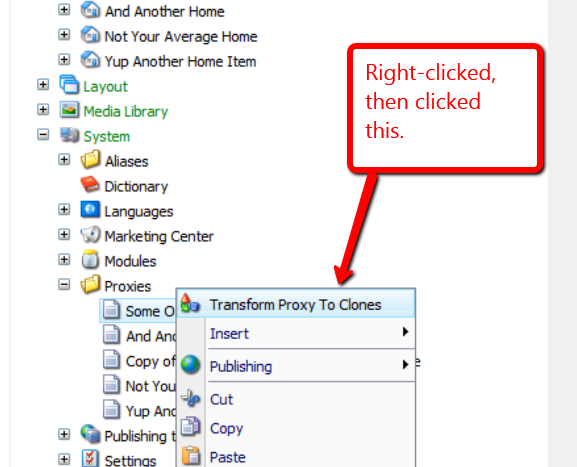
The proxy item was removed, and we now have clones:
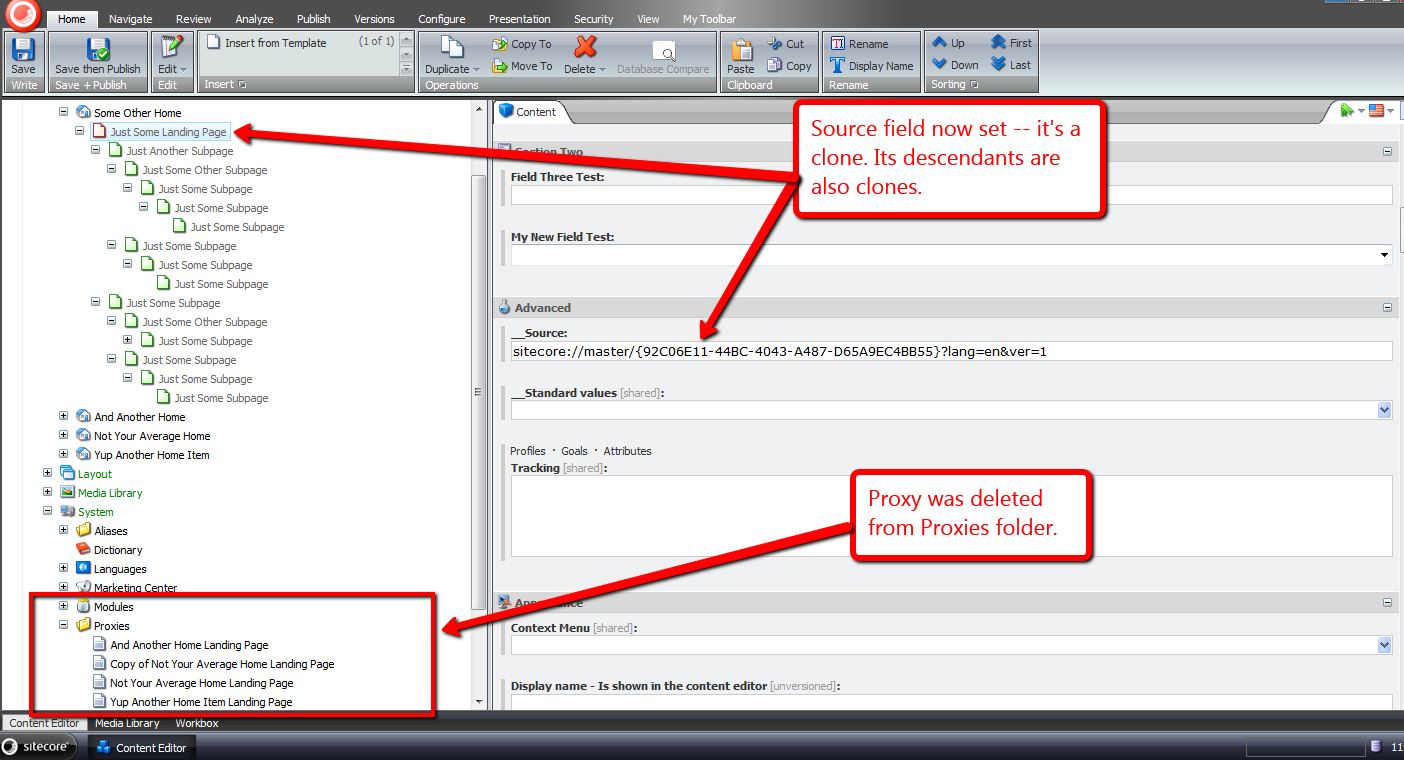
If you can think of any other ideas around proxies or clones, or know of other tools that create clones from proxies, please leave a comment.
Display Content Management Server Information in the Sitecore CMS
The other day I cogitated over potential uses for the getAboutInformation pipeline. Found at /configuration/sitecore/pipelines/getAboutInformation in the Web.config, it can be leveraged to display information on the Sitecore login page, and inside of the About dialog — a dialog that can be launched from the Content Editor.
One thing that came to mind was displaying some information for the Content Management (CM) server where the Sitecore instance lives. Having this information readily available might aid in troubleshooting issues that arise, or seeing the name of the server might stop you from making content changes on the wrong CM server (I am guilty as charged for committing such a blunder in the past).
This post shows how I translated that idea into code.
The first thing we need is a way to get server information. I defined the following interface to describe information we might be interested in for a server:
namespace Sitecore.Sandbox.Utilities.Server.Base
{
    public interface IServer
    {
        string Name { get; }

        string Cpu { get; }

        string OperatingSystem { get; }
    }
}
We now need a class to implement the above interface. I stumbled upon a page whose author shared how one can acquire server information using classes defined in the System.Management namespace in .NET.
Using information from that page coupled with some experimentation, I came up with the following class:
using System.Collections.Generic;
using System.Linq;
using System.Management;

using Sitecore.Diagnostics;

using Sitecore.Sandbox.Utilities.Server.Base;

namespace Sitecore.Sandbox.Utilities.Server
{
    public class Server : IServer
    {
        private string _Name;
        public string Name
        {
            get
            {
                if (string.IsNullOrEmpty(_Name))
                {
                    _Name = GetServerName();
                }

                return _Name;
            }
        }

        private string _Cpu;
        public string Cpu
        {
            get
            {
                if (string.IsNullOrEmpty(_Cpu))
                {
                    _Cpu = GetCpuInformation();
                }

                return _Cpu;
            }
        }

        private string _OperatingSystem;
        public string OperatingSystem
        {
            get
            {
                if (string.IsNullOrEmpty(_OperatingSystem))
                {
                    _OperatingSystem = GetOperatingSystemName();
                }

                return _OperatingSystem;
            }
        }

        private Server()
        {
        }

        private static string GetServerName()
        {
            return GetFirstManagementBaseObjectPropertyFirstInnerProperty("Win32_ComputerSystem", "name");
        }

        private static string GetCpuInformation()
        {
            return GetFirstManagementBaseObjectPropertyFirstInnerProperty("Win32_Processor", "name");
        }

        private static string GetOperatingSystemName()
        {
            return GetFirstManagementBaseObjectPropertyFirstInnerProperty("Win32_OperatingSystem", "name");
        }

        private static string GetFirstManagementBaseObjectPropertyFirstInnerProperty(string key, string propertyName)
        {
            return GetFirstManagementBaseObjectPropertyInnerProperties(key, propertyName).FirstOrDefault();
        }

        private static IEnumerable<string> GetFirstManagementBaseObjectPropertyInnerProperties(string key, string propertyName)
        {
            return GetFirstManagementBaseObjectProperty(key, propertyName).Split('|');
        }

        private static string GetFirstManagementBaseObjectProperty(string key, string propertyName)
        {
            return GetFirstManagementBaseObject(key)[propertyName].ToString();
        }

        private static ManagementBaseObject GetFirstManagementBaseObject(string key)
        {
            Assert.ArgumentNotNullOrEmpty(key, "key");
            WqlObjectQuery query = new WqlObjectQuery(string.Format("select * from {0}", key));
            ManagementObjectSearcher searcher = new ManagementObjectSearcher(query);
            return searcher.Get().Cast<ManagementBaseObject>().FirstOrDefault();
        }

        public static IServer CreateNewServer()
        {
            return new Server();
        }
    }
}
The class above grabs server information via three separate ManagementObjectSearcher queries, one for each property defined in our IServer interface.
In order to use classes defined in the System.Management namespace, I had to reference System.Management in my project in Visual Studio:

Next, I created a class that contains methods that will serve as our getAboutInformation pipeline processors:
using System.Collections.Generic;

using Sitecore.Diagnostics;
using Sitecore.Pipelines.GetAboutInformation;

using Sitecore.Sandbox.Utilities.Server.Base;
using Sitecore.Sandbox.Utilities.Server;

namespace Sitecore.Sandbox.Pipelines.GetAboutInformation
{
    public class GetContentManagementServerInformation
    {
        private static readonly string CurrentServerInformationHtml = GetCurrentServerInformationHtml();

        public void SetLoginPageText(GetAboutInformationArgs args)
        {
            args.LoginPageText = CurrentServerInformationHtml;
        }

        public void SetAboutText(GetAboutInformationArgs args)
        {
            args.AboutText = CurrentServerInformationHtml;
        }

        private static string GetCurrentServerInformationHtml()
        {
            return GetServerInformationHtml(Server.CreateNewServer());
        }

        private static string GetServerInformationHtml(IServer server)
        {
            Assert.ArgumentNotNull(server, "server");
            IList<string> information = new List<string>();

            if (!string.IsNullOrEmpty(server.Name))
            {
                information.Add(string.Format("<strong>Server Name</strong>: {0}", server.Name));
            }

            if (!string.IsNullOrEmpty(server.Cpu))
            {
                information.Add(string.Format("<strong>CPU</strong>: {0}", server.Cpu));
            }

            if (!string.IsNullOrEmpty(server.OperatingSystem))
            {
                information.Add(string.Format("<strong>OS</strong>: {0}", server.OperatingSystem));
            }

            return string.Join("<br />", information);
        }
    }
}
Both methods set properties on the GetAboutInformationArgs instance using the same HTML generated by the GetServerInformationHtml method. This method is given an instance of the Server class defined above by the GetCurrentServerInformationHtml method.
I then connected all of the above into Sitecore via a configuration include file:
<?xml version="1.0" encoding="utf-8"?>
<configuration xmlns:patch="http://www.sitecore.net/xmlconfig/">
  <sitecore>
    <pipelines>
      <getAboutInformation>
        <processor type="Sitecore.Sandbox.Pipelines.GetAboutInformation.GetContentManagementServerInformation, Sitecore.Sandbox" method="SetLoginPageText" />
        <processor type="Sitecore.Sandbox.Pipelines.GetAboutInformation.GetContentManagementServerInformation, Sitecore.Sandbox" method="SetAboutText" />
      </getAboutInformation>
    </pipelines>
  </sitecore>
</configuration>
Let’s see this in action.
When hitting the Sitecore login page in my browser, I saw server information in the right sidebar, under the Sitecore version and revision numbers:

Next, I logged into Sitecore, opened the Content Editor, and launched the About dialog:

As you can see, my CM server information is also displayed here.
You might be questioning why I didn’t include more server information on both the login page and About dialog. One reason why I omitted displaying other properties is due to discovering that the login page area for showing the LoginPageText string does not grow vertically — I saw this when I did include a few more properties in addition to the three shown above.
Sadly, I did not see what would happen when including these additional properties in the the About dialog. Ascertaining whether it is possible to include more information in the About dialog is warranted, though I will leave that exercise for another day.
If you have any other thoughts or ideas for utilizing getAboutInformation pipeline processors, or other areas in Sitecore where server information might be useful, please drop a comment.
Suppress Most Sitecore Wizard Cancel Confirmation Prompts
By default, clicking the ‘Cancel’ button on most wizard forms in Sitecore yields the following confirmation dialog:

Have you ever said to yourself “Yes, I’m sure I’m sure” after seeing this, and wondered if there were a setting you could toggle to turn it off?
Earlier today, while surfing through my Web.config, the closeWizard client pipeline — located at /sitecore/processors/closeWizard in the Web.config — had caught my eye, and I was taken aback over how I had not noticed it before. I was immediately curious over what gems I might find within its only processor — /sitecore/processors/closeWizard/processor[@type=’Sitecore.Web.UI.Pages.WizardForm, Sitecore.Kernel’ and @method=’Confirmation’] — and whether there would be any utility in overriding/extending it.
At first, I thought having a closeWizard client pipeline processor to completely suppress the “Are you sure you want to close the wizard?” confirmation prompt would be ideal, but then imagined how irate someone might be after clicking the ‘Cancel’ button by accident, which would result in the loss of his/her work.
As a happy medium between always prompting users whether they are certain they want to close their wizards and not prompting at all, I came up with the following closeWizard client pipeline processor:
using System;

using Sitecore.Configuration;
using Sitecore.Diagnostics;
using Sitecore.Web.UI.HtmlControls;
using Sitecore.Web.UI.Pages;
using Sitecore.Web.UI.Sheer;

namespace Sitecore.Sandbox.Web.UI.Pages
{
    public class SuppressConfirmationWizardForm : WizardForm
    {
        private const string SuppressConfirmationRegistryKey = "/Current_User/Content Editor/Suppress Close Wizard Confirmation";

        private static string YesNoCancelDialogPrompt { get; set; }
        private static int YesNoCancelDialogWidth { get; set; }
        private static int YesNoCancelDialogHeight { get; set; }

        static SuppressConfirmationWizardForm()
        {
            YesNoCancelDialogPrompt = Settings.GetSetting("SuppressConfirmationYesNoCancelDialog.Prompt");
            YesNoCancelDialogWidth = Settings.GetIntSetting("SuppressConfirmationYesNoCancelDialog.Width", 100);
            YesNoCancelDialogHeight = Settings.GetIntSetting("SuppressConfirmationYesNoCancelDialog.Height", 100);
        }

        public void CloseWizard(ClientPipelineArgs args)
        {
            if (IsCancel(args))
            {
                args.AbortPipeline();
                return;
            }

            if (ShouldSaveShouldSuppressConfirmationSetting(args))
            {
                SaveShouldSuppressConfirmationSetting(args);
            }

            if (ShouldCloseWizard(args))
            {
                EndWizard();
            }
            else
            {
                SheerResponse.YesNoCancel(YesNoCancelDialogPrompt, YesNoCancelDialogWidth.ToString(), YesNoCancelDialogHeight.ToString());
                args.WaitForPostBack();
            }
        }

        private static bool ShouldCloseWizard(ClientPipelineArgs args)
        {
            Assert.ArgumentNotNull(args, "args");
            return args.HasResult || ShouldSuppressConfirmationSetting();
        }

        private static bool ShouldSuppressConfirmationSetting()
        {
            return Registry.GetBool(SuppressConfirmationRegistryKey);
        }

        private static bool ShouldSaveShouldSuppressConfirmationSetting(ClientPipelineArgs args)
        {
            Assert.ArgumentNotNull(args, "args");
            return args.HasResult && !IsCancel(args);
        }

        private static void SaveShouldSuppressConfirmationSetting(ClientPipelineArgs args)
        {
            Assert.ArgumentNotNull(args, "args");
            Registry.SetBool(SuppressConfirmationRegistryKey, AreEqualIgnoreCase(args.Result, "yes"));
        }

        private static bool IsCancel(ClientPipelineArgs args)
        {
            Assert.ArgumentNotNull(args, "args");
            return AreEqualIgnoreCase(args.Result, "cancel");
        }

        private static bool AreEqualIgnoreCase(string one, string two)
        {
            return string.Equals(one, two, StringComparison.CurrentCultureIgnoreCase);
        }
    }
}
The pipeline processor above will let users decide whether they want to continue seeing the “Are you sure?”‘ confirmation prompt — albeit I had to change the messaging to something more fitting giving the new functionality (see the patch include configuration file or testing screenshot below for the new messaging).
If a user clicks ‘Yes’, s/he will never be prompted with this dialog again — this preference is saved in a Sitecore registry setting for the user.
Plus, suppressing this dialog in one place will suppress it everywhere it would display
Clicking ‘No’ will ensure the message is displayed again in the future.
Clicking ‘Cancel’ will just close the confirmation dialog, and return the user back to the wizard.
You might be wondering why I subclassed Sitecore.Web.UI.Pages.WizardForm. I had to do this in order to get access to its EndWizard() method which is a protected method. This method closes the wizard form.
I plugged it all in via a patch include configuration file:
<?xml version="1.0" encoding="utf-8" ?>
<configuration xmlns:patch="http://www.sitecore.net/xmlconfig/">
  <sitecore>
    <processors>
      <closeWizard>
        <processor mode="on" patch:instead="processor[@type='Sitecore.Web.UI.Pages.WizardForm, Sitecore.Kernel' and @method='Confirmation']" type="Sitecore.Sandbox.Web.UI.Pages.SuppressConfirmationWizardForm, Sitecore.Sandbox" method="CloseWizard"/>
      </closeWizard>
    </processors>
    <settings>
      <setting name="SuppressConfirmationYesNoCancelDialog.Prompt" value="You are about to close the wizard. Would you also like to avoid this message in the future?" />
      <setting name="SuppressConfirmationYesNoCancelDialog.Width" value="100" />
      <setting name="SuppressConfirmationYesNoCancelDialog.Height" value="100" />
    </settings>
  </sitecore>
</configuration>
I tested the above pipeline processor on the wizard for creating a new data template:

I decided to omit screenshots after clicking ‘Yes’, ‘No’ and ‘Cancel’ — there really isn’t much to show since all close the confirmation dialog, with the ‘Yes’ and ‘No’ buttons also closing the wizard.
I also did a little research to see what wizard forms in Sitecore might be impacted by the above, and compiled the following list of wizard form classes — this list contains classes from both Sitecore.Kernel.dll and Sitecore.Client.dll:
- Sitecore.Shell.Applications.Analytics.Lookups.RunLookupForm
- Sitecore.Shell.Applications.Analytics.Reports.Summary.UpdateForm
- Sitecore.Shell.Applications.Analytics.SynchronizeDatabase.SynchronizeDatabaseForm
- Sitecore.Shell.Applications.Analytics.VisitorIdentifications.RunVisitorIdentificationsForm
- Sitecore.Shell.Applications.Databases.CleanUp.CleanUpForm
- Sitecore.Shell.Applications.Dialogs.ArchiveDate.ArchiveDateForm
- Sitecore.Shell.Applications.Dialogs.FixLinks.FixLinksForm
- Sitecore.Shell.Applications.Dialogs.Publish.PublishForm
- Sitecore.Shell.Applications.Dialogs.RebuildLinkDatabase.RebuildLinkDatabaseForm
- Sitecore.Shell.Applications.Dialogs.Reminder.ReminderForm
- Sitecore.Shell.Applications.Dialogs.TransferToDatabase.TransferToDatabaseForm
- Sitecore.Shell.Applications.Dialogs.Upload.UploadForm
- Sitecore.Shell.Applications.Globalization.AddLanguage.AddLanguageForm
- Sitecore.Shell.Applications.Globalization.DeleteLanguage.DeleteLanguageForm
- Sitecore.Shell.Applications.Globalization.ExportLanguage.ExportLanguageForm
- Sitecore.Shell.Applications.Globalization.ImportLanguage.ImportLanguageForm
- Sitecore.Shell.Applications.Globalization.UntranslatedFields.UntranslatedFieldsForm
- Sitecore.Shell.Applications.Install.Dialogs.AddFileSourceForm
- Sitecore.Shell.Applications.Install.Dialogs.AddItemSourceForm
- Sitecore.Shell.Applications.Install.Dialogs.AddStaticFileSourceDialog
- Sitecore.Shell.Applications.Install.Dialogs.AddStaticItemSourceDialog
- Sitecore.Shell.Applications.Install.Dialogs.BuildPackage
- Sitecore.Shell.Applications.Install.Dialogs.InstallPackage.InstallPackageForm
- Sitecore.Shell.Applications.Install.Dialogs.UploadPackageForm
- Sitecore.Shell.Applications.Layouts.IDE.Wizards.NewFileWizard.IDENewFileWizardForm
- Sitecore.Shell.Applications.Layouts.IDE.Wizards.NewMethodRenderingWizard.IDENewMethodRenderingWizardForm
- Sitecore.Shell.Applications.Layouts.IDE.Wizards.NewUrlRenderingWizard.IDENewUrlRenderingWizardForm
- Sitecore.Shell.Applications.Layouts.IDE.Wizards.NewWebControlWizard.IDENewWebControlWizardForm
- Sitecore.Shell.Applications.Layouts.Layouter.Wizards.NewLayout.NewLayoutForm
- Sitecore.Shell.Applications.Layouts.Layouter.Wizards.NewSublayout.NewSublayoutForm
- Sitecore.Shell.Applications.Layouts.Layouter.Wizards.NewXMLLayout.NewXMLLayoutForm
- Sitecore.Shell.Applications.Layouts.Layouter.Wizards.NewXSL.NewXSLForm
- Sitecore.Shell.Applications.MarketingAutomation.Dialogs.ForceTriggerForm
- Sitecore.Shell.Applications.MarketingAutomation.Dialogs.ImportVisitorsForm
- Sitecore.Shell.Applications.ScheduledTasks.NewSchedule.NewScheduleForm
- Sitecore.Shell.Applications.ScheduledTasks.NewScheduleCommand.NewScheduleCommandForm
- Sitecore.Shell.Applications.Search.RebuildSearchIndex.RebuildSearchIndexForm
- Sitecore.Shell.Applications.Templates.ChangeTemplate.ChangeTemplateForm
- Sitecore.Shell.Applications.Templates.CreateTemplate.CreateTemplateForm
If you can think of any other ways of customizing this client pipeline, please drop a comment.
Show Clones of An Item In the Sitecore CMS
“Out of the box”, there is no specific way to see all clones for a given item — at least I haven’t found one yet.
One could see these by looking at referrers of an item:

Unfortunately, referrers in this dropdown aren’t just reserved for clones — all referrers of the item will display in this dropdown. An example would include an item referencing the item in a Droplink field.
In a previous post, I provided a solution for auto-cloning new subitems to clones of their parents. That solution leveraged an instance of the ItemClonesGatherer utility class I defined in that post to return a collection of clones for a given item.
Yesterday, I realized this class could be reused for a feature to show a listing of clones for an item in Sitecore, and this post showcases that solution.
I had to come up with a medium for displaying a list of clones of an item. I decided I would display these in a new content editor tab.
I recalled reading an article by Sitecore MVP Mark Stiles on adding new Editor tabs in Sitecore.
As Mark Stiles had done in his post, I created a stand-alone ASP.NET web form (/sitecore modules/Shell/ShowClones/default.aspx). This web form will display the content of our new “Show Clones” tab:
<%@ Page Language="C#" AutoEventWireup="true" CodeBehind="Default.aspx.cs" Inherits="Sitecore650rev120706.sitecore_modules.Shell.ShowClones.Default" %>

<!DOCTYPE html PUBLIC "-//W3C//DTD XHTML 1.0 Transitional//EN" "http://www.w3.org/TR/xhtml1/DTD/xhtml1-transitional.dtd">

<html xmlns="http://www.w3.org/1999/xhtml">
<head runat="server">
    <title>Show Clones</title>
    <style type="text/css">
        h1
        {
            color: #072d6b;
            font-size: 14pt;
            margin-bottom: 5px;
        }
        a
        {
            text-decoration: none;
            font-size: 8pt;
            font-family: Tahoma;
        }
        a:hover
        {
            text-decoration: underline;
        }
        #clones
        {
            margin: 10px;
        }
        #clone_listing
        {
            list-style-type: none;
            margin: 0 0 0 15px;
        }
        #clone_listing li
        {
            margin: 0;
        }
        #clone_listing li + li
        {
            margin-top: 5px;
        }
    </style>
</head>
<body>
    <form id="form1" runat="server">
        <div id="clones">
            <h1>Clones</h1>
            <asp:MultiView ID="mvClones" ActiveViewIndex="0" runat="server">
                <asp:View ID="vClones" runat="server">
                    <asp:Repeater ID="rptClones" runat="server">
                        <HeaderTemplate>
                            <ol id="clone_listing">
                        </HeaderTemplate>
                        <ItemTemplate>
                            <li>
                                <asp:HyperLink
                                    ID="hlClone"
                                    NavigateUrl="#"
                                    onclick='<%# string.Format("parent.scForm.invoke(\"item:load(id={0})\"); return false;", Eval("ID").ToString()) %>'
                                    Text='<%# Eval("Paths.FullPath") %>'
                                    runat="server" />
                            </li>
                        </ItemTemplate>
                        <FooterTemplate>
                            </ol>
                        </FooterTemplate>
                    </asp:Repeater>
                </asp:View>
                <asp:View ID="vNoClones" runat="server">
                    <script type="text/javascript">
                        parent.scContent.closeEditorTab('ShowClones');
                    </script>
                </asp:View>
            </asp:MultiView>
        </div>
    </form>
</body>
</html>
The web form’s code-behind:
using System;
using System.Collections.Generic;

using Sitecore.Data;
using Sitecore.Data.Items;
using Sitecore.Diagnostics;
using Sitecore.Globalization;
using Sitecore.Web;

using Sitecore.Sandbox.Utilities.Gatherers.Base;
using Sitecore.Sandbox.Utilities.Gatherers;

namespace Sitecore650rev120706.sitecore_modules.Shell.ShowClones
{
    public partial class Default : System.Web.UI.Page
    {
        private static readonly IItemsGatherer ClonesGatherer = ItemClonesGatherer.CreateNewItemClonesGatherer();

        protected void Page_Load(object sender, EventArgs e)
        {
            ShowClones();
        }

        private void ShowClones()
        {
            BindRepeater();
            ToggleViews();
        }

        private void BindRepeater()
        {
            rptClones.DataSource = GetClones();
            rptClones.DataBind();
        }

        private void ToggleViews()
        {
            if (rptClones.Items.Count > 0)
            {
                mvClones.SetActiveView(vClones);
            }
            else
            {
                mvClones.SetActiveView(vNoClones);
            }
        }

        private IEnumerable<Item> GetClones()
        {
            Item item = GetItem();
            if(item == null)
            {
                return new List<Item>();
            }

            ClonesGatherer.Source = item;
            return ClonesGatherer.Gather();
        }

        private Item GetItem()
        {
            Item item = null;

            try
            {
                item = Sitecore.Context.ContentDatabase.GetItem(GetID(), GetLanguage(), GetVersion());
            }
            catch(Exception ex)
            {
                Log.Error(this.ToString(), ex, this);
            }

            return item;
        }

        private ID GetID()
        {
            Sitecore.Data.ID id;
            if(Sitecore.Data.ID.TryParse(WebUtil.GetQueryString("id"), out id))
            {
                return id;
            }

            return Sitecore.Data.ID.Null;
        }

        private Language GetLanguage()
        {
            Language language;
            if(Language.TryParse(WebUtil.GetQueryString("la"), out language))
            {
                return language;
            }

            return Sitecore.Context.Language;
        }

        private Sitecore.Data.Version GetVersion()
        {
            Sitecore.Data.Version version;
            if (Sitecore.Data.Version.TryParse(WebUtil.GetQueryString("vs"), out version))
            {
                return version;
            }

            return Sitecore.Data.Version.Latest;
        }
    }
}
The code-behind above uses an instance of the ItemClonesGatherer class to get all clones for the passed item. If clones are found, these are bound to a repeater to display them as links.
If there are no clones, the Multiview in the web form is toggled to render JavaScript to close the tab — the tab should not be open if the item does not have any clones.
After revisiting Mark’s article, and realized I needed a different solution: one that will allow me to add a new tab on the fly.
Such a solution should only allow the tab to open when an item has clones, and it should not be be associated with any templates — it must be template oblivious.
I stumbled upon a command in one of the Sitecore DLLs — which one it was is evading me at the moment — and noticed it was using an instance of Sitecore.Web.UI.Framework.Scripts.ShowEditorTab. I decided to take a chance on using an instance of this object, hoping it might open up a new content editor tab on the fly.
Using that command as a model, I came up with the following command:
using System.Collections.Generic;
using System.Linq;

using Sitecore.Sandbox.Utilities.Gatherers.Base;
using Sitecore.Sandbox.Utilities.Gatherers;

using Sitecore.Data.Items;
using Sitecore.Diagnostics;
using Sitecore.Globalization;
using Sitecore.Resources;
using Sitecore.Shell.Framework.Commands;
using Sitecore.Text;
using Sitecore.Web;
using Sitecore.Web.UI.Framework.Scripts;
using Sitecore.Web.UI.Sheer;

namespace Sitecore.Sandbox.Commands
{
    public class ShowClones : Command
    {
        private static readonly IItemsGatherer ClonesGatherer = ItemClonesGatherer.CreateNewItemClonesGatherer();

        public override void Execute(CommandContext commandContext)
        {
            ShowClonesEditorTab(GetItem(commandContext));
        }

        private static void ShowClonesEditorTab(Item item)
        {
            Assert.ArgumentNotNull(item, "item");
            const string command = "contenteditor:pagedesigner";
            const string id = "ShowClones";

            bool shouldClickEditorTab = IsEditorTabOpen(command);

            if (IsEditorTabOpen(command))
            {
                ClickOpenEditorTab(id);
                return;
            }

            OpenEditorTab(CreateNewShowClonesEditorTab(item, command, id));
        }

        private static bool IsEditorTabOpen(string command)
        {
            Assert.ArgumentNotNullOrEmpty(command, "command");
            return WebUtil.GetFormValue("scEditorTabs").Contains(command);
        }

        private static void ClickOpenEditorTab(string id)
        {
            Assert.ArgumentNotNullOrEmpty(id, "id");
            SheerResponse.Eval(string.Format("scContent.onEditorTabClick(null, null, '{0}')", id));
        }

        private static void OpenEditorTab(ShowEditorTab tab)
        {
            Assert.ArgumentNotNull(tab, "tab");
            SheerResponse.Eval(tab.ToString());
        }

        private static ShowEditorTab CreateNewShowClonesEditorTab(Item item, string command, string id)
        {
            Assert.ArgumentNotNull(item, "item");
            Assert.ArgumentNotNullOrEmpty(command, "command");
            Assert.ArgumentNotNullOrEmpty(id, "id");

            UrlString urlString = new UrlString("/sitecore modules/shell/showclones/default.aspx");
            item.Uri.AddToUrlString(urlString);
            UIUtil.AddContentDatabaseParameter(urlString);
            return new ShowEditorTab
            {
                Command = command,
                Header = Translate.Text("Show Clones"),
                Icon = Images.GetThemedImageSource("Network/32x32/link_view.png"),
                Url = urlString.ToString(),
                Id = id,
                Closeable = true,
                Activate = true
            };
        }

        public override CommandState QueryState(CommandContext context)
        {
            if (!HasClones(GetItem(context)))
            {
                return CommandState.Hidden;
            }

            return CommandState.Enabled;
        }

        private static Item GetItem(CommandContext context)
        {
            Assert.ArgumentNotNull(context, "context");
            return context.Items.FirstOrDefault();
        }

        private static bool HasClones(Item item)
        {
            Assert.ArgumentNotNull(item, "item");
            return GetClones(item).Any();
        }

        private static IEnumerable<Item> GetClones(Item item)
        {
            Assert.ArgumentNotNull(item, "item");
            ClonesGatherer.Source = item;
            return ClonesGatherer.Gather();
        }
    }
}
The command above uses an instance of ItemClonesGatherer to get all clones for the item in the content tree, and ensures it is visible when the item has clones. The logic hides the command when the item does not have clones.
When the command is invoked, it will open a new “Show Clones” tab, or set focus on the “Show Clones” tab if it’s already present.
I then registered the command above in a patch include configuration file:
<?xml version="1.0"?>
<configuration xmlns:patch="http://www.sitecore.net/xmlconfig/">
  <sitecore>
    <commands>
      <command name="item:showclones" type="Sitecore.Sandbox.Commands.ShowClones,Sitecore.Sandbox"/>
    </commands>
  </sitecore>
</configuration>
Now, we need to lock and load this command in Sitecore. I switched over to the core database, and added a new item context menu option:

Let’s see this in action.
I first created a bunch of clones:

On my source item, I right-clicked, and was presented with a new context menu option to “Show Clones”:

After clicking the “Show Clones” context menu option, a new “Show Clones” tab appeared:

I then clicked on one of the links in the “Show Clones” tab, and was brought to its associated clone:

If you have other ideas around using clones in Sitecore, or if you know of another way of listing clones of an item, please leave a comment.
Copy Sitecore Item Field Values To Your Clipboard as JSON
With all the exciting things happening around json recently — the Sitecore Item Web API (check out this awesome presentation on the Sitecore Item Web API) and pasting JSON As classes in ASP.NET and Web Tools 2012.2 RC — I’ve been plagued by json on the brain.
For the past few weeks, I’ve been thinking about building a Sitecore client command that copies fields values from a Sitecore item into a string of json via the clipboard, though have been struggling with whether such a command has any utility.
Tonight, I decided to build such a command. Here is what I came up with.
using System;
using System.Collections.Generic;
using System.Linq;
using System.Text;

using Sitecore.Configuration;
using Sitecore.Data.Fields;
using Sitecore.Data.Items;
using Sitecore.Data.Managers;
using Sitecore.Data.Templates;
using Sitecore.Diagnostics;
using Sitecore.Shell.Framework.Commands;
using Sitecore.Web.UI.Sheer;

using Sitecore.Sandbox.Utilities.Serialization.Base;
using Sitecore.Sandbox.Utilities.Serialization;

namespace Sitecore.Sandbox.Commands
{
    public class CopyItemAsJsonToClipboard : ClipboardCommand
    {
        private const bool AlertIfClipboardCopyNotSupported = true;
        private static readonly CopyToClipboard CopyToClipboard = new CopyToClipboard();

        private Template _StandardTemplate;
        private Template StandardTemplate
        {
            get
            {
                if(_StandardTemplate == null)
                {
                    _StandardTemplate = GetStandardTemplate();
                }

                return _StandardTemplate;
            }
        }

        private static Template GetStandardTemplate()
        {
            return TemplateManager.GetTemplate(Settings.DefaultBaseTemplate, Context.ContentDatabase);
        }

        public override void Execute(CommandContext commandContext)
        {
            Assert.ArgumentNotNull(commandContext, "commandContext");

            if (IsSupported(AlertIfClipboardCopyNotSupported))
            {
                IEnumerable<Field> fields = GetNonStandardTemplateFields(commandContext);
                CopyToClipBoard(GetFieldsAsJson(fields));
            }
        }

        private static string GetFieldsAsJson(IEnumerable<Field> fields)
        {
            Assert.ArgumentNotNull(fields, "fields");
            IList<string> list = new List<string>();
            foreach(Field field in fields)
            {
                list.Add(string.Format("\"{0}\":\"{1}\"", field.Name, EscapeNewlines(field.Value)));
            }

            return string.Concat("{", string.Join(",", list), "}");
        }

        private static string EscapeNewlines(string value)
        {
            Assert.ArgumentNotNull(value, "value");
            return ReplaceSubstrings
            (
                value,
                new KeyValuePair<string, string>[]
                {
                    new KeyValuePair<string, string>("\n", "\\n"),
                    new KeyValuePair<string, string>("\r", "\\r")
                }
            );
        }

        private static string ReplaceSubstrings(string source, IEnumerable<KeyValuePair<string, string>> oldNewValues)
        {
            Assert.ArgumentNotNull(source, "source");
            Assert.ArgumentNotNull(oldNewValues, "oldNewValues");
            foreach (KeyValuePair<string, string> oldNewValue in oldNewValues)
            {
                source = source.Replace(oldNewValue.Key, oldNewValue.Value);
            }

            return source;
        }

        private IEnumerable<Field> GetNonStandardTemplateFields(CommandContext commandContext)
        {
            return GetNonStandardTemplateFields(GetItemWithAllFields(commandContext));
        }

        private IEnumerable<Field> GetNonStandardTemplateFields(Item item)
        {
            Assert.ArgumentNotNull(item, "item");
            return GetNonStandardTemplateFields(item.Fields);
        }

        private IEnumerable<Field> GetNonStandardTemplateFields(IEnumerable<Field> fields)
        {
            Assert.ArgumentNotNull(fields, "fields");
            return fields.Where(field => !IsStandardTemplateField(field));
        }

        private static void CopyToClipBoard(string json)
        {
            if(!string.IsNullOrEmpty(json))
            {
                SheerResponse.Eval(GetCopyToClipBoardJavascript(json));
            }
        }

        private static string GetCopyToClipBoardJavascript(string json)
        {
            Assert.ArgumentNotNullOrEmpty(json, "json");
            return string.Format("window.clipboardData.setData('Text', '{0}')", json);
        }

        public override CommandState QueryState(CommandContext commandContext)
        {
            Assert.ArgumentNotNull(commandContext, "commandContext");
            Item item = GetItemWithAllFields(commandContext);
            bool makeEnabled = CopyToClipboard.QueryState(commandContext) == CommandState.Enabled && HasFields(item);

            if (makeEnabled)
            {
                return CommandState.Enabled;
            }

            return CommandState.Disabled;
        }

        private static bool HasFields(Item item)
        {
            Assert.ArgumentNotNull(item, "item");
            return item.Fields.Any();
        }

        private static Item GetItemWithAllFields(CommandContext commandContext)
        {
            Assert.ArgumentNotNull(commandContext, "commandContext");
            Item item = GetItem(commandContext);

            if (item != null)
            {
                item.Fields.ReadAll();
            }

            return item;
        }

        public bool IsStandardTemplateField(Field field)
        {
            Assert.ArgumentNotNull(StandardTemplate, "StandardTemplate");
            return StandardTemplate.ContainsField(field.ID);
        }

        private static Item GetItem(CommandContext commandContext)
        {
            Assert.ArgumentNotNull(commandContext, "commandContext");
            Assert.ArgumentNotNull(commandContext.Items, "commandContext.Items");
            Assert.ArgumentCondition(commandContext.Items.Any(), "commandContext.Items", "There must be at least one item in the array!");
            return commandContext.Items.FirstOrDefault();
        }
    }
}
The command above iterates over all fields on the selected item — not including those that are defined in the Standard Template — and builds a string of json containing field names accompanied by their values.
I found this article by John West to be extremely helpful in writing the code above to determine if a field belongs to the Standard Template — this is used when leaving out these fields in our resulting json string.
Further, the command is only enabled when the selected item has fields coupled with the CommandState returned by a call to the QueryState() method on an instance of Sitecore.Shell.Framework.Commands.CopyToClipboard — this object’s QueryState() method checks things we care about, and I wanted to leverage its logic.
I then mapped the command above in a patch include file:
<?xml version="1.0" encoding="utf-8" ?>
<configuration>
  <sitecore>
    <commands>
      <command name="item:copyitemasjsontoclipboard" type="Sitecore.Sandbox.Commands.CopyItemAsJsonToClipboard,Sitecore.Sandbox"/>
    </commands>
  </sitecore>
</configuration>
Now that we have our command, let’s create an item context menu option for it:

Let’s see this thing in action.
I created an item for testing:

I right-clicked on our new item to launch its context menu, and then clicked on the ‘Copy As Json’ menu option:

I pasted the following from my clipboard into Notepad++:
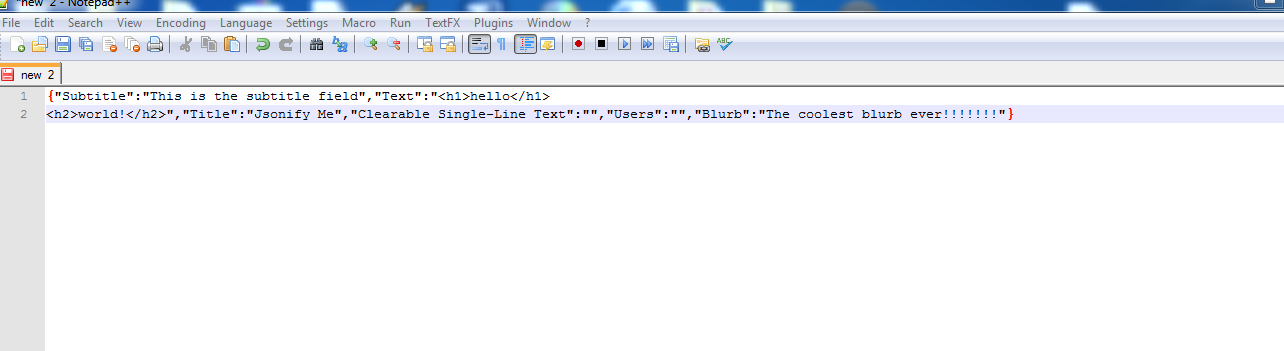
If you can think how this, or something similar could be useful, please drop a comment.
 SitecoreJunkie.com