Home » Sitecore Client (Page 5)
Category Archives: Sitecore Client
Periodically Unlock Items of Idle Users in Sitecore
In my last post I showed a way to unlock locked items of a user when he/she logs out of Sitecore.
I wrote that article to help out the poster of this thread in one of the forums on SDN.
In response to my reply in that thread — I had linked to my previous post in that reply — John West, Chief Technology Officer of Sitecore, had asked whether we would also want to unlock items of users whose sessions had expired, and another SDN user had alluded to the fact that my solution would not unlock items for users who had closed their browser sessions instead of explicitly logging out of Sitecore.
Immediate after reading these responses, I began thinking about a supplemental solution to unlock items for “idle” users — users who have not triggered any sort of request in Sitecore after a certain amount of time.
I first began tinkering with the idea of using the last activity date/time of the logged in user — this is available as a DateTime in the user’s MembershipUser instance via the LastActivityDate property.
However — after reading this article — I learned this date and time does not mean what I thought it had meant, and decided to search for another way to ascertain whether a user is idle in Sitecore.
After some digging around, I discovered Sitecore.Web.Authentication.DomainAccessGuard.Sessions in Sitecore.Kernel.dll — this appears to be a collection of sessions in Sitecore — and immediately felt elated as if I had just won the lottery. I decided to put it to use in the following class (code in this class will be invoked via a scheduled task in Sitecore):
using System;
using System.Collections.Generic;
using System.Web.Security;

using Sitecore.Configuration;
using Sitecore.Data;
using Sitecore.Data.Items;
using Sitecore.Diagnostics;
using Sitecore.Security.Accounts;
using Sitecore.Tasks;
using Sitecore.Web.Authentication;

namespace Sitecore.Sandbox.Tasks
{
    public class UnlockItemsTask
    {
        private static readonly TimeSpan ElapsedTimeWhenIdle = GetElapsedTimeWhenIdle();

        public void UnlockIdleUserItems(Item[] items, CommandItem command, ScheduleItem schedule)
        {
            if (ElapsedTimeWhenIdle == TimeSpan.Zero)
            {
                return;
            }

            IEnumerable<Item> lockedItems = GetLockedItems(schedule.Database);
            foreach (Item lockedItem in lockedItems)
            {
                UnlockIfApplicable(lockedItem);
            }
        }

        private static IEnumerable<Item> GetLockedItems(Database database)
        {
            Assert.ArgumentNotNull(database, "database");
            return database.SelectItems("fast://*[@__lock='%owner=%']");
        }

        private void UnlockIfApplicable(Item item)
        {
            Assert.ArgumentNotNull(item, "item");
            if (!ShouldUnlockItem(item))
            {
                return;
            }

            Unlock(item);
        }

        private static bool ShouldUnlockItem(Item item)
        {
            Assert.ArgumentNotNull(item, "item");
            if(!item.Locking.IsLocked())
            {
                return false;
            }

            string owner = item.Locking.GetOwner();
            return !IsUserAdmin(owner) && IsUserIdle(owner);
        }

        private static bool IsUserAdmin(string username)
        {
            Assert.ArgumentNotNullOrEmpty(username, "username");
            User user = User.FromName(username, false);
            Assert.IsNotNull(user, "User must be null due to a wrinkle in the interwebs :-/");
            return user.IsAdministrator;
        }

        private static bool IsUserIdle(string username)
        {
            Assert.ArgumentNotNullOrEmpty(username, "username");
            DomainAccessGuard.Session userSession = DomainAccessGuard.Sessions.Find(session => session.UserName == username);
            if(userSession == null)
            {
                return true;
            }

            return userSession.LastRequest.Add(ElapsedTimeWhenIdle) <= DateTime.Now;
        }

        private void Unlock(Item item)
        {
            Assert.ArgumentNotNull(item, "item");
            try
            {
                string owner = item.Locking.GetOwner();
                item.Editing.BeginEdit();
                item.Locking.Unlock();
                item.Editing.EndEdit();
                Log.Info(string.Format("Unlocked {0} - was locked by {1}", item.Paths.Path, owner), this);
            }
            catch (Exception ex)
            {
                Log.Error(this.ToString(), ex, this);
            }
        }

        private static TimeSpan GetElapsedTimeWhenIdle()
        {
            TimeSpan elapsedTimeWhenIdle;
            if (TimeSpan.TryParse(Settings.GetSetting("UnlockItems.ElapsedTimeWhenIdle"), out elapsedTimeWhenIdle))
            {
                return elapsedTimeWhenIdle;
            }

            return TimeSpan.Zero;
        }
    }
}
Methods in the class above grab all locked items in Sitecore via a fast query, and unlock them if the users of each are not administrators, and are idle — I determine this from an idle threshold value that is stored in a custom setting (see the patch configuration file below) and the last time the user had made any sort of request in Sitecore via his/her DomainAccessGuard.Session instance from Sitecore.Web.Authentication.DomainAccessGuard.Sessions.
If a DomainAccessGuard.Session instance does not exist for the user — it’s null — this means the user’s session had expired, so we should also unlock the item.
I’ve also included code to log which items have been unlocked by the Unlock method — for auditing purposes — and of course log exceptions if any are encountered — we must do all we can to support our support teams by capturing information in log files :).
I then created a patch configuration file to store our idle threshold value — I’ve used one minute here for testing (I can’t sit around all day waiting for items to unlock ;)):
<?xml version="1.0" encoding="utf-8"?>
<configuration xmlns:patch="http://www.sitecore.net/xmlconfig/">
  <sitecore>
    <settings>
      <setting name="UnlockItems.ElapsedTimeWhenIdle" value="00:00:01:00" />
    </settings>
  </sitecore>
</configuration>
I then created a task command for the class above in Sitecore:

I then mapped the task command to a scheduled task (to learn about scheduled tasks, see John West’s blog post where he discusses them):

Let’s light the fuse on this, and see what it does.
I logged into Sitecore using one of my test accounts, and locked some items:

I then logged into Sitecore using a different account in a different browser session, and navigated to one of the locked items:
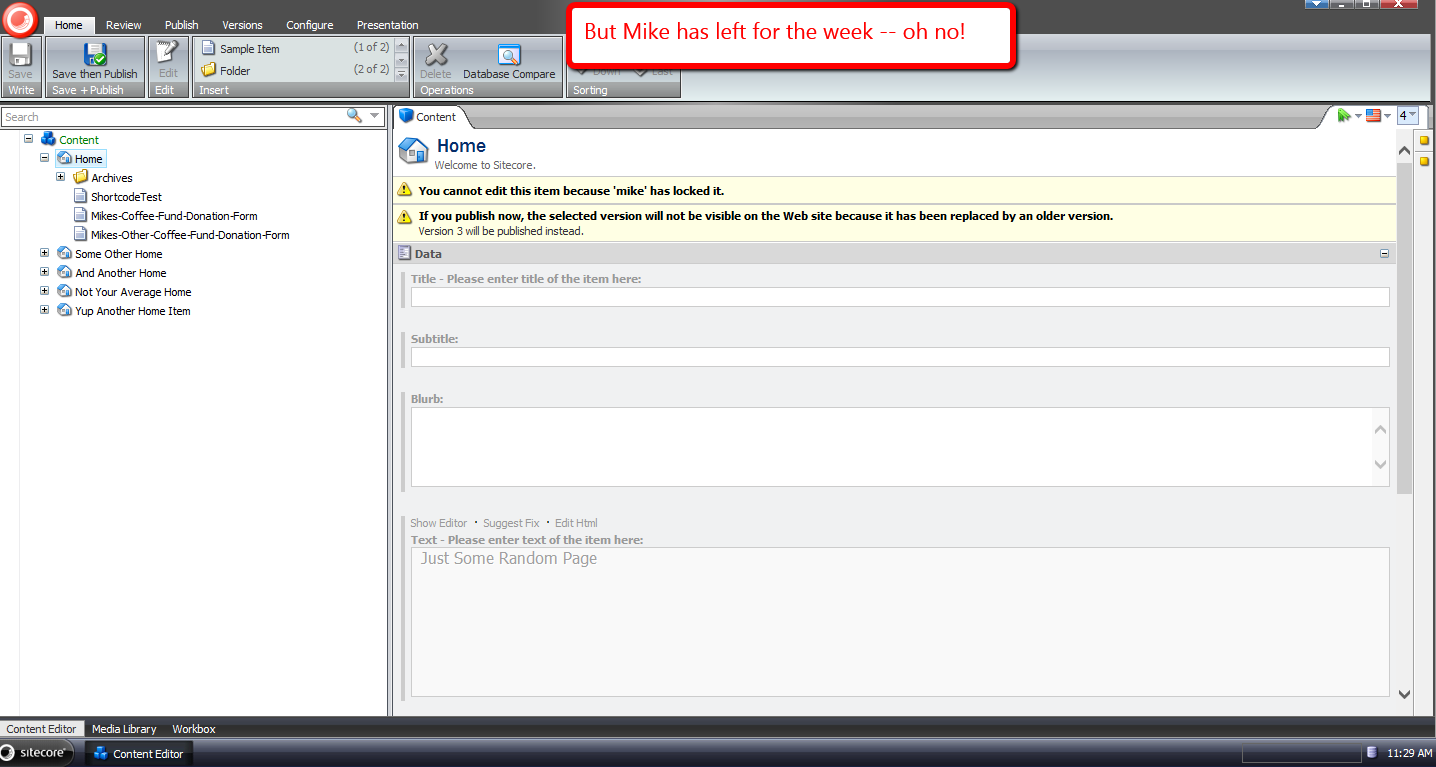
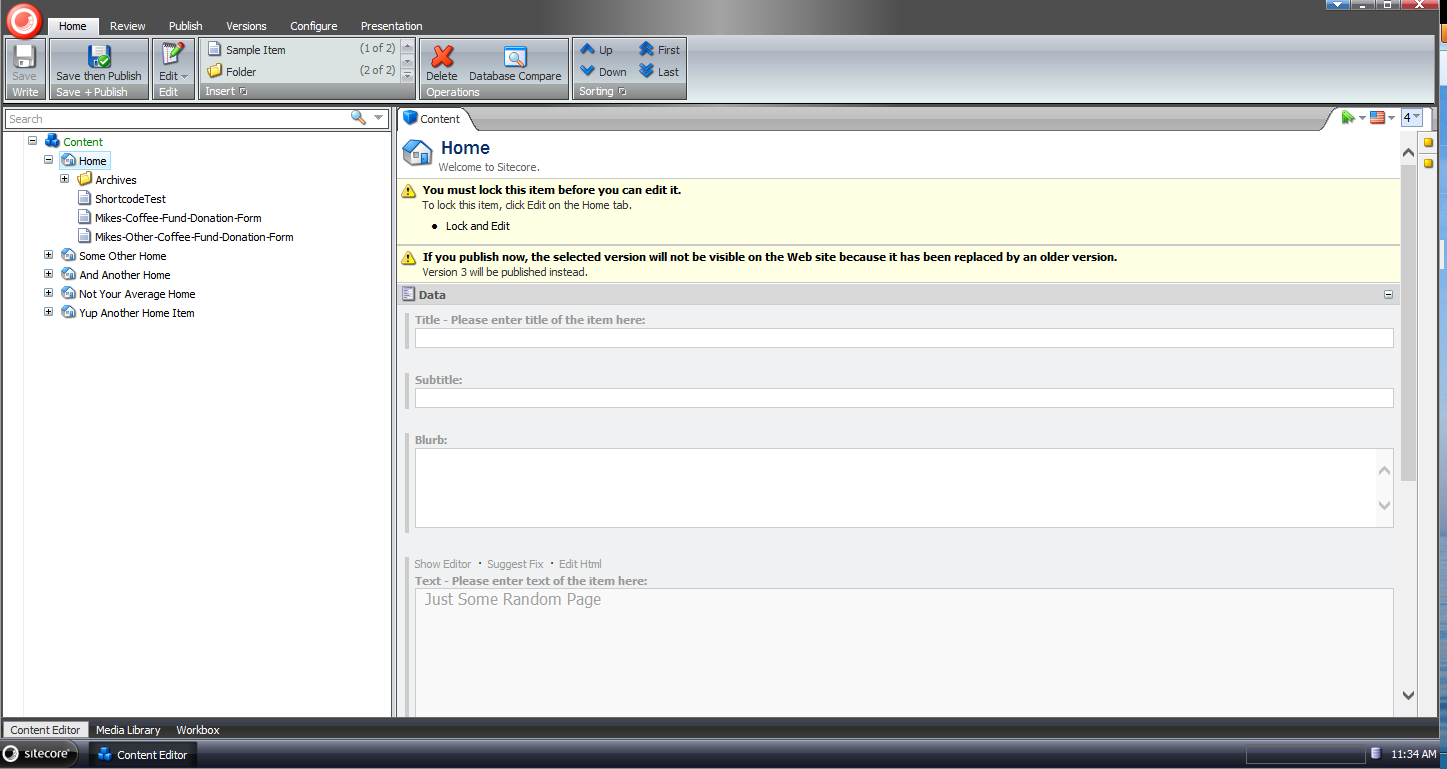
I then walked away, made a cup of coffee, returned, and saw this:
I opened up my latest Sitecore log, and saw the following:

I do want to caution you from running off with this code, and putting it into your Sitecore instance(s) — it is an all or nothing solution (it will unlock items for all non-adminstrators which might invoke some anger in users, and also defeat the purpose of locking items in the first place), so it’s quite important that a business decision is made before using this solution, or one that is similar in nature.
If you have any thoughts on this, please leave a comment.
Unlock Sitecore Users’ Items During Logout
The other day I saw a post in one of the SDN forums asking how one could go about building a solution to unlock items locked by a user when he/she logs out of Sitecore.
What immediately came to mind was building a new processor for the logout pipeline — this pipeline can be found at /configuration/sitecore/processors/logout in your Sitecore instance’s Web.config — but had to research how one would programmatically get all Sitecore items locked by the current user.
After a bit of fishing in Sitecore.Kernel.dll and Sitecore.Client.dll, I found a query in Sitecore.Client.dll that will give me all locked items for the current user:

Now all we need to do is add it into a custom logout pipeline processor:
using System;
using System.Collections.Generic;
using System.Linq;

using Sitecore.Data.Items;
using Sitecore.Diagnostics;
using Sitecore.Pipelines.Logout;

namespace Sitecore.Sandbox.Pipelines.Logout
{
    public class UnlockMyItems
    {
        public void Process(LogoutArgs args)
        {
            Assert.ArgumentNotNull(args, "args");
            UnlockMyItemsIfAny();
        }

        private void UnlockMyItemsIfAny()
        {
            IEnumerable<Item> lockedItems = GetMyLockedItems();
            if (!CanProcess(lockedItems))
            {
                return;
            }

            foreach (Item lockedItem in lockedItems)
            {
                Unlock(lockedItem);
            }
        }

        private static IEnumerable<Item> GetMyLockedItems()
        {
            return Context.ContentDatabase.SelectItems(GetMyLockedItemsQuery());
        }

        private static string GetMyLockedItemsQuery()
        {
            return string.Format("fast://*[@__lock='%\"{0}\"%']", Context.User.Name);
        }

        private static bool CanProcess(IEnumerable<Item> lockedItems)
        {
            return lockedItems != null
                    && lockedItems.Any()
                    && lockedItems.Select(item => item.Locking.HasLock()).Any();
        }

        private void Unlock(Item item)
        {
            Assert.ArgumentNotNull(item, "item");
            if (!item.Locking.HasLock())
            {
                return;
            }

            try
            {
                item.Editing.BeginEdit();
                item.Locking.Unlock();
                item.Editing.EndEdit();
            }
            catch (Exception ex)
            {
                Log.Error(this.ToString(), ex, this);
            }
        }
    }
}
The class above grabs all items locked by the current user in the context content database. If none are found, we don’t move forward on processing.
When there are locked items for the current user, the code checks to see if each item is locked before unlocking, just in case some other account unlocks the item before we unlock it — I don’t know what would happen if we try to unlock an item that isn’t locked. If you know, please share in a comment.
I then injected the above pipeline processor into the logout pipeline using the following patch configuration file:
<?xml version="1.0" encoding="utf-8" ?>
<configuration xmlns:patch="http://www.sitecore.net/xmlconfig/">
  <sitecore>
    <processors>
      <logout>
        <processor patch:after="*[@type='Sitecore.Pipelines.Logout.CheckModified, Sitecore.Kernel']" type="Sitecore.Sandbox.Pipelines.Logout.UnlockMyItems, Sitecore.Sandbox"/>
      </logout>
    </processors>
  </sitecore>
</configuration>
Let’s test-drive this.
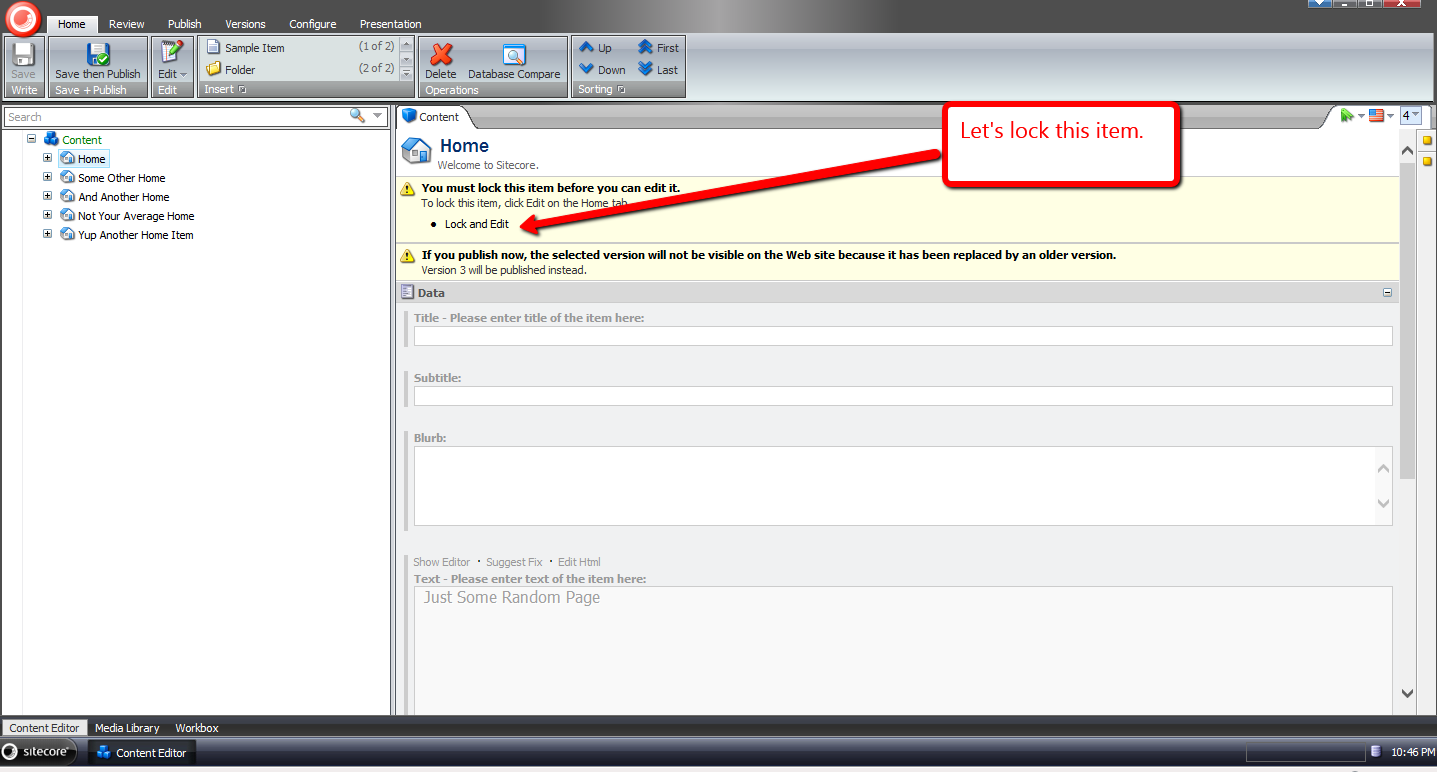
I first logged into Sitecore using my ‘mike’ account, and chose the Home item to lock:
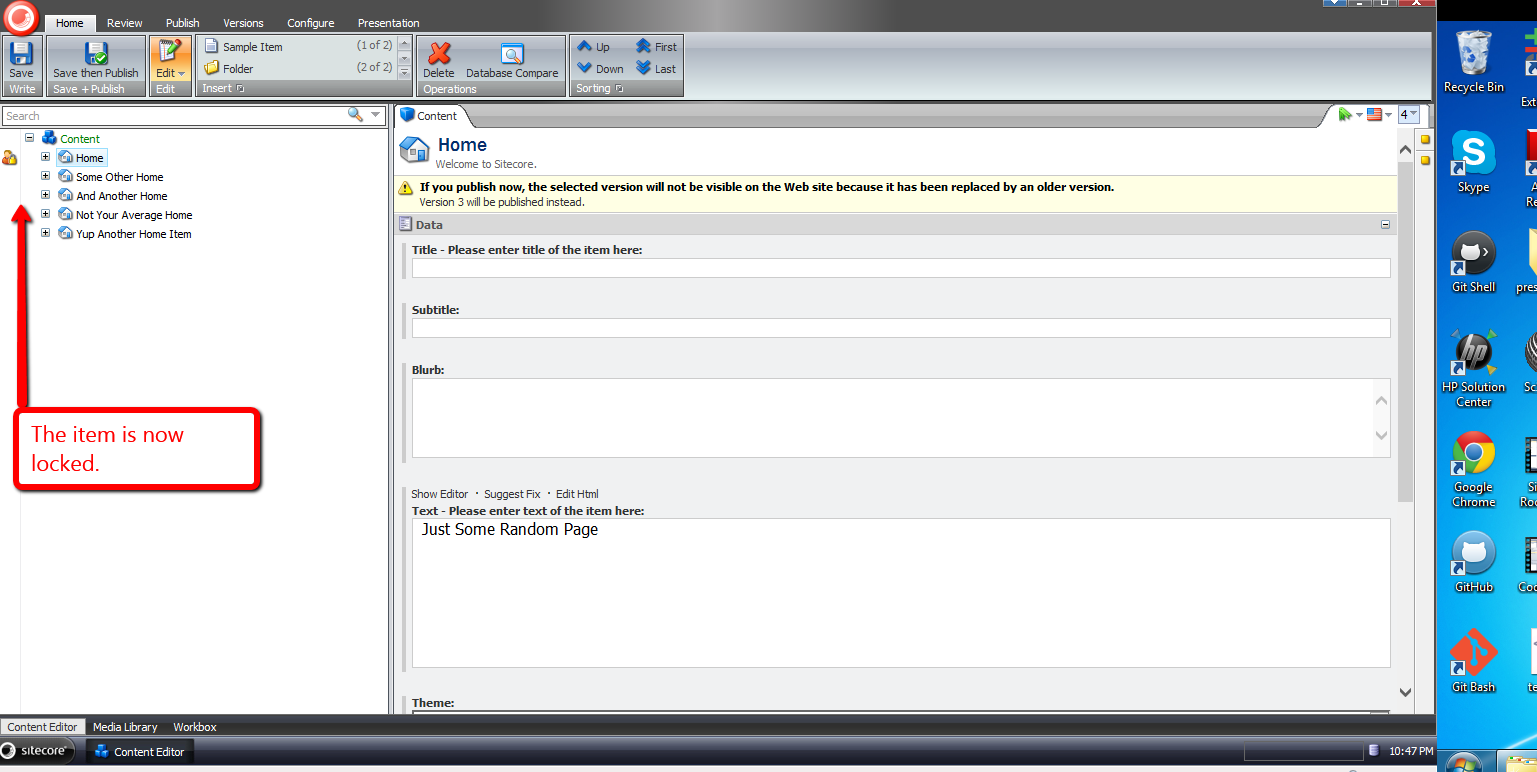
It is now locked:
In another session, I logged in using another account, and saw that ‘mike’ had locked the Home item:

I switched back to the other session under the ‘mike’ user, and logged out:

When I logged back in, I saw that the Home item was no longer locked:

If you have any thoughts or suggestions on making this better, please share in a comment below.
Delete Associated Files on the Filesystem of Sitecore Items Deleted From the Recycle Bin
Last week a question was asked in one of the SDN forums on how one should go about deleting files on the filesystem that are associated with Items that are permanently deleted from the Recycle Bin — I wasn’t quite clear on what the original poster meant by files being linked to Items inside of Sitecore, but I assumed this relationship would be defined somewhere, or somehow.
After doing some research, I reckoned one could create a new command based on Sitecore.Shell.Framework.Commands.Archives.Delete in Sitecore.Kernel.dll to accomplish this:
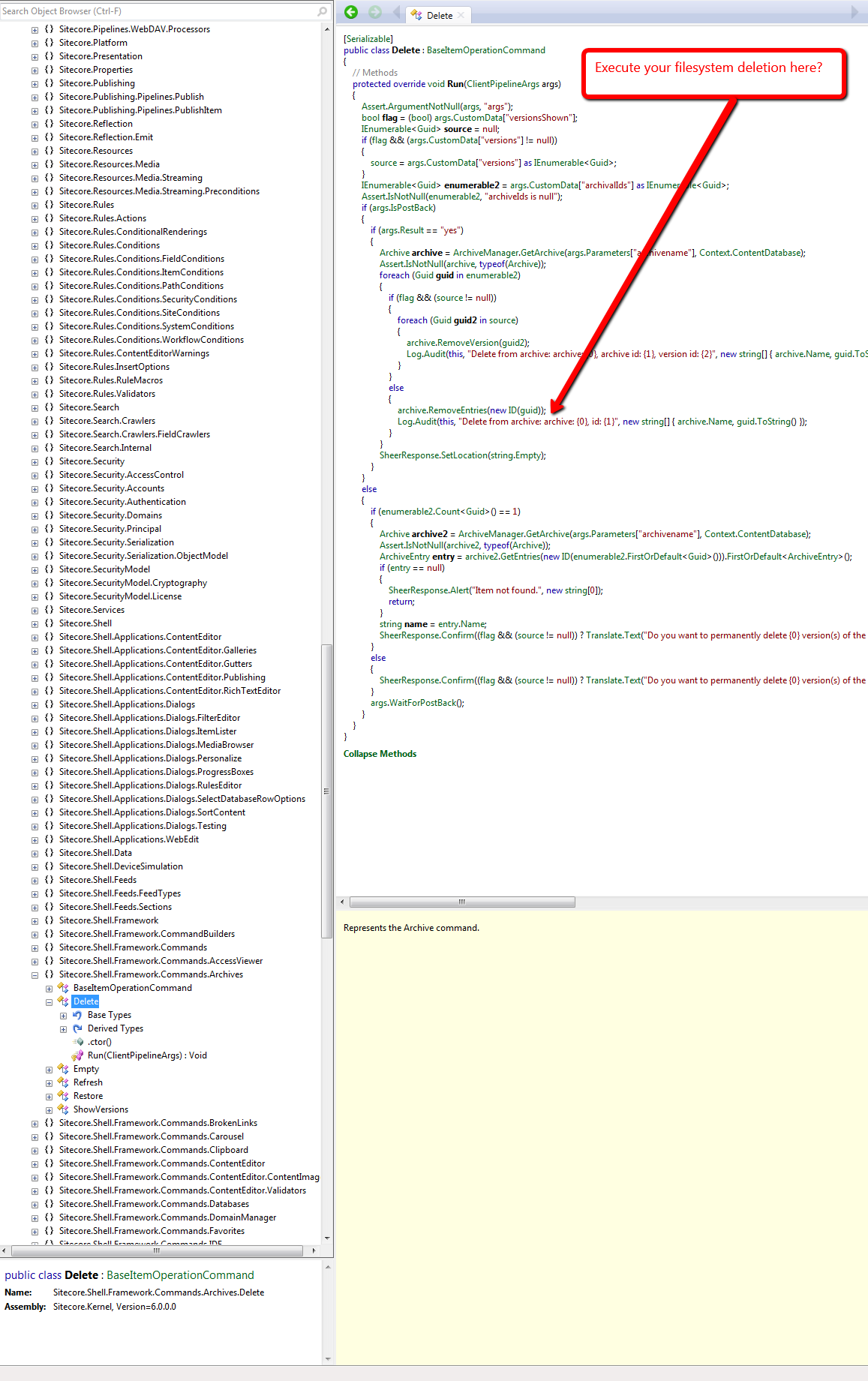
However, I wasn’t completely satisfied with this approach, especially when it would require a substantial amount of copying and pasting of code — a practice that I vehemently abhor — and decided to seek out a different, if not better, way of doing this.
From my research, I discovered that one could just create his/her own Archive class — it would have to ultimately derive from Sitecore.Data.Archiving.Archive in Sitecore.Kernel — which would delete a file on the filesystem associated with a Sitecore Item:
using System;
using System.IO;
using System.Linq;
using System.Web;

using Sitecore.Configuration;
using Sitecore.Data;
using Sitecore.Data.Archiving;
using Sitecore.Data.DataProviders.Sql;
using Sitecore.Diagnostics;

namespace Sitecore.Sandbox.Data.Archiving
{
    public class FileSystemHookSqlArchive : SqlArchive
    {
        private static readonly string FolderPath = GetFolderPath();

        public FileSystemHookSqlArchive(string name, Database database)
            : base(name, database)
        {
        }

        public override void RemoveEntries(ArchiveQuery query)
        {
            DeleteFromFileSystem(query);
            base.RemoveEntries(query);
        }

        protected virtual void DeleteFromFileSystem(ArchiveQuery query)
        {
            if (query.ArchivalId == Guid.Empty)
            {
                return;
            }

            Guid itemId = GetItemId(query.ArchivalId);
            if (itemId == Guid.Empty)
            {
                return;
            }

            string filePath = GetFilePath(itemId.ToString());
            if (string.IsNullOrWhiteSpace(filePath))
            {
                return;
            }

            TryDeleteFile(filePath);
        }

        private void TryDeleteFile(string filePath)
        {
            try
            {
                if (File.Exists(filePath))
                {
                    File.Delete(filePath);
                }
            }
            catch (Exception ex)
            {
                Log.Error(this.ToString(), ex, this);
            }
        }

        public virtual Guid GetItemId(Guid archivalId)
        {
            if (archivalId == Guid.Empty)
            {
                return Guid.Empty;
            }

            ArchiveQuery query = new ArchiveQuery
            {
                ArchivalId = archivalId
            };

            SqlStatement selectStatement = GetSelectStatement(query, "{0}ItemId{1}");
            if (selectStatement == null)
            {
                return Guid.Empty;
            }
            return GetGuid(selectStatement.Sql, selectStatement.GetParameters(), Guid.Empty);
        }

        private Guid GetGuid(string sql, object[] parameters, Guid defaultValue)
        {
            using (DataProviderReader reader = Api.CreateReader(sql, parameters))
            {
                if (!reader.Read())
                {
                    return defaultValue;
                }
                return Api.GetGuid(0, reader);
            }
        }

        private static string GetFilePath(string fileName)
        {
            string filePath = Directory.GetFiles(FolderPath, string.Concat(fileName, "*.*")).FirstOrDefault();
            if (!string.IsNullOrWhiteSpace(filePath))
            {
                return filePath;
            }

            return string.Empty;
        }

        private static string GetFolderPath()
        {
            return HttpContext.Current.Server.MapPath(Settings.GetSetting("FileSystemHookSqlArchive.Folder"));
        }
    }
}
In the subclass of Sitecore.Data.Archiving.SqlArchive above — I’m using Sitecore.Data.Archiving.SqlArchive since I’m using SqlServer for my Sitecore instance — I try to find a file that is named after its associated Item’s ID — minus the curly braces — in a folder that I’ve mapped in a configuration include file (see below).
I first have to get the Item’s ID from the database using the supplied ArchivalId — this is all the calling code gives us, so we have to make do with what we have.
If the file exists, we try to delete it — we do this before letting the base class delete the Item from Recycle Bin so that we can retrieve the Item’s ID from the database before it’s removed from the Archive database table — and log any errors we encounter upon exception.
I then hooked in an instance of the above Archive class in a custom Sitecore.Data.Archiving.ArchiveProvider class:
using System.Xml;

using Sitecore.Data;
using Sitecore.Data.Archiving;
using Sitecore.Xml;

namespace Sitecore.Sandbox.Data.Archiving
{
    public class FileSystemHookSqlArchiveProvider : SqlArchiveProvider
    {
        protected override Archive GetArchive(XmlNode configNode, Database database)
        {
            string attribute = XmlUtil.GetAttribute("name", configNode);
            if (string.IsNullOrEmpty(attribute))
            {
                return null;
            }

            return new FileSystemHookSqlArchive(attribute, database);
        }
    }
}
The above class — which derives from Sitecore.Data.Archiving.SqlArchiveProvider since I’m using SqlServer — only overrides its base class’s GetArchive factory method. We instantiate an instance of our Archive class instead of the “out of the box” Sitecore.Data.Archiving.SqlArchive class within it.
I then had to replace the “out of the box” Sitecore.Data.Archiving.ArchiveProvider reference, and define the location of our files in the following configuration file:
<?xml version="1.0" encoding="utf-8"?>
<configuration xmlns:patch="http://www.sitecore.net/xmlconfig/">
  <sitecore>
    <archives defaultProvider="sql" enabled="true">
      <providers>
        <add name="sql" patch:instead="add[@type='Sitecore.Data.Archiving.SqlArchiveProvider, Sitecore.Kernel']" type="Sitecore.Sandbox.Data.Archiving.FileSystemHookSqlArchiveProvider, Sitecore.Sandbox" database="*"/>
      </providers>
    </archives>
    <settings>
      <setting name="FileSystemHookSqlArchive.Folder" value="/test/" />
    </settings>
  </sitecore>
</configuration>
Let’s test this out.
I first created a test Item to delete:

I then had to create a test file on the filesystem in my test folder — the test folder lives in my Sitecore instance’s website root:

I deleted the test Item from the content tree, opened up the Recycle Bin, selected the test Item, and got an itchy trigger finger — I want to delete the Item forever 🙂 :

After clicking the Delete button, I saw that the file on the filesystem was deleted as well:

If you have any thoughts on this, or recommendations around making it better, please leave a comment.
Navigate to Base Templates of a Template using a Sitecore Command
Have you ever said to yourself when looking at base templates of a template in its Content tab “wouldn’t it be great if I could easily navigate to one of these?”
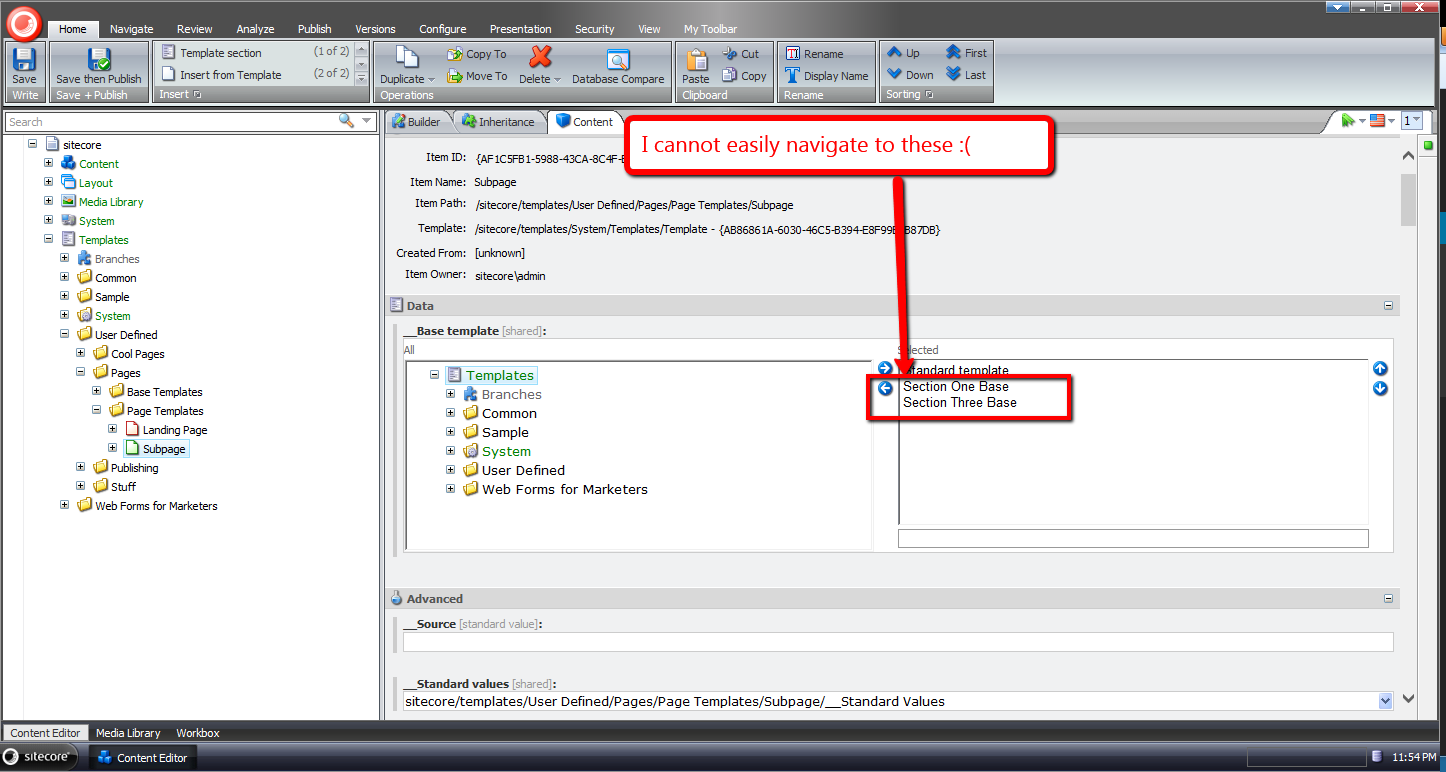
I have had this thought more than once despite having the ability to do this in a template’s Inheritance tab — you can do this by clicking one of the base template links listed:
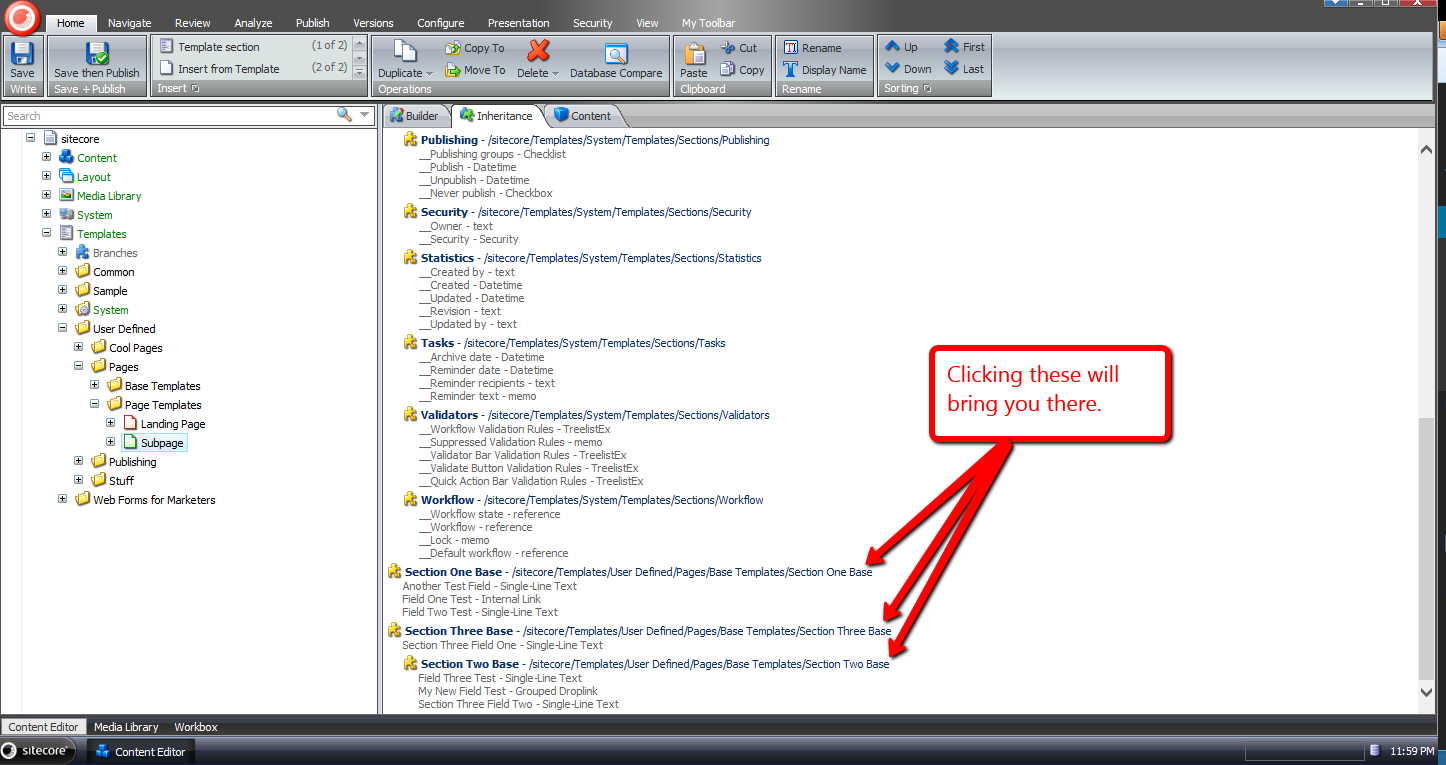
For some reason I sometimes forget you have the ability to get to a base template of a template in the Inheritance tab — why I forget is no doubt a larger issue I should try to tackle, albeit I’ll leave that for another day — and decided to build something that will be more difficult for me to forget: launching a dialog via a new item context menu option, and selecting one of the base templates of a template in that dialog.
I decided to atomize functionality in my solution by building custom pipelines/processors wherever I felt doing so made sense.
I started off by building a custom pipeline that gets base templates for a template, and defined a data transfer object (DTO) class for it:
using System.Collections.Generic;

using Sitecore.Data.Items;
using Sitecore.Pipelines;
using Sitecore.Web.UI.Sheer;

namespace Sitecore.Sandbox.Shell.Framework.Pipelines
{
    public class GetBaseTemplatesArgs : PipelineArgs
    {
        public TemplateItem TemplateItem { get; set; }

        public bool IncludeAncestorBaseTemplates { get; set; }

        private List<TemplateItem> _BaseTemplates;
        public List<TemplateItem> BaseTemplates
        {
            get
            {
                if (_BaseTemplates == null)
                {
                    _BaseTemplates = new List<TemplateItem>();
                }

                return _BaseTemplates;
            }
            set
            {
                _BaseTemplates = value;
            }
        }
    }
}
Client code must supply the template item that will be used as the starting point for gathering base templates, and can request all ancestor base templates — excluding the Standard Template as you will see below — by setting the IncludeAncestorBaseTemplates property to true.
I then created a class with a Process method that will serve as the only pipeline processor for my new pipeline:
using System;
using System.Collections.Generic;
using System.Linq;
using System.Text;

using Sitecore.Data.Items;
using Sitecore.Diagnostics;

namespace Sitecore.Sandbox.Shell.Framework.Pipelines
{
    public class GetBaseTemplates
    {
        public void Process(GetBaseTemplatesArgs args)
        {
            Assert.ArgumentNotNull(args, "args");
            Assert.ArgumentNotNull(args.TemplateItem, "args.TemplateItem");
            List<TemplateItem> baseTemplates = new List<TemplateItem>();
            GatherBaseTemplateItems(baseTemplates, args.TemplateItem, args.IncludeAncestorBaseTemplates);
            args.BaseTemplates = baseTemplates;
        }

        private static void GatherBaseTemplateItems(List<TemplateItem> baseTemplates, TemplateItem templateItem, bool includeAncestors)
        {
            if (includeAncestors)
            {
                foreach (TemplateItem baseTemplateItem in templateItem.BaseTemplates)
                {
                    GatherBaseTemplateItems(baseTemplates, baseTemplateItem, includeAncestors);
                }
            }

            if (!IsStandardTemplate(templateItem) && templateItem.BaseTemplates != null && templateItem.BaseTemplates.Any())
            {
                baseTemplates.AddRange(GetBaseTemplatesExcludeStandardTemplate(templateItem.BaseTemplates));
            }
        }

        private static IEnumerable<TemplateItem> GetBaseTemplatesExcludeStandardTemplate(TemplateItem templateItem)
        {
            if (templateItem == null)
            {
                return new List<TemplateItem>();
            }

            return GetBaseTemplatesExcludeStandardTemplate(templateItem.BaseTemplates);
        }

        private static IEnumerable<TemplateItem> GetBaseTemplatesExcludeStandardTemplate(IEnumerable<TemplateItem> baseTemplates)
        {
            if (baseTemplates != null && baseTemplates.Any())
            {
                return baseTemplates.Where(baseTemplate => !IsStandardTemplate(baseTemplate));
            }

            return baseTemplates;
        }

        private static bool IsStandardTemplate(TemplateItem templateItem)
        {
            return templateItem.ID == TemplateIDs.StandardTemplate;
        }
    }
}
Methods in the above class add base templates to a list when the templates are not the Standard Template — I thought it would be a rare occurrence for one to navigate to it, and decided not to include it in the collection.
Further, the method that gathers base templates is recursively executed when client code requests all ancestor base templates be include in the collection.
The next thing I built was functionality to prompt the user for a base template via a dialog, and track which base template was chosen. I decided to do this using a custom client processor, and built the following DTO for it:
using System;
using System.Collections.Generic;
using System.Linq;
using System.Text;
using Sitecore.Web.UI.Sheer;
using Sitecore.Data.Items;

namespace Sitecore.Sandbox.Shell.Framework.Pipelines
{
    public class GotoBaseTemplateArgs : ClientPipelineArgs
    {
        public TemplateItem TemplateItem { get; set; }

        public string SelectedBaseTemplateId { get; set; }
    }
}
Just like the other DTO defined above, client code must suppy a template item. The SelectedBaseTemplateId property is set after a user selects a base template in the modal launched by the following class:
using System.Collections.Generic;
using System.Linq;

using Sitecore.Data.Items;
using Sitecore.Data.Managers;
using Sitecore.Diagnostics;
using Sitecore.Pipelines;
using Sitecore.Shell.Applications.Dialogs.ItemLister;
using Sitecore.Web.UI.Sheer;

namespace Sitecore.Sandbox.Shell.Framework.Pipelines
{
    public class GotoBaseTemplate
    {
        public string SelectTemplateButtonText { get; set; }

        public string ModalIcon { get; set; }

        public string ModalTitle { get; set; }

        public string ModalInstructions { get; set; }

        public void SelectBaseTemplate(GotoBaseTemplateArgs args)
        {
            Assert.ArgumentNotNull(args, "args");
            Assert.ArgumentNotNull(args.TemplateItem, "args.TemplateItem");
            Assert.ArgumentNotNullOrEmpty(SelectTemplateButtonText, "SelectTemplateButtonText");
            Assert.ArgumentNotNullOrEmpty(ModalIcon, "ModalIcon");
            Assert.ArgumentNotNullOrEmpty(ModalTitle, "ModalTitle");
            Assert.ArgumentNotNullOrEmpty(ModalInstructions, "ModalInstructions");

            if (!args.IsPostBack)
            {
                ItemListerOptions itemListerOptions = new ItemListerOptions
                {
                    ButtonText = SelectTemplateButtonText,
                    Icon = ModalIcon,
                    Title = ModalTitle,
                    Text = ModalInstructions
                };

                itemListerOptions.Items = GetBaseTemplateItemsForSelection(args.TemplateItem).Select(template => template.InnerItem).ToList();
                itemListerOptions.AddTemplate(TemplateIDs.Template);
                SheerResponse.ShowModalDialog(itemListerOptions.ToUrlString().ToString(), true);
                args.WaitForPostBack();
            }
            else if (args.HasResult)
            {
                args.SelectedBaseTemplateId = args.Result;
                args.IsPostBack = false;
            }
            else
            {
                args.AbortPipeline();
            }
        }

        private IEnumerable<TemplateItem> GetBaseTemplateItemsForSelection(TemplateItem templateItem)
        {
            GetBaseTemplatesArgs args = new GetBaseTemplatesArgs
            {
                TemplateItem = templateItem,
                IncludeAncestorBaseTemplates = true,
            };
            CorePipeline.Run("getBaseTemplates", args);
            return args.BaseTemplates;
        }

        public void Execute(GotoBaseTemplateArgs args)
        {
            Assert.ArgumentNotNull(args, "args");
            Assert.ArgumentNotNullOrEmpty(args.SelectedBaseTemplateId, "args.SelectedBaseTemplateId");
            Context.ClientPage.ClientResponse.Timer(string.Format("item:load(id={0})", args.SelectedBaseTemplateId), 1);
        }
    }
}
The SelectBaseTemplate method above gives the user a list of base templates to choose from — this includes all ancestor base templates of a template minus the Standard Template.
The title, icon, helper text of the modal are supplied via the processor’s xml node in its configuration file — you’ll see this later on in this post.
Once a base template is chosen, its Id is then set in the SelectedBaseTemplateId property of the GotoBaseTemplateArgs instance.
The Execute method brings the user to the selected base template item in the Sitecore content tree.
Now we need a way to launch the code above.
I did this using a custom command that will be wired up to the item context menu:
using System.Collections.Generic;
using System.Linq;

using Sitecore.Data.Items;
using Sitecore.Data.Managers;
using Sitecore.Diagnostics;
using Sitecore.Shell.Framework.Commands;

using Sitecore.Sandbox.Shell.Framework.Pipelines;
using Sitecore.Web.UI.Sheer;
using Sitecore.Pipelines;

namespace Sitecore.Sandbox.Commands
{
    public class GotoBaseTemplateCommand : Command
    {
        public override void Execute(CommandContext context)
        {
            Context.ClientPage.Start("gotoBaseTemplate", new GotoBaseTemplateArgs { TemplateItem = GetItem(context) });
        }

        public override CommandState QueryState(CommandContext context)
        {
            if (ShouldEnable(GetItem(context)))
            {
                return CommandState.Enabled;
            }

            return CommandState.Hidden;
        }

        private static bool ShouldEnable(Item item)
        {
            return item != null
                    && IsTemplate(item)
                    && GetBaseTemplates(item).Any();
        }

        private static Item GetItem(CommandContext context)
        {
            Assert.ArgumentNotNull(context, "context");
            Assert.ArgumentNotNull(context.Items, "context.Items");
            return context.Items.FirstOrDefault();
        }

        private static bool IsTemplate(Item item)
        {
            Assert.ArgumentNotNull(item, "item");
            return TemplateManager.IsTemplate(item);
        }

        private static IEnumerable<TemplateItem> GetBaseTemplates(TemplateItem templateItem)
        {
            Assert.ArgumentNotNull(templateItem, "templateItem");
            GetBaseTemplatesArgs args = new GetBaseTemplatesArgs
            {
                TemplateItem = templateItem,
                IncludeAncestorBaseTemplates = false
            };

            CorePipeline.Run("getBaseTemplates", args);
            return args.BaseTemplates;
        }
    }
}
The command above is visible only when the item is a template, and has base templates on it — we invoke the custom pipeline built above to get base templates.
When the command is invoked, we call our custom client processor to prompt the user for a base template to go to.
I then glued everything together using the following configuration file:
<?xml version="1.0" encoding="utf-8" ?>
<configuration>
  <sitecore>
    <commands>
      <command name="item:GotoBaseTemplate" type="Sitecore.Sandbox.Commands.GotoBaseTemplateCommand, Sitecore.Sandbox"/>
    </commands>
    <pipelines>
      <getBaseTemplates>
        <processor type="Sitecore.Sandbox.Shell.Framework.Pipelines.GetBaseTemplates, Sitecore.Sandbox"/>
      </getBaseTemplates>
    </pipelines>
    <processors>
      <gotoBaseTemplate>
        <processor mode="on" type="Sitecore.Sandbox.Shell.Framework.Pipelines.GotoBaseTemplate, Sitecore.Sandbox" method="SelectBaseTemplate">
          <SelectTemplateButtonText>OK</SelectTemplateButtonText>
          <ModalIcon>Applications/32x32/nav_up_right_blue.png</ModalIcon>
          <ModalTitle>Select A Base Template</ModalTitle>
          <ModalInstructions>Select the base template you want to navigate to.</ModalInstructions>
        </processor>
        <processor mode="on" type="Sitecore.Sandbox.Shell.Framework.Pipelines.GotoBaseTemplate, Sitecore.Sandbox" method="Execute"/>
      </gotoBaseTemplate>
    </processors>
  </sitecore>
</configuration>
I’ve left out how I’ve added the command shown above to the item context menu in the core database. For more information on adding to the item context menu, please see part one and part two of my post showing how to do this.
Let’s see how we did.
I first created some templates for testing. The following template named ‘Meta’ uses two other test templates as base templates:

I also created a ‘Base Page’ template which uses the ‘Meta’ template above:

Next I created ‘The Coolest Page Template Ever’ template — this uses the ‘Base Page’ template as its base template:

I then right-clicked on ‘The Coolest Page Template Ever’ template to launch its context menu, and selected our new menu option:
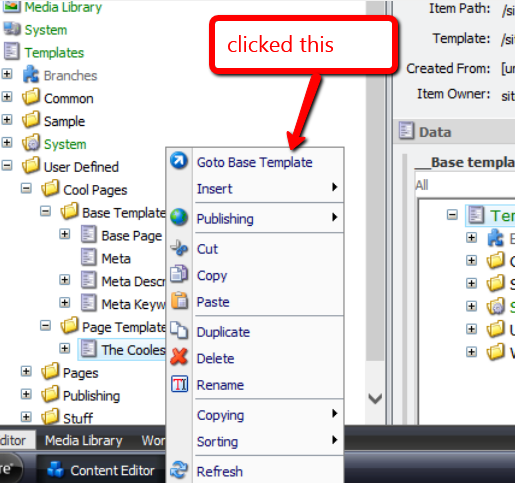
I was then presented with a dialog asking me to select the base template I want to navigate to:

I chose one of the base templates, and clicked ‘OK’:

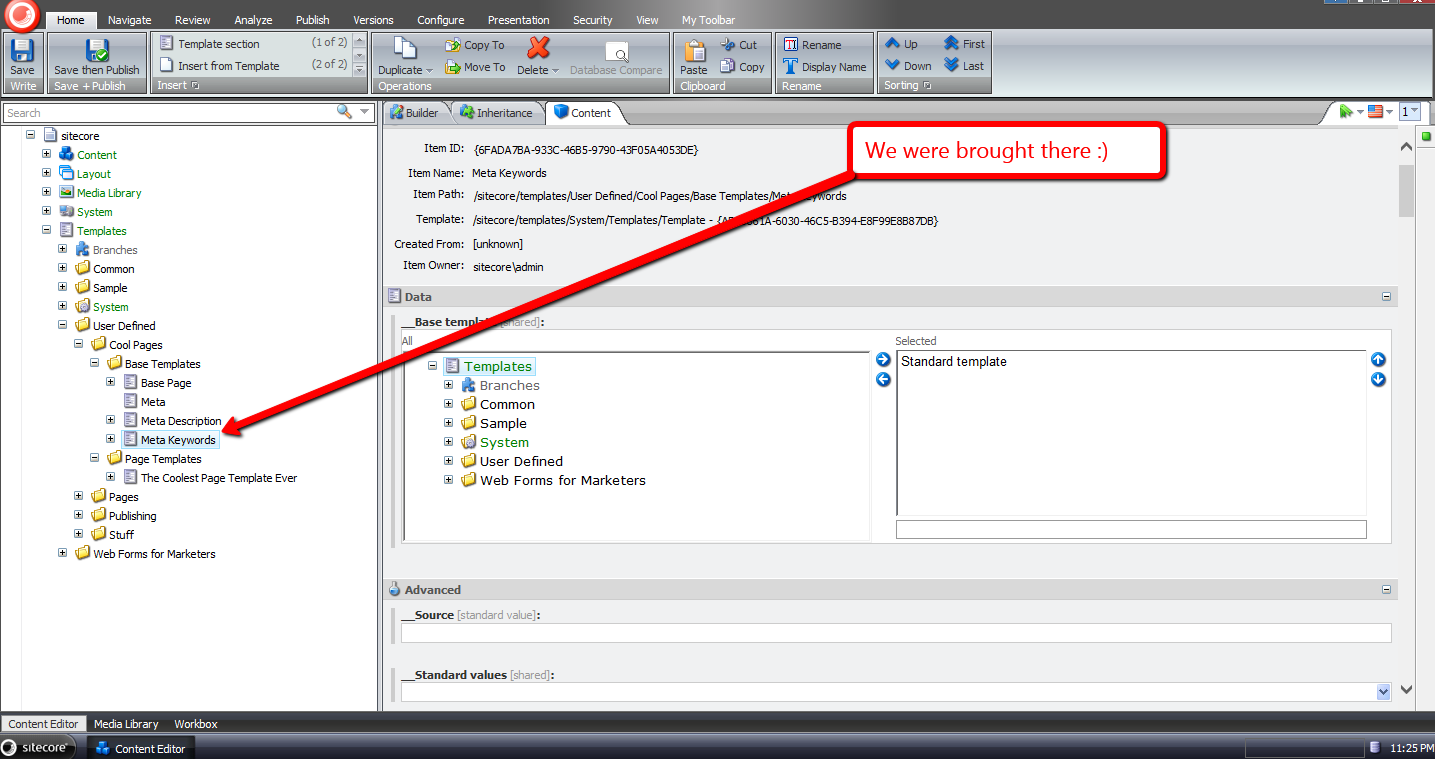
I was then brought to the base template I had chosen:
If you have any thoughts on this, please leave a comment.
Content Manage Links to File System Favicons for Multiple Sites Managed in Sitecore
Earlier today someone started a thread in one of the SDN forums asking how to go about adding the ability to have a different favicon for each website managed in the same instance of Sitecore.
I had implemented this in the past for a few clients, and thought I should write a post on how I had done this.
In most of those solutions, the site’s start item would contain a “server file” field — yes I know it’s deprecated but it works well for this (if you can suggested a better field type to use, please leave a comment below) — that would point to a favicon on the file system:

Content authors/editors can then choose the appropriate favicon for each site managed in their Sitecore instance — just like this:

Not long after the SDN thread was started, John West — Chief Technology Officer at Sitecore USA — wrote a quick code snippet, followed by a blog post on how one might go about doing this.
John’s solution is a different than the one I had used in the past — each site’s favicon is defined on its site node in the Web.config.
After seeing John’s solution, I decided I would create a hybrid solution — the favicon set on the start item would have precedence over the one defined on the site node in the Web.config. In other words, the favicon defined on the site node would be a fallback.
For this hybrid solution, I decided to create a custom pipeline to retrieve the favicon for the context site, and created the following pipeline arguments class for it:
using System.Web.UI;

using Sitecore.Pipelines;

namespace Sitecore.Sandbox.Pipelines.GetFavicon
{
    public class FaviconTryGetterArgs : PipelineArgs
    {
        public string FaviconUrl { get; set; }

        public Control FaviconControl{ get; set; }
    }
}
The idea is to have pipeline processors set the URL of the favicon if possible, and have another processor create an ASP.NET control for the favicon when the URL is supplied.
The following class embodies this high-level idea:
using System;

using System.Web.UI;
using System.Web.UI.HtmlControls;

using Sitecore;
using Sitecore.Configuration;
using Sitecore.Data.Fields;
using Sitecore.Data.Items;
using Sitecore.Diagnostics;
using Sitecore.Sandbox.Utilities.Extensions;

namespace Sitecore.Sandbox.Pipelines.GetFavicon
{
    public class FaviconTryGetter
    {
        private string FaviconFieldName { get; set; }

        public void TryGetFromStartItem(FaviconTryGetterArgs args)
        {
            Assert.ArgumentNotNull(args, "args");
            bool canProcess = !string.IsNullOrWhiteSpace(FaviconFieldName)
                                && Context.Site != null
                                && !string.IsNullOrWhiteSpace(Context.Site.StartPath);

            if (!canProcess)
            {
                return;
            }

            Item startItem = Context.Database.GetItem(Context.Site.StartPath);
            args.FaviconUrl = startItem[FaviconFieldName];
        }

        public void TryGetFromSite(FaviconTryGetterArgs args)
        {
            Assert.ArgumentNotNull(args, "args");
            bool canProcess = Context.Site != null
                                && string.IsNullOrWhiteSpace(args.FaviconUrl);

            if (!canProcess)
            {
                return;
            }

			/* GetFavicon is an extension method borrowed from John West. You can find it at  http://www.sitecore.net/Community/Technical-Blogs/John-West-Sitecore-Blog/Posts/2013/08/Use-Different-Shortcut-Icons-for-Different-Managed-Sites-with-the-Sitecore-ASPNET-CMS.aspx
            */
            args.FaviconUrl = Context.Site.GetFavicon();
        }

        public void TryGetFaviconControl(FaviconTryGetterArgs args)
        {
            Assert.ArgumentNotNull(args, "args");
            if(string.IsNullOrWhiteSpace(args.FaviconUrl))
            {
                return;
            }

            args.FaviconControl = CreateNewFaviconControl(args.FaviconUrl);
        }

        private static Control CreateNewFaviconControl(string faviconUrl)
        {
            Assert.ArgumentNotNullOrEmpty(faviconUrl, "faviconUrl");
            HtmlLink link = new HtmlLink();
            link.Attributes.Add("type", "image/x-icon");
            link.Attributes.Add("rel", "icon");
            link.Href = faviconUrl;
            return link;
        }
    }
}
The TryGetFromStartItem method tries to get the favicon set on the favicon field on the start item — the name of the field is supplied via one of the processors defined in the configuration include file below — and sets it on the FaviconUrl property of the FaviconTryGetterArgs instance supplied by the caller.
If the field name for the field containing the favicon is not supplied, or there is something wrong with either the context site or the start item’s path, then the method does not finish executing.
The TryGetFromSite method is similar to what John had done in his post. It uses the same exact extension method John had used for getting the favicon off of a “favicon” attribute set on the context site’s node in the Web.config — I have omitted this extension method and its class since you can check it out in John’s post.
If a URL is set by either of the two methods discussed above, the TryGetFaviconControl method creates an instance of an HtmlLink System.Web.UI.HtmlControls.HtmlControl, sets the appropriate attributes for an html favicon link tag, and sets it in the FaviconControl property of the FaviconTryGetterArgs instance.
I assembled the methods above into a new getFavicon pipeline in the following configuration include file, and also set a fallback favicon for my local sandbox site’s configuration element:
<?xml version="1.0" encoding="utf-8"?>
<configuration xmlns:patch="http://www.sitecore.net/xmlconfig/">
  <sitecore>
    <pipelines>
      <getFavicon>
        <processor type="Sitecore.Sandbox.Pipelines.GetFavicon.FaviconTryGetter, Sitecore.Sandbox" method="TryGetFromStartItem">
          <FaviconFieldName>Favicon</FaviconFieldName>
        </processor>
        <processor type="Sitecore.Sandbox.Pipelines.GetFavicon.FaviconTryGetter, Sitecore.Sandbox" method="TryGetFromSite" />
        <processor type="Sitecore.Sandbox.Pipelines.GetFavicon.FaviconTryGetter, Sitecore.Sandbox" method="TryGetFaviconControl" />
      </getFavicon>
    </pipelines>
    <sites>
      <site name="website">
        <patch:attribute name="favicon">/sitecore.ico</patch:attribute>
      </site>
    </sites>
  </sitecore>
</configuration>
Just as John West had done in his post, I created a custom WebControl for rendering the favicon, albeit the following class invokes our new pipeline above to get the favicon ASP.NET control:
using System.Web.UI;

using Sitecore.Pipelines;
using Sitecore.Sandbox.Pipelines.GetFavicon;
using Sitecore.Web.UI;

namespace Sitecore.Sandbox.WebControls
{
    public class Favicon : WebControl
    {
        protected override void DoRender(HtmlTextWriter output)
        {
            FaviconTryGetterArgs args = new FaviconTryGetterArgs();
            CorePipeline.Run("getFavicon", args);
            if (args.FaviconControl != null)
            {
                args.FaviconControl.RenderControl(output);
            }
        }
    }
}
If a favicon Control is supplied by our new getFavicon pipeline, the WebControl then delegates rendering responsibility to it.
I then defined an instance of the WebControl above in my default layout:
<%@ Register TagPrefix="sj" Namespace="Sitecore.Sharedsource.Web.UI.WebControls" Assembly="Sitecore.Sharedsource" %>
...
<html>
  <head>
  ...
  <sj:Favicon runat="server" />
  ...
For testing, I found a favicon generator website out on the internet — I won’t share this since it’s appeared to be a little suspect — and created a smiley face favicon. I set this on my start item, and published:

After clearing it out on my start item, and publishing, the fallback Sitecore favicon appears:
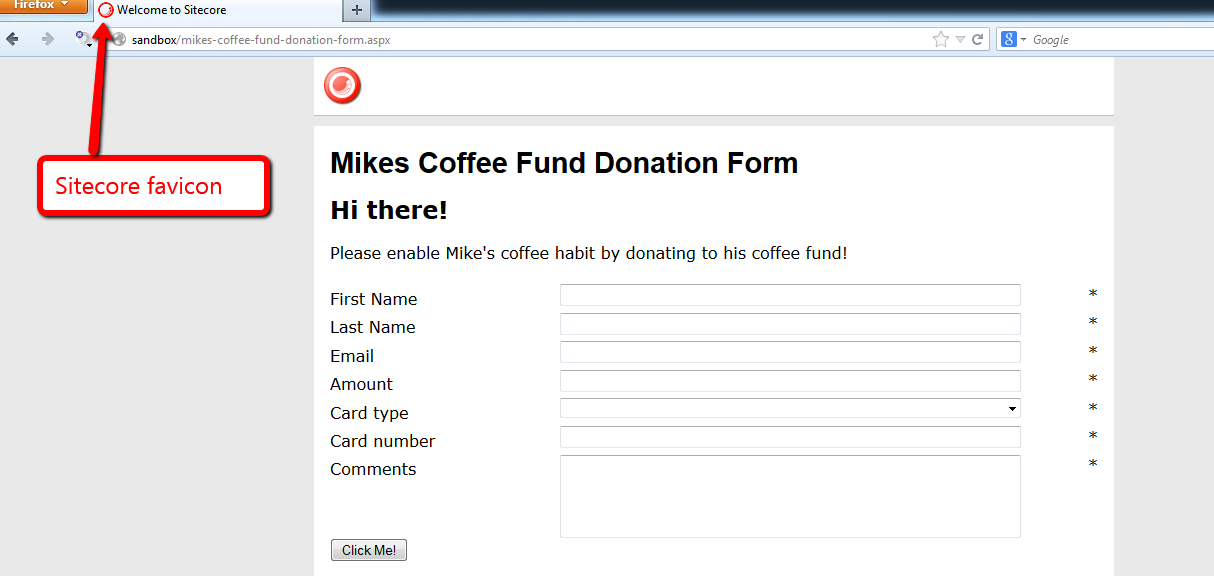
When you remove all favicons, none appear.

If you have any thoughts, suggestions, or comments on this, please share below.
Delete An Item Across Multiple Databases in Sitecore
Have you ever thought “wouldn’t it be handy to have the ability to delete an item across multiple databases in Sitecore?” In other words, wouldn’t it be nice to not have to publish the parent of an item — with sub-items — after deleting it, just to remove it from a target database?
This particular thought has crossed my mind more than once, and I decided to do something about it. This post showcases what I’ve done.
I spent some time surfing through Sitecore.Kernel.dll and Sitecore.Client.dll in search of a dialog that allows users to select multiple options simultaneously but came up shorthanded — if you are aware of one, please leave a comment — so I had to roll my own:
<?xml version="1.0" encoding="utf-8" ?>
<control xmlns:def="Definition" xmlns="http://schemas.sitecore.net/Visual-Studio-Intellisense">
	<DeleteInDatabases>
		<FormDialog ID="DeleteInDatabasesDialog" Icon="Business/32x32/data_delete.png" Header="Delete Item In Databases"
		  Text="Select the databases where you want to delete the item." OKButton="Delete">

		  <CodeBeside Type="Sitecore.Sandbox.Shell.Applications.Dialogs.DeleteInDatabasesForm,Sitecore.Sandbox"/>
		  <GridPanel Width="100%" Height="100%" Style="table-layout:fixed">
			<Border Padding="4" ID="Databases"/>
		  </GridPanel>
		</FormDialog>
	</DeleteInDatabases>
</control>
using System;
using System.Collections.Generic;
using System.Linq;
using System.Web.UI;
using System.Web.UI.HtmlControls;

using Sitecore.Configuration;
using Sitecore.Data;
using Sitecore.Data.Items;
using Sitecore.Diagnostics;
using Sitecore.Web;
using Sitecore.Web.UI.HtmlControls;
using Sitecore.Web.UI.Pages;
using Sitecore.Web.UI.Sheer;

namespace Sitecore.Sandbox.Shell.Applications.Dialogs
{
    public class DeleteInDatabasesForm : DialogForm
    {
        private const string DatabaseCheckboxIDPrefix = "db_";

        protected Border Databases;

        private string _ItemId;
        protected string ItemId
        {
            get
            {
                if (string.IsNullOrWhiteSpace(_ItemId))
                {
                    _ItemId = WebUtil.GetQueryString("id");
                }

                return _ItemId;
            }
        }

        protected override void OnLoad(EventArgs e)
        {
            AddDatabaseCheckboxes();
            base.OnLoad(e);
        }

        private void AddDatabaseCheckboxes()
        {
            Databases.Controls.Clear();
            foreach (string database in GetDatabasesForSelection())
            {
                HtmlGenericControl checkbox = new HtmlGenericControl("input");
                Databases.Controls.Add(checkbox);
                checkbox.Attributes["type"] = "checkbox";
                checkbox.Attributes["value"] = database;
                string checkboxId = string.Concat(DatabaseCheckboxIDPrefix, database);
                checkbox.ID = checkboxId;
                HtmlGenericControl label = new HtmlGenericControl("label");
                Databases.Controls.Add(label);
                label.Attributes["for"] = checkboxId;
                label.InnerText = database;
                Databases.Controls.Add(new LiteralControl("<br>"));
            }
        }

        private static IEnumerable<string> GetDatabasesForSelection()
        {
            return WebUtil.GetQueryString("db").Split("|".ToCharArray(), StringSplitOptions.RemoveEmptyEntries);
        }

        protected override void OnOK(object sender, EventArgs args)
        {
            IEnumerable<string> selectedDatabases = GetSelectedDabases();
            if (!selectedDatabases.Any())
            {
                SheerResponse.Alert("Please select at least one database!");
                return;
            }

            DeleteItemInDatabases(selectedDatabases, ItemId);
            SheerResponse.Alert("The item has been deleted in all selected databases!");
            base.OnOK(sender, args);
        }

        private static IEnumerable<string> GetSelectedDabases()
        {
            IList<string> databases = new List<string>();
            foreach (string id in Context.ClientPage.ClientRequest.Form.Keys)
            {
                if (!string.IsNullOrWhiteSpace(id) && id.StartsWith(DatabaseCheckboxIDPrefix))
                {
                    databases.Add(id.Substring(3));
                }
            }

            return databases;
        }

        private static void DeleteItemInDatabases(IEnumerable<string> databases, string itemId)
        {
            foreach(string database in databases)
            {
                DeleteItemInDatabase(database, itemId);
            }
        }

        private static void DeleteItemInDatabase(string databaseName, string itemId)
        {
            Assert.ArgumentNotNullOrEmpty(databaseName, "databaseName");
            Assert.ArgumentNotNullOrEmpty(itemId, "itemId");
            Database database = Factory.GetDatabase(databaseName);
            Assert.IsNotNull(database, "Invalid database!");
            DeleteItem(database.GetItem(itemId));
        }

        private static void DeleteItem(Item item)
        {
            Assert.ArgumentNotNull(item, "item");
            if (Settings.RecycleBinActive)
            {
                item.Recycle();
            }
            else
            {
                item.Delete();
            }
        }
    }
}
The dialog above takes in an item’s ID — this is the ID of the item the user has chosen to delete across multiple databases — and a list of databases a user can choose from as checkboxes.
Ideally the item should exist in each database, albeit the code will throw an exception via an assertion in the case when client code supplies a database, the user selects it, and the item does not live in it.
If the user does not check off one checkbox, and clicks the ‘Delete’ button, an ‘Alert’ box will let the user know s/he must select at least one database.
When databases are selected, and the ‘Delete’ button is clicked, the item will be deleted — or put into the Recycle Bin — in all selected databases.
Now we need a way to launch this dialog. I figured it would make sense to have it be available from the item context menu — just as the ‘Delete’ menu option is available there “out of the box” — and built the following command for it:
using System;
using System.Collections.Generic;
using System.Linq;

using Sitecore.Configuration;
using Sitecore.Data.Items;
using Sitecore.Diagnostics;
using Sitecore.Shell.Framework.Commands;
using Sitecore.Text;
using Sitecore.Web.UI.Sheer;

namespace Sitecore.Sandbox.Commands
{
    public class DeleteInDatabases : Command
    {
        public override void Execute(CommandContext commandContext)
        {
            Context.ClientPage.Start(this, "ShowDialog", CreateNewClientPipelineArgs(GetItem(commandContext)));
        }

        private static ClientPipelineArgs CreateNewClientPipelineArgs(Item item)
        {
            Assert.ArgumentNotNull(item, "item");
            ClientPipelineArgs args = new ClientPipelineArgs();
            args.Parameters["ItemId"] = item.ID.ToString();
            args.Parameters["ParentId"] = item.ParentID.ToString();
            return args;
        }

        private void ShowDialog(ClientPipelineArgs args)
        {
            if (!args.IsPostBack)
            {
                SheerResponse.ShowModalDialog
                (
                    GetDialogUrl
                    (
                        GetDatabasesForItem(args.Parameters["ItemId"]),
                        args.Parameters["ItemId"]
                    ),
                    "300px",
                    "500px",
                    string.Empty,
                    true
               );

               args.WaitForPostBack();
            }
            else
            {
                RefreshChildren(args.Parameters["ParentId"]);
            }
        }

        private void RefreshChildren(string parentId)
        {
            Assert.ArgumentNotNullOrEmpty(parentId, "parentId");
            Context.ClientPage.SendMessage(this, string.Format("item:refreshchildren(id={0})", parentId));
        }

        public override CommandState QueryState(CommandContext commandContext)
        {
            bool shouldEnable = Context.User.IsAdministrator
                                && IsInDatabasesOtherThanCurrentContent(GetItem(commandContext));

            if (shouldEnable)
            {
                return CommandState.Enabled;
            }

            return CommandState.Hidden;
        }

        private static bool IsInDatabasesOtherThanCurrentContent(Item item)
        {
            Assert.ArgumentNotNull(item, "item");
            return GetDatabasesForItem(item.ID.ToString()).Count() > 1;
        }
        private static Item GetItem(CommandContext commandContext)
        {
            Assert.ArgumentNotNull(commandContext, "commandContext");
            Assert.ArgumentNotNull(commandContext.Items, "commandContext.Items");
            return commandContext.Items.FirstOrDefault();
        }

        private static IEnumerable<string> GetDatabasesForItemExcludingContentDB(string id)
        {
            return GetDatabasesForItem(id).Where(db => string.Equals(db, Context.ContentDatabase.Name, StringComparison.CurrentCultureIgnoreCase));
        }

        private static IEnumerable<string> GetDatabasesForItem(string id)
        {
            Assert.ArgumentNotNullOrEmpty(id, "id");
            return (from database in Factory.GetDatabases()
                    let itemInDatabase = database.GetItem(id)
                    where itemInDatabase != null
                    select database.Name).ToList();
        }

        private static string GetDialogUrl(IEnumerable<string> databases, string id)
        {
            Assert.ArgumentNotNullOrEmpty(id, "id");
            Assert.ArgumentNotNull(databases, "databases");
            Assert.ArgumentCondition(databases.Any(), "databases", "At least one database should be supplied!");
            UrlString urlString = new UrlString(UIUtil.GetUri("control:DeleteInDatabases"));
            urlString.Append("id", id);
            urlString.Append("db", string.Join("|", databases));
            return urlString.ToString();
        }
    }
}
The command is only visible when the item is in another database other than the context content database and the user is an admin.
When the item context menu option is clicked, the command passes a pipe delimited list of database names — only databases that contain the item — and the item’s ID to the dialog through its query string.
Once the item is deleted via the dialog, control is returned back to the command, and it then refreshes all siblings of the deleted item — this is done so the deleted item is removed from the content tree if the context content database was chosen in the dialog.
I then made this command available in Sitecore using a configuration include file:
<?xml version="1.0"?>
<configuration xmlns:patch="http://www.sitecore.net/xmlconfig/">
  <sitecore>
    <commands>
      <command name="item:DeleteInDatabases" type="Sitecore.Sandbox.Commands.DeleteInDatabases,Sitecore.Sandbox"/>
    </commands>
  </sitecore>
</configuration>
I’ve omitted the step on how I’ve wired this up to the item context menu in the core database. For more information on adding to the item context menu, please see part one and part two of my post showing how to do this.
Let’s see this in action.
I navigated to a test item that lives in the master and web databases, and launched its item context menu:

I clicked the ‘Delete in Databases’ menu option, and was presented with this dialog:
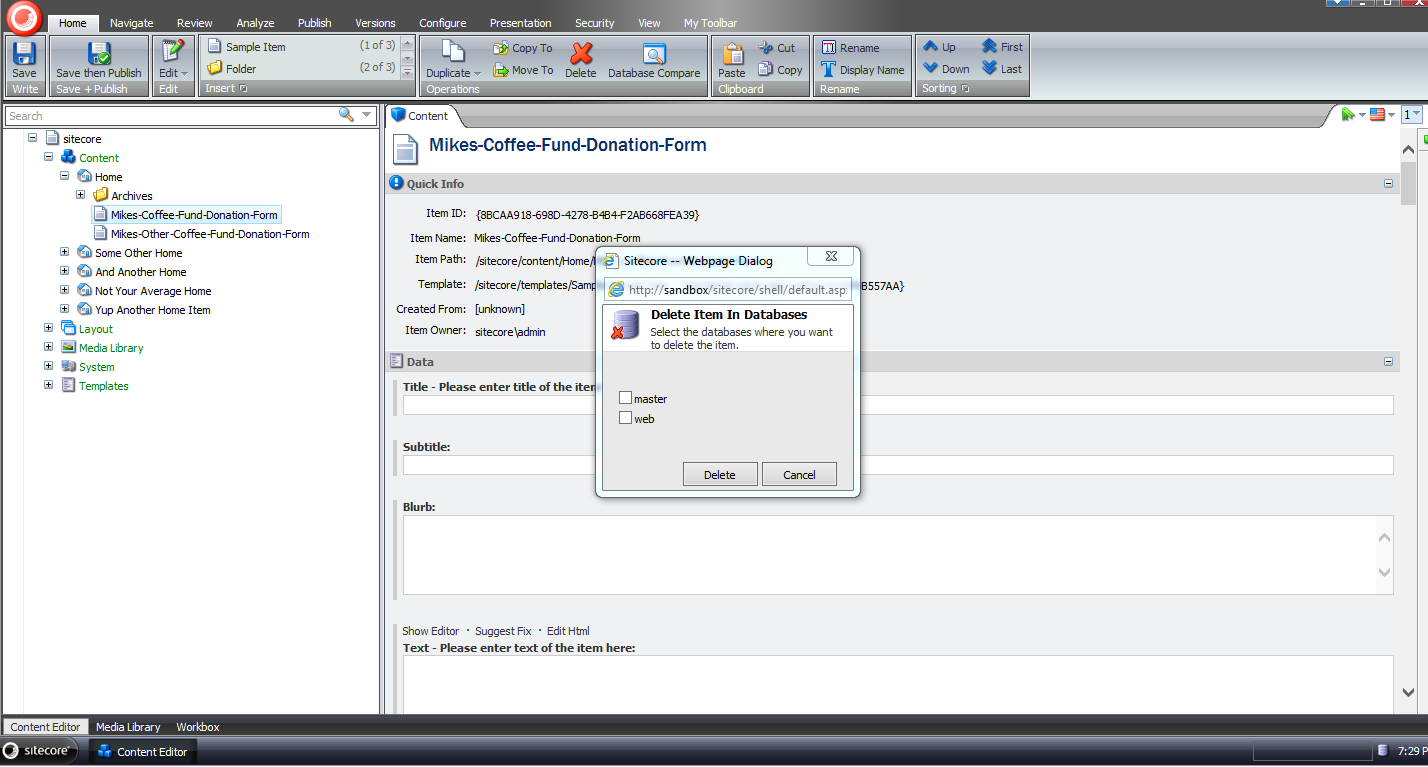
I got excited and forgot to select a database before clicking the ‘Delete’ button:

I then selected all databases, and clicked ‘Delete’:

When the dialog closed, we can see that our test item is gone:

Rest assured, it’s in the Recycle Bin:

It was also deleted in the web database as well — I’ve omitted screenshots of this since they would be identical to the last two screenshots above.
If you have any thoughts on this, or recommendations on making it better, please share in a comment.
Until next time, have a Sitecoretastic day!
Enforce Password Expiration in the Sitecore CMS
I recently worked on a project that called for a feature to expire Sitecore users’ passwords after an elapsed period of time since their passwords were last changed.
The idea behind this is to lessen the probability that an attacker will infiltrate a system — or multiple systems if users reuse their passwords across different applications (this is more common than you think) — within an organization by acquiring old database backups containing users’ passwords.
Since I can’t show you what I built for that project, I cooked up another solution — a custom loggingin processor that determines whether a user’s password has expired in Sitecore:
using System;
using System.Web.Security;

using Sitecore.Diagnostics;
using Sitecore.Pipelines.LoggingIn;
using Sitecore.Web;

namespace Sitecore.Sandbox.Pipelines.LoggingIn
{
    public class CheckPasswordExpiration
    {
        private TimeSpan TimeSpanToExpirePassword { get; set; }
        private string ChangePasswordPageUrl { get; set; }

        public void Process(LoggingInArgs args)
        {
            Assert.ArgumentNotNull(args, "args");
            if (!IsEnabled())
            {
                return;
            }

            MembershipUser user = GetMembershipUser(args);
            if (HasPasswordExpired(user))
            {
                WebUtil.Redirect(ChangePasswordPageUrl);
            }
        }

        private bool IsEnabled()
        {
            return IsTimeSpanToExpirePasswordSet() && IsChangePasswordPageUrlSet();
        }

        private bool IsTimeSpanToExpirePasswordSet()
        {
            return TimeSpanToExpirePassword > default(TimeSpan);
        }

        private bool IsChangePasswordPageUrlSet()
        {
            return !string.IsNullOrWhiteSpace(ChangePasswordPageUrl);
        }

        private static MembershipUser GetMembershipUser(LoggingInArgs args)
        {
            Assert.ArgumentNotNull(args, "args");
            Assert.ArgumentNotNullOrEmpty(args.Username, "args.Username");
            return Membership.GetUser(args.Username, false);
        }

        private bool HasPasswordExpired(MembershipUser user)
        {
            return user.LastPasswordChangedDate.Add(TimeSpanToExpirePassword) <= DateTime.Now;
        }
    }
}
The processor above ascertains whether a user’s password has expired by adding a configured timespan — see the configuration file below — to the last date and time the password was changed, and if that date and time summation is in the past — this means the password should have been changed already — then we redirect the user to a change password page (this is configured to be the Change Password page in Sitecore).
I wired up the custom loggingin processor, its timespan on expiring passwords — here I am using 1 minute since I can’t wait around all day 😉 — and set the change password page to be the url of Sitecore’s Change Password page:
<?xml version="1.0" encoding="utf-8"?>
<configuration xmlns:patch="http://www.sitecore.net/xmlconfig/">
  <sitecore>
    <processors>
      <loggingin>
        <processor mode="on" type="Sitecore.Sandbox.Pipelines.LoggingIn.CheckPasswordExpiration, Sitecore.Sandbox"
					patch:before="processor[@type='Sitecore.Pipelines.LoggingIn.CheckStartPage, Sitecore.Kernel']">
          <!-- Number of days, hours, minutes and seconds after the last password change date to expire passwords -->
          <TimeSpanToExpirePassword>00:00:01:00</TimeSpanToExpirePassword>
          <ChangePasswordPageUrl>/sitecore/login/changepassword.aspx</ChangePasswordPageUrl>
        </processor>
      </loggingin>
    </processors>
  </sitecore>
</configuration>
Let’s test this out.
I went to Sitecore’s login page, and entered my username and password on the login form:

I clicked the Login button, and was redirected to the Change Password page as expected:

If you can think of any other security measures that should be added to Sitecore, please share in a comment.
Replace Proxies With Clones in the Sitecore CMS
The other day I stumbled upon a thread in the Sitecore Developer Network (SDN) forums that briefly touched upon replacing proxies with clones, and I wondered whether anyone had built any sort of tool that creates clones for items being proxied — basically a tool that would automate creating clones from proxies — and removes the proxies once the clones are in place.
Since I am not aware of such a tool — not to mention that I’m hooked on programming and just love coding — I decided to create one.
The following command is my attempt at such a tool:
using System;
using System.Linq;

using Sitecore.Configuration;
using Sitecore.Data.Items;
using Sitecore.Data.Proxies;
using Sitecore.Diagnostics;
using Sitecore.Shell.Framework.Commands;

namespace Sitecore.Sandbox.Commands
{
    public class TransformProxyToClones : Command
    {
        public override void Execute(CommandContext context)
        {
            Assert.ArgumentNotNull(context, "context");
            TransformProxyItemToClones(GetContextItem(context));
        }

        private static void TransformProxyItemToClones(Item item)
        {
            Assert.ArgumentNotNull(item, "item");
            if(!CanTransform(item))
            {
                return;
            }

            string proxyType = GetProxyType(item);
            Item source = GetItem(GetSourceItemFieldValue(item));
            Item target = GetItem(GetTargetItemFieldValue(item));

            if (AreEqualIgnoreCase(proxyType, "Entire sub-tree"))
            {
                DeleteItem(item);
                CloneEntireSubtree(source, target);
            }
            else if (AreEqualIgnoreCase(proxyType, "Root item only"))
            {
                DeleteItem(item);
                CloneRootOnly(source, target);
            }
        }

        private static void CloneEntireSubtree(Item source, Item destination)
        {
            Clone(source, destination, true);
        }

        private static void CloneRootOnly(Item root, Item destination)
        {
            Clone(root, destination, false);
        }

        private static Item Clone(Item cloneSource, Item cloneDestination, bool deep)
        {
            Assert.ArgumentNotNull(cloneSource, "cloneSource");
            Assert.ArgumentNotNull(cloneDestination, "cloneDestination");
            return cloneSource.CloneTo(cloneDestination, deep);
        }

        private static void DeleteItem(Item item)
        {
            Assert.ArgumentNotNull(item, "item");
            if (Settings.RecycleBinActive)
            {
                item.Recycle();
            }
            else
            {
                item.Delete();
            }
        }

        public override CommandState QueryState(CommandContext context)
        {
            Assert.ArgumentNotNull(context, "context");
            if (CanTransform(GetContextItem(context)))
            {
                return CommandState.Enabled;
            }

            return CommandState.Hidden;
        }

        private static Item GetContextItem(CommandContext context)
        {
            Assert.ArgumentNotNull(context, "context");
            return context.Items.FirstOrDefault();
        }

        private static bool CanTransform(Item item)
        {
            Assert.ArgumentNotNull(item, "item");
            return IsProxy(item)
                    && IsSourceDatabaseFieldEmpty(item)
                    && !string.IsNullOrWhiteSpace(GetProxyType(item))
                    && !string.IsNullOrWhiteSpace(GetSourceItemFieldValue(item))
                    && !string.IsNullOrWhiteSpace(GetTargetItemFieldValue(item));
        }

        private static bool IsProxy(Item item)
        {
            Assert.ArgumentNotNull(item, "item");
            return ProxyManager.IsProxy(item);
        }

        private static string GetProxyType(Item item)
        {
            Assert.ArgumentNotNull(item, "item");
            return item["Proxy type"];
        }

        private static bool IsSourceDatabaseFieldEmpty(Item item)
        {
            Assert.ArgumentNotNull(item, "item");
            return string.IsNullOrWhiteSpace(item["Source database"]);
        }

        private static string GetSourceItemFieldValue(Item item)
        {
            Assert.ArgumentNotNull(item, "item");
            return item["Source item"];
        }

        private static string GetTargetItemFieldValue(Item item)
        {
            Assert.ArgumentNotNull(item, "item");
            return item["Target item"];
        }

        private static Item GetItem(string path)
        {
            Assert.ArgumentNotNullOrEmpty(path, "path");
            return Context.ContentDatabase.GetItem(path);
        }

        private static bool AreEqualIgnoreCase(string one, string two)
        {
            return string.Equals(one, two, StringComparison.CurrentCultureIgnoreCase);
        }
    }
}
The above command is only visible for proxy items having both source and target items set, and the proxy is for the context content database.
When the command is invoked, the source item — conjoined with its descendants if its sub-tree is also being proxied — is cloned to the target item, after the proxy definition item is deleted.
I registered the above command in Sitecore using an include configuration file:
<?xml version="1.0" encoding="utf-8" ?>
<configuration xmlns:patch="http://www.sitecore.net/xmlconfig/">
  <sitecore>
    <commands>
      <command name="item:transformproxytoclones" type="Sitecore.Sandbox.Commands.TransformProxyToClones, Sitecore.Sandbox"/>
    </commands>
  </sitecore>
</configuration>
I also wired this up in the core database for the item context menu (I’ve omitted a screenshot on how this is done; If you would like to see how this is done, please see part 1 and part 2 of my post showing how to add to the item context menu).
Let’s take this for a drive.
I created a bunch of items for testing:

I then created a proxy for these test items:

I then right-clicked on our test proxy item to launch its context menu, and then clicked on the “Transform Proxy To Clones” menu option:
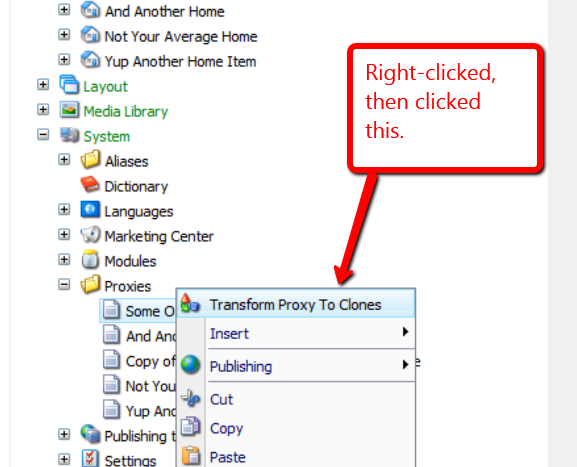
The proxy item was removed, and we now have clones:
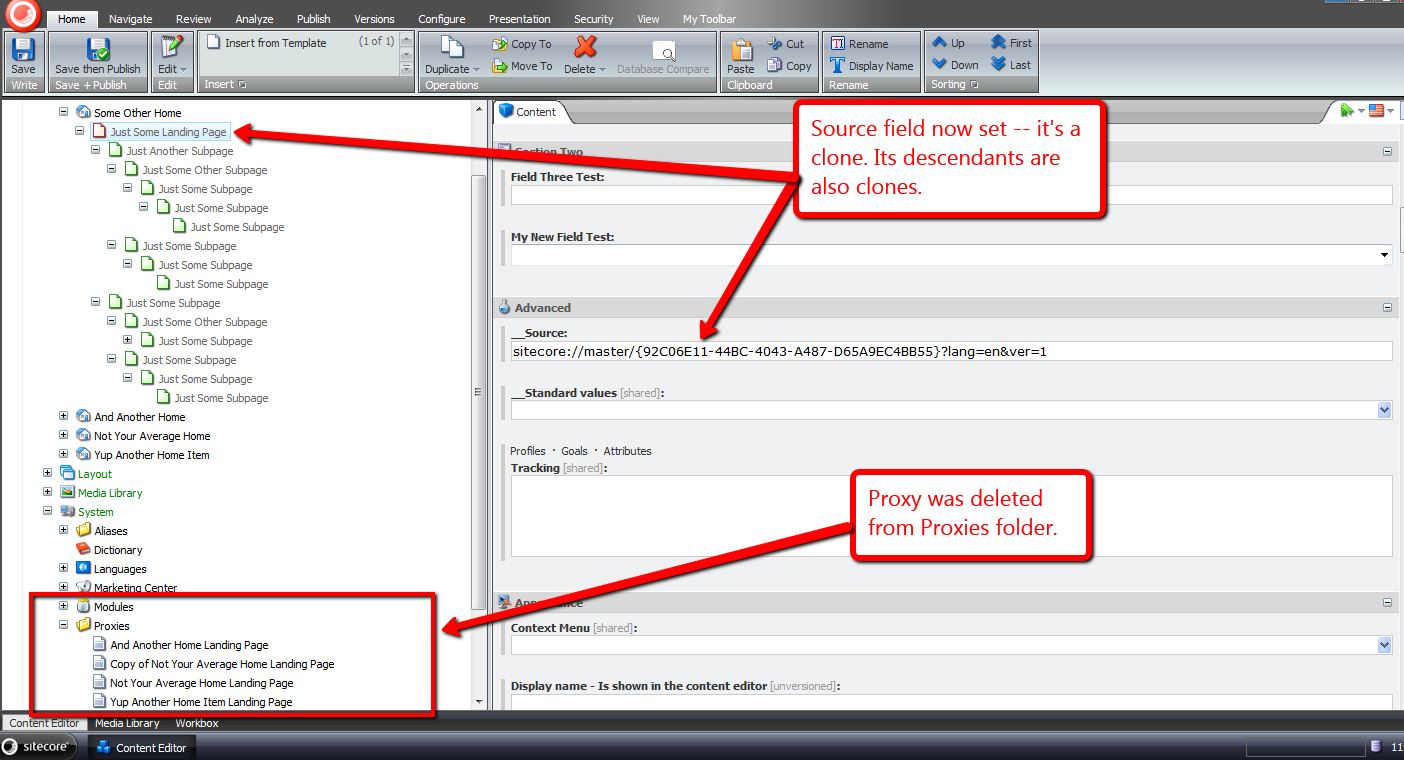
If you can think of any other ideas around proxies or clones, or know of other tools that create clones from proxies, please leave a comment.
Display Content Management Server Information in the Sitecore CMS
The other day I cogitated over potential uses for the getAboutInformation pipeline. Found at /configuration/sitecore/pipelines/getAboutInformation in the Web.config, it can be leveraged to display information on the Sitecore login page, and inside of the About dialog — a dialog that can be launched from the Content Editor.
One thing that came to mind was displaying some information for the Content Management (CM) server where the Sitecore instance lives. Having this information readily available might aid in troubleshooting issues that arise, or seeing the name of the server might stop you from making content changes on the wrong CM server (I am guilty as charged for committing such a blunder in the past).
This post shows how I translated that idea into code.
The first thing we need is a way to get server information. I defined the following interface to describe information we might be interested in for a server:
namespace Sitecore.Sandbox.Utilities.Server.Base
{
    public interface IServer
    {
        string Name { get; }

        string Cpu { get; }

        string OperatingSystem { get; }
    }
}
We now need a class to implement the above interface. I stumbled upon a page whose author shared how one can acquire server information using classes defined in the System.Management namespace in .NET.
Using information from that page coupled with some experimentation, I came up with the following class:
using System.Collections.Generic;
using System.Linq;
using System.Management;

using Sitecore.Diagnostics;

using Sitecore.Sandbox.Utilities.Server.Base;

namespace Sitecore.Sandbox.Utilities.Server
{
    public class Server : IServer
    {
        private string _Name;
        public string Name
        {
            get
            {
                if (string.IsNullOrEmpty(_Name))
                {
                    _Name = GetServerName();
                }

                return _Name;
            }
        }

        private string _Cpu;
        public string Cpu
        {
            get
            {
                if (string.IsNullOrEmpty(_Cpu))
                {
                    _Cpu = GetCpuInformation();
                }

                return _Cpu;
            }
        }

        private string _OperatingSystem;
        public string OperatingSystem
        {
            get
            {
                if (string.IsNullOrEmpty(_OperatingSystem))
                {
                    _OperatingSystem = GetOperatingSystemName();
                }

                return _OperatingSystem;
            }
        }

        private Server()
        {
        }

        private static string GetServerName()
        {
            return GetFirstManagementBaseObjectPropertyFirstInnerProperty("Win32_ComputerSystem", "name");
        }

        private static string GetCpuInformation()
        {
            return GetFirstManagementBaseObjectPropertyFirstInnerProperty("Win32_Processor", "name");
        }

        private static string GetOperatingSystemName()
        {
            return GetFirstManagementBaseObjectPropertyFirstInnerProperty("Win32_OperatingSystem", "name");
        }

        private static string GetFirstManagementBaseObjectPropertyFirstInnerProperty(string key, string propertyName)
        {
            return GetFirstManagementBaseObjectPropertyInnerProperties(key, propertyName).FirstOrDefault();
        }

        private static IEnumerable<string> GetFirstManagementBaseObjectPropertyInnerProperties(string key, string propertyName)
        {
            return GetFirstManagementBaseObjectProperty(key, propertyName).Split('|');
        }

        private static string GetFirstManagementBaseObjectProperty(string key, string propertyName)
        {
            return GetFirstManagementBaseObject(key)[propertyName].ToString();
        }

        private static ManagementBaseObject GetFirstManagementBaseObject(string key)
        {
            Assert.ArgumentNotNullOrEmpty(key, "key");
            WqlObjectQuery query = new WqlObjectQuery(string.Format("select * from {0}", key));
            ManagementObjectSearcher searcher = new ManagementObjectSearcher(query);
            return searcher.Get().Cast<ManagementBaseObject>().FirstOrDefault();
        }

        public static IServer CreateNewServer()
        {
            return new Server();
        }
    }
}
The class above grabs server information via three separate ManagementObjectSearcher queries, one for each property defined in our IServer interface.
In order to use classes defined in the System.Management namespace, I had to reference System.Management in my project in Visual Studio:

Next, I created a class that contains methods that will serve as our getAboutInformation pipeline processors:
using System.Collections.Generic;

using Sitecore.Diagnostics;
using Sitecore.Pipelines.GetAboutInformation;

using Sitecore.Sandbox.Utilities.Server.Base;
using Sitecore.Sandbox.Utilities.Server;

namespace Sitecore.Sandbox.Pipelines.GetAboutInformation
{
    public class GetContentManagementServerInformation
    {
        private static readonly string CurrentServerInformationHtml = GetCurrentServerInformationHtml();

        public void SetLoginPageText(GetAboutInformationArgs args)
        {
            args.LoginPageText = CurrentServerInformationHtml;
        }

        public void SetAboutText(GetAboutInformationArgs args)
        {
            args.AboutText = CurrentServerInformationHtml;
        }

        private static string GetCurrentServerInformationHtml()
        {
            return GetServerInformationHtml(Server.CreateNewServer());
        }

        private static string GetServerInformationHtml(IServer server)
        {
            Assert.ArgumentNotNull(server, "server");
            IList<string> information = new List<string>();

            if (!string.IsNullOrEmpty(server.Name))
            {
                information.Add(string.Format("<strong>Server Name</strong>: {0}", server.Name));
            }

            if (!string.IsNullOrEmpty(server.Cpu))
            {
                information.Add(string.Format("<strong>CPU</strong>: {0}", server.Cpu));
            }

            if (!string.IsNullOrEmpty(server.OperatingSystem))
            {
                information.Add(string.Format("<strong>OS</strong>: {0}", server.OperatingSystem));
            }

            return string.Join("<br />", information);
        }
    }
}
Both methods set properties on the GetAboutInformationArgs instance using the same HTML generated by the GetServerInformationHtml method. This method is given an instance of the Server class defined above by the GetCurrentServerInformationHtml method.
I then connected all of the above into Sitecore via a configuration include file:
<?xml version="1.0" encoding="utf-8"?>
<configuration xmlns:patch="http://www.sitecore.net/xmlconfig/">
  <sitecore>
    <pipelines>
      <getAboutInformation>
        <processor type="Sitecore.Sandbox.Pipelines.GetAboutInformation.GetContentManagementServerInformation, Sitecore.Sandbox" method="SetLoginPageText" />
        <processor type="Sitecore.Sandbox.Pipelines.GetAboutInformation.GetContentManagementServerInformation, Sitecore.Sandbox" method="SetAboutText" />
      </getAboutInformation>
    </pipelines>
  </sitecore>
</configuration>
Let’s see this in action.
When hitting the Sitecore login page in my browser, I saw server information in the right sidebar, under the Sitecore version and revision numbers:

Next, I logged into Sitecore, opened the Content Editor, and launched the About dialog:

As you can see, my CM server information is also displayed here.
You might be questioning why I didn’t include more server information on both the login page and About dialog. One reason why I omitted displaying other properties is due to discovering that the login page area for showing the LoginPageText string does not grow vertically — I saw this when I did include a few more properties in addition to the three shown above.
Sadly, I did not see what would happen when including these additional properties in the the About dialog. Ascertaining whether it is possible to include more information in the About dialog is warranted, though I will leave that exercise for another day.
If you have any other thoughts or ideas for utilizing getAboutInformation pipeline processors, or other areas in Sitecore where server information might be useful, please drop a comment.
Suppress Most Sitecore Wizard Cancel Confirmation Prompts
By default, clicking the ‘Cancel’ button on most wizard forms in Sitecore yields the following confirmation dialog:

Have you ever said to yourself “Yes, I’m sure I’m sure” after seeing this, and wondered if there were a setting you could toggle to turn it off?
Earlier today, while surfing through my Web.config, the closeWizard client pipeline — located at /sitecore/processors/closeWizard in the Web.config — had caught my eye, and I was taken aback over how I had not noticed it before. I was immediately curious over what gems I might find within its only processor — /sitecore/processors/closeWizard/processor[@type=’Sitecore.Web.UI.Pages.WizardForm, Sitecore.Kernel’ and @method=’Confirmation’] — and whether there would be any utility in overriding/extending it.
At first, I thought having a closeWizard client pipeline processor to completely suppress the “Are you sure you want to close the wizard?” confirmation prompt would be ideal, but then imagined how irate someone might be after clicking the ‘Cancel’ button by accident, which would result in the loss of his/her work.
As a happy medium between always prompting users whether they are certain they want to close their wizards and not prompting at all, I came up with the following closeWizard client pipeline processor:
using System;

using Sitecore.Configuration;
using Sitecore.Diagnostics;
using Sitecore.Web.UI.HtmlControls;
using Sitecore.Web.UI.Pages;
using Sitecore.Web.UI.Sheer;

namespace Sitecore.Sandbox.Web.UI.Pages
{
    public class SuppressConfirmationWizardForm : WizardForm
    {
        private const string SuppressConfirmationRegistryKey = "/Current_User/Content Editor/Suppress Close Wizard Confirmation";

        private static string YesNoCancelDialogPrompt { get; set; }
        private static int YesNoCancelDialogWidth { get; set; }
        private static int YesNoCancelDialogHeight { get; set; }

        static SuppressConfirmationWizardForm()
        {
            YesNoCancelDialogPrompt = Settings.GetSetting("SuppressConfirmationYesNoCancelDialog.Prompt");
            YesNoCancelDialogWidth = Settings.GetIntSetting("SuppressConfirmationYesNoCancelDialog.Width", 100);
            YesNoCancelDialogHeight = Settings.GetIntSetting("SuppressConfirmationYesNoCancelDialog.Height", 100);
        }

        public void CloseWizard(ClientPipelineArgs args)
        {
            if (IsCancel(args))
            {
                args.AbortPipeline();
                return;
            }

            if (ShouldSaveShouldSuppressConfirmationSetting(args))
            {
                SaveShouldSuppressConfirmationSetting(args);
            }

            if (ShouldCloseWizard(args))
            {
                EndWizard();
            }
            else
            {
                SheerResponse.YesNoCancel(YesNoCancelDialogPrompt, YesNoCancelDialogWidth.ToString(), YesNoCancelDialogHeight.ToString());
                args.WaitForPostBack();
            }
        }

        private static bool ShouldCloseWizard(ClientPipelineArgs args)
        {
            Assert.ArgumentNotNull(args, "args");
            return args.HasResult || ShouldSuppressConfirmationSetting();
        }

        private static bool ShouldSuppressConfirmationSetting()
        {
            return Registry.GetBool(SuppressConfirmationRegistryKey);
        }

        private static bool ShouldSaveShouldSuppressConfirmationSetting(ClientPipelineArgs args)
        {
            Assert.ArgumentNotNull(args, "args");
            return args.HasResult && !IsCancel(args);
        }

        private static void SaveShouldSuppressConfirmationSetting(ClientPipelineArgs args)
        {
            Assert.ArgumentNotNull(args, "args");
            Registry.SetBool(SuppressConfirmationRegistryKey, AreEqualIgnoreCase(args.Result, "yes"));
        }

        private static bool IsCancel(ClientPipelineArgs args)
        {
            Assert.ArgumentNotNull(args, "args");
            return AreEqualIgnoreCase(args.Result, "cancel");
        }

        private static bool AreEqualIgnoreCase(string one, string two)
        {
            return string.Equals(one, two, StringComparison.CurrentCultureIgnoreCase);
        }
    }
}
The pipeline processor above will let users decide whether they want to continue seeing the “Are you sure?”‘ confirmation prompt — albeit I had to change the messaging to something more fitting giving the new functionality (see the patch include configuration file or testing screenshot below for the new messaging).
If a user clicks ‘Yes’, s/he will never be prompted with this dialog again — this preference is saved in a Sitecore registry setting for the user.
Plus, suppressing this dialog in one place will suppress it everywhere it would display
Clicking ‘No’ will ensure the message is displayed again in the future.
Clicking ‘Cancel’ will just close the confirmation dialog, and return the user back to the wizard.
You might be wondering why I subclassed Sitecore.Web.UI.Pages.WizardForm. I had to do this in order to get access to its EndWizard() method which is a protected method. This method closes the wizard form.
I plugged it all in via a patch include configuration file:
<?xml version="1.0" encoding="utf-8" ?>
<configuration xmlns:patch="http://www.sitecore.net/xmlconfig/">
  <sitecore>
    <processors>
      <closeWizard>
        <processor mode="on" patch:instead="processor[@type='Sitecore.Web.UI.Pages.WizardForm, Sitecore.Kernel' and @method='Confirmation']" type="Sitecore.Sandbox.Web.UI.Pages.SuppressConfirmationWizardForm, Sitecore.Sandbox" method="CloseWizard"/>
      </closeWizard>
    </processors>
    <settings>
      <setting name="SuppressConfirmationYesNoCancelDialog.Prompt" value="You are about to close the wizard. Would you also like to avoid this message in the future?" />
      <setting name="SuppressConfirmationYesNoCancelDialog.Width" value="100" />
      <setting name="SuppressConfirmationYesNoCancelDialog.Height" value="100" />
    </settings>
  </sitecore>
</configuration>
I tested the above pipeline processor on the wizard for creating a new data template:

I decided to omit screenshots after clicking ‘Yes’, ‘No’ and ‘Cancel’ — there really isn’t much to show since all close the confirmation dialog, with the ‘Yes’ and ‘No’ buttons also closing the wizard.
I also did a little research to see what wizard forms in Sitecore might be impacted by the above, and compiled the following list of wizard form classes — this list contains classes from both Sitecore.Kernel.dll and Sitecore.Client.dll:
- Sitecore.Shell.Applications.Analytics.Lookups.RunLookupForm
- Sitecore.Shell.Applications.Analytics.Reports.Summary.UpdateForm
- Sitecore.Shell.Applications.Analytics.SynchronizeDatabase.SynchronizeDatabaseForm
- Sitecore.Shell.Applications.Analytics.VisitorIdentifications.RunVisitorIdentificationsForm
- Sitecore.Shell.Applications.Databases.CleanUp.CleanUpForm
- Sitecore.Shell.Applications.Dialogs.ArchiveDate.ArchiveDateForm
- Sitecore.Shell.Applications.Dialogs.FixLinks.FixLinksForm
- Sitecore.Shell.Applications.Dialogs.Publish.PublishForm
- Sitecore.Shell.Applications.Dialogs.RebuildLinkDatabase.RebuildLinkDatabaseForm
- Sitecore.Shell.Applications.Dialogs.Reminder.ReminderForm
- Sitecore.Shell.Applications.Dialogs.TransferToDatabase.TransferToDatabaseForm
- Sitecore.Shell.Applications.Dialogs.Upload.UploadForm
- Sitecore.Shell.Applications.Globalization.AddLanguage.AddLanguageForm
- Sitecore.Shell.Applications.Globalization.DeleteLanguage.DeleteLanguageForm
- Sitecore.Shell.Applications.Globalization.ExportLanguage.ExportLanguageForm
- Sitecore.Shell.Applications.Globalization.ImportLanguage.ImportLanguageForm
- Sitecore.Shell.Applications.Globalization.UntranslatedFields.UntranslatedFieldsForm
- Sitecore.Shell.Applications.Install.Dialogs.AddFileSourceForm
- Sitecore.Shell.Applications.Install.Dialogs.AddItemSourceForm
- Sitecore.Shell.Applications.Install.Dialogs.AddStaticFileSourceDialog
- Sitecore.Shell.Applications.Install.Dialogs.AddStaticItemSourceDialog
- Sitecore.Shell.Applications.Install.Dialogs.BuildPackage
- Sitecore.Shell.Applications.Install.Dialogs.InstallPackage.InstallPackageForm
- Sitecore.Shell.Applications.Install.Dialogs.UploadPackageForm
- Sitecore.Shell.Applications.Layouts.IDE.Wizards.NewFileWizard.IDENewFileWizardForm
- Sitecore.Shell.Applications.Layouts.IDE.Wizards.NewMethodRenderingWizard.IDENewMethodRenderingWizardForm
- Sitecore.Shell.Applications.Layouts.IDE.Wizards.NewUrlRenderingWizard.IDENewUrlRenderingWizardForm
- Sitecore.Shell.Applications.Layouts.IDE.Wizards.NewWebControlWizard.IDENewWebControlWizardForm
- Sitecore.Shell.Applications.Layouts.Layouter.Wizards.NewLayout.NewLayoutForm
- Sitecore.Shell.Applications.Layouts.Layouter.Wizards.NewSublayout.NewSublayoutForm
- Sitecore.Shell.Applications.Layouts.Layouter.Wizards.NewXMLLayout.NewXMLLayoutForm
- Sitecore.Shell.Applications.Layouts.Layouter.Wizards.NewXSL.NewXSLForm
- Sitecore.Shell.Applications.MarketingAutomation.Dialogs.ForceTriggerForm
- Sitecore.Shell.Applications.MarketingAutomation.Dialogs.ImportVisitorsForm
- Sitecore.Shell.Applications.ScheduledTasks.NewSchedule.NewScheduleForm
- Sitecore.Shell.Applications.ScheduledTasks.NewScheduleCommand.NewScheduleCommandForm
- Sitecore.Shell.Applications.Search.RebuildSearchIndex.RebuildSearchIndexForm
- Sitecore.Shell.Applications.Templates.ChangeTemplate.ChangeTemplateForm
- Sitecore.Shell.Applications.Templates.CreateTemplate.CreateTemplateForm
If you can think of any other ways of customizing this client pipeline, please drop a comment.
 SitecoreJunkie.com