Home » Sitecore (Page 10)
Category Archives: Sitecore
Restrict Certain Types of Files From Being Uploaded in Sitecore
Tonight I was struck by a thought while conducting research for a future blog post: should we prevent users from uploading certain types of files in Sitecore for security purposes?
You might thinking “Prevent users from uploading files? Mike, what on Earth are you talking about?”
What I’m suggesting is we might want to consider restricting certain types of files — specifically executables (these have an extension of .exe) and DOS command files (these have an extension of .com) — from being uploaded into Sitecore, especially when files can be easily downloaded from the media library.
Why should we do this?
Doing this will curtail the probability of viruses being spread among our Sitecore users — such could happen if one user uploads an executable that harbors a virus, and other users of our Sitecore system download that tainted executable, and run it on their machines.
As a “proof of concept”, I built the following uiUpload pipeline processor — the uiUpload pipeline lives in /configuration/sitecore/processors/uiUpload in your Sitecore instance’s Web.config — to restrict certain types of files from being uploaded into Sitecore:
using System;
using System.Collections.Generic;
using System.IO;
using System.Linq;
using System.Web;
using System.Xml;

using Sitecore.Diagnostics;
using Sitecore.Globalization;
using Sitecore.Pipelines.Upload;

namespace Sitecore.Sandbox.Pipelines.Upload
{
    public class CheckForRestrictedFiles : UploadProcessor
    {
        private List<string> _RestrictedExtensions;
        private List<string> RestrictedExtensions
        {
            get
            {
                if (_RestrictedExtensions == null)
                {
                    _RestrictedExtensions = new List<string>();
                }

                return _RestrictedExtensions;
            }
        }

        public void Process(UploadArgs args)
        {
            foreach(string fileKey in args.Files)
            {
                string fileName = GetFileName(args.Files, fileKey);
                string extension = Path.GetExtension(fileName);
                if (IsRestrictedExtension(extension))
                {
                    args.ErrorText = Translate.Text(string.Format("The file \"{0}\" cannot be uploaded. Files with an extension of {1} are not allowed.", fileName, extension));
                    Log.Warn(args.ErrorText, this);
                    args.AbortPipeline();
                }
            }
        }

        private static string GetFileName(HttpFileCollection files, string fileKey)
        {
            Assert.ArgumentNotNull(files, "files");
            Assert.ArgumentNotNullOrEmpty(fileKey, "fileKey");
            return files[fileKey].FileName;
        }

        private bool IsRestrictedExtension(string extension)
        {
            return RestrictedExtensions.Exists(restrictedExtension => string.Equals(restrictedExtension, extension, StringComparison.CurrentCultureIgnoreCase));
        }

        protected virtual void AddRestrictedExtension(XmlNode configNode)
        {
            if (configNode == null || string.IsNullOrWhiteSpace(configNode.InnerText))
            {
                return;
            }

            RestrictedExtensions.Add(configNode.InnerText);
        }
    }
}
The class above ascertains whether each uploaded file has an extension that is restricted — restricted extensions are defined in the configuration file below, and are added to a list of strings via the AddRestrictedExtensions method — and logs an error message when a file possessing a restricted extension is encountered.
I then tied everything together using the following patch configuration file including specifying some file extensions to restrict:
<?xml version="1.0" encoding="utf-8"?>
<configuration xmlns:patch="http://www.sitecore.net/xmlconfig/">
  <sitecore>
    <processors>
      <uiUpload>
        <processor mode="on" type="Sitecore.Sandbox.Pipelines.Upload.CheckForRestrictedFiles, Sitecore.Sandbox" patch:before="processor[@type='Sitecore.Pipelines.Upload.CheckSize, Sitecore.Kernel']">
          <restrictedExtensions hint="raw:AddRestrictedExtension">
            <!-- Be sure to prefix with a dot -->
            <extension>.exe</extension>
            <extension>.com</extension>
          </restrictedExtensions>
        </processor>
      </uiUpload>
    </processors>
  </sitecore>
</configuration>
Let’s try this out.
I went to the media library, and attempted to upload an executable:

After clicking the “Open” button, I was presented with the following:
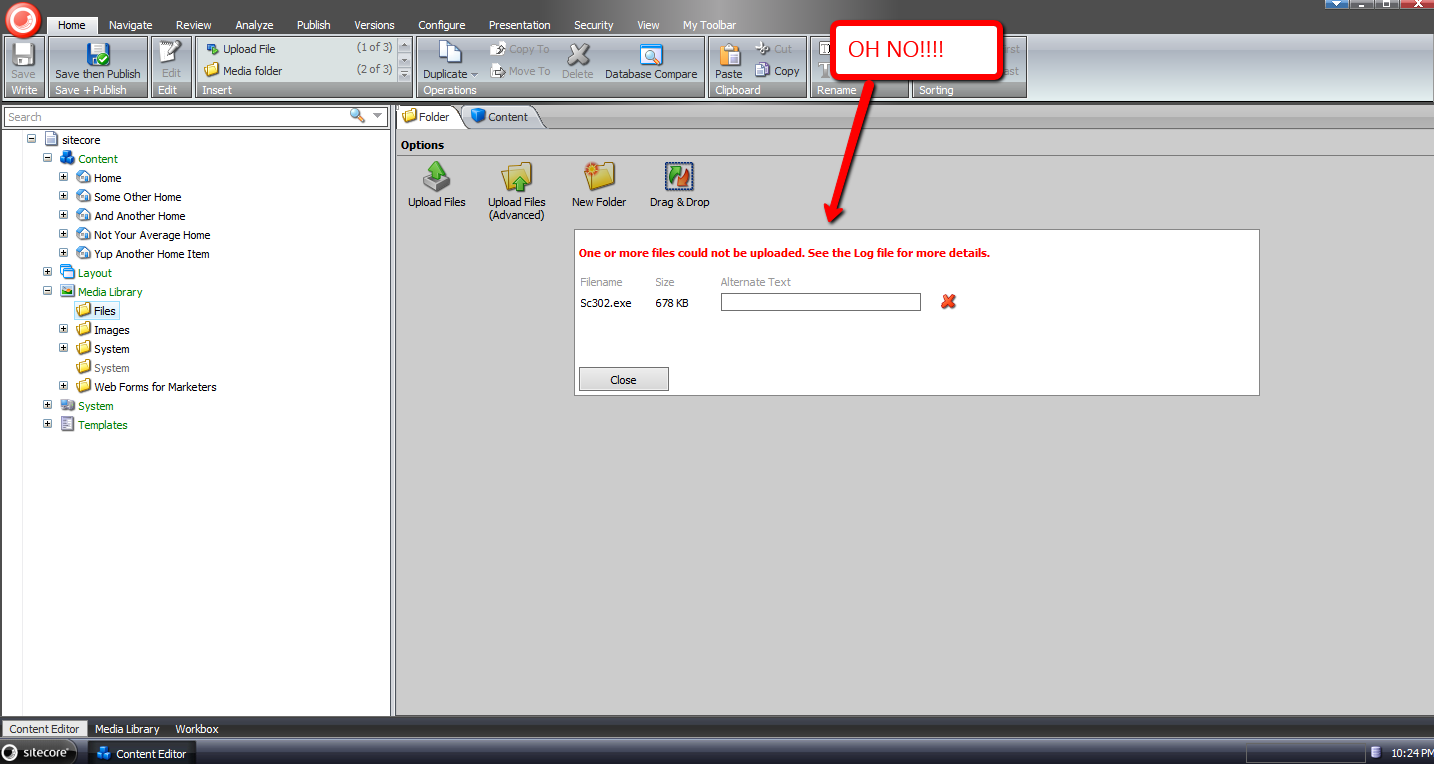
An error in my Sitecore instance’s latest log file conveys why I could not upload the chosen file:

If you have thoughts on this, or have ideas for other processors that should be added to uiUpload pipeline, please share in a comment.
Periodically Unlock Items of Idle Users in Sitecore
In my last post I showed a way to unlock locked items of a user when he/she logs out of Sitecore.
I wrote that article to help out the poster of this thread in one of the forums on SDN.
In response to my reply in that thread — I had linked to my previous post in that reply — John West, Chief Technology Officer of Sitecore, had asked whether we would also want to unlock items of users whose sessions had expired, and another SDN user had alluded to the fact that my solution would not unlock items for users who had closed their browser sessions instead of explicitly logging out of Sitecore.
Immediate after reading these responses, I began thinking about a supplemental solution to unlock items for “idle” users — users who have not triggered any sort of request in Sitecore after a certain amount of time.
I first began tinkering with the idea of using the last activity date/time of the logged in user — this is available as a DateTime in the user’s MembershipUser instance via the LastActivityDate property.
However — after reading this article — I learned this date and time does not mean what I thought it had meant, and decided to search for another way to ascertain whether a user is idle in Sitecore.
After some digging around, I discovered Sitecore.Web.Authentication.DomainAccessGuard.Sessions in Sitecore.Kernel.dll — this appears to be a collection of sessions in Sitecore — and immediately felt elated as if I had just won the lottery. I decided to put it to use in the following class (code in this class will be invoked via a scheduled task in Sitecore):
using System;
using System.Collections.Generic;
using System.Web.Security;

using Sitecore.Configuration;
using Sitecore.Data;
using Sitecore.Data.Items;
using Sitecore.Diagnostics;
using Sitecore.Security.Accounts;
using Sitecore.Tasks;
using Sitecore.Web.Authentication;

namespace Sitecore.Sandbox.Tasks
{
    public class UnlockItemsTask
    {
        private static readonly TimeSpan ElapsedTimeWhenIdle = GetElapsedTimeWhenIdle();

        public void UnlockIdleUserItems(Item[] items, CommandItem command, ScheduleItem schedule)
        {
            if (ElapsedTimeWhenIdle == TimeSpan.Zero)
            {
                return;
            }

            IEnumerable<Item> lockedItems = GetLockedItems(schedule.Database);
            foreach (Item lockedItem in lockedItems)
            {
                UnlockIfApplicable(lockedItem);
            }
        }

        private static IEnumerable<Item> GetLockedItems(Database database)
        {
            Assert.ArgumentNotNull(database, "database");
            return database.SelectItems("fast://*[@__lock='%owner=%']");
        }

        private void UnlockIfApplicable(Item item)
        {
            Assert.ArgumentNotNull(item, "item");
            if (!ShouldUnlockItem(item))
            {
                return;
            }

            Unlock(item);
        }

        private static bool ShouldUnlockItem(Item item)
        {
            Assert.ArgumentNotNull(item, "item");
            if(!item.Locking.IsLocked())
            {
                return false;
            }

            string owner = item.Locking.GetOwner();
            return !IsUserAdmin(owner) && IsUserIdle(owner);
        }

        private static bool IsUserAdmin(string username)
        {
            Assert.ArgumentNotNullOrEmpty(username, "username");
            User user = User.FromName(username, false);
            Assert.IsNotNull(user, "User must be null due to a wrinkle in the interwebs :-/");
            return user.IsAdministrator;
        }

        private static bool IsUserIdle(string username)
        {
            Assert.ArgumentNotNullOrEmpty(username, "username");
            DomainAccessGuard.Session userSession = DomainAccessGuard.Sessions.Find(session => session.UserName == username);
            if(userSession == null)
            {
                return true;
            }

            return userSession.LastRequest.Add(ElapsedTimeWhenIdle) <= DateTime.Now;
        }

        private void Unlock(Item item)
        {
            Assert.ArgumentNotNull(item, "item");
            try
            {
                string owner = item.Locking.GetOwner();
                item.Editing.BeginEdit();
                item.Locking.Unlock();
                item.Editing.EndEdit();
                Log.Info(string.Format("Unlocked {0} - was locked by {1}", item.Paths.Path, owner), this);
            }
            catch (Exception ex)
            {
                Log.Error(this.ToString(), ex, this);
            }
        }

        private static TimeSpan GetElapsedTimeWhenIdle()
        {
            TimeSpan elapsedTimeWhenIdle;
            if (TimeSpan.TryParse(Settings.GetSetting("UnlockItems.ElapsedTimeWhenIdle"), out elapsedTimeWhenIdle))
            {
                return elapsedTimeWhenIdle;
            }

            return TimeSpan.Zero;
        }
    }
}
Methods in the class above grab all locked items in Sitecore via a fast query, and unlock them if the users of each are not administrators, and are idle — I determine this from an idle threshold value that is stored in a custom setting (see the patch configuration file below) and the last time the user had made any sort of request in Sitecore via his/her DomainAccessGuard.Session instance from Sitecore.Web.Authentication.DomainAccessGuard.Sessions.
If a DomainAccessGuard.Session instance does not exist for the user — it’s null — this means the user’s session had expired, so we should also unlock the item.
I’ve also included code to log which items have been unlocked by the Unlock method — for auditing purposes — and of course log exceptions if any are encountered — we must do all we can to support our support teams by capturing information in log files :).
I then created a patch configuration file to store our idle threshold value — I’ve used one minute here for testing (I can’t sit around all day waiting for items to unlock ;)):
<?xml version="1.0" encoding="utf-8"?>
<configuration xmlns:patch="http://www.sitecore.net/xmlconfig/">
  <sitecore>
    <settings>
      <setting name="UnlockItems.ElapsedTimeWhenIdle" value="00:00:01:00" />
    </settings>
  </sitecore>
</configuration>
I then created a task command for the class above in Sitecore:

I then mapped the task command to a scheduled task (to learn about scheduled tasks, see John West’s blog post where he discusses them):

Let’s light the fuse on this, and see what it does.
I logged into Sitecore using one of my test accounts, and locked some items:

I then logged into Sitecore using a different account in a different browser session, and navigated to one of the locked items:
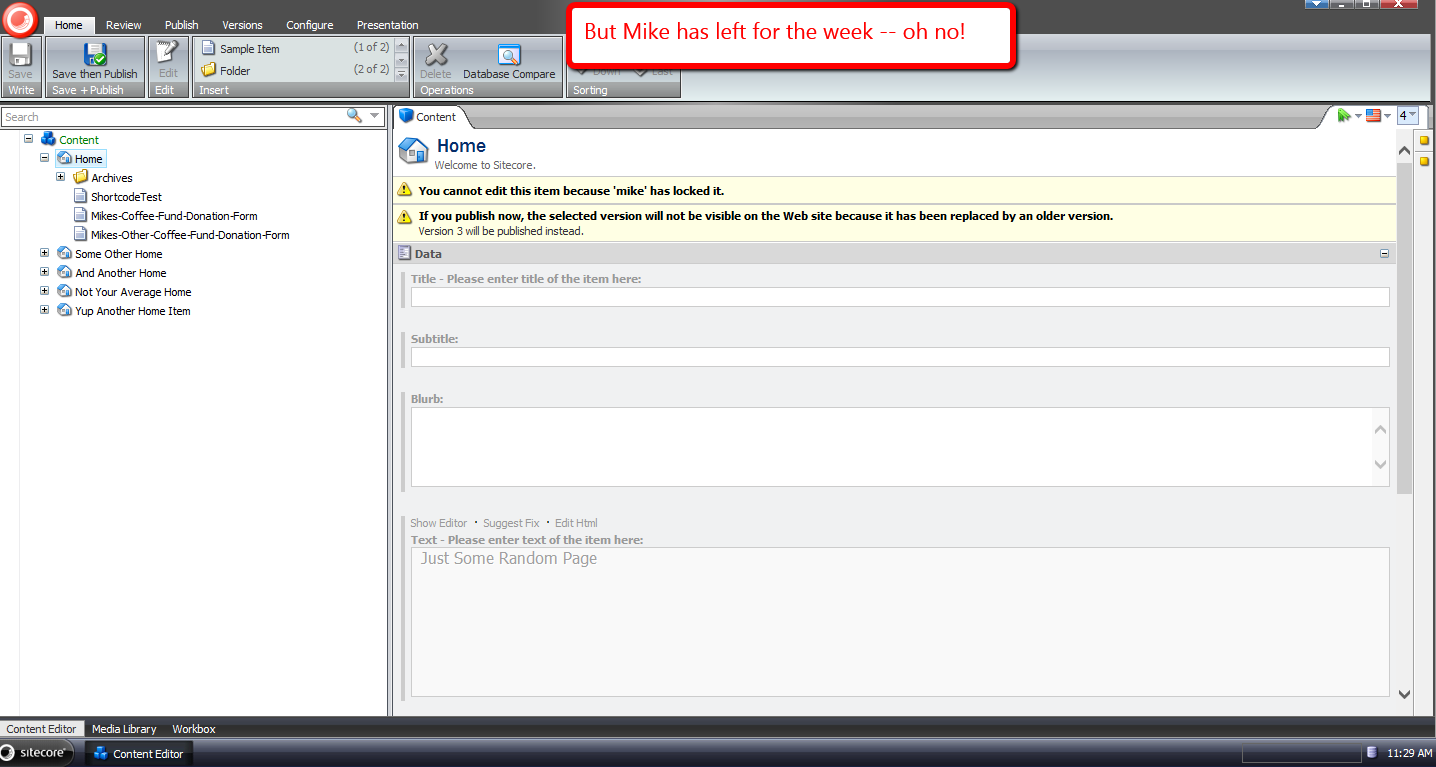
I then walked away, made a cup of coffee, returned, and saw this:
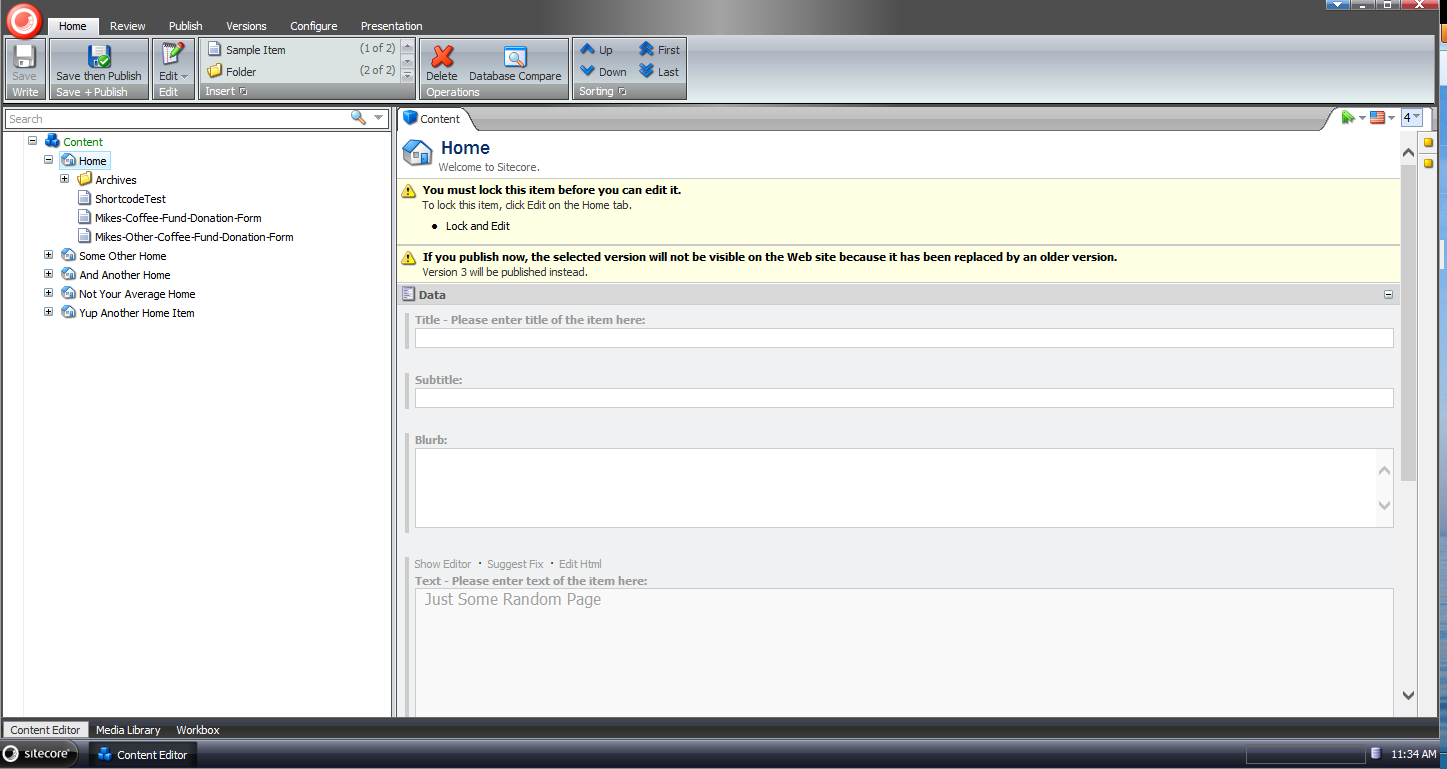
I opened up my latest Sitecore log, and saw the following:

I do want to caution you from running off with this code, and putting it into your Sitecore instance(s) — it is an all or nothing solution (it will unlock items for all non-adminstrators which might invoke some anger in users, and also defeat the purpose of locking items in the first place), so it’s quite important that a business decision is made before using this solution, or one that is similar in nature.
If you have any thoughts on this, please leave a comment.
Unlock Sitecore Users’ Items During Logout
The other day I saw a post in one of the SDN forums asking how one could go about building a solution to unlock items locked by a user when he/she logs out of Sitecore.
What immediately came to mind was building a new processor for the logout pipeline — this pipeline can be found at /configuration/sitecore/processors/logout in your Sitecore instance’s Web.config — but had to research how one would programmatically get all Sitecore items locked by the current user.
After a bit of fishing in Sitecore.Kernel.dll and Sitecore.Client.dll, I found a query in Sitecore.Client.dll that will give me all locked items for the current user:

Now all we need to do is add it into a custom logout pipeline processor:
using System;
using System.Collections.Generic;
using System.Linq;

using Sitecore.Data.Items;
using Sitecore.Diagnostics;
using Sitecore.Pipelines.Logout;

namespace Sitecore.Sandbox.Pipelines.Logout
{
    public class UnlockMyItems
    {
        public void Process(LogoutArgs args)
        {
            Assert.ArgumentNotNull(args, "args");
            UnlockMyItemsIfAny();
        }

        private void UnlockMyItemsIfAny()
        {
            IEnumerable<Item> lockedItems = GetMyLockedItems();
            if (!CanProcess(lockedItems))
            {
                return;
            }

            foreach (Item lockedItem in lockedItems)
            {
                Unlock(lockedItem);
            }
        }

        private static IEnumerable<Item> GetMyLockedItems()
        {
            return Context.ContentDatabase.SelectItems(GetMyLockedItemsQuery());
        }

        private static string GetMyLockedItemsQuery()
        {
            return string.Format("fast://*[@__lock='%\"{0}\"%']", Context.User.Name);
        }

        private static bool CanProcess(IEnumerable<Item> lockedItems)
        {
            return lockedItems != null
                    && lockedItems.Any()
                    && lockedItems.Select(item => item.Locking.HasLock()).Any();
        }

        private void Unlock(Item item)
        {
            Assert.ArgumentNotNull(item, "item");
            if (!item.Locking.HasLock())
            {
                return;
            }

            try
            {
                item.Editing.BeginEdit();
                item.Locking.Unlock();
                item.Editing.EndEdit();
            }
            catch (Exception ex)
            {
                Log.Error(this.ToString(), ex, this);
            }
        }
    }
}
The class above grabs all items locked by the current user in the context content database. If none are found, we don’t move forward on processing.
When there are locked items for the current user, the code checks to see if each item is locked before unlocking, just in case some other account unlocks the item before we unlock it — I don’t know what would happen if we try to unlock an item that isn’t locked. If you know, please share in a comment.
I then injected the above pipeline processor into the logout pipeline using the following patch configuration file:
<?xml version="1.0" encoding="utf-8" ?>
<configuration xmlns:patch="http://www.sitecore.net/xmlconfig/">
  <sitecore>
    <processors>
      <logout>
        <processor patch:after="*[@type='Sitecore.Pipelines.Logout.CheckModified, Sitecore.Kernel']" type="Sitecore.Sandbox.Pipelines.Logout.UnlockMyItems, Sitecore.Sandbox"/>
      </logout>
    </processors>
  </sitecore>
</configuration>
Let’s test-drive this.
I first logged into Sitecore using my ‘mike’ account, and chose the Home item to lock:
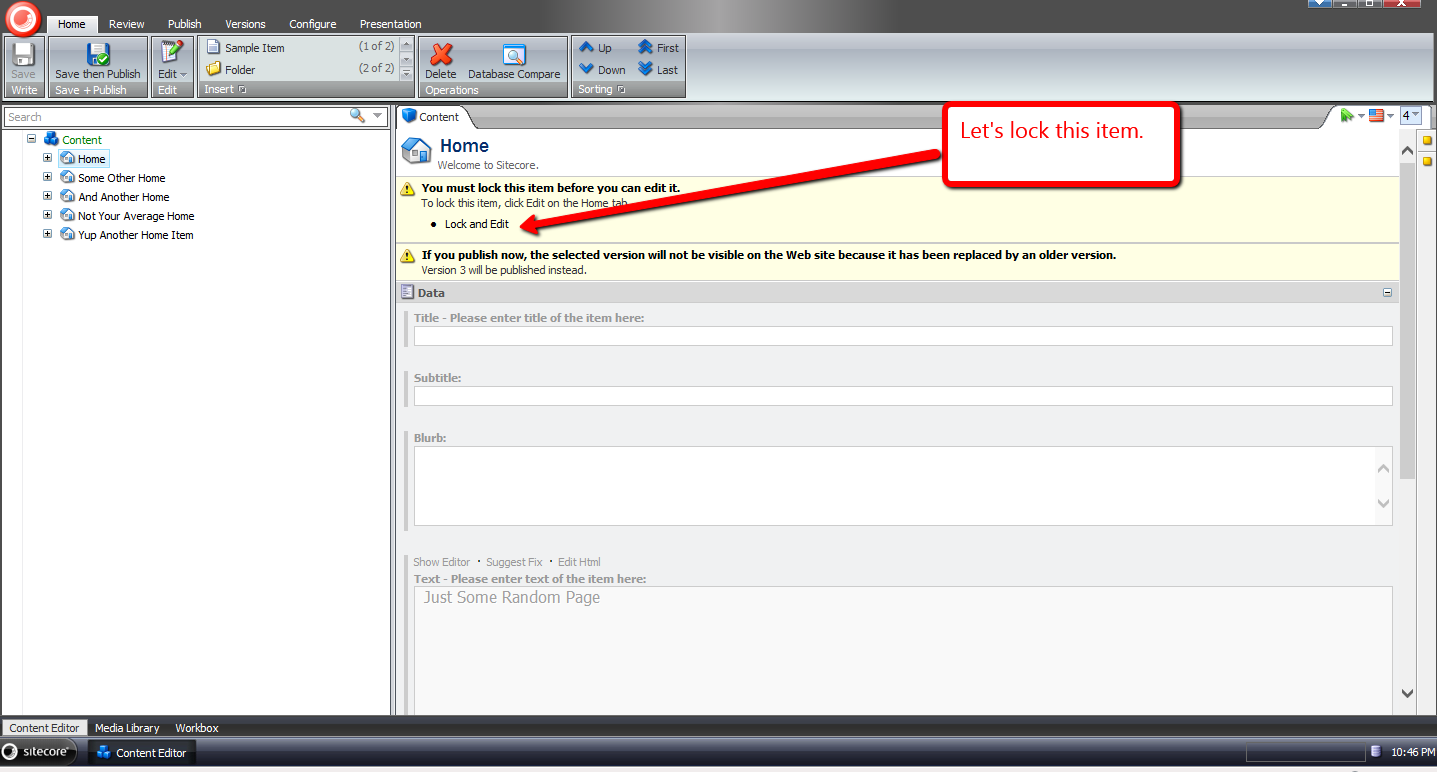
It is now locked:
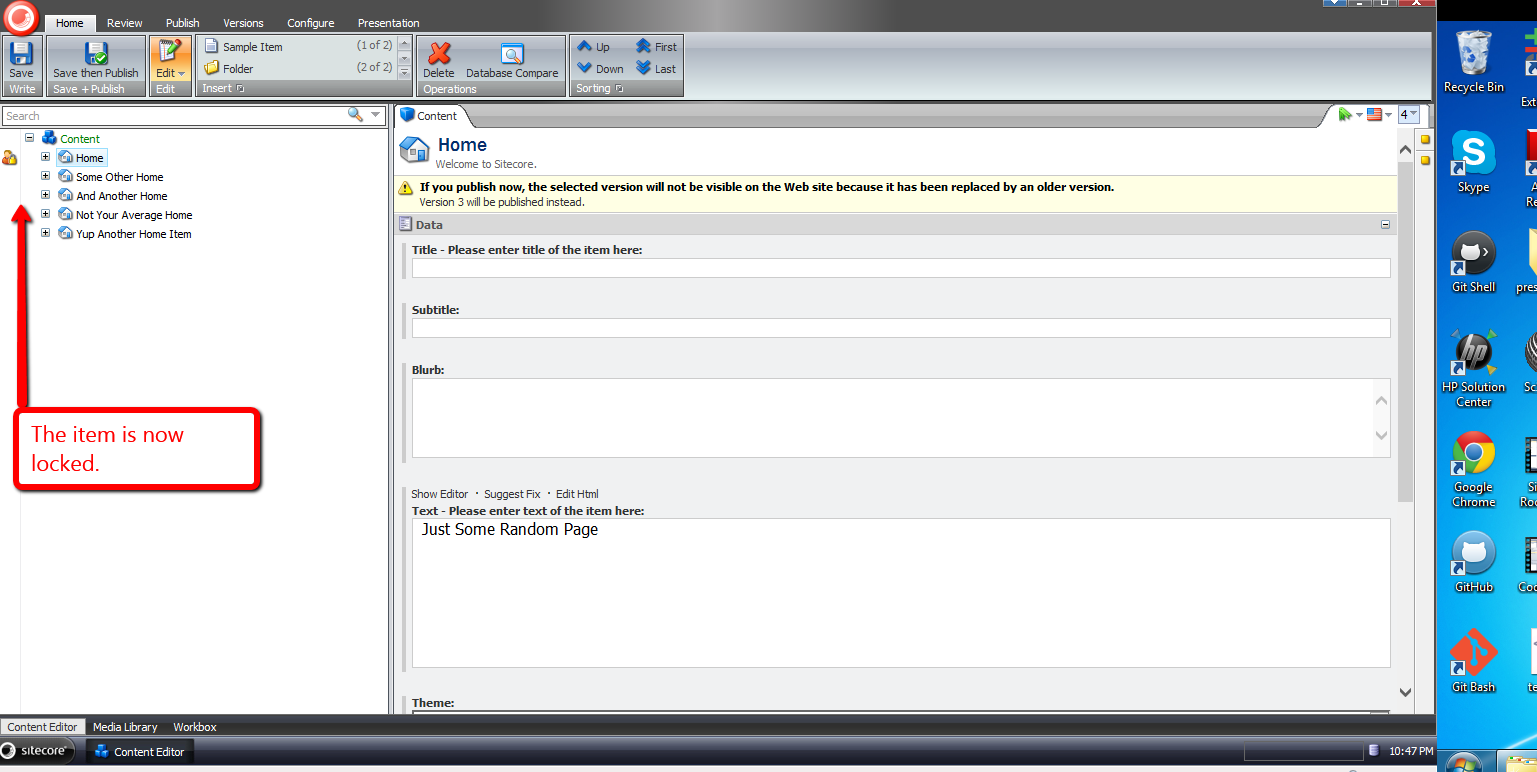
In another session, I logged in using another account, and saw that ‘mike’ had locked the Home item:

I switched back to the other session under the ‘mike’ user, and logged out:

When I logged back in, I saw that the Home item was no longer locked:

If you have any thoughts or suggestions on making this better, please share in a comment below.
Expand Tokens on Sitecore Items Using a PowerShell Function in Sitecore PowerShell Extensions
During my Sitecore from the Command Line presentation at the Sitecore User Group – New England, I had briefly showcased a custom PowerShell function that expands Sitecore tokens in fields of a supplied item, and how I had saved this function into the Functions section of the Script Library — /sitecore/system/Modules/PowerShell/Script Library/Functions — of the Sitecore PowerShell Extensions module. This blog post captures what I had shown.
This is the custom function I had shown — albeit I changed its name to adhere to the naming convention in PowerShell for functions and commands (Verb-SingularNoun):
function Expand-SitecoreToken {
	<#
        .SYNOPSIS
             Expand tokens on the supplied item

        .EXAMPLE
            Expand tokens on the home item.

            PS master:\> Get-Item "/sitecore/content/home" | Expand-SitecoreToken
    #>
	[CmdletBinding()]
    param(
		[ValidateNotNull()]
		[Parameter(ValueFromPipeline=$True)]
        [Sitecore.Data.Items.Item]$item
    )

    $item.Editing.BeginEdit()

    Try
    {
        $tokenReplacer = [Sitecore.Configuration.Factory]::GetMasterVariablesReplacer()
        $tokenReplacer.ReplaceItem($item)
        $result = $item.Editing.EndEdit()
        "Expanded tokens on item " + $item.Paths.Path
    }
    Catch [system.Exception]
    {
        $item.Editing.CancelEdit()
        "Failed to expand tokens on item"
        "Reason: " + $error
    }
}
The function above calls Sitecore.Configuration.Factory.GetMasterVariablesReplacer() for an instance of the MasterVariablesReplacer class — which is defined and can be overridden in the “MasterVariablesReplacer” setting in your Sitecore instance’s Web.config — and passes the item supplied to the function to the MasterVariablesReplacer instance’s ReplaceItem() method after the item has been put into editing mode.
Once tokens have been expanded, a confirmation message is sent to the Results window.
If an exception is caught, we display it — the exception is captured in the $error global variable.
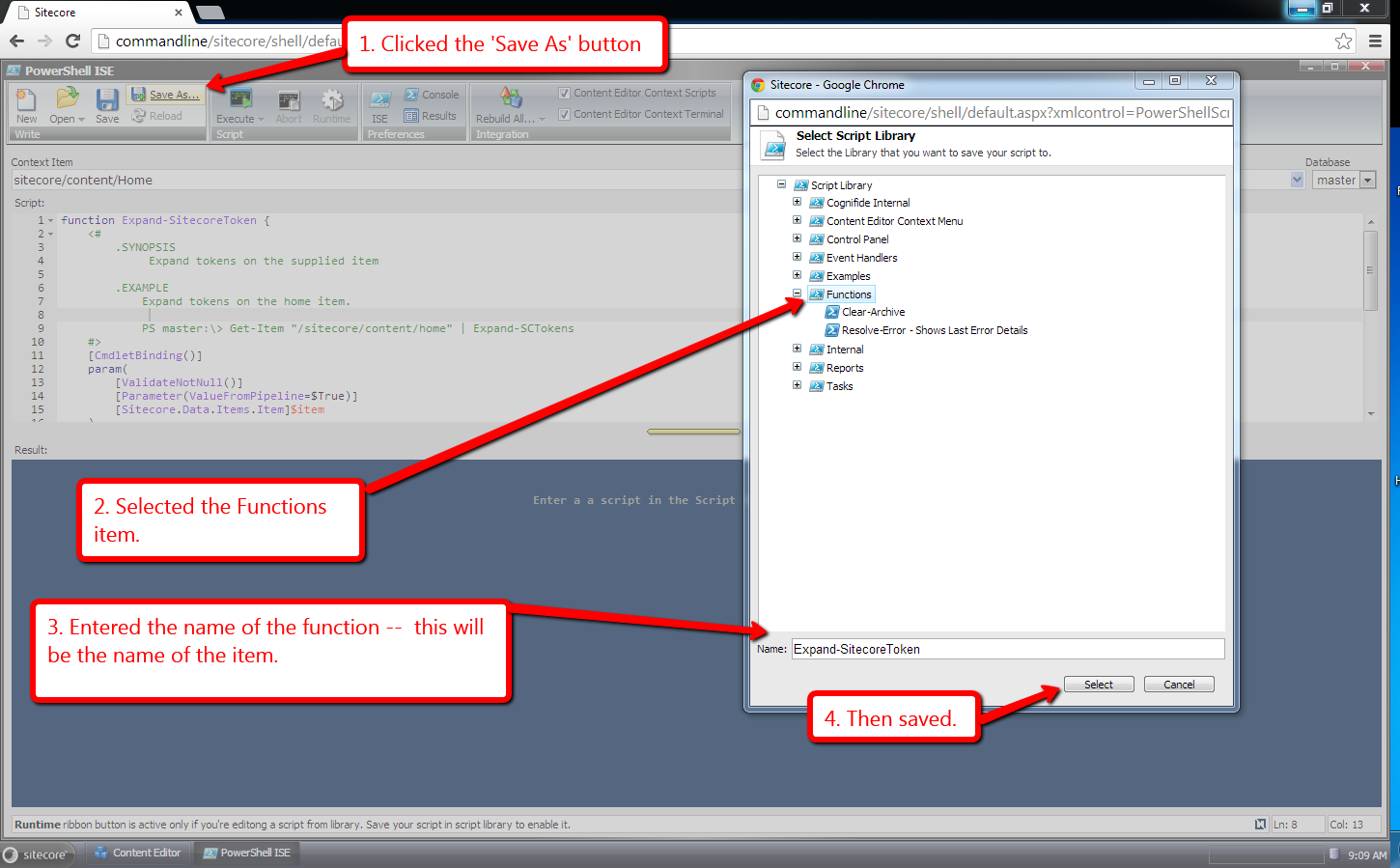
I saved the above function into the Script Library of my copy of the Sitecore PowerShell Extensions module:
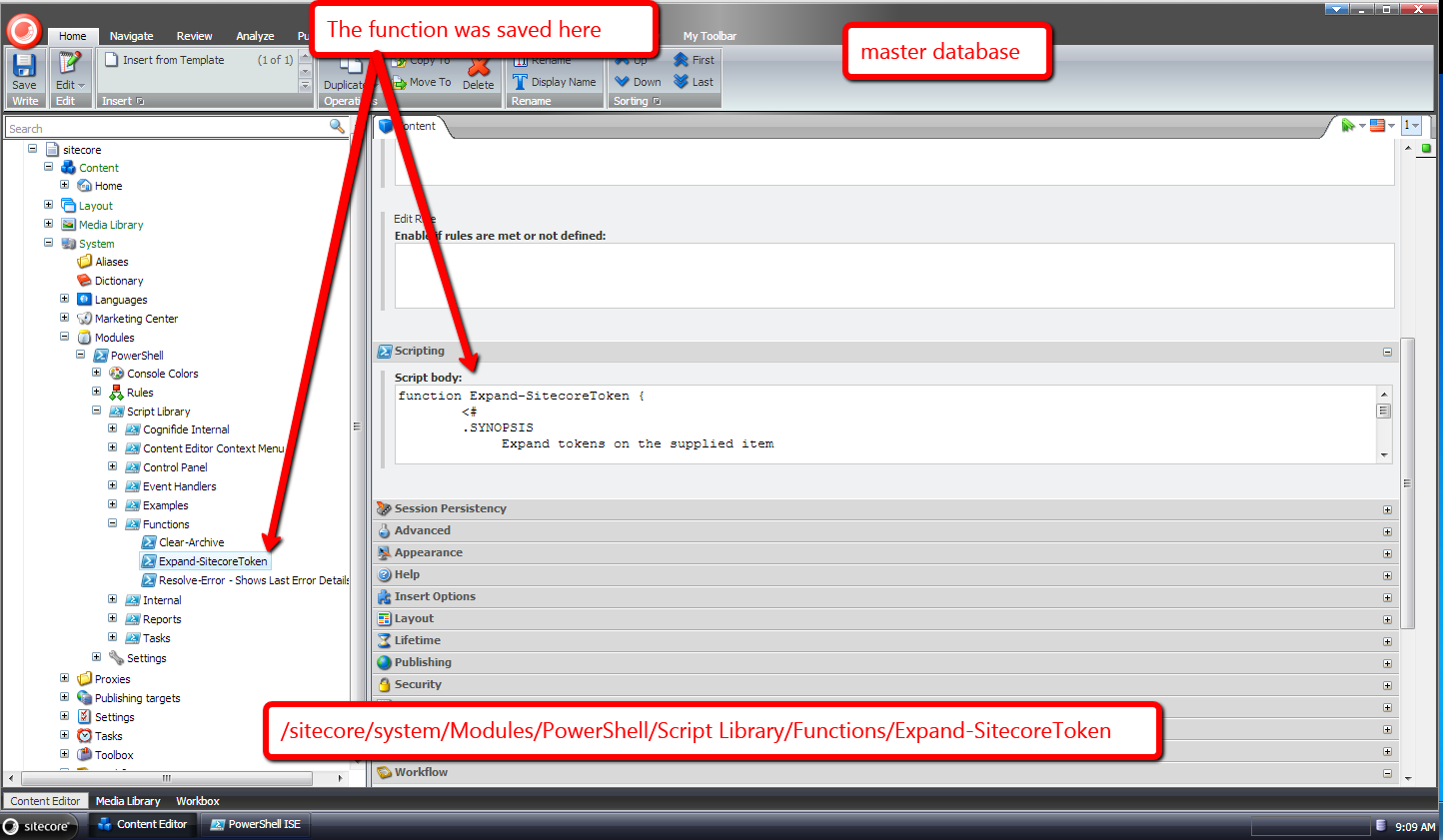
An item was created in the Script Library to house the function:
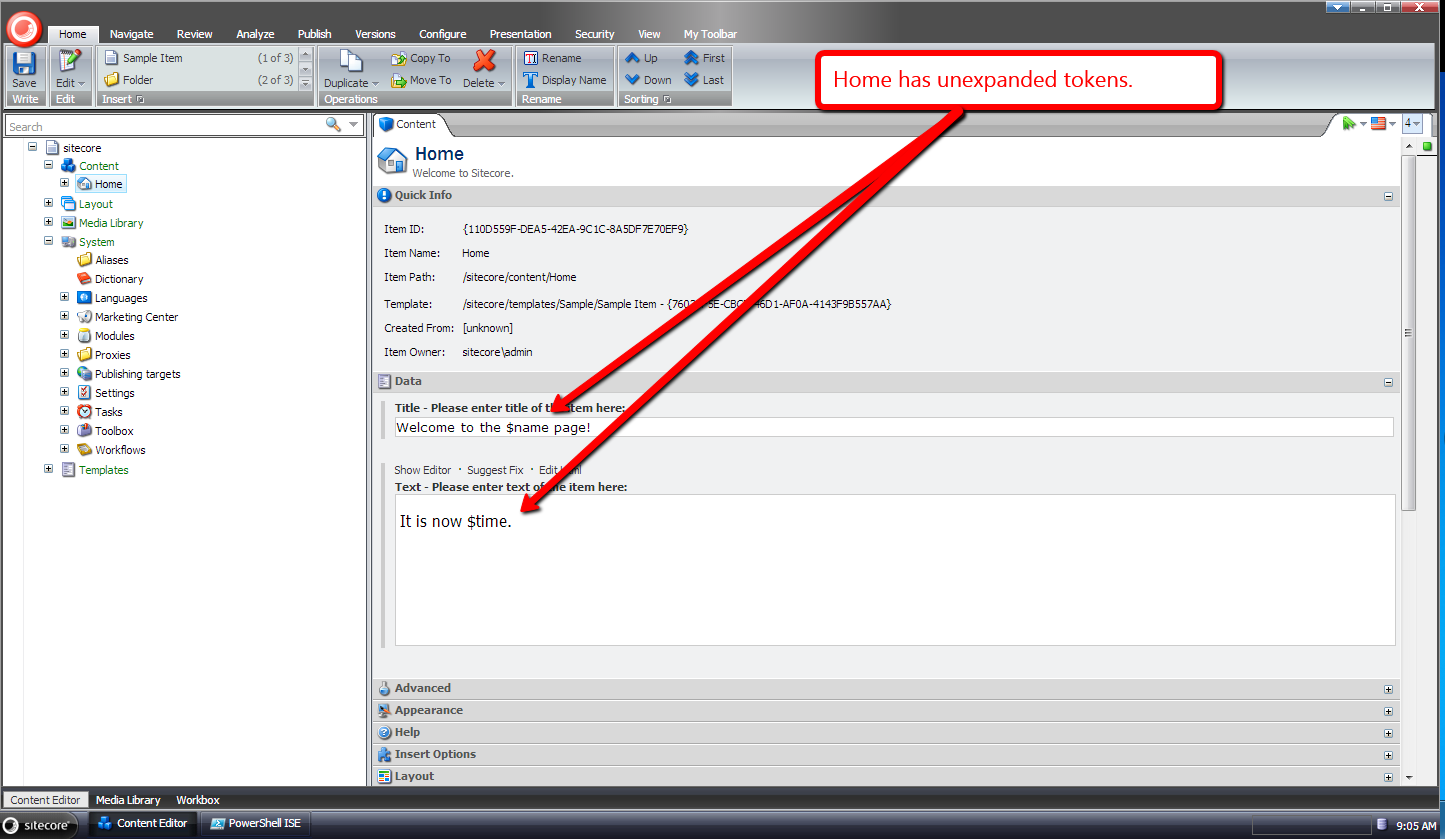
Let’s try it out.
Let’s expand tokens on the Home item:
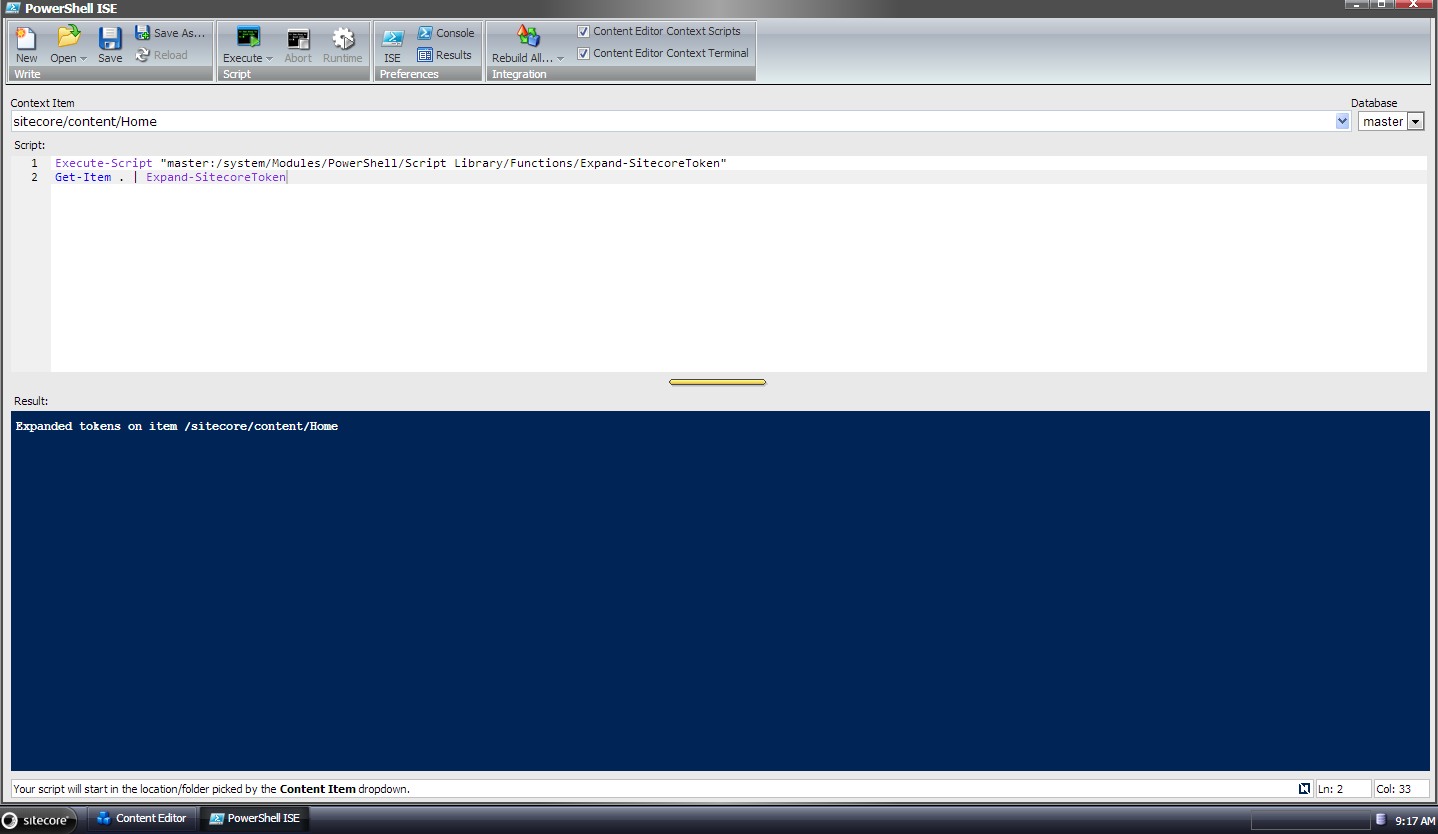
In the Integrated Scripting Environment of the Sitecore PowerShell Extensions module, I typed in the following code:
Execute-Script "master:/system/Modules/PowerShell/Script Library/Functions/Expand-SitecoreToken"
Get-Item . | Expand-SitecoreToken
You can consider the Execute-Script “master:/system/Modules/PowerShell/Script Library/Functions/Expand-SitecoreToken” line of code to be comparable to a javascript “script” tag — it will execute the script thus defining the function so we can execute it.
I then ran that code above:
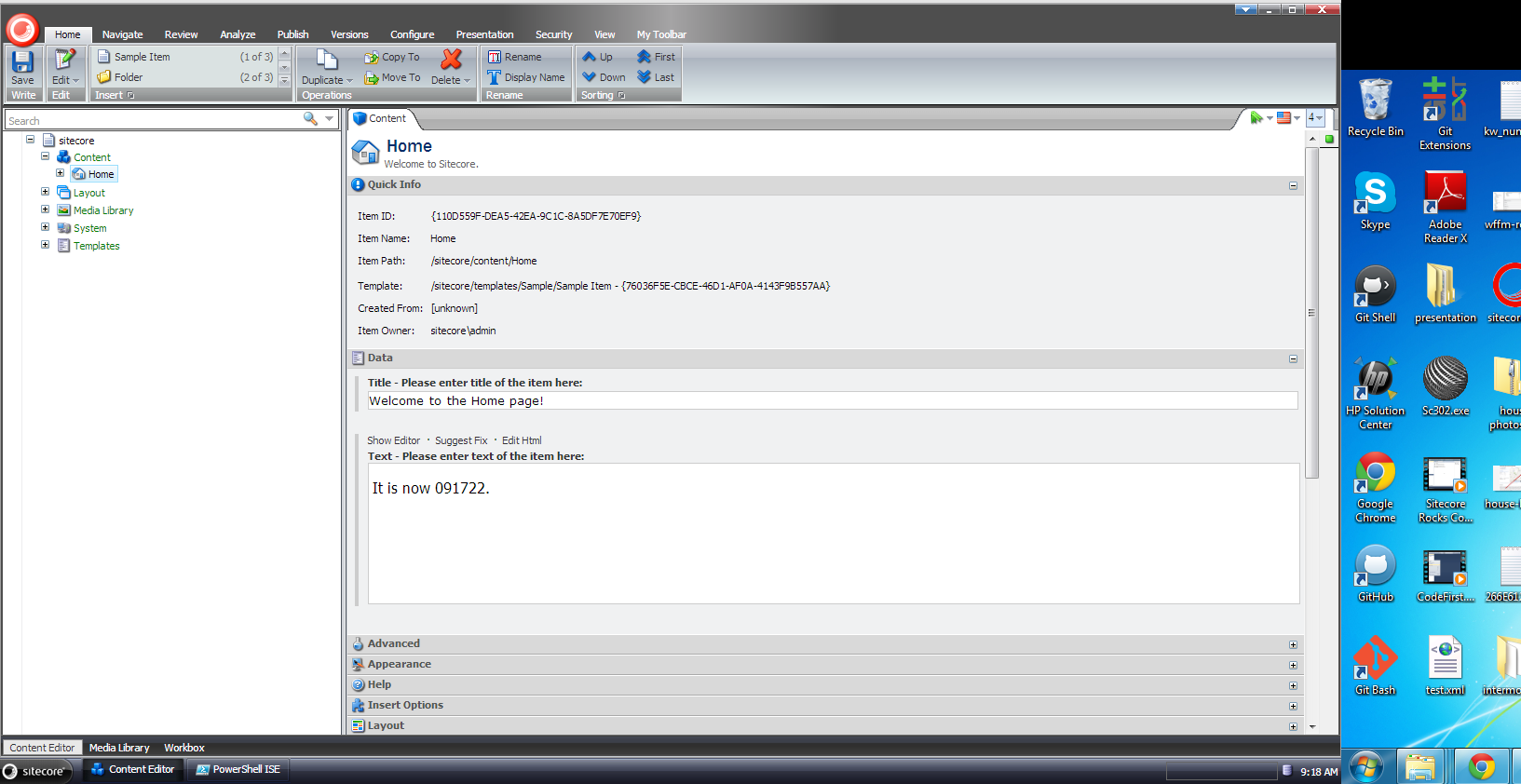
Once the script finished running, I went back over to the Content Editor, and saw that tokens were expanded on the Home item:
You might be thinking “Mike, I really don’t want to be bothered with expanding these tokens, and would rather have our Content Editors/Authors do it. is there something we can set up to make that happen?”
You bet. 🙂
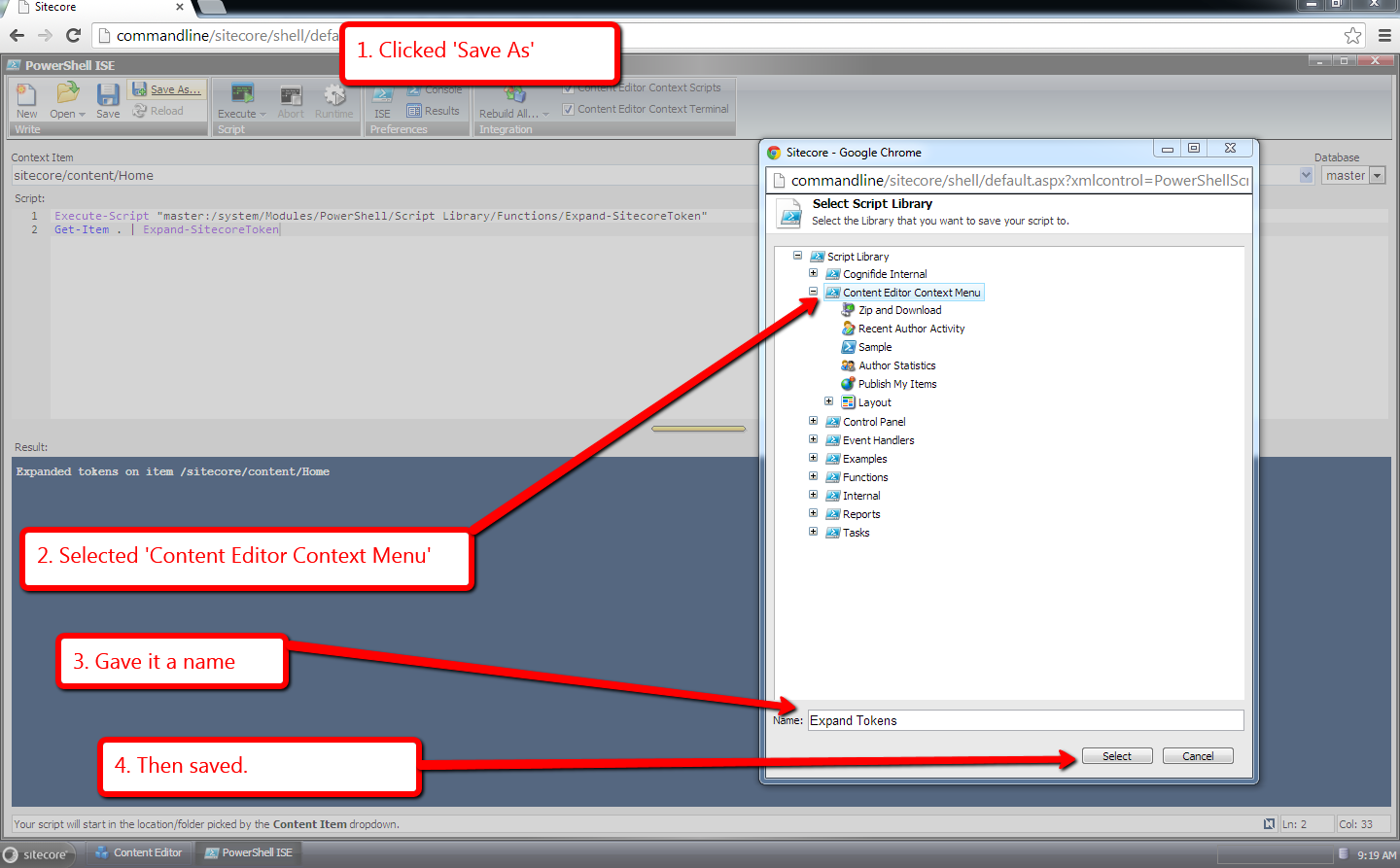
In the Sitecore PowerShell Extension module, you can save PowerShell into the Script Library to be executed via an item context menu option click. All you have to do is save it into the Script Library under the Content Editor Context Menu item:
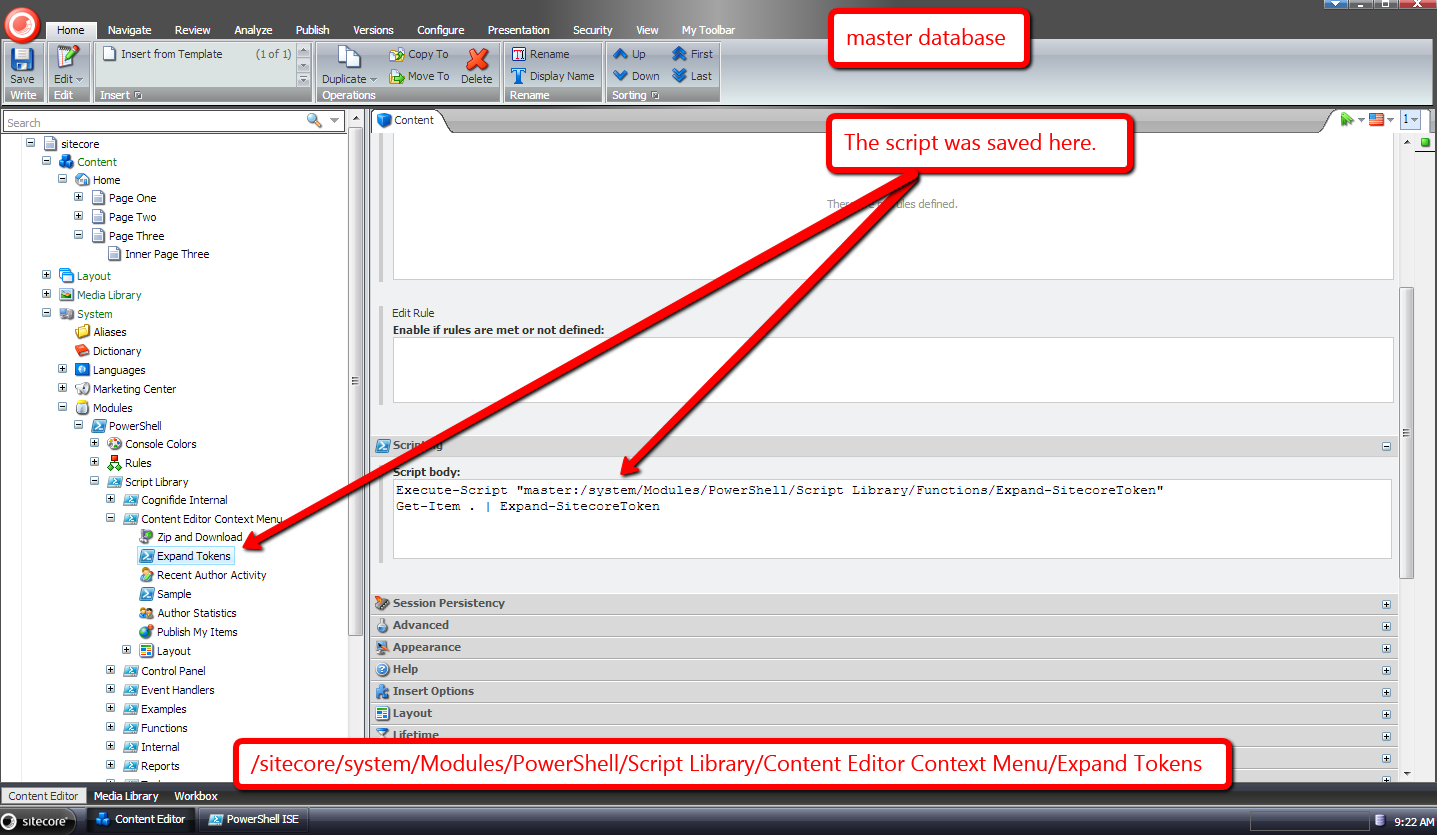
The script is then saved in a new item created under Content Editor Context Menu item in the Script Library:
Let’s see it in action.
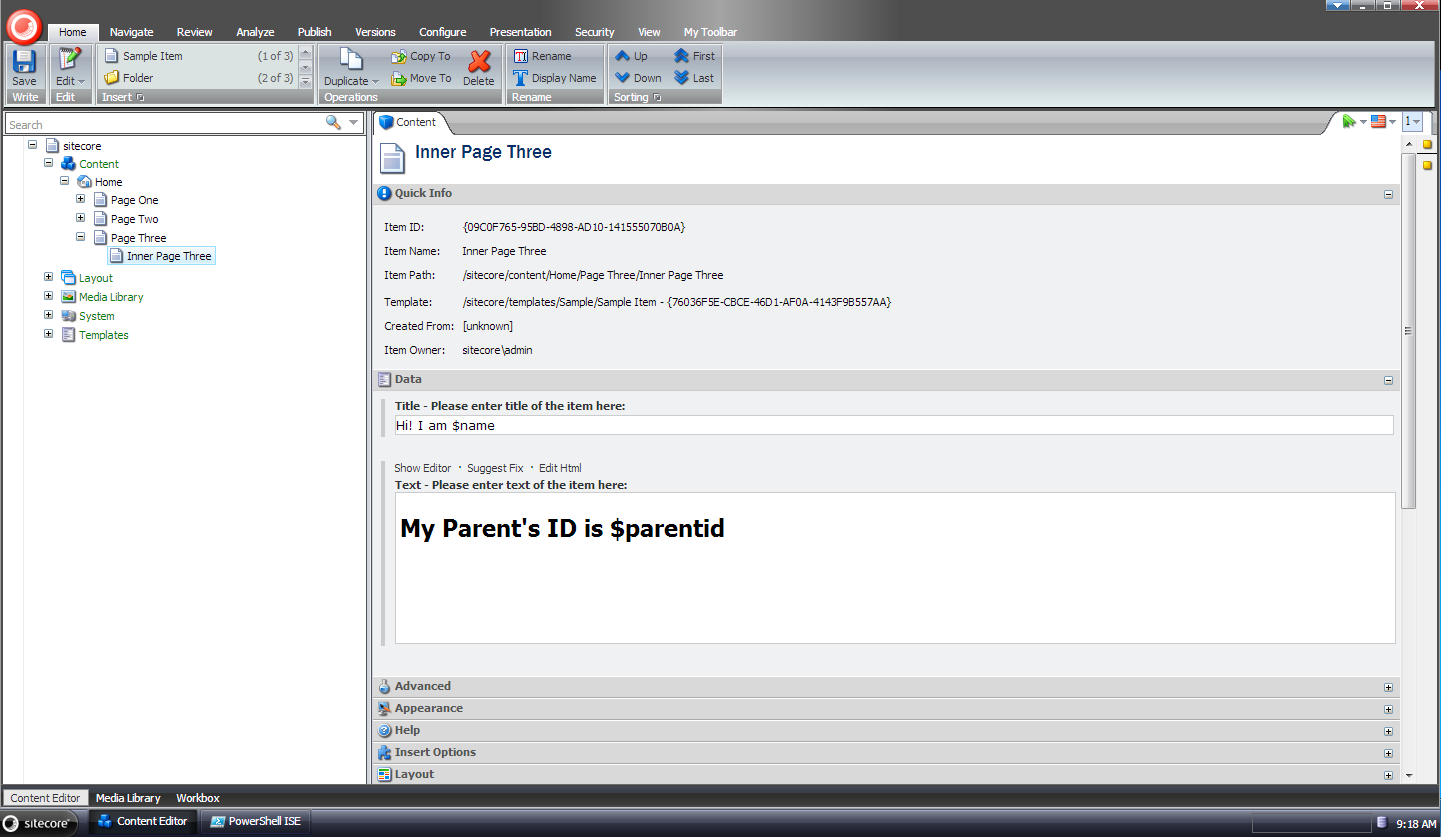
I chose the following page at random to expand tokens:
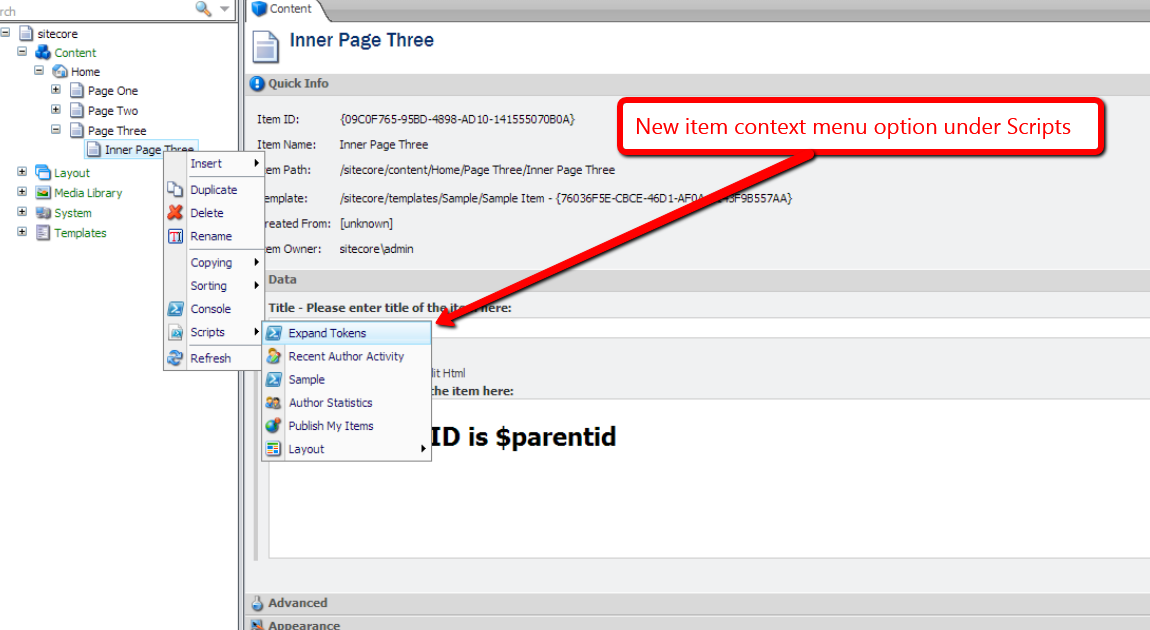
I right-clicked on the item to launch it’s context menu, opened up scripts, and saw a new “Expand Tokens” option:
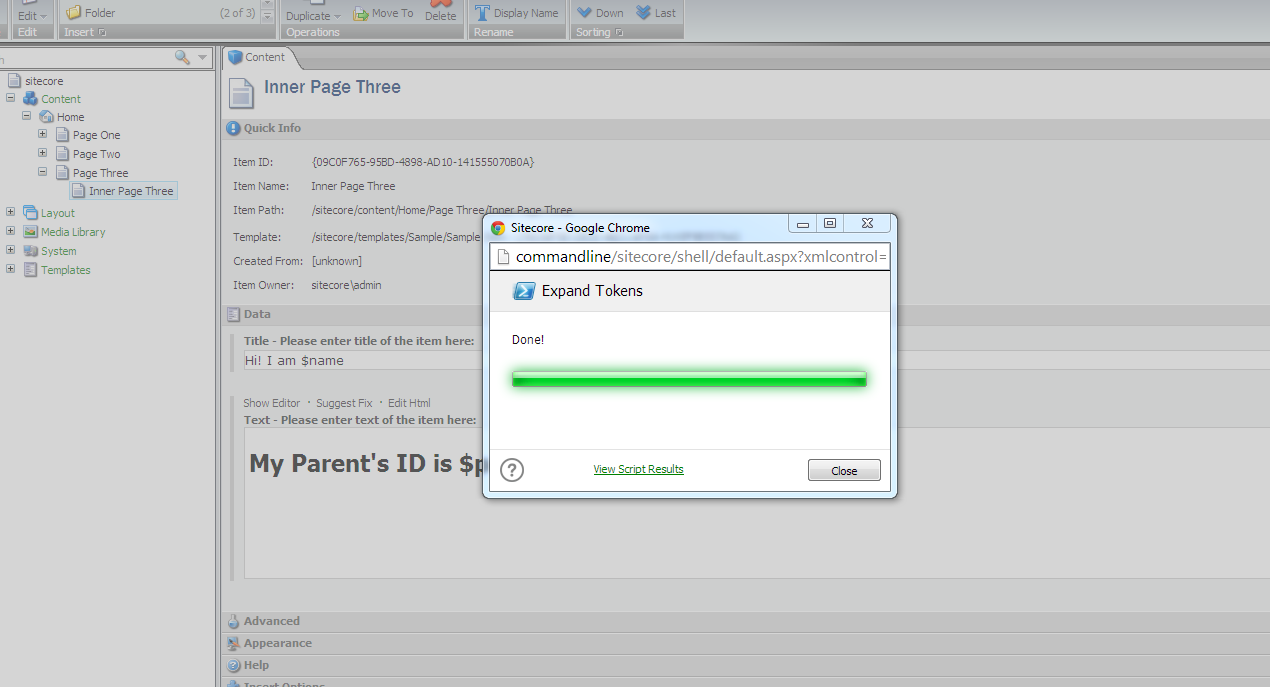
I clicked it, and was given a dialog with a status bar:
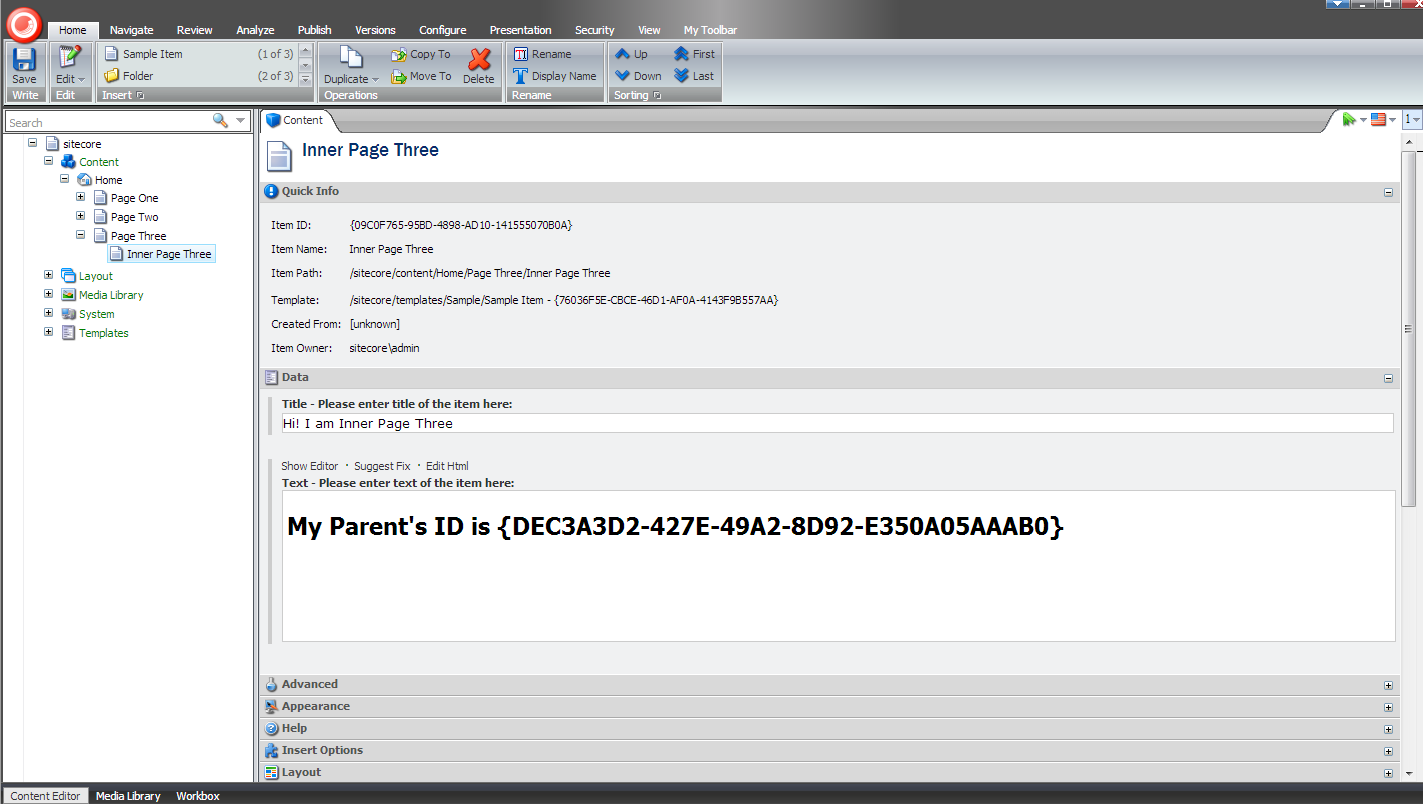
I refreshed the item, and saw that all tokens were expanded:
If you have any thoughts or questions on this, please leave a comment.
Until next time, have a scriptabulous day!
Expand Tokens on Sitecore Items Using a Custom Command in Sitecore PowerShell Extensions
During my Sitecore from the Command Line presentation at the Sitecore User Group – New England, I had shown attendees how they could go about adding a custom command into the Sitecore PowerShell Extensions module.
This blog post shows what I had presented — although the code in this post is an improved version over what I had presented at my talk. Many thanks to Sitecore MVP Adam Najmanowicz for helping me make this code better!
The following command will expand “out of the box” tokens in all fields of a supplied Sitecore item — check out Expand Tokens on Sitecore Items Using a Custom Command in Revolver where I discuss the problem commands like this address, and this article by Sitecore MVP Jens Mikkelsen which lists “out of the box” tokens available in Sitecore:
using System;
using System.Management.Automation;

using Sitecore.Configuration;

using Sitecore.Data;
using Sitecore.Data.Items;

using Cognifide.PowerShell.PowerShellIntegrations.Commandlets;

namespace CommandLineExtensions.PowerShell.Commandlets
{
    [Cmdlet("Expand", "Token")]
    [OutputType(new[] { typeof(Item) })]
    public class ExpandTokenCommand : BaseCommand
    {
        private static readonly MasterVariablesReplacer TokenReplacer = Factory.GetMasterVariablesReplacer();

        [Parameter(Position = 0, Mandatory = true, ValueFromPipeline = true)]
        public Item Item { get; set; }

        protected override void ProcessRecord()
        {
            Item.Editing.BeginEdit();
            try
            {
                TokenReplacer.ReplaceItem(Item);
                Item.Editing.EndEdit();
            }
            catch (Exception ex)
            {
                Item.Editing.CancelEdit();
                throw ex;
            }

            WriteItem(Item);
        }
    }
}
The command above subclasses Cognifide.PowerShell.PowerShellIntegrations.Commandlets.BaseCommand — the base class for most (if not all) commands in Sitecore PowerShell Extensions.
An item is passed to the command via a parameter, and is magically set on the Item property of the command class instance.
The ValueFromPipeline parameter being set to “true” on the Item property’s Parameter attribute will allow for chaining of this command with others so that items can be fed into it via a pipe bridging the commands together in PowerShell.
An instance of the Sitecore.Data.MasterVariablesReplacer class — which is created by the GetMasterVariablesReplacer() method of the Sitecore.Configuration.Factory class based on the “MasterVariablesReplacer” setting of your Sitecore instance’s Web.config — is used to expand tokens on the supplied Sitecore item after the item was flagged for editing.
Once tokens have been expanded on the item — or not in the event an exception is encountered — the item is written to the Results window via the WriteItem method which is defined in the BaseCommand class.
I then had to wire up the custom command via a patch configuration file:
<configuration xmlns:patch="http://www.sitecore.net/xmlconfig/">
  <sitecore>
    <powershell>
      <commandlets>
		    <add Name="Custom Commandlets" type="*, CommandLineExtensions" />
      </commandlets>
    </powershell>
  </sitecore>
</configuration>
Let’s take this custom command for a spin.
I created a bunch of test items, and set tokens in their fields. I then selected the following page at random for testing:

I opened up the Integrated Scripting Environment of Sitecore PowerShell Extensions, typed in the following PowerShell code, and executed by pressing Ctrl-E:

As you can see tokens were expanded on the Page One item:

How about expanding tokens on all descendants of the Home item? Let’s see an example of how we can do that.
I chose the following content item — a grandchild of the Home item — for testing:

I switched back over to the Integrated Scripting Environment, wrote the following code for testing — the Get-ChildItem command with the -r parameter (this means do this recursively) will grab all descendants of the Home item, and pipe each item in the result set into the Expand-Token command — and clicked the Execute button:

I then went back to the grandchild item of the Home page in the content tree, and saw that tokens were expanded in its fields:

If you have any thoughts or comments on this, or ideas for new commands in Sitecore PowerShell Extensions, please share in a comment.
Until next time, have a scriptolicious day!
Expand Tokens on Sitecore Items Using a Custom Command in Revolver
On September 18, 2013, I presented Sitecore from the Command Line at the Sitecore User Group – New England.
During my presentation, I gave an example of creating a custom command in Revolver — the first scripting platform for Sitecore built by Alistair Deneys — and thought I would write something up for those who had missed the presentation, or wanted to revisit what I had shown.
One thing that plagues some Sitecore developers — if you disagree please leave a comment — is not having a nice way to expand tokens on items when tokens are added to Standard Values after items had been created previously.
Newly added tokens “bleed” into preexisting items’ fields, and I’ve seen developers perform crazy feats of acrobatic gymnastics to expand them — writing a standalone web form to recursive crawl the content tree to expand these is such an example (take a look at Empower Your Content Authors to Expand Standard Values Tokens in the Sitecore Client where I offer an alternative way to expand tokens on content items).
The following custom Revolver command will expand tokens on a supplied Sitecore item, and help out on the front of expanding newly added tokens on preexisting items:
using System;
using Sitecore.Configuration;
using System.Linq;

using Sitecore.Data;
using Sitecore.Data.Items;

using Revolver.Core;
using Revolver.Core.Commands;

namespace CommandLineExtensions.Revolver.Commands
{
    public class ExpandTokensCommand : BaseCommand
    {
        private static readonly MasterVariablesReplacer TokenReplacer = Factory.GetMasterVariablesReplacer();

        public override string Description()
        {
            return "Expand tokens on an item";
        }

        public override HelpDetails Help()
        {
            HelpDetails details = new HelpDetails
            {
                Description = Description(),
                Usage = "<cmd> [path]"
            };

            details.AddExample("<cmd>");
            details.AddExample("<cmd> /item1/item2");
            return details;
        }

        public override CommandResult Run(string[] args)
        {
            string path = string.Empty;
            if (args.Any())
            {
                path = args.FirstOrDefault();
            }

            using (new ContextSwitcher(Context, path))
            {
                if (!Context.LastGoodPath.EndsWith(path, StringComparison.CurrentCultureIgnoreCase))
                {
                    return new CommandResult
                    (
                        CommandStatus.Failure,
                        string.Format("Failed to expand tokens on item {0}\nReason:\n\n An item does not exist at that location!", path)
                    );
                }

                CommandResult result;
                Item item = Context.CurrentItem;
                item.Editing.BeginEdit();
                try
                {
                    TokenReplacer.ReplaceItem(item);
                    result = new CommandResult(CommandStatus.Success, string.Concat("Expanded tokens on item ", Context.LastGoodPath));
                    item.Editing.EndEdit();
                }
                catch (Exception ex)
                {
                    item.Editing.CancelEdit();
                    result = new CommandResult(CommandStatus.Failure, string.Format("Failed to expand tokens on item {0}\nReason:\n\n{1}", path, ex));
                }

                return result;
            }
        }
    }
}
Tokens are expanded using an instance of the Sitecore.Data.MasterVariablesReplacer class — you can roll your own, and wire it up in the “MasterVariablesReplacer” setting of your Sitecore instance’s Web.config — which is provided by Sitecore.Configuration.Factory.GetMasterVariablesReplacer().
All custom commands in Revolver must implement the Revolver.Core.ICommand interface. I subclassed Revolver.Core.Commands.BaseCommand — which does implement this interface — since it seemed like the right thing to do given that all “out of the box” commands I saw in Revolver were subclassing it, and then implemented the Description(), Help() and Run() abstract methods.
I then had to bind the custom command to a new name — I chose “et” for “Expand Tokens”:
@echooff
@stoponerror

bind CommandLineExtensions.Revolver.Commands.ExpandTokensCommand,CommandLineExtensions et

@echoon
Since it wouldn’t be efficient to type and run this bind script every time I want to use the “et” command, I added it into a startup script in the core database:

I then had to create a user script for the startup script to run. I chose the Everyone role here for demonstration purposes:

The above startup script will be invoked when Revolver is opened, and our custom command will be bound.
Let’s see all of the above in action.
I added some tokens in my home item:

I then opened up Revolver, navigated to /sitecore/content, and ran the custom command on the home item:

As you can see the tokens were expanded:

You might be thinking “that’s wonderful Mike — except now I have to navigate to every item in my content tree using Revolver, and then run this custom command on it”.
Well, I do have a solution for this: a custom script that grabs an item and all of its descendants using a Sitecore query, and passes them to the custom command to expand tokens:
@echooff
@stoponerror

if ($1$ = \$1\$) (exit (Missing required parameter path))

@echoon

query -ns $1$/descendant-or-self::* et
I put this script in the core database, and named it “etr” for “Expand Tokens Recursively”:
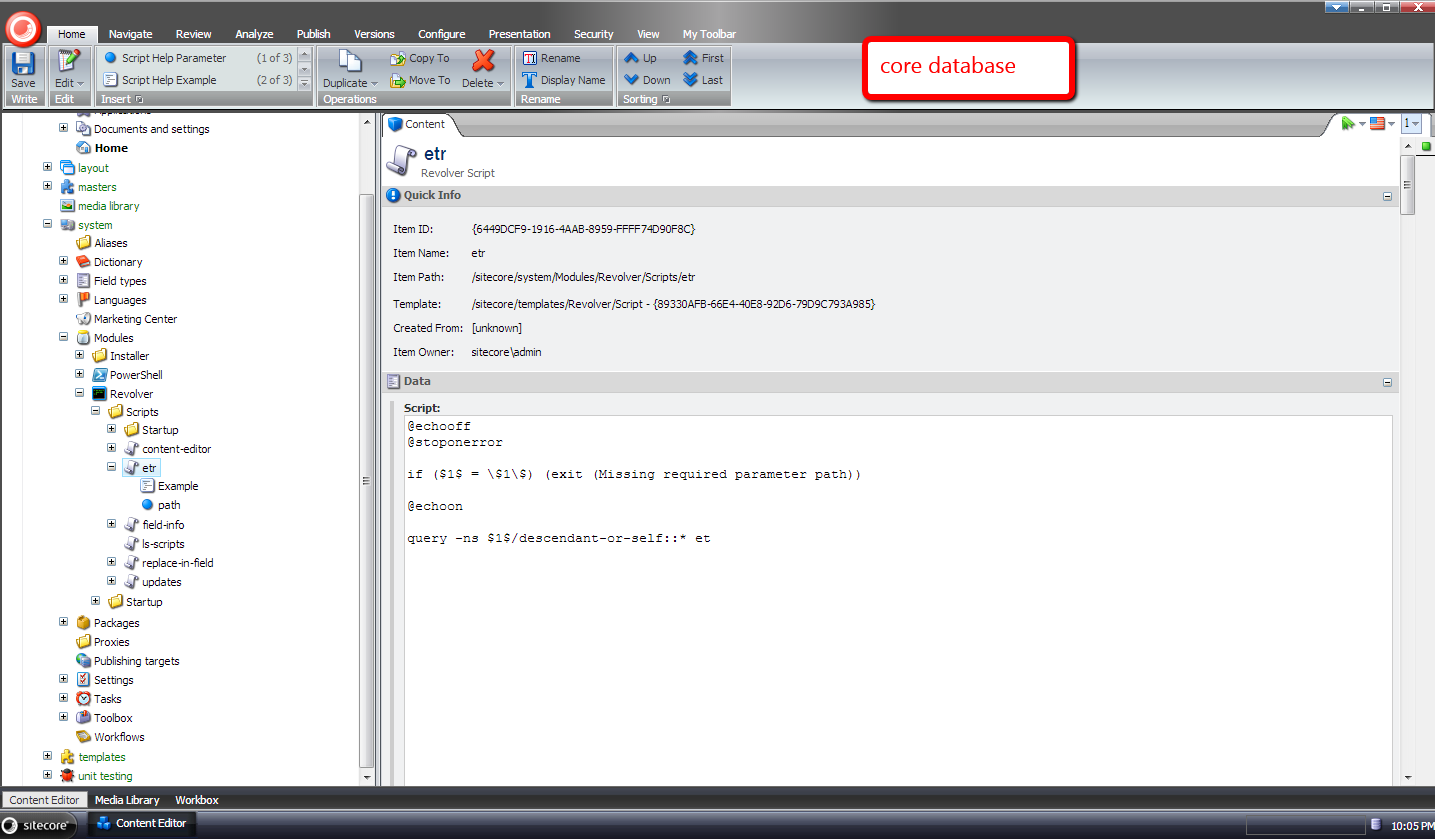
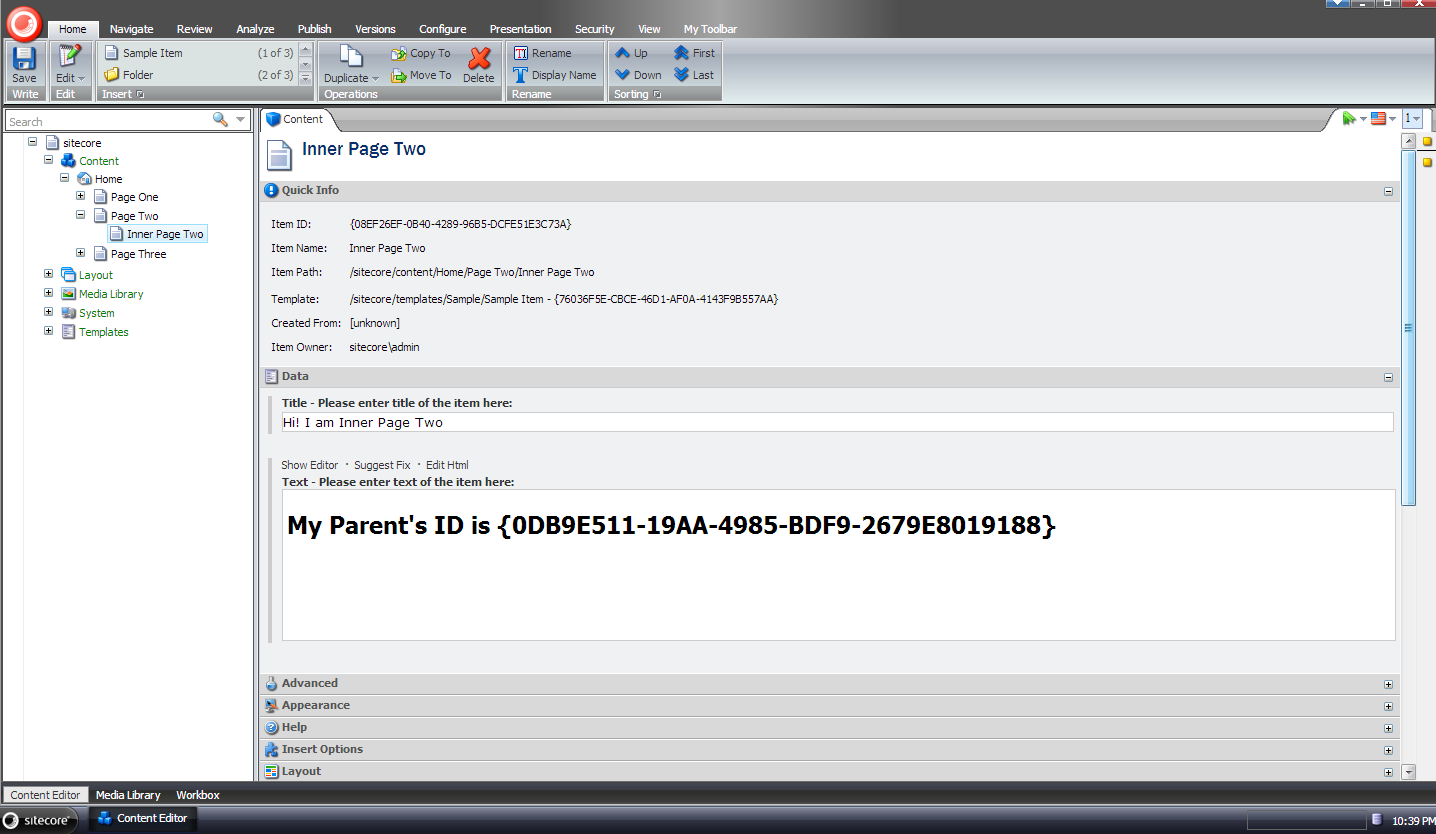
I navigated to a descendant of /sitecore/content/home, and see that it has some unexpanded tokens on it:

I went back to Revolver, and ran the “etr” command on the home item:

As you can see tokens were expanded on the descendant item:
If you have any thoughts on this, or have ideas for other custom commands in Revolver, please share in a comment.
Shortcodes in Sitecore: A Proof of Concept
Today I stumbled upon a post in one of the SDN forums asking whether anyone had ever implemented shortcodes in Sitecore.
I have not seen an implementation of this for Sitecore — if you know of one, please drop a comment — but am quite familiar with these in WordPress — I use them to format code in my blog posts using the [code language=”csharp”]//code goes in here[/code] shortcode — and felt I should take on the challenge of implementing a “proof of concept” for this in Sitecore.
I first created a POCO that will hold shortcode data: the shortcode itself and the content (or markup) that the shortcode represents after being expanded:
namespace Sitecore.Sandbox.Pipelines.ExpandShortcodes
{
    public class Shortcode
    {
        public string Unexpanded { get; set; }

        public string Expanded { get; set; }
    }
}
I thought it would be best to put the logic that expands shortcodes into a new pipeline, and defined a pipeline arguments class for it:
using Sitecore.Pipelines;

namespace Sitecore.Sandbox.Pipelines.ExpandShortcodes
{
    public class ExpandShortcodesArgs : PipelineArgs
    {
        public string Content { get; set; }
    }
}
There really isn’t much to this arguments class — we will only be passing around a string of content that will contain shortcodes to be expanded.
Before moving forward on building pipeline processors for the new pipeline, I saw that I could leverage the template method pattern to help me process collections of Shortcode instances in an abstract base class:
using System.Collections.Generic;
using System.Linq;
using System.Text.RegularExpressions;

using Sitecore.Diagnostics;

namespace Sitecore.Sandbox.Pipelines.ExpandShortcodes
{
    public abstract class ExpandShortcodesProcessor
    {
        public virtual void Process(ExpandShortcodesArgs args)
        {
            if (string.IsNullOrWhiteSpace(args.Content))
            {
                return;
            }

            IEnumerable<Shortcode> shortcodes = GetShortcodes(args.Content);
            if (shortcodes == null || !shortcodes.Any())
            {
                return;
            }

            args.Content = ExpandShortcodes(shortcodes, args.Content);
        }

        protected abstract IEnumerable<Shortcode> GetShortcodes(string content);

        protected virtual string ExpandShortcodes(IEnumerable<Shortcode> shortcodes, string content)
        {
            Assert.ArgumentNotNull(shortcodes, "shortcodes");
            Assert.ArgumentNotNull(content, "content");
            string contentExpanded = content;
            foreach (Shortcode shortcode in shortcodes)
            {
                contentExpanded = contentExpanded.Replace(shortcode.Unexpanded, shortcode.Expanded);
            }

            return contentExpanded;
        }
    }
}
The above class iterates over all Shortcode instances, and replaces shortcodes with their expanded content.
Each subclass processor of ExpandShortcodesProcessor are to “fill in the blanks” of the algorithm defined in the base class by implementing the GetShortcodes method only — this is where the heavy lifting of grabbing the shortcodes from the passed string of content, and the expansion of these shortcodes are done. Both are then set in new Shortcode instances.
Once the base class was built, I developed an example ExpandShortcodesProcessor subclass to expand [BigBlueText]content goes in here[/BigBlueText] shortcodes (in case you’re wondering, I completely fabricated this shortcode — it does not exist in the real world):
using System.Collections.Generic;
using System.Text.RegularExpressions;

namespace Sitecore.Sandbox.Pipelines.ExpandShortcodes
{
    public class ExpandBigBlueTextShortcodes : ExpandShortcodesProcessor
    {
        protected override IEnumerable<Shortcode> GetShortcodes(string content)
        {
            if(string.IsNullOrWhiteSpace(content))
            {
                return new List<Shortcode>();
            }

            IList<Shortcode> shortcodes = new List<Shortcode>();
            MatchCollection matches = Regex.Matches(content, @"\[BigBlueText\](.*?)\[/BigBlueText\]", RegexOptions.IgnoreCase);

            foreach (Match match in matches)
            {
                string innerText = match.Groups[1].Value.Trim();
                if (!string.IsNullOrWhiteSpace(innerText))
                {
                    shortcodes.Add
                    (
                        new Shortcode
                        {
                            Unexpanded = match.Value,
                            Expanded = string.Format(@"<span style=""font-size:56px;color:blue;"">{0}</span>", innerText)
                        }
                    );
                }
            }

            return shortcodes;
        }
    }
}
I followed the above example processor with another — a new one to expand [YouTube id=”video id goes in here”] shortcodes (this one is made up as well, although YouTube shortcodes do exist out in the wild):
using System.Collections.Generic;
using System.Text.RegularExpressions;

namespace Sitecore.Sandbox.Pipelines.ExpandShortcodes
{
    public class ExpandYouTubeShortcodes : ExpandShortcodesProcessor
    {
        protected override IEnumerable<Shortcode> GetShortcodes(string content)
        {
            if(string.IsNullOrWhiteSpace(content))
            {
                return new List<Shortcode>();
            }

            IList<Shortcode> shortcodes = new List<Shortcode>();
            MatchCollection matches = Regex.Matches(content, @"\[youtube\s+id=""(.*?)""\]", RegexOptions.IgnoreCase);

            foreach (Match match in matches)
            {
                string id = match.Groups[1].Value.Trim();
                if (!string.IsNullOrWhiteSpace(id))
                {
                    shortcodes.Add
                    (
                        new Shortcode
                        {
                            Unexpanded = match.Value,
                            Expanded = string.Format(@"", id)
                        }
                    );
                }
            }

            return shortcodes;
        }
    }
}
Next I built a renderField pipeline processor to invoke our new pipeline when the field is a text field of some sort — yes, all fields in Sitecore are fundamentally strings behind the scenes but I’m referring to Single-Line Text, Multi-Line Text, Rich Text, and the deprecated text fields — to expand our shortcodes:
using Sitecore.Diagnostics;
using Sitecore.Pipelines;
using Sitecore.Pipelines.RenderField;

using Sitecore.Sandbox.Pipelines.ExpandShortcodes;

namespace Sitecore.Sandbox.Pipelines.RenderField
{
    public class ExpandShortcodes
    {
        public void Process(RenderFieldArgs args)
        {
            if (!ShouldFieldBeProcessed(args))
            {
                return;
            }

            args.Result.FirstPart = GetExpandedShortcodes(args.Result.FirstPart);
        }

        private static bool ShouldFieldBeProcessed(RenderFieldArgs args)
        {
            Assert.ArgumentNotNull(args, "args");
            Assert.ArgumentNotNull(args.FieldTypeKey, "args.FieldTypeKey");
            string fieldTypeKey = args.FieldTypeKey.ToLower();
            return fieldTypeKey == "text"
                    || fieldTypeKey == "rich text"
                    || fieldTypeKey == "single-line text"
                    || fieldTypeKey == "multi-line text";
        }

        private static string GetExpandedShortcodes(string content)
        {
            Assert.ArgumentNotNull(content, "content");
            ExpandShortcodesArgs args = new ExpandShortcodesArgs { Content = content };
            CorePipeline.Run("expandShortcodes", args);
            return args.Content;
        }
    }
}
I cemented all the pieces together using a Sitecore configuration file — this should go in your /App_Config/Include/ folder:
<?xml version="1.0" encoding="utf-8"?>
<configuration xmlns:patch="http://www.sitecore.net/xmlconfig/">
  <sitecore>
    <pipelines>
      <expandShortcodes>
        <processor type="Sitecore.Sandbox.Pipelines.ExpandShortcodes.ExpandYouTubeShortcodes, Sitecore.Sandbox" />
        <processor type="Sitecore.Sandbox.Pipelines.ExpandShortcodes.ExpandBigBlueTextShortcodes, Sitecore.Sandbox" />
      </expandShortcodes>
      <renderField>
        <processor type="Sitecore.Sandbox.Pipelines.RenderField.ExpandShortcodes, Sitecore.Sandbox"
                   patch:after="processor[@type='Sitecore.Pipelines.RenderField.GetTextFieldValue, Sitecore.Kernel']" />
      </renderField>
    </pipelines>
  </sitecore>
</configuration>
Let’s see the above code in action.
I created a test item, and added BigBlueText and YouTube shortcodes into two different text fields:

I saved, published, and then navigated to the test item:

As you can see, our shortcodes were expanded.
If you have any thoughts on this, or ideas around a better shortcode framework for Sitecore, please share in a comment.
Delete Associated Files on the Filesystem of Sitecore Items Deleted From the Recycle Bin
Last week a question was asked in one of the SDN forums on how one should go about deleting files on the filesystem that are associated with Items that are permanently deleted from the Recycle Bin — I wasn’t quite clear on what the original poster meant by files being linked to Items inside of Sitecore, but I assumed this relationship would be defined somewhere, or somehow.
After doing some research, I reckoned one could create a new command based on Sitecore.Shell.Framework.Commands.Archives.Delete in Sitecore.Kernel.dll to accomplish this:
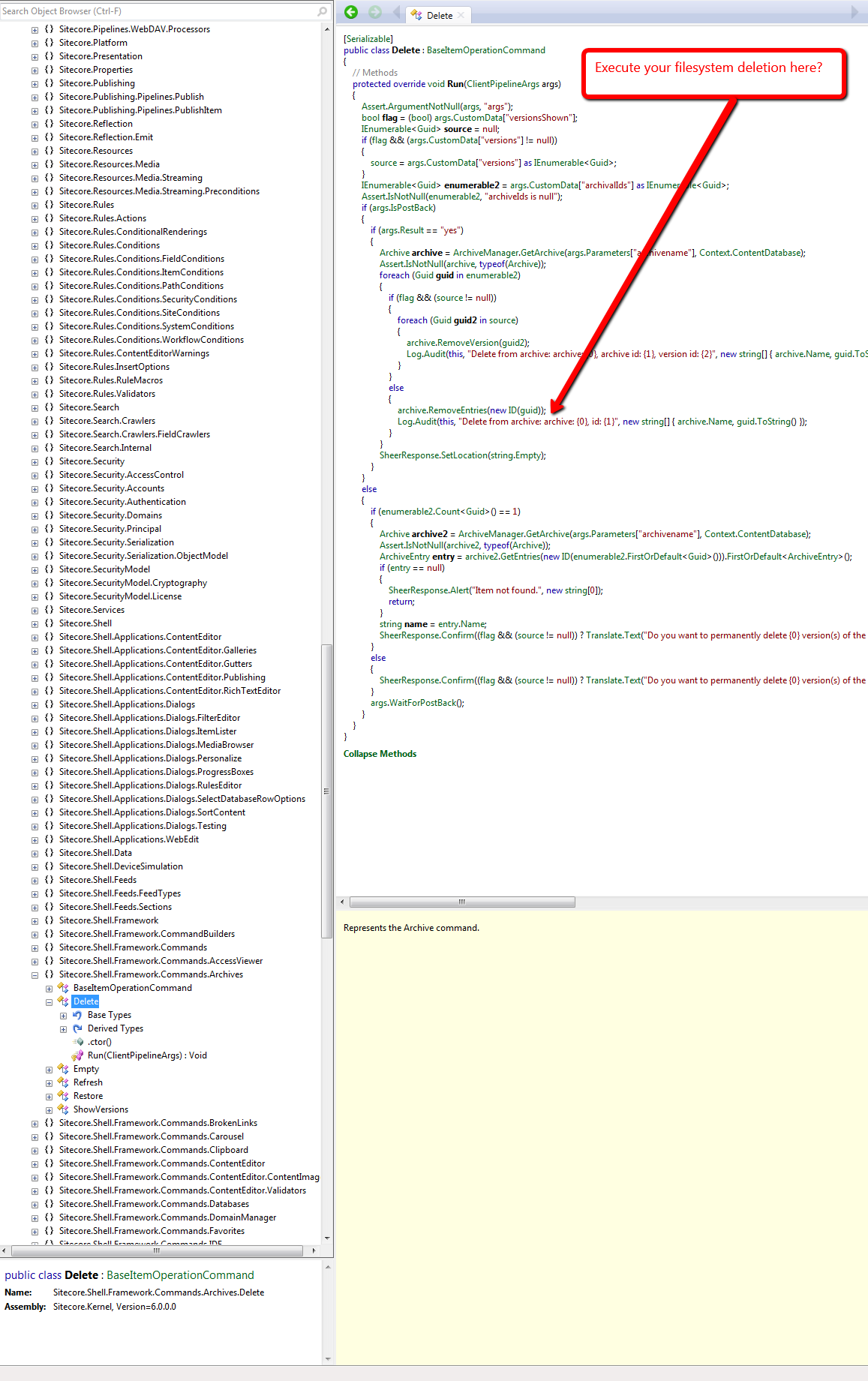
However, I wasn’t completely satisfied with this approach, especially when it would require a substantial amount of copying and pasting of code — a practice that I vehemently abhor — and decided to seek out a different, if not better, way of doing this.
From my research, I discovered that one could just create his/her own Archive class — it would have to ultimately derive from Sitecore.Data.Archiving.Archive in Sitecore.Kernel — which would delete a file on the filesystem associated with a Sitecore Item:
using System;
using System.IO;
using System.Linq;
using System.Web;

using Sitecore.Configuration;
using Sitecore.Data;
using Sitecore.Data.Archiving;
using Sitecore.Data.DataProviders.Sql;
using Sitecore.Diagnostics;

namespace Sitecore.Sandbox.Data.Archiving
{
    public class FileSystemHookSqlArchive : SqlArchive
    {
        private static readonly string FolderPath = GetFolderPath();

        public FileSystemHookSqlArchive(string name, Database database)
            : base(name, database)
        {
        }

        public override void RemoveEntries(ArchiveQuery query)
        {
            DeleteFromFileSystem(query);
            base.RemoveEntries(query);
        }

        protected virtual void DeleteFromFileSystem(ArchiveQuery query)
        {
            if (query.ArchivalId == Guid.Empty)
            {
                return;
            }

            Guid itemId = GetItemId(query.ArchivalId);
            if (itemId == Guid.Empty)
            {
                return;
            }

            string filePath = GetFilePath(itemId.ToString());
            if (string.IsNullOrWhiteSpace(filePath))
            {
                return;
            }

            TryDeleteFile(filePath);
        }

        private void TryDeleteFile(string filePath)
        {
            try
            {
                if (File.Exists(filePath))
                {
                    File.Delete(filePath);
                }
            }
            catch (Exception ex)
            {
                Log.Error(this.ToString(), ex, this);
            }
        }

        public virtual Guid GetItemId(Guid archivalId)
        {
            if (archivalId == Guid.Empty)
            {
                return Guid.Empty;
            }

            ArchiveQuery query = new ArchiveQuery
            {
                ArchivalId = archivalId
            };

            SqlStatement selectStatement = GetSelectStatement(query, "{0}ItemId{1}");
            if (selectStatement == null)
            {
                return Guid.Empty;
            }
            return GetGuid(selectStatement.Sql, selectStatement.GetParameters(), Guid.Empty);
        }

        private Guid GetGuid(string sql, object[] parameters, Guid defaultValue)
        {
            using (DataProviderReader reader = Api.CreateReader(sql, parameters))
            {
                if (!reader.Read())
                {
                    return defaultValue;
                }
                return Api.GetGuid(0, reader);
            }
        }

        private static string GetFilePath(string fileName)
        {
            string filePath = Directory.GetFiles(FolderPath, string.Concat(fileName, "*.*")).FirstOrDefault();
            if (!string.IsNullOrWhiteSpace(filePath))
            {
                return filePath;
            }

            return string.Empty;
        }

        private static string GetFolderPath()
        {
            return HttpContext.Current.Server.MapPath(Settings.GetSetting("FileSystemHookSqlArchive.Folder"));
        }
    }
}
In the subclass of Sitecore.Data.Archiving.SqlArchive above — I’m using Sitecore.Data.Archiving.SqlArchive since I’m using SqlServer for my Sitecore instance — I try to find a file that is named after its associated Item’s ID — minus the curly braces — in a folder that I’ve mapped in a configuration include file (see below).
I first have to get the Item’s ID from the database using the supplied ArchivalId — this is all the calling code gives us, so we have to make do with what we have.
If the file exists, we try to delete it — we do this before letting the base class delete the Item from Recycle Bin so that we can retrieve the Item’s ID from the database before it’s removed from the Archive database table — and log any errors we encounter upon exception.
I then hooked in an instance of the above Archive class in a custom Sitecore.Data.Archiving.ArchiveProvider class:
using System.Xml;

using Sitecore.Data;
using Sitecore.Data.Archiving;
using Sitecore.Xml;

namespace Sitecore.Sandbox.Data.Archiving
{
    public class FileSystemHookSqlArchiveProvider : SqlArchiveProvider
    {
        protected override Archive GetArchive(XmlNode configNode, Database database)
        {
            string attribute = XmlUtil.GetAttribute("name", configNode);
            if (string.IsNullOrEmpty(attribute))
            {
                return null;
            }

            return new FileSystemHookSqlArchive(attribute, database);
        }
    }
}
The above class — which derives from Sitecore.Data.Archiving.SqlArchiveProvider since I’m using SqlServer — only overrides its base class’s GetArchive factory method. We instantiate an instance of our Archive class instead of the “out of the box” Sitecore.Data.Archiving.SqlArchive class within it.
I then had to replace the “out of the box” Sitecore.Data.Archiving.ArchiveProvider reference, and define the location of our files in the following configuration file:
<?xml version="1.0" encoding="utf-8"?>
<configuration xmlns:patch="http://www.sitecore.net/xmlconfig/">
  <sitecore>
    <archives defaultProvider="sql" enabled="true">
      <providers>
        <add name="sql" patch:instead="add[@type='Sitecore.Data.Archiving.SqlArchiveProvider, Sitecore.Kernel']" type="Sitecore.Sandbox.Data.Archiving.FileSystemHookSqlArchiveProvider, Sitecore.Sandbox" database="*"/>
      </providers>
    </archives>
    <settings>
      <setting name="FileSystemHookSqlArchive.Folder" value="/test/" />
    </settings>
  </sitecore>
</configuration>
Let’s test this out.
I first created a test Item to delete:

I then had to create a test file on the filesystem in my test folder — the test folder lives in my Sitecore instance’s website root:

I deleted the test Item from the content tree, opened up the Recycle Bin, selected the test Item, and got an itchy trigger finger — I want to delete the Item forever 🙂 :

After clicking the Delete button, I saw that the file on the filesystem was deleted as well:

If you have any thoughts on this, or recommendations around making it better, please leave a comment.
Navigate to Base Templates of a Template using a Sitecore Command
Have you ever said to yourself when looking at base templates of a template in its Content tab “wouldn’t it be great if I could easily navigate to one of these?”
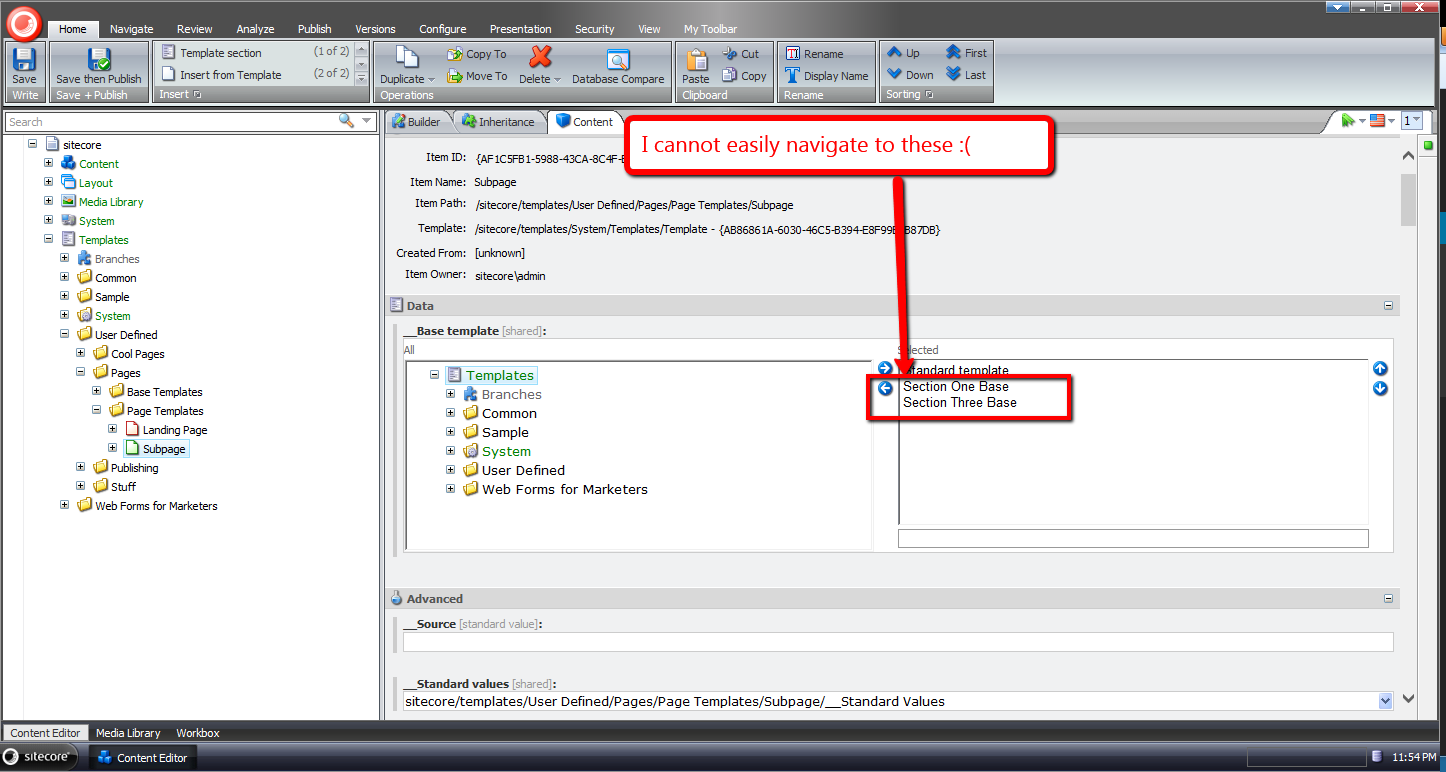
I have had this thought more than once despite having the ability to do this in a template’s Inheritance tab — you can do this by clicking one of the base template links listed:
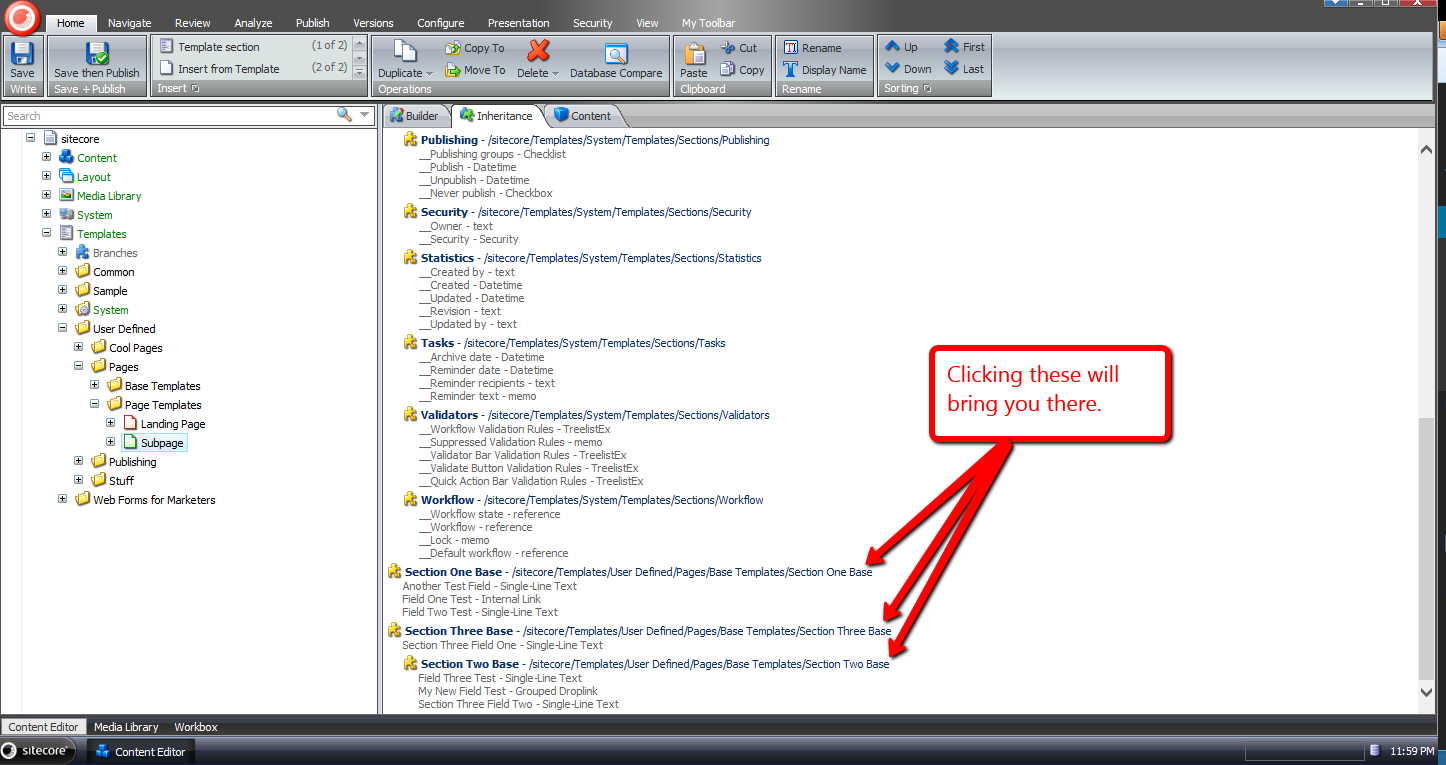
For some reason I sometimes forget you have the ability to get to a base template of a template in the Inheritance tab — why I forget is no doubt a larger issue I should try to tackle, albeit I’ll leave that for another day — and decided to build something that will be more difficult for me to forget: launching a dialog via a new item context menu option, and selecting one of the base templates of a template in that dialog.
I decided to atomize functionality in my solution by building custom pipelines/processors wherever I felt doing so made sense.
I started off by building a custom pipeline that gets base templates for a template, and defined a data transfer object (DTO) class for it:
using System.Collections.Generic;

using Sitecore.Data.Items;
using Sitecore.Pipelines;
using Sitecore.Web.UI.Sheer;

namespace Sitecore.Sandbox.Shell.Framework.Pipelines
{
    public class GetBaseTemplatesArgs : PipelineArgs
    {
        public TemplateItem TemplateItem { get; set; }

        public bool IncludeAncestorBaseTemplates { get; set; }

        private List<TemplateItem> _BaseTemplates;
        public List<TemplateItem> BaseTemplates
        {
            get
            {
                if (_BaseTemplates == null)
                {
                    _BaseTemplates = new List<TemplateItem>();
                }

                return _BaseTemplates;
            }
            set
            {
                _BaseTemplates = value;
            }
        }
    }
}
Client code must supply the template item that will be used as the starting point for gathering base templates, and can request all ancestor base templates — excluding the Standard Template as you will see below — by setting the IncludeAncestorBaseTemplates property to true.
I then created a class with a Process method that will serve as the only pipeline processor for my new pipeline:
using System;
using System.Collections.Generic;
using System.Linq;
using System.Text;

using Sitecore.Data.Items;
using Sitecore.Diagnostics;

namespace Sitecore.Sandbox.Shell.Framework.Pipelines
{
    public class GetBaseTemplates
    {
        public void Process(GetBaseTemplatesArgs args)
        {
            Assert.ArgumentNotNull(args, "args");
            Assert.ArgumentNotNull(args.TemplateItem, "args.TemplateItem");
            List<TemplateItem> baseTemplates = new List<TemplateItem>();
            GatherBaseTemplateItems(baseTemplates, args.TemplateItem, args.IncludeAncestorBaseTemplates);
            args.BaseTemplates = baseTemplates;
        }

        private static void GatherBaseTemplateItems(List<TemplateItem> baseTemplates, TemplateItem templateItem, bool includeAncestors)
        {
            if (includeAncestors)
            {
                foreach (TemplateItem baseTemplateItem in templateItem.BaseTemplates)
                {
                    GatherBaseTemplateItems(baseTemplates, baseTemplateItem, includeAncestors);
                }
            }

            if (!IsStandardTemplate(templateItem) && templateItem.BaseTemplates != null && templateItem.BaseTemplates.Any())
            {
                baseTemplates.AddRange(GetBaseTemplatesExcludeStandardTemplate(templateItem.BaseTemplates));
            }
        }

        private static IEnumerable<TemplateItem> GetBaseTemplatesExcludeStandardTemplate(TemplateItem templateItem)
        {
            if (templateItem == null)
            {
                return new List<TemplateItem>();
            }

            return GetBaseTemplatesExcludeStandardTemplate(templateItem.BaseTemplates);
        }

        private static IEnumerable<TemplateItem> GetBaseTemplatesExcludeStandardTemplate(IEnumerable<TemplateItem> baseTemplates)
        {
            if (baseTemplates != null && baseTemplates.Any())
            {
                return baseTemplates.Where(baseTemplate => !IsStandardTemplate(baseTemplate));
            }

            return baseTemplates;
        }

        private static bool IsStandardTemplate(TemplateItem templateItem)
        {
            return templateItem.ID == TemplateIDs.StandardTemplate;
        }
    }
}
Methods in the above class add base templates to a list when the templates are not the Standard Template — I thought it would be a rare occurrence for one to navigate to it, and decided not to include it in the collection.
Further, the method that gathers base templates is recursively executed when client code requests all ancestor base templates be include in the collection.
The next thing I built was functionality to prompt the user for a base template via a dialog, and track which base template was chosen. I decided to do this using a custom client processor, and built the following DTO for it:
using System;
using System.Collections.Generic;
using System.Linq;
using System.Text;
using Sitecore.Web.UI.Sheer;
using Sitecore.Data.Items;

namespace Sitecore.Sandbox.Shell.Framework.Pipelines
{
    public class GotoBaseTemplateArgs : ClientPipelineArgs
    {
        public TemplateItem TemplateItem { get; set; }

        public string SelectedBaseTemplateId { get; set; }
    }
}
Just like the other DTO defined above, client code must suppy a template item. The SelectedBaseTemplateId property is set after a user selects a base template in the modal launched by the following class:
using System.Collections.Generic;
using System.Linq;

using Sitecore.Data.Items;
using Sitecore.Data.Managers;
using Sitecore.Diagnostics;
using Sitecore.Pipelines;
using Sitecore.Shell.Applications.Dialogs.ItemLister;
using Sitecore.Web.UI.Sheer;

namespace Sitecore.Sandbox.Shell.Framework.Pipelines
{
    public class GotoBaseTemplate
    {
        public string SelectTemplateButtonText { get; set; }

        public string ModalIcon { get; set; }

        public string ModalTitle { get; set; }

        public string ModalInstructions { get; set; }

        public void SelectBaseTemplate(GotoBaseTemplateArgs args)
        {
            Assert.ArgumentNotNull(args, "args");
            Assert.ArgumentNotNull(args.TemplateItem, "args.TemplateItem");
            Assert.ArgumentNotNullOrEmpty(SelectTemplateButtonText, "SelectTemplateButtonText");
            Assert.ArgumentNotNullOrEmpty(ModalIcon, "ModalIcon");
            Assert.ArgumentNotNullOrEmpty(ModalTitle, "ModalTitle");
            Assert.ArgumentNotNullOrEmpty(ModalInstructions, "ModalInstructions");

            if (!args.IsPostBack)
            {
                ItemListerOptions itemListerOptions = new ItemListerOptions
                {
                    ButtonText = SelectTemplateButtonText,
                    Icon = ModalIcon,
                    Title = ModalTitle,
                    Text = ModalInstructions
                };

                itemListerOptions.Items = GetBaseTemplateItemsForSelection(args.TemplateItem).Select(template => template.InnerItem).ToList();
                itemListerOptions.AddTemplate(TemplateIDs.Template);
                SheerResponse.ShowModalDialog(itemListerOptions.ToUrlString().ToString(), true);
                args.WaitForPostBack();
            }
            else if (args.HasResult)
            {
                args.SelectedBaseTemplateId = args.Result;
                args.IsPostBack = false;
            }
            else
            {
                args.AbortPipeline();
            }
        }

        private IEnumerable<TemplateItem> GetBaseTemplateItemsForSelection(TemplateItem templateItem)
        {
            GetBaseTemplatesArgs args = new GetBaseTemplatesArgs
            {
                TemplateItem = templateItem,
                IncludeAncestorBaseTemplates = true,
            };
            CorePipeline.Run("getBaseTemplates", args);
            return args.BaseTemplates;
        }

        public void Execute(GotoBaseTemplateArgs args)
        {
            Assert.ArgumentNotNull(args, "args");
            Assert.ArgumentNotNullOrEmpty(args.SelectedBaseTemplateId, "args.SelectedBaseTemplateId");
            Context.ClientPage.ClientResponse.Timer(string.Format("item:load(id={0})", args.SelectedBaseTemplateId), 1);
        }
    }
}
The SelectBaseTemplate method above gives the user a list of base templates to choose from — this includes all ancestor base templates of a template minus the Standard Template.
The title, icon, helper text of the modal are supplied via the processor’s xml node in its configuration file — you’ll see this later on in this post.
Once a base template is chosen, its Id is then set in the SelectedBaseTemplateId property of the GotoBaseTemplateArgs instance.
The Execute method brings the user to the selected base template item in the Sitecore content tree.
Now we need a way to launch the code above.
I did this using a custom command that will be wired up to the item context menu:
using System.Collections.Generic;
using System.Linq;

using Sitecore.Data.Items;
using Sitecore.Data.Managers;
using Sitecore.Diagnostics;
using Sitecore.Shell.Framework.Commands;

using Sitecore.Sandbox.Shell.Framework.Pipelines;
using Sitecore.Web.UI.Sheer;
using Sitecore.Pipelines;

namespace Sitecore.Sandbox.Commands
{
    public class GotoBaseTemplateCommand : Command
    {
        public override void Execute(CommandContext context)
        {
            Context.ClientPage.Start("gotoBaseTemplate", new GotoBaseTemplateArgs { TemplateItem = GetItem(context) });
        }

        public override CommandState QueryState(CommandContext context)
        {
            if (ShouldEnable(GetItem(context)))
            {
                return CommandState.Enabled;
            }

            return CommandState.Hidden;
        }

        private static bool ShouldEnable(Item item)
        {
            return item != null
                    && IsTemplate(item)
                    && GetBaseTemplates(item).Any();
        }

        private static Item GetItem(CommandContext context)
        {
            Assert.ArgumentNotNull(context, "context");
            Assert.ArgumentNotNull(context.Items, "context.Items");
            return context.Items.FirstOrDefault();
        }

        private static bool IsTemplate(Item item)
        {
            Assert.ArgumentNotNull(item, "item");
            return TemplateManager.IsTemplate(item);
        }

        private static IEnumerable<TemplateItem> GetBaseTemplates(TemplateItem templateItem)
        {
            Assert.ArgumentNotNull(templateItem, "templateItem");
            GetBaseTemplatesArgs args = new GetBaseTemplatesArgs
            {
                TemplateItem = templateItem,
                IncludeAncestorBaseTemplates = false
            };

            CorePipeline.Run("getBaseTemplates", args);
            return args.BaseTemplates;
        }
    }
}
The command above is visible only when the item is a template, and has base templates on it — we invoke the custom pipeline built above to get base templates.
When the command is invoked, we call our custom client processor to prompt the user for a base template to go to.
I then glued everything together using the following configuration file:
<?xml version="1.0" encoding="utf-8" ?>
<configuration>
  <sitecore>
    <commands>
      <command name="item:GotoBaseTemplate" type="Sitecore.Sandbox.Commands.GotoBaseTemplateCommand, Sitecore.Sandbox"/>
    </commands>
    <pipelines>
      <getBaseTemplates>
        <processor type="Sitecore.Sandbox.Shell.Framework.Pipelines.GetBaseTemplates, Sitecore.Sandbox"/>
      </getBaseTemplates>
    </pipelines>
    <processors>
      <gotoBaseTemplate>
        <processor mode="on" type="Sitecore.Sandbox.Shell.Framework.Pipelines.GotoBaseTemplate, Sitecore.Sandbox" method="SelectBaseTemplate">
          <SelectTemplateButtonText>OK</SelectTemplateButtonText>
          <ModalIcon>Applications/32x32/nav_up_right_blue.png</ModalIcon>
          <ModalTitle>Select A Base Template</ModalTitle>
          <ModalInstructions>Select the base template you want to navigate to.</ModalInstructions>
        </processor>
        <processor mode="on" type="Sitecore.Sandbox.Shell.Framework.Pipelines.GotoBaseTemplate, Sitecore.Sandbox" method="Execute"/>
      </gotoBaseTemplate>
    </processors>
  </sitecore>
</configuration>
I’ve left out how I’ve added the command shown above to the item context menu in the core database. For more information on adding to the item context menu, please see part one and part two of my post showing how to do this.
Let’s see how we did.
I first created some templates for testing. The following template named ‘Meta’ uses two other test templates as base templates:

I also created a ‘Base Page’ template which uses the ‘Meta’ template above:

Next I created ‘The Coolest Page Template Ever’ template — this uses the ‘Base Page’ template as its base template:

I then right-clicked on ‘The Coolest Page Template Ever’ template to launch its context menu, and selected our new menu option:
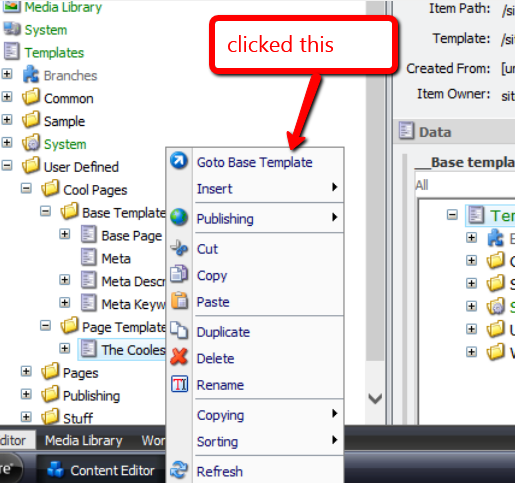
I was then presented with a dialog asking me to select the base template I want to navigate to:

I chose one of the base templates, and clicked ‘OK’:

I was then brought to the base template I had chosen:
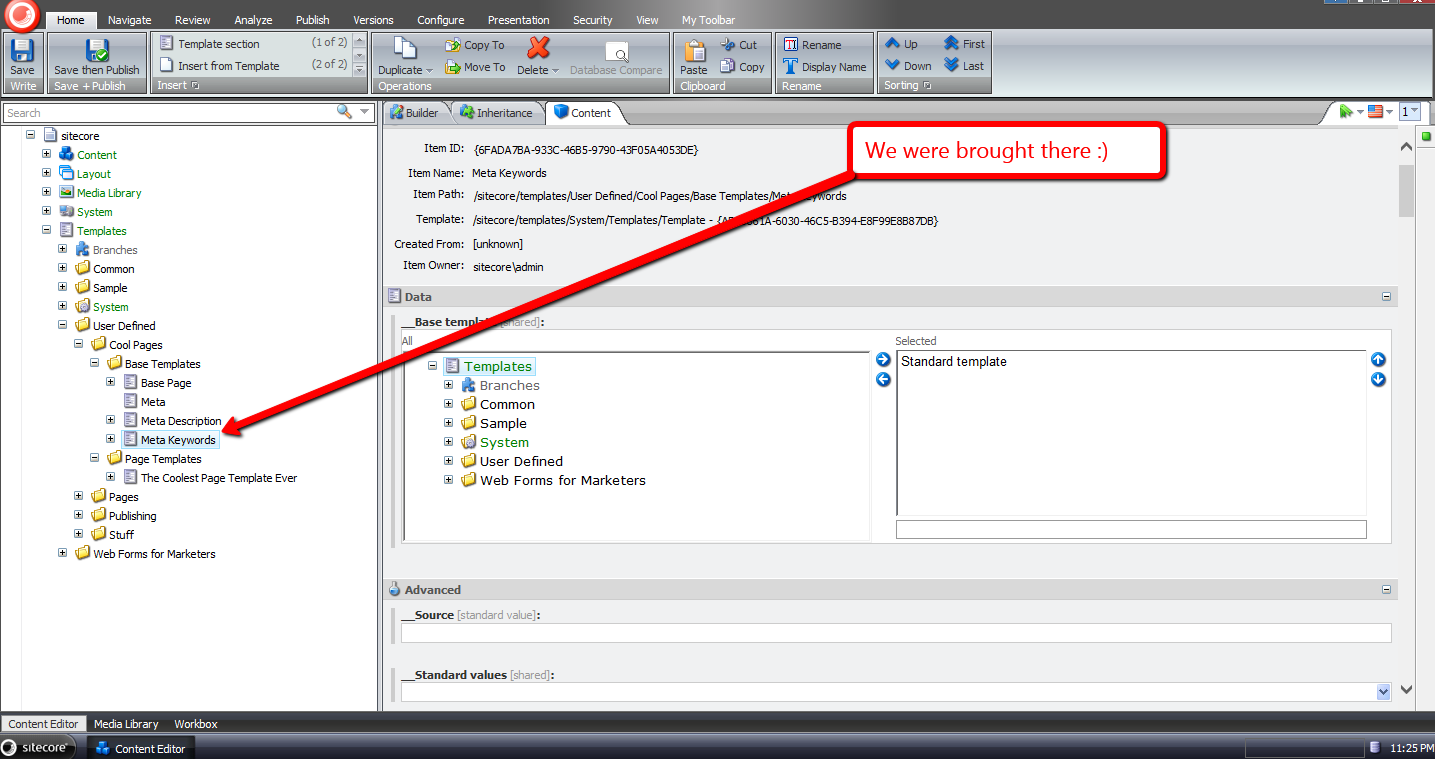
If you have any thoughts on this, please leave a comment.
Content Manage Links to File System Favicons for Multiple Sites Managed in Sitecore
Earlier today someone started a thread in one of the SDN forums asking how to go about adding the ability to have a different favicon for each website managed in the same instance of Sitecore.
I had implemented this in the past for a few clients, and thought I should write a post on how I had done this.
In most of those solutions, the site’s start item would contain a “server file” field — yes I know it’s deprecated but it works well for this (if you can suggested a better field type to use, please leave a comment below) — that would point to a favicon on the file system:

Content authors/editors can then choose the appropriate favicon for each site managed in their Sitecore instance — just like this:

Not long after the SDN thread was started, John West — Chief Technology Officer at Sitecore USA — wrote a quick code snippet, followed by a blog post on how one might go about doing this.
John’s solution is a different than the one I had used in the past — each site’s favicon is defined on its site node in the Web.config.
After seeing John’s solution, I decided I would create a hybrid solution — the favicon set on the start item would have precedence over the one defined on the site node in the Web.config. In other words, the favicon defined on the site node would be a fallback.
For this hybrid solution, I decided to create a custom pipeline to retrieve the favicon for the context site, and created the following pipeline arguments class for it:
using System.Web.UI;

using Sitecore.Pipelines;

namespace Sitecore.Sandbox.Pipelines.GetFavicon
{
    public class FaviconTryGetterArgs : PipelineArgs
    {
        public string FaviconUrl { get; set; }

        public Control FaviconControl{ get; set; }
    }
}
The idea is to have pipeline processors set the URL of the favicon if possible, and have another processor create an ASP.NET control for the favicon when the URL is supplied.
The following class embodies this high-level idea:
using System;

using System.Web.UI;
using System.Web.UI.HtmlControls;

using Sitecore;
using Sitecore.Configuration;
using Sitecore.Data.Fields;
using Sitecore.Data.Items;
using Sitecore.Diagnostics;
using Sitecore.Sandbox.Utilities.Extensions;

namespace Sitecore.Sandbox.Pipelines.GetFavicon
{
    public class FaviconTryGetter
    {
        private string FaviconFieldName { get; set; }

        public void TryGetFromStartItem(FaviconTryGetterArgs args)
        {
            Assert.ArgumentNotNull(args, "args");
            bool canProcess = !string.IsNullOrWhiteSpace(FaviconFieldName)
                                && Context.Site != null
                                && !string.IsNullOrWhiteSpace(Context.Site.StartPath);

            if (!canProcess)
            {
                return;
            }

            Item startItem = Context.Database.GetItem(Context.Site.StartPath);
            args.FaviconUrl = startItem[FaviconFieldName];
        }

        public void TryGetFromSite(FaviconTryGetterArgs args)
        {
            Assert.ArgumentNotNull(args, "args");
            bool canProcess = Context.Site != null
                                && string.IsNullOrWhiteSpace(args.FaviconUrl);

            if (!canProcess)
            {
                return;
            }

			/* GetFavicon is an extension method borrowed from John West. You can find it at  http://www.sitecore.net/Community/Technical-Blogs/John-West-Sitecore-Blog/Posts/2013/08/Use-Different-Shortcut-Icons-for-Different-Managed-Sites-with-the-Sitecore-ASPNET-CMS.aspx
            */
            args.FaviconUrl = Context.Site.GetFavicon();
        }

        public void TryGetFaviconControl(FaviconTryGetterArgs args)
        {
            Assert.ArgumentNotNull(args, "args");
            if(string.IsNullOrWhiteSpace(args.FaviconUrl))
            {
                return;
            }

            args.FaviconControl = CreateNewFaviconControl(args.FaviconUrl);
        }

        private static Control CreateNewFaviconControl(string faviconUrl)
        {
            Assert.ArgumentNotNullOrEmpty(faviconUrl, "faviconUrl");
            HtmlLink link = new HtmlLink();
            link.Attributes.Add("type", "image/x-icon");
            link.Attributes.Add("rel", "icon");
            link.Href = faviconUrl;
            return link;
        }
    }
}
The TryGetFromStartItem method tries to get the favicon set on the favicon field on the start item — the name of the field is supplied via one of the processors defined in the configuration include file below — and sets it on the FaviconUrl property of the FaviconTryGetterArgs instance supplied by the caller.
If the field name for the field containing the favicon is not supplied, or there is something wrong with either the context site or the start item’s path, then the method does not finish executing.
The TryGetFromSite method is similar to what John had done in his post. It uses the same exact extension method John had used for getting the favicon off of a “favicon” attribute set on the context site’s node in the Web.config — I have omitted this extension method and its class since you can check it out in John’s post.
If a URL is set by either of the two methods discussed above, the TryGetFaviconControl method creates an instance of an HtmlLink System.Web.UI.HtmlControls.HtmlControl, sets the appropriate attributes for an html favicon link tag, and sets it in the FaviconControl property of the FaviconTryGetterArgs instance.
I assembled the methods above into a new getFavicon pipeline in the following configuration include file, and also set a fallback favicon for my local sandbox site’s configuration element:
<?xml version="1.0" encoding="utf-8"?>
<configuration xmlns:patch="http://www.sitecore.net/xmlconfig/">
  <sitecore>
    <pipelines>
      <getFavicon>
        <processor type="Sitecore.Sandbox.Pipelines.GetFavicon.FaviconTryGetter, Sitecore.Sandbox" method="TryGetFromStartItem">
          <FaviconFieldName>Favicon</FaviconFieldName>
        </processor>
        <processor type="Sitecore.Sandbox.Pipelines.GetFavicon.FaviconTryGetter, Sitecore.Sandbox" method="TryGetFromSite" />
        <processor type="Sitecore.Sandbox.Pipelines.GetFavicon.FaviconTryGetter, Sitecore.Sandbox" method="TryGetFaviconControl" />
      </getFavicon>
    </pipelines>
    <sites>
      <site name="website">
        <patch:attribute name="favicon">/sitecore.ico</patch:attribute>
      </site>
    </sites>
  </sitecore>
</configuration>
Just as John West had done in his post, I created a custom WebControl for rendering the favicon, albeit the following class invokes our new pipeline above to get the favicon ASP.NET control:
using System.Web.UI;

using Sitecore.Pipelines;
using Sitecore.Sandbox.Pipelines.GetFavicon;
using Sitecore.Web.UI;

namespace Sitecore.Sandbox.WebControls
{
    public class Favicon : WebControl
    {
        protected override void DoRender(HtmlTextWriter output)
        {
            FaviconTryGetterArgs args = new FaviconTryGetterArgs();
            CorePipeline.Run("getFavicon", args);
            if (args.FaviconControl != null)
            {
                args.FaviconControl.RenderControl(output);
            }
        }
    }
}
If a favicon Control is supplied by our new getFavicon pipeline, the WebControl then delegates rendering responsibility to it.
I then defined an instance of the WebControl above in my default layout:
<%@ Register TagPrefix="sj" Namespace="Sitecore.Sharedsource.Web.UI.WebControls" Assembly="Sitecore.Sharedsource" %>
...
<html>
  <head>
  ...
  <sj:Favicon runat="server" />
  ...
For testing, I found a favicon generator website out on the internet — I won’t share this since it’s appeared to be a little suspect — and created a smiley face favicon. I set this on my start item, and published:

After clearing it out on my start item, and publishing, the fallback Sitecore favicon appears:
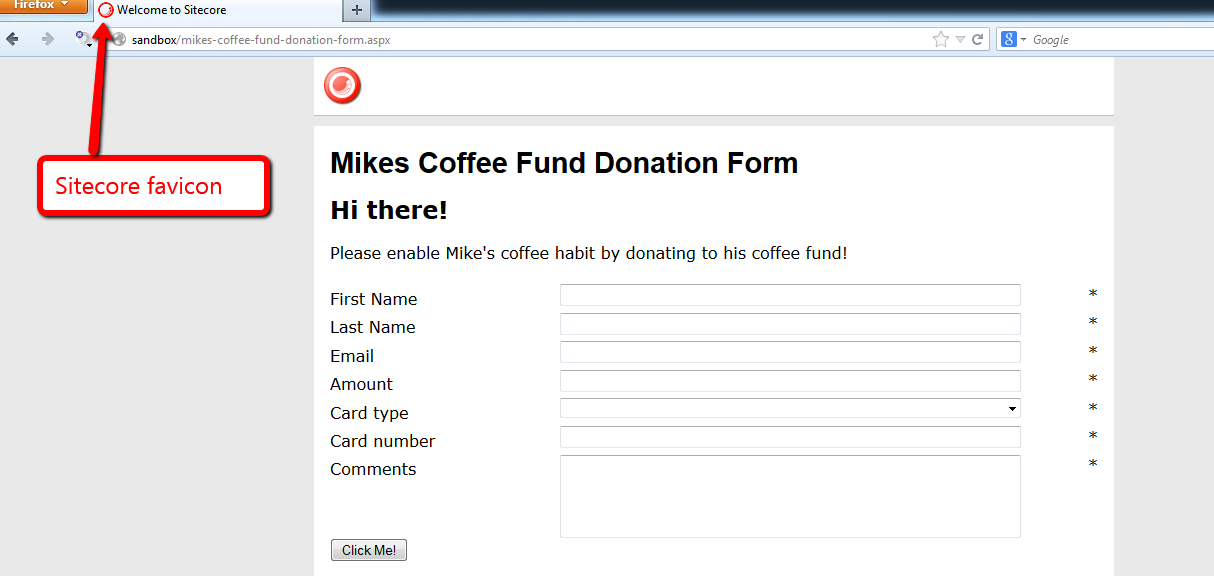
When you remove all favicons, none appear.

If you have any thoughts, suggestions, or comments on this, please share below.
 SitecoreJunkie.com