Home » 2014 (Page 3)
Yearly Archives: 2014
Create a Custom Report in Sitecore PowerShell Extensions
During my Sitecore PowerShell Extensions presentation at the Sitecore User Group Conference 2014, I showcased a custom report I had scripted using the Sitecore PowerShell Extensions module, and thought I would jot down what I had shown coupled with some steps on how you could go about creating your own custom report.
I had shown the audience the following PowerShell script:
<#
    .SYNOPSIS
        Lists all images with an empty Alt field.

    .NOTES
        Mike Reynolds
#>

function Get-ImageItemNoAltText {
    $items = Get-ChildItem -Path "master:\sitecore\media library\images" -Recurse | Where-Object { $_.Fields["Alt"] -ne $null }

    foreach($item in $items) {
        if($item."Alt" -eq '') {
            $item
        }
    }
}

$items = Get-ImageItemNoAltText

if($items.Count -eq 0) {
    Show-Alert "There are no images with an empty Alt field."
} else {
    $props = @{
        InfoTitle = "Images with an empty Alt field"
        InfoDescription = "Lists all images with an empty Alt field."
        PageSize = 25
    }

    $items |
        Show-ListView @props -Property @{Label="Name"; Expression={$_.DisplayName} },
            @{Label="Updated"; Expression={$_.__Updated} },
            @{Label="Updated by"; Expression={$_."__Updated by"} },
            @{Label="Created"; Expression={$_.__Created} },
            @{Label="Created by"; Expression={$_."__Created by"} },
            @{Label="Path"; Expression={$_.ItemPath} }
}
Close-Window
I modeled the above script after the “out of the box” ‘Unused media items’ report but made some changes: it grabs all media library items recursively under /sitecore/Media Library/Images — you could definitely change this to /sitecore/Media Library to get all images outside of the Images folder — in Sitecore that have an Alt field, and that Alt field’s value is equal to the empty string.
I then tested — yes, I do test my code, don’t you 😉 — and saved my report using the PowerShell ISE:

The report was saved in this Item created just for it:

Let’s see this in action!
I went to Sitecore –> Reporting Tools –> PowerShell Reports –> Mikes Media Audit, and clicked on the new report:

After running the report, I was presented with this dialog containing the results:

I then clicked on the first row of the report, and was brought to an image with an empty Alt field:

If you have any thoughts on this, or would like to see additional reports in Sitecore PowerShell Extensions, please share in a comment.
Launch PowerShell Scripts in the Item Context Menu using Sitecore PowerShell Extensions
Last week during my Sitecore PowerShell Extensions presentation at the Sitecore User Group Conference 2014 — a conference held in Utrecht, Netherlands — I demonstrated how to invoke PowerShell scripts from the Item context menu in Sitecore, and felt I should capture what I had shown in a blog post — yes, this is indeed that blog post. 😉
During that piece of my presentation, I shared the following PowerShell script to expands tokens in fields of a Sitecore item (if you want to learn more about tokens in Sitecore, please take a look at John West’s post about them, and also be aware that one can also invoke the Expand-Token PowerShell command that comes with Sitecore PowerShell Extensions to expand tokens on Sitecore items — this makes things a whole lot easier 😉 ):
$item = Get-Item .
$tokenReplacer = [Sitecore.Configuration.Factory]::GetMasterVariablesReplacer()
$item.Editing.BeginEdit()
$tokenReplacer.ReplaceItem($item)
$item.Editing.EndEdit()
Close-Window
The script above calls Sitecore.Configuration.Factory.GetMasterVariablesReplacer() for an instance of the MasterVariablesReplacer class — which is defined and can be overridden in the “MasterVariablesReplacer” setting in your Sitecore instance’s Web.config — and passes the context item — this is denote by a period — to the MasterVariablesReplacer instance’s ReplaceItem() method after the item has been put into editing mode.
Once the Item has been processed, it is taken out of editing mode.
So how do we save this script so that we can use it in the Item context menu? The following screenshot walks you through the steps to do just that:

The script is saved to an Item created by the dialog above:

Let’s test this out!
I selected an Item with unexpanded tokens:

I then launched its Item context menu, and clicked the option we created to ‘Expand Tokens’:

As you can see the tokens were expanded:

If you have any questions or thoughts on this, please drop a comment.
Until next time, have a scriptolicious day 😉
Add ‘Has Content In Language’ Property to Sitecore Item Web API Responses
The other day I had read a forum thread on SDN where the poster had asked whether one could determine if content returned from the Sitecore Item Web API for an Item was the actual content for the Item in the requested language.
I was intrigued by this question because I would have assumed that no results would be returned for the Item when it does not have content in the requested language but that is not the case: I had replicated what the poster had seen.
As a workaround, I built the following class to serve as an <itemWebApiGetProperties> pipeline processor which sets a property in the response indicating whether the Item has content in the requested language (check out my previous post on adding additional properties to Sitecore Item Web API responses for more information on this topic):
using System.Collections.Generic;
using System.Linq;

using Sitecore.Data.Items;
using Sitecore.Diagnostics;
using Sitecore.Globalization;
using Sitecore.ItemWebApi.Pipelines.GetProperties;

namespace Sitecore.Sandbox.ItemWebApi.Pipelines.GetProperties
{
    public class SetHasContentInLanguageProperty : GetPropertiesProcessor
    {
        public override void Process(GetPropertiesArgs arguments)
        {
            Assert.ArgumentNotNull(arguments, "arguments");
            Assert.ArgumentNotNull(arguments.Item, "arguments.Item");
            arguments.Properties.Add("HasContentInLanguage", IsLanguageInCollection(arguments.Item.Languages, arguments.Item.Language));
        }

        private static bool IsLanguageInCollection(IEnumerable<Language> languages, Language language)
        {
            Assert.ArgumentNotNull(languages, "languages");
            Assert.ArgumentNotNull(language, "language");
            return languages.Any(lang => lang == language);
        }
    }
}
The code in the above class checks to see if the Item has content in the requested language — the latter is set in the Language property of the Item instance, and the Languages property contains a list of all languages it has content for.
I then added the above pipeline processor via the following configuration file:
<?xml version="1.0" encoding="utf-8"?>
<configuration xmlns:patch="http://www.sitecore.net/xmlconfig/">
  <sitecore>
    <pipelines>
      <itemWebApiGetProperties>
        <processor patch:after="processor[@type='Sitecore.ItemWebApi.Pipelines.GetProperties.GetProperties, Sitecore.ItemWebApi']"
            type="Sitecore.Sandbox.ItemWebApi.Pipelines.GetProperties.SetHasContentInLanguageProperty, Sitecore.Sandbox" />
      </itemWebApiGetProperties>
    </pipelines>
  </sitecore>
</configuration>
Let’s see how this works!
I first created an Item for testing:

This Item only has content in English:

I then toggled my Sitecore Item Web API configuration to allow for anonymous access so that I can make requests in my browser, and made a request for the test Item in English:

The Item does have content in English, and this is denoted by the ‘HasContentInLanguage’ property.
I then made a request for the Item in French:
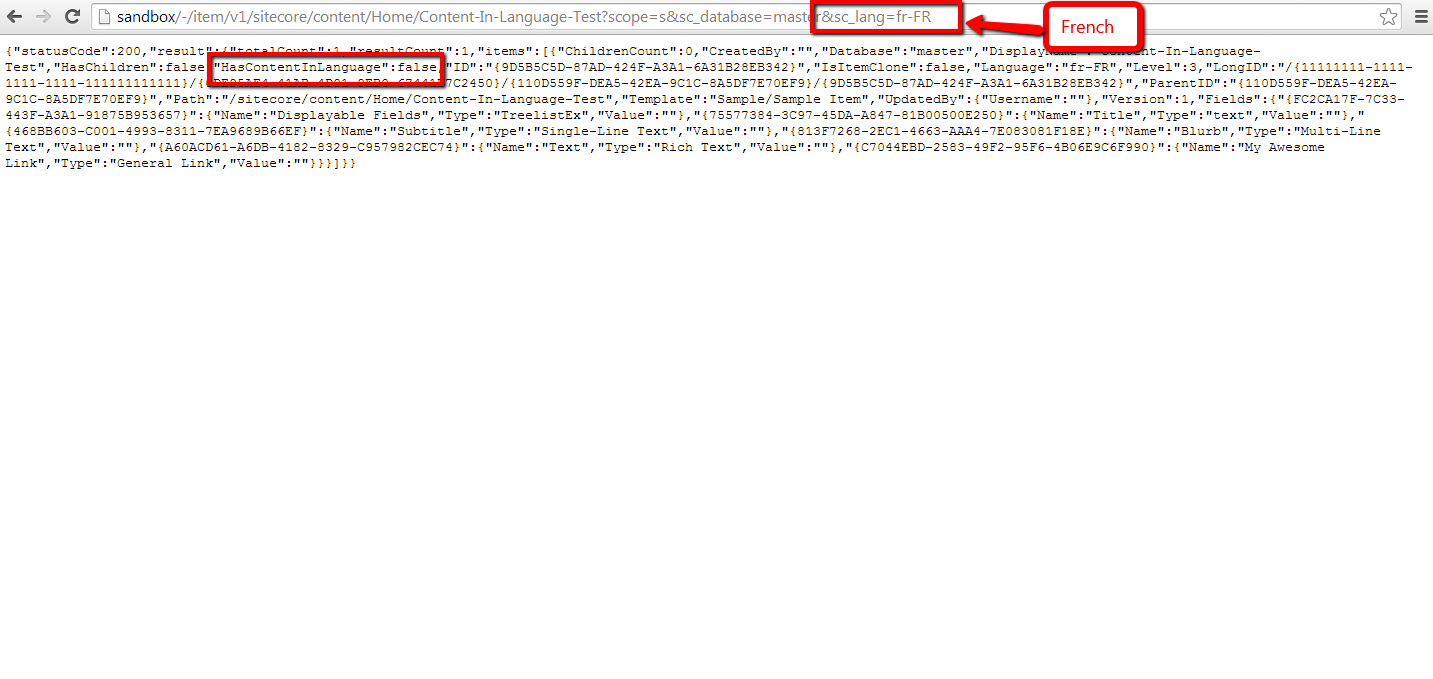
As expected, the ‘HasContentInLanguage’ is false since the Item does not have content in French.
If you have any questions or thoughts on this, please drop a comment.
Export to CSV in the Form Reports of Sitecore’s Web Forms for Marketers
The other day I was poking around Sitecore.Forms.Core.dll — this is one of the assemblies that comes with Web Forms for Marketers (what, you don’t randomly look at code in the Sitecore assemblies? 😉 ) — and decided to check out how the export functionality of the Form Reports work.
Once I felt I understood how the export code functions, I decided to take a stab at building my own custom export: functionality to export to CSV, and built the following class to serve as a pipeline processor to wedge Form Reports data into CSV format:
using System;
using System.Collections.Generic;
using System.Linq;

using Sitecore.Diagnostics;
using Sitecore.Form.Core.Configuration;
using Sitecore.Form.Core.Pipelines.Export;
using Sitecore.Forms.Data;
using Sitecore.Jobs;

namespace Sitecore.Sandbox.Form.Core.Pipelines.Export.Csv
{
    public class ExportToCsv
    {
        public void Process(ExportArgs args)
        {
            Assert.ArgumentNotNull(args, "args");
            LogInfo();
            args.Result = GenerateCsv(args.Packet.Entries);
        }

        protected virtual void LogInfo()
        {
            Job job = Context.Job;
            if (job != null)
            {
                job.Status.LogInfo(ResourceManager.Localize("EXPORTING_DATA"));
            }
        }

        private string GenerateCsv(IEnumerable<IForm> forms)
        {
            return string.Join(Environment.NewLine, GenerateAllCsvRows(forms));
        }

        protected virtual IEnumerable<string> GenerateAllCsvRows(IEnumerable<IForm> forms)
        {
            Assert.ArgumentNotNull(forms, "forms");
            IList<string> rows = new List<string>();
            rows.Add(GenerateCsvHeader(forms.FirstOrDefault()));
            foreach (IForm form in forms)
            {
                string row = GenerateCsvRow(form);
                if (!string.IsNullOrWhiteSpace(row))
                {
                    rows.Add(row);
                }
            }

            return rows;
        }

        protected virtual string GenerateCsvHeader(IForm form)
        {
            Assert.ArgumentNotNull(form, "form");
            return string.Join(",", form.Field.Select(field => field.FieldName));
        }

        protected virtual string GenerateCsvRow(IForm form)
        {
            Assert.ArgumentNotNull(form, "form");
            return string.Join(",", form.Field.Select(field => field.Value));
        }
    }
}
There really isn’t anything magical happening in the code above. The code creates a string of comma-separated values for each row of entries in args.Packet.Entries, and puts these plus a CSV header into a collection of strings.
Once all rows have been placed into a collection of strings, they are munged together on the newline character ultimately creating a multi-row CSV string. This CSV string is then set on the Result property of the ExportArgs instance.
Now we need a way to invoke a pipeline that contains the above class as a processor, and the following command does just that:
using System.Collections.Specialized;

using Sitecore.Diagnostics;
using Sitecore.Forms.Core.Commands.Export;
using Sitecore.Form.Core.Configuration;
using Sitecore.Shell.Framework.Commands;

namespace Sitecore.Sandbox.Forms.Core.Commands.Export
{
    public class Export : ExportToXml
    {
        protected override void AddParameters(NameValueCollection parameters)
        {
            parameters["filename"] = FileName;
            parameters["contentType"] = MimeType;
        }

        public override void Execute(CommandContext context)
        {
            SetProperties(context);
            base.Execute(context);
        }

        private void SetProperties(CommandContext context)
        {
            Assert.ArgumentNotNull(context, "context");
            Assert.ArgumentNotNull(context.Parameters, "context.Parameters");
            Assert.ArgumentNotNullOrEmpty(context.Parameters["fileName"], "context.Parameters[\"fileName\"]");
            Assert.ArgumentNotNullOrEmpty(context.Parameters["mimeType"], "context.Parameters[\"mimeType\"]");
            Assert.ArgumentNotNullOrEmpty(context.Parameters["exportPipeline"], "context.Parameters[\"exportPipeline\"]");
            Assert.ArgumentNotNullOrEmpty(context.Parameters["progressDialogTitle"], "context.Parameters[\"progressDialogTitle\"]");
            FileName = context.Parameters["fileName"];
            MimeType = context.Parameters["mimeType"];
            ExportPipeline = context.Parameters["exportPipeline"];
            ProgressDialogTitle = context.Parameters["progressDialogTitle"];
        }

        protected override string GetName()
        {
            return ProgressDialogTitle;
        }

        protected override string GetProcessorName()
        {
            return ExportPipeline;
        }

        private string FileName { get; set; }

        private string MimeType { get; set; }

        private string ExportPipeline { get; set; }

        private string ProgressDialogTitle { get; set; }
    }
}
I modeled the above command after Sitecore.Forms.Core.Commands.Export.ExportToExcel in Sitecore.Forms.Core.dll: this command inherits some useful logic of Sitecore.Forms.Core.Commands.Export.ExportToXml but differs along the pipeline being invoked, the name of the export file, and content type of the file being created.
I decided to make the above command be generic: the name of the file, pipeline, progress dialog title — this is a heading that is displayed in a modal dialog that is launched when the data is being exported from the Form Reports — and content type of the file are passed to it from Sitecore via Sheer UI buttons (see below).
I then registered all of the above in Sitecore via the following patch configuration file:
<?xml version="1.0" encoding="utf-8"?>
<configuration xmlns:patch="http://www.sitecore.net/xmlconfig/">
  <sitecore>
    <commands>
      <command name="forms:export" type="Sitecore.Sandbox.Forms.Core.Commands.Export.Export, Sitecore.Sandbox" />
    </commands>
    <pipelines>
      <exportToCsv>
        <processor type="Sitecore.Sandbox.Form.Core.Pipelines.Export.Csv.ExportToCsv, Sitecore.Sandbox" />
        <processor type="Sitecore.Form.Core.Pipelines.Export.SaveContent, Sitecore.Forms.Core" />
      </exportToCsv>
    </pipelines>
  </sitecore>
</configuration>
Now we must wire the command to Sheer UI buttons. This is how I wired up the export ‘All’ button (this button is available in a dropdown of the main export button in the Form Reports):

I then created another export button which is used when exporting selected rows in the Form Reports:

Let’s see this in action!
I opened up the Form Reports for a test form I had built for a previous blog post, and selected some rows (notice the ‘To CSV’ button in the ribbon):

I clicked the ‘To CSV’ button — doing this launched a progress dialog (I wasn’t fast enough to grab a screenshot of it) — and was prompted to download the following file:

As you can see, the file looks beautiful in Excel 😉 :
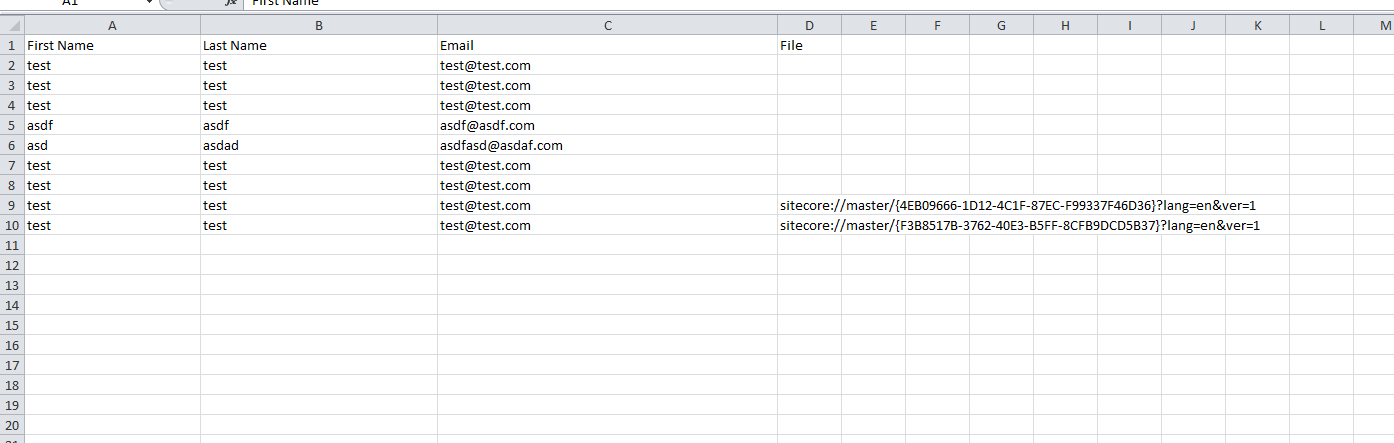
If you have any thoughts on this, or ideas for other export data formats that could be incorporated into the Form Reports of Web Forms for Marketers, please share in a comment.
Until next time, have a Sitecoretastic day!
Restrict IP Access of Directories and Files in Your Sitecore Web Application Using a httpRequestBegin Pipeline Processor
Last week my friend and colleague Greg Coffman had asked me if I knew of a way to restrict IP access to directories within the Sitecore web application, and I recalled reading a post by Alex Shyba quite some time ago.
Although Alex’s solution is probably good enough in most circumstances, I decided to explore other solutions, and came up with the following <httpRequestBegin> pipeline processor as another way to accomplish this:
using System;
using System.Collections.Generic;
using System.Linq;
using System.Web.Hosting;

using Sitecore.Configuration;
using Sitecore.Diagnostics;
using Sitecore.Pipelines.HttpRequest;
using Sitecore.Web;

namespace Sitecore.Sandbox.Pipelines.HttpRequest
{
    public class FilePathRestrictor : HttpRequestProcessor
    {
        public override void Process(HttpRequestArgs args)
        {
            Assert.ArgumentNotNull(args, "args");
            if (!ShouldRedirect(args))
            {
                return;
            }

            RedirectToNoAccessUrl();
        }

        private bool ShouldRedirect(HttpRequestArgs args)
        {
            return CanProcess(args, GetFilePath(args))
                    && !CanAccess(args.Context.Request.UserHostAddress);
        }

        protected virtual string GetFilePath(HttpRequestArgs args)
        {
            if (string.IsNullOrWhiteSpace(Context.Page.FilePath))
            {
                return args.Url.FilePath;
            }

            return Context.Page.FilePath;
        }

        protected virtual bool CanProcess(HttpRequestArgs args, string filePath)
        {
            return !string.IsNullOrWhiteSpace(filePath)
                    && !string.IsNullOrWhiteSpace(RootFilePath)
                    && AllowedIPs != null
                    && AllowedIPs.Any()
                    && (HostingEnvironment.VirtualPathProvider.DirectoryExists(filePath)
                        || HostingEnvironment.VirtualPathProvider.FileExists(filePath))
                    && args.Url.FilePath.StartsWith(RootFilePath, StringComparison.CurrentCultureIgnoreCase)
                    && !string.IsNullOrWhiteSpace(args.Context.Request.UserHostAddress)
                    && !string.Equals(filePath, Settings.NoAccessUrl, StringComparison.CurrentCultureIgnoreCase);
        }

        protected virtual bool CanAccess(string ip)
        {
            Assert.ArgumentNotNullOrEmpty(ip, "ip");
            return AllowedIPs.Contains(ip);
        }

        protected virtual void RedirectToNoAccessUrl()
        {
            WebUtil.Redirect(Settings.NoAccessUrl);
        }

        protected virtual void AddAllowedIP(string ip)
        {
            if (string.IsNullOrWhiteSpace(ip) || AllowedIPs.Contains(ip))
            {
                return;
            }

            AllowedIPs.Add(ip);
        }

        private string RootFilePath { get; set; }

        private IList<string> _AllowedIPs;
        private IList<string> AllowedIPs
        {
            get
            {
                if (_AllowedIPs == null)
                {
                    _AllowedIPs = new List<string>();
                }

                return _AllowedIPs;
            }
        }
    }
}
The pipeline processor above determines whether the IP making the request has access to the directory or file on the file system — a list of IP addresses that should have access are passed to the pipeline processor via a configuration file, and the code does check to see if the requested URL is a directory or a file on the file system — by matching the beginning of the URL with a configuration defined root path.
If the user does not have access to the requested path, s/he is redirected to the “No Access Url” which is specified in the Sitecore instance’s configuration.
The list of IP addresses that should have access to the directory — including everything within it — and the root path are handed to the pipeline processor via the following patch configuration file:
<?xml version="1.0" encoding="utf-8" ?>
<configuration xmlns:patch="http://www.sitecore.net/xmlconfig/">
  <sitecore>
    <pipelines>
      <httpRequestBegin>
        <processor patch:before=" processor[@type='Sitecore.Pipelines.HttpRequest.FileResolver, Sitecore.Kernel']"
                   type="Sitecore.Sandbox.Pipelines.HttpRequest.FilePathRestrictor, Sitecore.Sandbox">
          <RootFilePath>/sitecore</RootFilePath>
          <AllowedIPs hint="list:AddAllowedIP">
            <IP>127.0.0.2</IP>
          </AllowedIPs>
        </processor>
      </httpRequestBegin>
    </pipelines>
  </sitecore>
</configuration>
Since my IP is 127.0.0.1, I decided to only allow 127.0.0.2 access to my Sitecore directory — this also includes everything within it — in the above configuration file for testing.
After navigating to /sitecore of my local sandbox instance, I was redirected to the “No Access Url” page defined in my Web.config:

If you have any thoughts on this, or know of other solutions, please share in a comment.
Add the HTML5 Range Input Control into Web Forms for Marketers in Sitecore
A couple of weeks ago, I was researching what new input controls exist in HTML5 — I am quite a dinosaur when it comes to front-end code, and felt it was a good idea to see what is currently available or possible — and discovered the range HTML control:

I immediately wanted to add this HTML5 input control into Web Forms for Marketers in Sitecore, and built the following control class as a proof of concept:
using System;
using System.Web.UI;
using System.Web.UI.WebControls;

using Sitecore.Diagnostics;
using Sitecore.Form.Web.UI.Controls;

namespace Sitecore.Sandbox.Form.Web.UI.Controls
{
    public class Range : InputControl
    {
        public Range() : this(HtmlTextWriterTag.Div)
        {
        }

        public Range(HtmlTextWriterTag tag)
            : base(tag)
        {
        }

        protected override void OnInit(EventArgs e)
        {
            base.textbox.CssClass = "scfSingleLineTextBox";
            base.help.CssClass = "scfSingleLineTextUsefulInfo";
            base.generalPanel.CssClass = "scfSingleLineGeneralPanel";
            base.title.CssClass = "scfSingleLineTextLabel";
            this.Controls.AddAt(0, base.generalPanel);
            this.Controls.AddAt(0, base.title);
            base.generalPanel.Controls.AddAt(0, base.help);
            base.generalPanel.Controls.AddAt(0, textbox);
        }

        protected override void DoRender(HtmlTextWriter writer)
        {
            textbox.Attributes["type"] = "range";
            TrySetIntegerAttribute("min", MinimumValue);
            TrySetIntegerAttribute("max", MaximumValue);
            TrySetIntegerAttribute("step", StepInterval);
            EnsureDefaultValue();
            textbox.MaxLength = 0;
            base.DoRender(writer);
        }

        protected virtual void TrySetIntegerAttribute(string attributeName, string value)
        {
            int integerValue;
            if (int.TryParse(value, out integerValue))
            {
                SetAttribute(attributeName, integerValue.ToString());
            }
        }

        protected virtual void SetAttribute(string attributeName, string value)
        {
            Assert.ArgumentNotNull(textbox, "textbox");
            Assert.ArgumentNotNullOrEmpty(attributeName, "attributeName");
            textbox.Attributes[attributeName] = value;
        }

        protected virtual void EnsureDefaultValue()
        {
            int value;
            if (!int.TryParse(Text, out value))
            {
                textbox.Text = string.Empty;
            }
        }

        public string MinimumValue { get; set; }

        public string MaximumValue { get; set; }

        public string StepInterval { get; set; }
    }
}
Most of the magic behind how this works occurs in the DoRender() method above. In that method we are changing the “type” attribute on the TextBox instance defined in the parent InputControl class to be “range” instead of “text”: this is how the browser will know that it is to render a range control instead of a textbox.
The DoRender() method also delegates to other helper methods: one to set the default value for the control, and another to add additional attributes to our control — the “step”, “min”, and “max” attributes in particular (you can learn more about these attributes by reading this specification for the range control) — and these are only set when values are passed to our code via XML defined in Sitecore for the control:

Let’s test this out!
I whipped up a test form, and added a range field to it:

This is what the form looked like on the page before I clicked the submit button (trust me, that’s 75 😉 ):

After clicking submit, I was given a confirmation message:

As you can see in the Form Reports for our test form, the value selected on the range control was captured:

I will admit that I had a lot of fun adding this range input control into Web Forms for Marketers but do question whether anyone would use this control.
Why?
I found no way to add label markers for the different values on the control (if you are aware of a way to do this, please leave a comment).
Also, it should be noted that this control will not work in Internet Explorer 9 or earlier versions.
If you can think of ways around making this better, or have ideas for other HTML5 controls that could/should be added to Web Forms for Marketers, please share in a comment.
Restrict Certain Files from Being Attached to Web Forms for Marketers Forms in Sitecore
Last week I was given a task to research how to prevent certain files from being attached to Web Forms for Marketers (WFFM) forms: basically files that have certain extensions, or files that exceed a specified size.
I have not seen this done before in WFFM, so I did what comes naturally to me: I Googled! 🙂
After a few unsuccessful searches on the internet — if you have some examples on how others have accomplished this in WFFM, please share in a comment — I decided to dig into the WFFM assemblies to see what would be needed to accomplish this, and felt using custom WFFM field validators would be the way to go.
I thought having a custom validator to check the attached file’s MIME type would be a better solution over one that checks the file’s extension — thanks to Sitecore MVP Yogesh Patel for giving me the idea from his post on restricting certain files from being uploading into Sitecore by checking their MIME types — since a malefactor could attach a restricted file with a different extension to bypass the extension validation step.
That thought lead me to build the following custom WFFM field validator:
using System;
using System.Collections.Generic;
using System.Linq;
using System.Web.UI.WebControls;

using Sitecore.Form.Core.Validators;
using Sitecore.Form.Web.UI.Controls;

namespace Sitecore.Sandbox.Form.Core.Validators
{
    public class RestrictedFileTypes : FormCustomValidator
    {
        public string MimeTypesNotAllowed
        {
            get
            {
                if (string.IsNullOrWhiteSpace(base.classAttributes["mimeTypesNotAllowed"]))
                {
                    return string.Empty;
                }

                return base.classAttributes["mimeTypesNotAllowed"];
            }
            set
            {
                base.classAttributes["mimeTypesNotAllowed"] = value;
            }
        }

        public RestrictedFileTypes()
        {
        }

        protected override bool OnServerValidate(string value)
        {
            IEnumerable<string> mimeTypesNotAllowed = GetMimeTypesNotAllowed();
            FileUpload fileUpload = FindControl(ControlToValidate) as FileUpload;
            bool canProcess = mimeTypesNotAllowed.Any() && fileUpload != null && fileUpload.HasFile;
            if (!canProcess)
            {
                return true;
            }

            foreach(string mimeType in mimeTypesNotAllowed)
            {
                if (AreEqualIgnoreCase(mimeType, fileUpload.PostedFile.ContentType))
                {
                    return false;
                }
            }

            return true;
        }

        private IEnumerable<string> GetMimeTypesNotAllowed()
        {
            if (string.IsNullOrWhiteSpace(MimeTypesNotAllowed))
            {
                return new List<string>();
            }

            return MimeTypesNotAllowed.Split(new []{',', ';'}, StringSplitOptions.RemoveEmptyEntries);
        }

        private static bool AreEqualIgnoreCase(string stringOne, string stringTwo)
        {
            return string.Equals(stringOne, stringTwo, StringComparison.CurrentCultureIgnoreCase);
        }
    }
}
Restricted MIME types are passed to the custom validator through a parameter named MimeTypesNotAllowed, and these are injected into a property of the same name.
The MIME types can be separated by commas or semicolons, and the code above splits the string along these delimiters into a collection, checks to see if the uploaded file — we get the uploaded file via the FileUpload control on the form for the field we are validating — has a restricted MIME type by iterating over the collection of restricted MIME types, and comparing each entry to its MIME type. If there is a match, we return “false”: basically the field is invalid.
If no MIME types were set for the validator, or no file was uploaded, we return “true”: the field is valid. We do this for the case where the field is not required, or there is a required field validator set for it, and we don’t want to interfere with its validation check.
I then mapped the above validator in Sitecore:

After saving the above validator Item in Sitecore, I built the following validator class to check to see if a file exceeds a certain size:
using System;
using System.Collections.Generic;
using System.Linq;
using System.Web.UI.WebControls;

using Sitecore.Form.Core.Validators;
using Sitecore.Form.Web.UI.Controls;

namespace Sitecore.Sandbox.Form.Core.Validators
{
    public class RestrictedFileSize : FormCustomValidator
    {
        public int MaxFileSize
        {
            get
            {
                int maxSize;
                if (int.TryParse(base.classAttributes["mimeTypesNotAllowed"], out maxSize))
                {
                    return maxSize;
                }

                return 0;
            }
            set
            {
                base.classAttributes["mimeTypesNotAllowed"] = value.ToString();
            }
        }

        public RestrictedFileSize()
        {
        }

        protected override bool OnServerValidate(string value)
        {
            FileUpload fileUpload = FindControl(ControlToValidate) as FileUpload;
            if (!fileUpload.HasFile)
            {
                return true;
            }

            return fileUpload.PostedFile.ContentLength <= MaxFileSize;
        }
    }
}
Just as we had done in the other validator, we grab the FileUpload from the form, and see if there is a file attached. If there is no file attached, we return “true”: we don’t want to say the field is invalid when the field is not required.
We then return whether the uploaded file is less than or equal to the specified maximum size in bytes — this is set on a parameter named MaxFileSize which gets injected into the MaxFileSize property of the validator instance.
I then registered the above validator in Sitecore:

I then decided to create a custom WFFM field type for the purposes of mapping our validators above, so that we don’t enforce these restrictions on the “out of the box” WFFM “File Upload” field type:
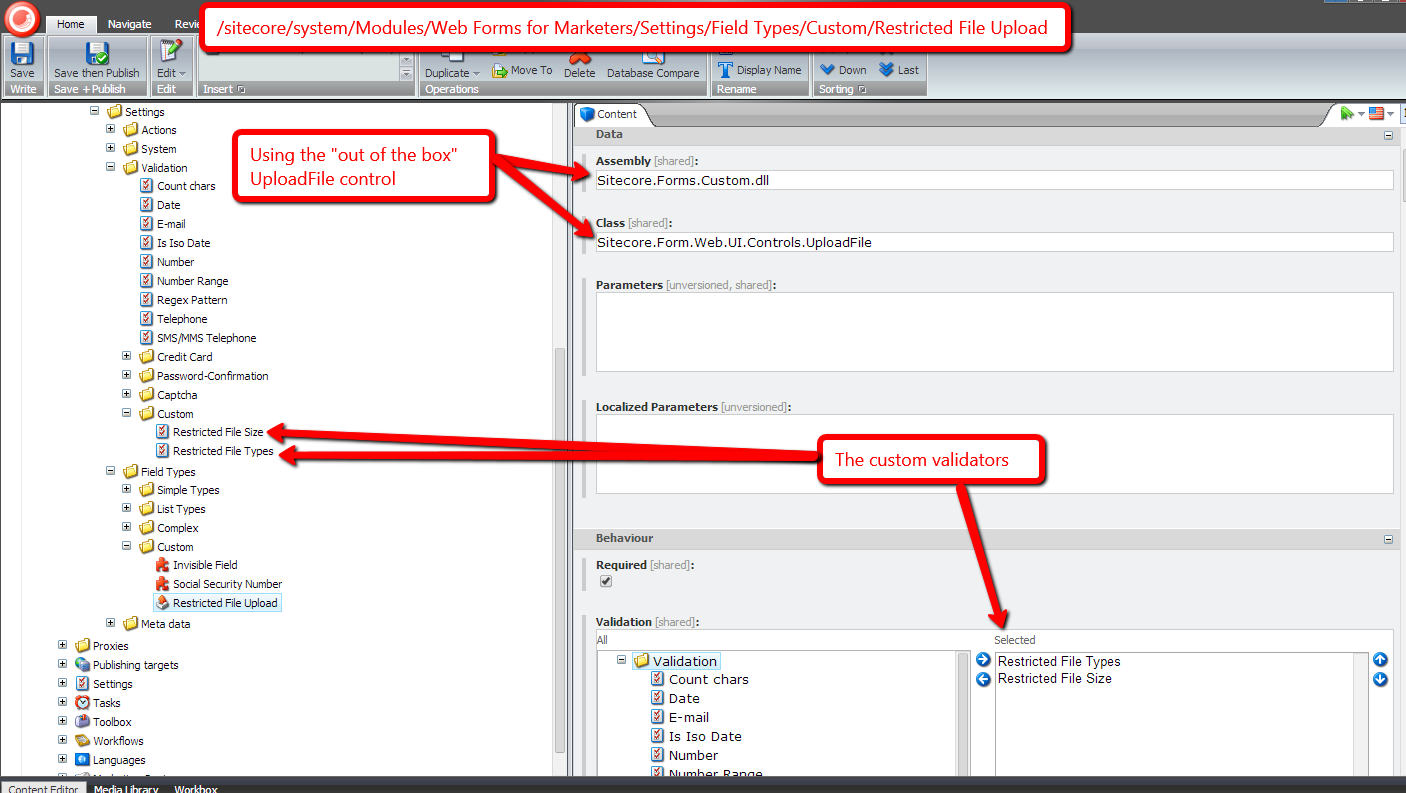
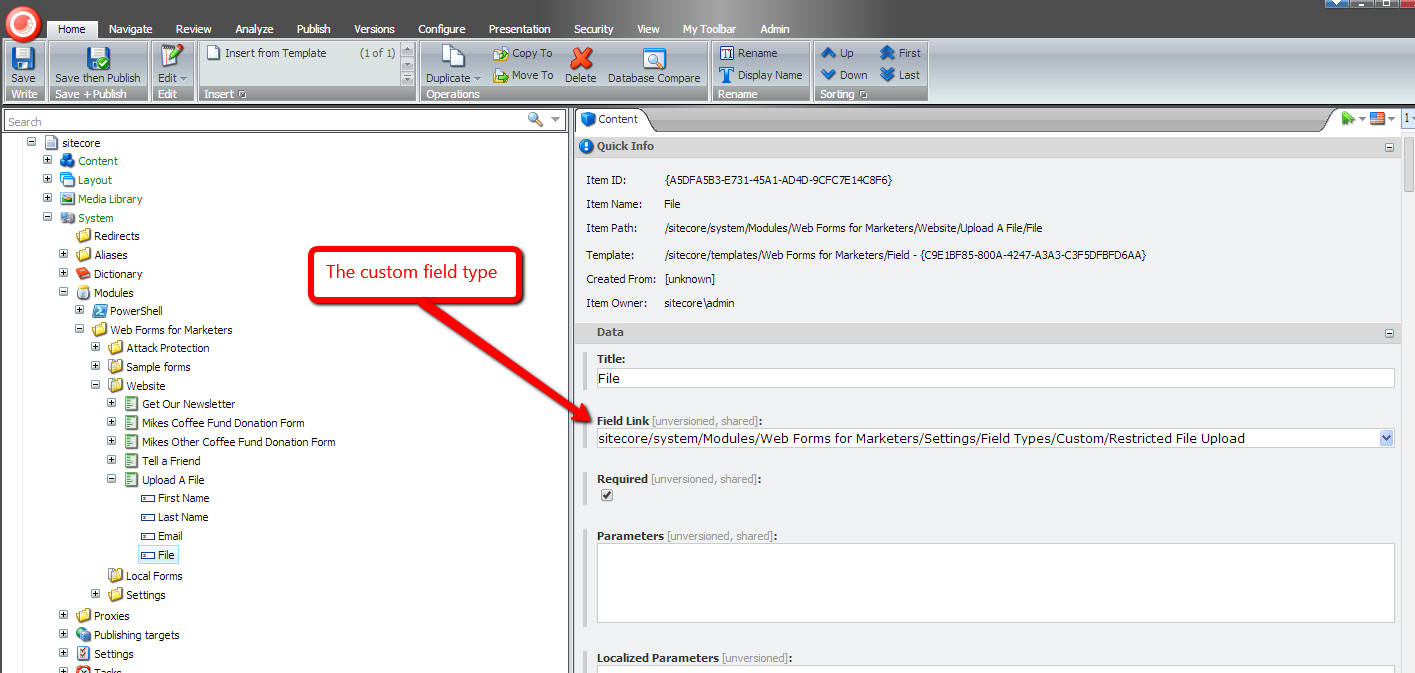
I then set the new field type on a file field I added to a test WFFM form:
Let’s see how we did!
Let’s try to upload an executable that exceeds the maximum upload size limit:

As you can see both validators were triggered for this file:

How about a JavaScript file? Let’s try to attach one:

Nope, we can’t attach that file either:
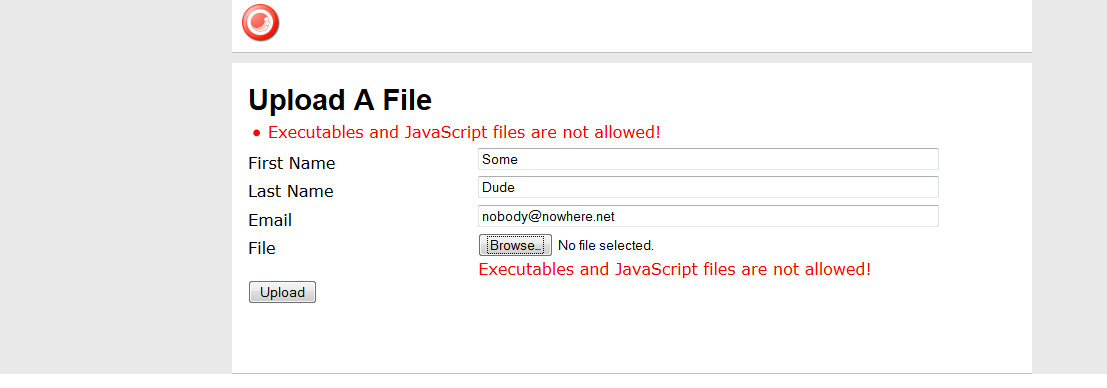
How about an image that is larger than the size limit? Let’s try one:

Nope, we can’t upload that either:

Let’s try an image that is under 100KB:

Yes, we can attach that file since it’s not restricted, and the form did submit:

If you have any thoughts on this, or other ideas around preventing certain files from being attached to WFFM form submissions, please share in a comment.
Embedded Tweets in Sitecore: A Proof of Concept
In a previous post, I showcased a “proof of concept” for shortcodes in Sitecore — this is a shorthand notation for embedding things like YouTube videos in your webpages without having to type up a bunch of HTML — and felt I should follow up with another “proof of concept” around incorporating Embedded Tweets in Sitecore.
You might be asking “what’s an Embedded Tweet?” An Embedded Tweet is basically the process of pasting a Tweet URL from Twitter into an editable content area of your website/blog/whatever (think Rich Text field in Sitecore), and let the code that builds the HTML for your site figure out how to display it.
For example, I had used an Embedded Tweet in a recent post:

This is what is seen on the rendered page:

While doing some research via Google on how to do this in Sitecore, I found this page from Twitter that discusses how you could go about accomplishing this, and discovered how to get JSON containing information about a Tweet — including its HTML — using one of Twitter’s API URLs:

The JSON above drove me to build the following POCO class to represent data returned by that URL:
using System.Runtime.Serialization;

namespace Sitecore.Sandbox.Pipelines.RenderField.Tweets
{
    public class Tweet
    {
        [DataMember(Name = "cache_age")]
        public int CacheAgeMilliseconds { get; set; }

        [DataMember(Name = "url")]
        public string Url { get; set; }

        [DataMember(Name = "html")]
        public string Html { get; set; }
    }
}
I decided to omit some of the JSON properties returned by the Twitter URL from my class above — width and height are examples — since I felt I did not need to use them for this “proof of concept”.
I then leveraged the class above in the following class that will serve as a <renderField> pipeline processor to embed Tweets:
using System;
using System.IO;
using System.Net;
using System.Text.RegularExpressions;
using System.Web;

using Sitecore.Caching;
using Sitecore.Diagnostics;
using Sitecore.Pipelines.RenderField;

using Newtonsoft.Json;
using Newtonsoft.Json.Linq;

namespace Sitecore.Sandbox.Pipelines.RenderField.Tweets
{
    public class ExpandTweets
    {
        private string TwitterWidgetScriptTag {get ; set; }

        private string TwitterApiUrlFormat { get; set; }

        private string _TweetPattern;
        private string TweetPattern
        {
            get
            {
                return _TweetPattern;
            }
            set
            {
                _TweetPattern = value;
                if (!string.IsNullOrWhiteSpace(_TweetPattern))
                {
                    _TweetPattern = HttpUtility.HtmlDecode(_TweetPattern);
                }
            }
        }

        private HtmlCache _HtmlCache;
        private HtmlCache HtmlCache
        {
            get
            {
                if (_HtmlCache == null)
                {
                    _HtmlCache = CacheManager.GetHtmlCache(Context.Site);
                }

                return _HtmlCache;
            }
        }

        public void Process(RenderFieldArgs args)
        {
            Assert.ArgumentNotNull(args, "args");
            AssertRequired();
            if(!ShouldFieldBeProcessed(args))
            {
                return;
            }

            args.Result.FirstPart = ExpandTweetUrls(args.Result.FirstPart);
        }

        private static bool ShouldFieldBeProcessed(RenderFieldArgs args)
        {
            Assert.ArgumentNotNull(args, "args");
            Assert.ArgumentNotNull(args.FieldTypeKey, "args.FieldTypeKey");
            string fieldTypeKey = args.FieldTypeKey.ToLower();
            return fieldTypeKey == "text"
                    || fieldTypeKey == "rich text"
                    || fieldTypeKey == "single-line text"
                    || fieldTypeKey == "multi-line text";
        }

        private void AssertRequired()
        {
            Assert.IsNotNullOrEmpty(TwitterWidgetScriptTag, "TwitterWidgetScriptTag must be set! Check your configuration!");
            Assert.IsNotNullOrEmpty(TwitterApiUrlFormat, "TwitterApiUrlFormat must be set! Check your configuration!");
            Assert.IsNotNullOrEmpty(TweetPattern, "TweetPattern must be set! Check your configuration!");
        }

        protected virtual string ExpandTweetUrls(string html)
        {
            string htmlExpanded = html;
            MatchCollection matches = Regex.Matches(htmlExpanded, TweetPattern, RegexOptions.Compiled | RegexOptions.IgnoreCase);
            foreach (Match match in matches)
            {
                string tweetHtml = GetTweetHtml(match.Groups["id"].Value);
                if (!string.IsNullOrWhiteSpace(tweetHtml))
                {
                    htmlExpanded = htmlExpanded.Replace(match.Value, tweetHtml);
                }
            }

            if (matches.Count > 0)
            {
                htmlExpanded = string.Concat(htmlExpanded, TwitterWidgetScriptTag);
            }

            return htmlExpanded;
        }

        protected virtual string GetTweetHtml(string id)
        {
            string html = GetTweetHtmlFromCache(id);
            if (!string.IsNullOrWhiteSpace(html))
            {
                return html;
            }

            Tweet tweet = GetTweetFromApi(id);
            AddTweetHtmlToCache(id, tweet);
            return tweet.Html;
        }

        private string GetTweetHtmlFromCache(string id)
        {
            return HtmlCache.GetHtml(id);
        }

        private void AddTweetHtmlToCache(string id, Tweet tweet)
        {
            if (string.IsNullOrWhiteSpace(tweet.Html))
            {
                return;
            }

            if (tweet.CacheAgeMilliseconds > 0)
            {
                HtmlCache.SetHtml(id, tweet.Html, DateTime.Now.AddMilliseconds(tweet.CacheAgeMilliseconds));
                return;
            }

            HtmlCache.SetHtml(id, tweet.Html);
        }

        protected virtual Tweet GetTweetFromApi(string id)
        {
            HttpWebRequest request = (HttpWebRequest)WebRequest.Create(string.Format(TwitterApiUrlFormat, id));
            try
            {
                HttpWebResponse response = (HttpWebResponse)request.GetResponse();
                using (StreamReader reader = new StreamReader(response.GetResponseStream()))
                {
                    var result = reader.ReadToEnd();
                    JObject jObject = JObject.Parse(result);
                    return JsonConvert.DeserializeObject<Tweet>(jObject.ToString());
                }
            }
            catch (Exception ex)
            {
                Log.Error(this.ToString(), ex, this);
            }

            return new Tweet { Html = string.Empty };
        }
    }
}
Methods in the class above find all Tweet URLs in the Rich Text, Single-Line Text, or Multi-Line Text field being processed — the code determines if it’s a Tweet URL based on a pattern that is supplied by a configuration setting (you will see this below in this post); extract Tweets’ Twitter identifiers (these are located at the end of the Tweet URLs); and attempt to find the Tweets’ HTML in Sitecore’s HTML cache.
If the HTML is found in cache for a Tweet, we return it. Otherwise, we make a request to Twitter’s API to get it, put it in cache one we have it (it is set to expire after a specified number of milliseconds from the time it was retrieved: Twitter returns the number of milliseconds in one full year by default), and then we return it.
If the returned HTML is not empty, we replace it in the field’s value for display.
If the HTML returned is empty — this could happen when an exception is encountered during the Twitter API call (of course we log the exception in the Sitecore log when this happens 😉 ) — we don’t touch the Tweet URL in the field’s value.
Once all Tweet URLs have been processed, we append a script tag referencing Twitter’s widget.js file — this is supplied through a configuration setting, and it does the heavy lifting on making the Tweet HTML look Twitterific 😉 — to the field’s rendered HTML.
I then tied everything together using the following patch configuration file:
<?xml version="1.0" encoding="utf-8"?>
<configuration xmlns:patch="http://www.sitecore.net/xmlconfig/">
<sitecore>
<pipelines>
<renderField>
<processor type="Sitecore.Sandbox.Pipelines.RenderField.Tweets.ExpandTweets, Sitecore.Sandbox"
patch:after="processor[@type='Sitecore.Pipelines.RenderField.GetTextFieldValue, Sitecore.Kernel']">
<TwitterWidgetScriptTag><script async src="//platform.twitter.com/widgets.js" charset="utf-8"></script></TwitterWidgetScriptTag>
<TwitterApiUrlFormat>https://api.twitter.com/1/statuses/oembed.json?id={0}&omit_script=true</TwitterApiUrlFormat>
<TweetPattern>https://twitter.com/.+/status/(?<id>\d*)</TweetPattern>
</processor>
</renderField>
</pipelines>
</sitecore>
</configuration>
Let’s see this in action!
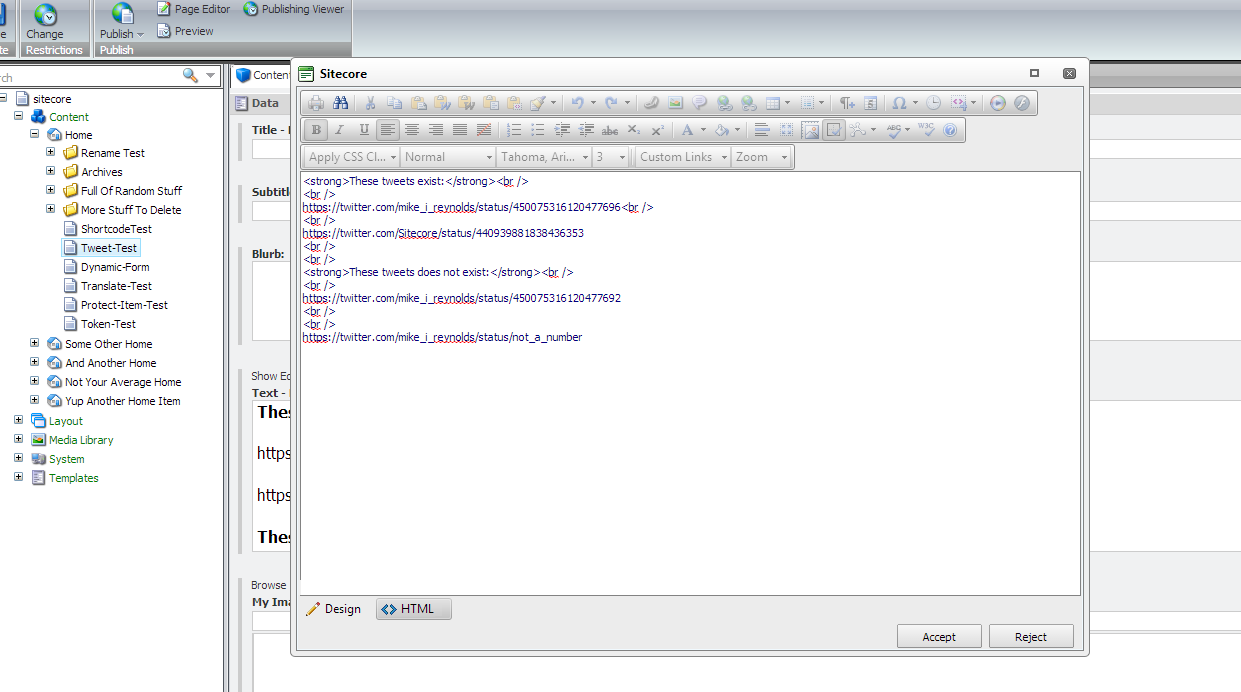
I created a test Item, and added some legitimate and bogus Tweet URLs into one of its Rich Text fields (please pardon the grammatical issues in the following screenshots :-/):

This isn’t the most aesthetically pleasing HTML, but it will serve its purpose for testing:
After saving and publishing, I navigated to my test Item’s page, and saw this:

If you have any suggestions on making this better, or have other ideas for embedding Tweets in Sitecore, please share in a comment.
Add Sitecore Rocks Commands to Protect and Unprotect Items
The other day I read this post where the author showcased a new Clipboard command he had added into Sitecore Rocks, and immediately wanted to experiment with adding my own custom command into Sitecore Rocks.
After some research, I stumbled upon this post which gave a walk-through on augmenting Sitecore Rocks by adding a Server Component — this is an assembled library of code for your Sitecore instance to handle requests from Sitecore Rocks — and a Plugin — this is an assembled library of code that can contain custom commands — and decided to follow its lead.
I first created a Sitecore Rocks Server Component project in Visual Studio:

After some pondering, I decided to ‘cut my teeth’ on creating custom commands to protect and unprotect Items in Sitecore (for more information on protecting/unprotecting Items in Sitecore, check out ‘How to Protect or Unprotect an Item’ in Sitecore’s Client Configuration
Cookbook).
I decided to use the template method pattern for the classes that will handle requests from Sitecore Rocks — I envisioned some shared logic across the two — and put this shared logic into the following base class:
using Sitecore.Configuration;
using Sitecore.Data;
using Sitecore.Data.Items;
using Sitecore.Diagnostics;

namespace Sitecore.Rocks.Server.Requests
{
    public abstract class EditItem
    {
        public string Execute(string id, string databaseName)
        {
            Assert.ArgumentNotNullOrEmpty(id, "id");
            return ExecuteEditItem(GetItem(id, databaseName));
        }

        private string ExecuteEditItem(Item item)
        {
            Assert.ArgumentNotNull(item, "item");
            item.Editing.BeginEdit();
            string response = UpdateItem(item);
            item.Editing.EndEdit();
            return response;
        }

        protected abstract string UpdateItem(Item item);

        private static Item GetItem(string id, string databaseName)
        {
            Assert.ArgumentNotNullOrEmpty(id, "id");
            Database database = GetDatabase(databaseName);
            Assert.IsNotNull(database, string.Format("database: {0} does not exist!", databaseName));
            return database.GetItem(id);
        }

        private static Database GetDatabase(string databaseName)
        {
            Assert.ArgumentNotNullOrEmpty(databaseName, "databaseName");
            return Factory.GetDatabase(databaseName);
        }
    }
}
The EditItem base class above gets the Item in the requested database, and puts the Item into edit mode. It then passes the Item to the UpdateItem method — subclasses must implement this method — and then turns off edit mode for the Item.
As a side note, all Server Component request handlers must have a method named Execute.
For protecting a Sitecore item, I built the following subclass of the EditItem class above:
using Sitecore.Data.Items;

namespace Sitecore.Rocks.Server.Requests.Attributes
{
    public class ProtectItem : EditItem
    {
        protected override string UpdateItem(Item item)
        {
            item.Appearance.ReadOnly = true;
            return string.Empty;
        }
    }
}
The ProtectItem class above just protects the Item passed to it.
I then built the following subclass of EditItem to unprotect an item passed to its UpdateItem method:
using Sitecore.Data.Items;

namespace Sitecore.Rocks.Server.Requests.Attributes
{
    public class UnprotectItem : EditItem
    {
        protected override string UpdateItem(Item item)
        {
            item.Appearance.ReadOnly = false;
            return string.Empty;
        }
    }
}
I built the above Server Component solution, and put its resulting assembly into the /bin folder of my Sitecore instance.
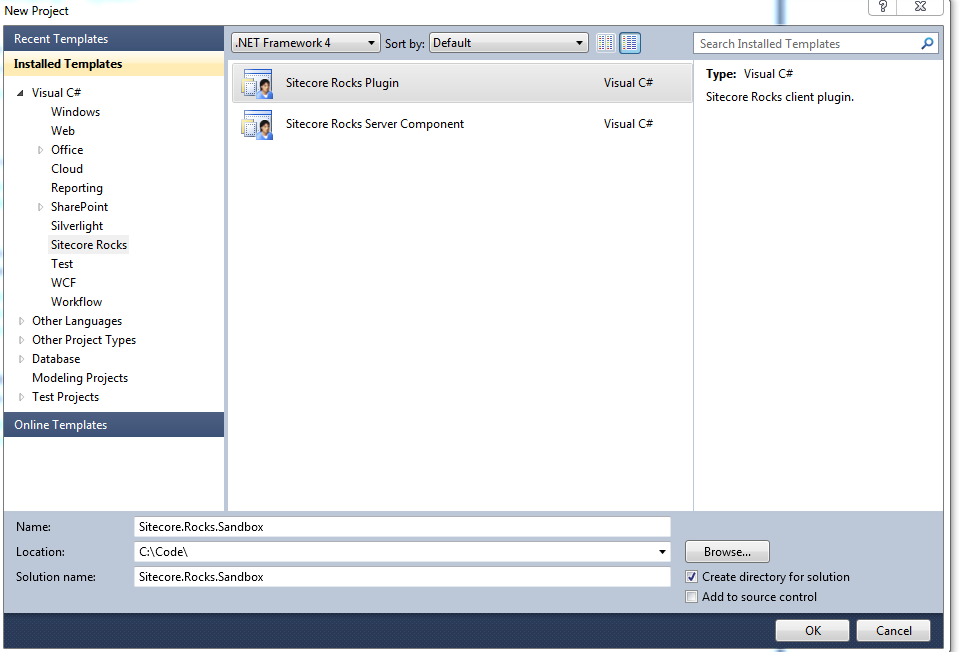
I then created a Plugin solution to handle the protect/unprotect commands in Sitecore Rocks:
I created the following command to protect a Sitecore Item:
using System;
using System.Linq;

using Sitecore.VisualStudio.Annotations;
using Sitecore.VisualStudio.Commands;
using Sitecore.VisualStudio.Data;
using Sitecore.VisualStudio.Data.DataServices;

using SmartAssembly.SmartExceptionsCore;

namespace Sitecore.Rocks.Sandbox.Commands
{
    [Command]
    public class ProtectItemCommand : CommandBase
    {
        public ProtectItemCommand()
        {
            Text = "Protect Item";
            Group = "Edit";
            SortingValue = 4010;
        }

        public override bool CanExecute([CanBeNull] object parameter)
        {
            IItemSelectionContext context = null;
            bool canExecute = false;
            try
            {
                context = parameter as IItemSelectionContext;
                canExecute = context != null && context.Items.Count() == 1 && !IsProtected(context.Items.FirstOrDefault());
            }
            catch (Exception ex)
            {
                StackFrameHelper.CreateException3(ex, context, this, parameter);
                throw;
            }

            return canExecute;
        }

        private static bool IsProtected(IItem item)
        {
            ItemVersionUri itemVersionUri = new ItemVersionUri(item.ItemUri, LanguageManager.CurrentLanguage, Sitecore.VisualStudio.Data.Version.Latest);
            Item item2 = item.ItemUri.Site.DataService.GetItemFields(itemVersionUri);
            foreach (Field field in item2.Fields)
            {
                if (string.Equals("__Read Only", field.Name, StringComparison.CurrentCultureIgnoreCase) && field.Value == "1")
                {
                    return true;
                }
            }

            return false;
        }

        public override void Execute([CanBeNull] object parameter)
        {
            IItemSelectionContext context = null;
            try
            {
                context = parameter as IItemSelectionContext;
                IItem item = context.Items.FirstOrDefault();
                item.ItemUri.Site.DataService.ExecuteAsync
                (
                    "Attributes.ProtectItem",
                    CreateEmptyCallback(),
                    new object[]
                    {
	                    item.ItemUri.ItemId.ToString(),
	                    item.ItemUri.DatabaseName.ToString()
                    }
                );
            }
            catch (Exception ex)
            {
                StackFrameHelper.CreateException3(ex, context, this, parameter);
                throw;
            }
        }

        private ExecuteCompleted CreateEmptyCallback()
        {
            return (response, executeResult) => { return; };
        }
    }
}
The ProtectItemCommand command above is only displayed when the selected Item is not protected — this is ascertained by logic in the CanExecute method — and fires off a request to the Sitecore.Rocks.Server.Requests.Attributes.ProtectItem request handler in the Server Component above to protect the selected Item.
I then built the following command to do the exact opposite of the command above: only appear when the selected Item is protected, and make a request to Sitecore.Rocks.Server.Requests.Attributes.UnprotectItem — shown above in the Server Component — to unprotect the selected Item:
using System;
using System.Linq;

using Sitecore.VisualStudio.Annotations;
using Sitecore.VisualStudio.Commands;
using Sitecore.VisualStudio.Data;
using Sitecore.VisualStudio.Data.DataServices;

using SmartAssembly.SmartExceptionsCore;

namespace Sitecore.Rocks.Sandbox.Commands
{
    [Command]
    public class UnprotectItemCommand : CommandBase
    {
        public UnprotectItemCommand()
        {
            Text = "Unprotect Item";
            Group = "Edit";
            SortingValue = 4020;
        }

        public override bool CanExecute([CanBeNull] object parameter)
        {
            IItemSelectionContext context = null;
            bool canExecute = false;
            try
            {
                context = parameter as IItemSelectionContext;
                canExecute = context != null && context.Items.Count() == 1 && IsProtected(context.Items.FirstOrDefault());
            }
            catch (Exception ex)
            {
                StackFrameHelper.CreateException3(ex, context, this, parameter);
                throw;
            }

            return canExecute;
        }

        private static bool IsProtected(IItem item)
        {
            ItemVersionUri itemVersionUri = new ItemVersionUri(item.ItemUri, LanguageManager.CurrentLanguage, Sitecore.VisualStudio.Data.Version.Latest);
            Item item2 = item.ItemUri.Site.DataService.GetItemFields(itemVersionUri);
            foreach (Field field in item2.Fields)
            {
                if (string.Equals("__Read Only", field.Name, StringComparison.CurrentCultureIgnoreCase) && field.Value == "1")
                {
                    return true;
                }
            }

            return false;
        }

        public override void Execute([CanBeNull] object parameter)
        {
            IItemSelectionContext context = null;
            try
            {
                context = parameter as IItemSelectionContext;
                IItem item = context.Items.FirstOrDefault();
                item.ItemUri.Site.DataService.ExecuteAsync
                (
                    "Attributes.UnprotectItem",
                    CreateEmptyCallback(),
                    new object[]
                    {
	                    item.ItemUri.ItemId.ToString(),
	                    item.ItemUri.DatabaseName.ToString()
                    }
                );
            }
            catch (Exception ex)
            {
                StackFrameHelper.CreateException3(ex, context, this, parameter);
                throw;
            }
        }

        private ExecuteCompleted CreateEmptyCallback()
        {
            return (response, executeResult) => { return; };
        }
    }
}
I had to do a lot of discovery in Sitecore.Rocks.dll via .NET Reflector in order to build the above commands, and had a lot of fun while searching and learning.
Unfortunately, I could not get the commands above to show up in the Sitecore Explorer context menu in my instance of Sitecore Rocks even though my plugin did make its way out to my C:\Users\[my username]\AppData\Local\Sitecore\Sitecore.Rocks\Plugins\ folder.
I troubleshooted for some time but could not determine why these commands were not appearing — if you have any ideas, please leave a comment — and decided to register my commands using Extensions in Sitecore Rocks as a fallback plan:
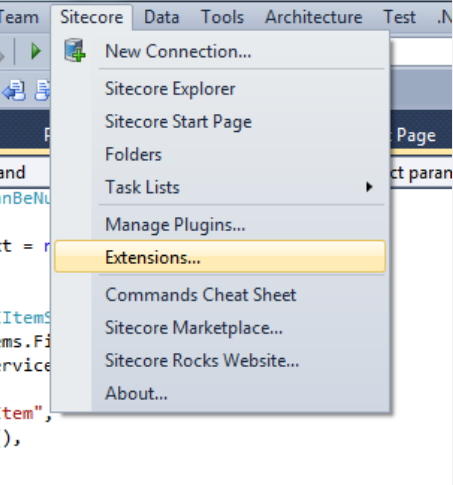
After clicking ‘Extensions’ in the Sitecore dropdown menu in Visual Studio, I was presented with the following dialog, and added my classes via the ‘Add’ button on the right:

Let’s see this in action.
I first created a Sitecore Item for testing:

I navigated to that Item in the Sitecore Explorer in Sitecore Rocks, and right-clicked on it:
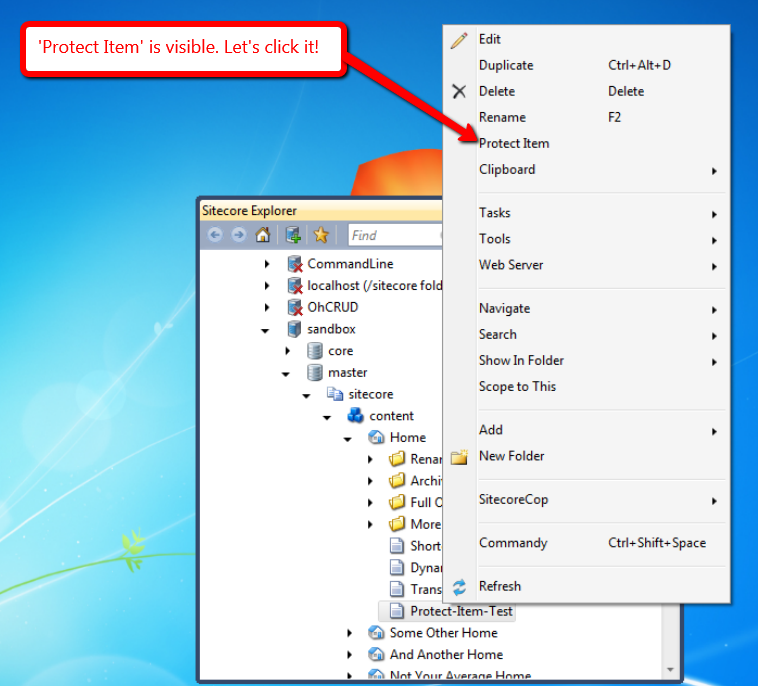
After clicking ‘Protect Item’, I verified the Item was protected in Sitecore:

I then went back to our test Item in the Sitecore Explorer of Sitecore Rocks, and right-clicked again:

After clicking ‘Unprotect Item’, I took a look at the Item in Sitecore, and saw that it was no longer protected:
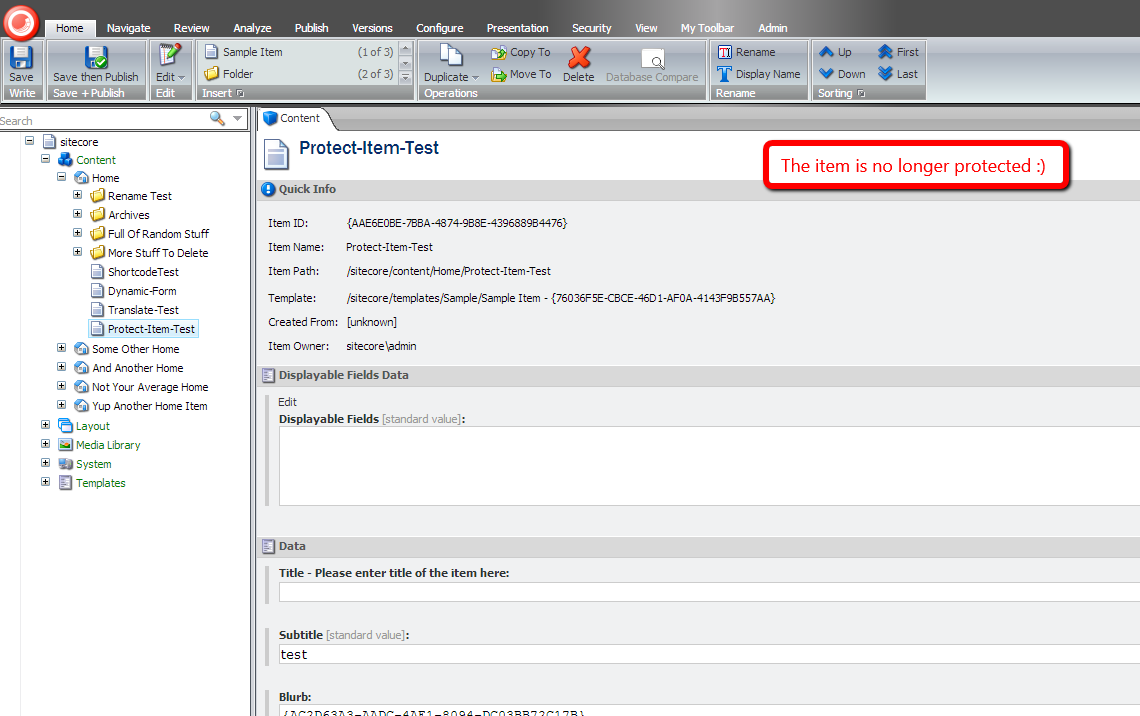
If you have any thoughts on this, or ideas for other commands that you would like to see in Sitecore Rocks, please drop a comment.
Until next time, have a Sitecoretastic day, and don’t forget: Sitecore Rocks!
Prevent Sitecore Dictionary Entry Keys From Appearing When Their Phrase Field is Empty
Earlier today when doing research for another blog post around on-demand language translation in Sitecore, I remembered I wanted to blog about an issue I saw a while back when using the Sitecore Dictionary, but before I dive into that issue — and a possible approach for resolving it — let me give you a little information on what the Sitecore Dictionary is, and why you might want to use it — actually you probably should use it!
The Sitecore Dictionary is a place in Sitecore where you can store multilingual content for labels or string literals in your code (this could be front-end code, or even content displayed in the Sitecore shell). I’ve created the following Dictionary entry as an example:

The “coffee” item above is the Dictionary entry, and its parent item “beverage types” is a Dictionary folder.
You could use a sublayout like the following to display the text stored in the Phrase field on the front-end of your website:
<%@ Control Language="C#" AutoEventWireup="true" CodeBehind="Translate Test.ascx.cs" Inherits="Sandbox.layouts.sublayouts.Translate_Test" %>
<h2>Dictionary Test</h2>
Key => <asp:Literal ID="litKey" runat="server" /><br />
Phrase => <asp:Literal ID="litTranslateTest" runat="server" />
The code-behind of the sublayout:
using System;

using Sitecore.Globalization;

namespace Sandbox.layouts.sublayouts
{
    public partial class Translate_Test : System.Web.UI.UserControl
    {
        protected void Page_Load(object sender, EventArgs e)
        {
            string key = "beveragetypes.coffee";
            litKey.Text = key;
            litTranslateTest.Text = Translate.Text(key);
        }
    }
}
In the Page_Load method above, I’ve invoked Sitecore.Globalization.Translate.Text() to grab the value out of the Phrase field of the “coffee” Dictionary entry using its key. The Sitecore.Globalization.Translate.Text() method uses Sitecore.Context.Language to ascertain which language version of the Dictionary entry to use.
When I navigated to the page that has the sublayout above mapped to its presentation, I see the “coffee” entry’s Phrase appear:

Let’s see how this works using another language version of this Dictionary entry. I added a Danish version for our “coffee” entry:

I navigated to my page again after embedding the Danish language code in its URL to get the Danish version of this Dictionary entry:

As you can see the Danish version appeared, and I did not have to write any additional code to make this happen.
Well, this is great and all until someone forgets to include a phrase for a Dictionary entry:

When we go to the front-end, we see that the Dictionary entry’s key appears instead of its phrase:

As a fix for this, I created the following class to serve as a processor for the <getTranslation> pipeline (this pipeline was introduced in Sitecore 6.6):
using System.Collections.Generic;

using Sitecore.Diagnostics;
using Sitecore.Pipelines.GetTranslation;

namespace Sitecore.Sandbox.Pipelines.GetTranslation
{
    public class SetAsEmpty
    {
        private IList<string> _KeyPrefixes;
        private IList<string> KeyPrefixes
        {
            get
            {
                if (_KeyPrefixes == null)
                {
                    _KeyPrefixes = new List<string>();
                }

                return _KeyPrefixes;
            }
        }

        public void Process(GetTranslationArgs args)
        {
            if (!ShouldSetAsEmpty(args))
            {
                return;
            }

            args.Result = string.Empty;
        }

        protected virtual bool ShouldSetAsEmpty(GetTranslationArgs args)
        {
            Assert.ArgumentNotNull(args, "args");
            return args.Result == null && HasKeyPrefix(args.Key);
        }

        protected virtual bool HasKeyPrefix(string key)
        {
            if (string.IsNullOrWhiteSpace(key))
            {
                return false;
            }

            foreach (string keyPrefix in KeyPrefixes)
            {
                if (key.StartsWith(keyPrefix))
                {
                    return true;
                }
            }

            return false;
        }

        protected virtual void AddKeyPrefix(string keyPrefix)
        {
            if(string.IsNullOrWhiteSpace(keyPrefix))
            {
                return;
            }

            KeyPrefixes.Add(keyPrefix);
        }
    }
}
The idea here is to check to see if the Dictionary entry’s key starts with a configuration defined prefix, and if it does, set the GetTranslationArgs instance’s Result property to the empty string when it’s null.
The reason why we check for a specific prefix is to ensure we don’t impact other parts of Sitecore that use methods that leverage the <getTranslation> pipeline (I learned this the hard way when virtually all labels in my instance’s Content Editor disappeared before adding the logic above to check whether a Dictionary entry’s key started with a config defined prefix).
I then wired this up in Sitecore using the following configuration file:
<?xml version="1.0" encoding="utf-8"?>
<configuration xmlns:patch="http://www.sitecore.net/xmlconfig/">
  <sitecore>
    <pipelines>
      <getTranslation>
        <processor type="Sitecore.Sandbox.Pipelines.GetTranslation.SetAsEmpty, Sitecore.Sandbox">
          <keyPrefixes hint="list:AddKeyPrefix">
            <prefix>beveragetypes.</prefix>
          </keyPrefixes>
        </processor>
      </getTranslation>
    </pipelines>
  </sitecore>
</configuration>
When I navigated back to my page, I see that nothing appears for the Dictionary entry’s phrase since it was set to the empty string by our pipeline processor above.

One thing I should note: I have only tested this in Sitecore 6.6, and I’m not aware if this Dictionary entry issue exists in Sitecore 7. If this issue was fixed in Sitecore 7, please share in a comment.
Plus, if you have any comments on this, or other ideas for solving this problem, please leave a comment.
 SitecoreJunkie.com