Home » 2016 (Page 2)
Yearly Archives: 2016
Download Random Giphy Images and Save to the Media Library Via a Custom Content Editor Image Field in Sitecore
In my previous post I created a custom Content Editor image field in the Sitecore Experience Platform. This custom image field gives content authors the ability to download an image from outside of their Sitecore instance; save the image to the Media Library; and then map that resulting Media Library Item to the custom Image field on an Item in the content tree.
Building that solution was a great way to spend a Friday night (and even the following Saturday morning) — though I bet some people would argue watching cat videos on YouTube might be better way to spend a Friday night — and even gave me the opportunity to share that solution with you guys.
After sharing this post on Twitter, Sitecore MVP Kam Figy replied to that tweet with the following:
This gave me an idea: why not modify the solution from my previous post to give the ability to download a random image from Giphy via their the API?
You might be asking yourself “what is this Giphy thing?” Giphy is basically a site that allows users to upload images — more specifically animated GIFs — and then associate those uploaded images with tags. These tags are used for finding images on their site and also through their API.
You might be now asking “what’s the point of Giphy?” The point is to have fun and share a laugh; animated GIFs can be a great way of achieving these.
Some smart folks out there have built integrations into other software platforms which give users the ability pull images from the Giphy API. An example of this can be seen in Slack messaging application.
As a side note, if you aren’t on the Sitecore Community Slack, you probably should be. This is the fastest way to get help, share ideas and even have some good laughs from close to 1000 Sitecore developers, architects and marketers from around the world in real-time. If you would like to join the Sitecore Community Slack, please let me know and I will send you an invite though please don’t ask for an invite in comments section below on this post. Instead reach out to me on Twitter: @mike_i_reynolds. You can also reach out to Sitecore MVP Akshay Sura: @akshaysura13.
Here’s an example of me calling up an image using some tags in one of the channels on the Sitecore Community Slack using the Giphy integration for Slack:

There really isn’t anything magical about the Giphy API — all you have to do is send an HTTP request with some query string parameters. Giphy’s API will then give you a response in JSON:

Before I dig into the solution below, I do want to let you know I will not be talking about all of the code in the solution. Most of the code was repurposed from my previous post. If you have not read my previous post, please read it before moving forward so you have a full understanding of how this works.
Moreover, do note there is probably no business value in using the following solution as is — it was built for fun on another Friday night and Saturday morning. 😉
To get data out of this JSON response, I decided to use Newtonsoft.Json. Why did I choose this? It was an easy decision: Newtonsoft.Json comes with Sitecore “out of the box” so it was convenient for me to choose this as a way to parse the JSON coming from the Giphy API.
I created the following model classes with JSON to C# property mappings:
using Newtonsoft.Json;

namespace Sitecore.Sandbox.Providers
{
    public class GiphyData
    {
        [JsonProperty("type")]
        public string Type { get; set; }

        [JsonProperty("id")]
        public string Id { get; set; }

        [JsonProperty("url")]
        public string Url { get; set; }

        [JsonProperty("image_original_url")]
        public string ImageOriginalUrl { get; set; }

        [JsonProperty("image_url")]
        public string ImageUrl { get; set; }

        [JsonProperty("image_mp4_url")]
        public string ImageMp4Url { get; set; }

        [JsonProperty("image_frames")]
        public string ImageFrames { get; set; }

        [JsonProperty("image_width")]
        public string ImageWidth { get; set; }

        [JsonProperty("image_height")]
        public string ImageHeight { get; set; }

        [JsonProperty("fixed_height_downsampled_url")]
        public string FixedHeightDownsampledUrl { get; set; }

        [JsonProperty("fixed_height_downsampled_width")]
        public string FixedHeightDownsampledWidth { get; set; }

        [JsonProperty("fixed_height_downsampled_height")]
        public string FixedHeightDownsampledHeight { get; set; }

        [JsonProperty("fixed_width_downsampled_url")]
        public string FixedWidthDownsampledUrl { get; set; }

        [JsonProperty("fixed_width_downsampled_width")]
        public string FixedWidthDownsampledWidth { get; set; }

        [JsonProperty("fixed_width_downsampled_height")]
        public string FixedWidthDownsampledHeight { get; set; }

        [JsonProperty("fixed_height_small_url")]
        public string FixedHeightSmallUrl { get; set; }

        [JsonProperty("fixed_height_small_still_url")]
        public string FixedHeightSmallStillUrl { get; set; }

        [JsonProperty("fixed_height_small_width")]
        public string FixedHeightSmallWidth { get; set; }

        [JsonProperty("fixed_height_small_height")]
        public string FixedHeightSmallHeight { get; set; }

        [JsonProperty("fixed_width_small_url")]
        public string FixedWidthSmallUrl { get; set; }

        [JsonProperty("fixed_width_small_still_url")]
        public string FixedWidthSmallStillUrl { get; set; }

        [JsonProperty("fixed_width_small_width")]
        public string FixedWidthSmallWidth { get; set; }

        [JsonProperty("fixed_width_small_height")]
        public string FixedWidthSmallHeight { get; set; }

        [JsonProperty("username")]
        public string Username { get; set; }

        [JsonProperty("caption")]
        public string Caption { get; set; }
    }
}
using Newtonsoft.Json;

namespace Sitecore.Sandbox.Providers
{
    public class GiphyMeta
    {
        [JsonProperty("status")]
        public int Status { get; set; }

        [JsonProperty("msg")]
        public string Message { get; set; }
    }
}
using Newtonsoft.Json;

namespace Sitecore.Sandbox.Providers
{
    public class GiphyResponse
    {
        [JsonProperty("data")]
        public GiphyData Data { get; set; }

        [JsonProperty("meta")]
        public GiphyMeta Meta { get; set; }
    }
}
Every property above in every class represents a JSON property/object in the response coming back from the Giphy API.
Now, we need a way to make a request to the Giphy API. I built the following interface whose instances will do just that:
namespace Sitecore.Sandbox.Providers
{
    public interface IGiphyImageProvider
    {
        GiphyData GetRandomGigphyImageData(string tags);
    }
}
The following class implements the interface above:
using System;
using System.Net;

using Sitecore.Diagnostics;

using Newtonsoft.Json;
using System.IO;

namespace Sitecore.Sandbox.Providers
{
    public class GiphyImageProvider : IGiphyImageProvider
    {
        private string RequestUrlFormat { get; set; }

        private string ApiKey { get; set; }

        public GiphyData GetRandomGigphyImageData(string tags)
        {
            Assert.IsNotNullOrEmpty(RequestUrlFormat, "RequestUrlFormat");
            Assert.IsNotNullOrEmpty(ApiKey, "ApiKey");
            Assert.ArgumentNotNullOrEmpty(tags, "tags");
            string response = GetJsonResponse(GetRequestUrl(tags));
            if(string.IsNullOrWhiteSpace(response))
            {
                return new GiphyData();
            }

            try
            {
                GiphyResponse giphyResponse = JsonConvert.DeserializeObject<GiphyResponse>(response);
                if(giphyResponse != null && giphyResponse.Meta != null && giphyResponse.Meta.Status == 200 && giphyResponse.Data != null)
                {
                    return giphyResponse.Data;
                }
            }
            catch(Exception ex)
            {
                Log.Error(ToString(), ex, this);
            }

            return new GiphyData();
        }

        protected virtual string GetRequestUrl(string tags)
        {
            Assert.ArgumentNotNullOrEmpty(tags, "tags");
            return string.Format(RequestUrlFormat, ApiKey, Uri.EscapeDataString(tags));
        }

        protected virtual string GetJsonResponse(string requestUrl)
        {
            Assert.ArgumentNotNullOrEmpty(requestUrl, "requestUrl");
            try
            {
                WebRequest request = HttpWebRequest.Create(requestUrl);
                request.Method = "GET";
                string json;
                using (WebResponse response = request.GetResponse())
                {
                    using (Stream responseStream = response.GetResponseStream())
                    {
                        using (StreamReader sr = new StreamReader(responseStream))
                        {
                            return sr.ReadToEnd();
                        }
                    }
                }
            }
            catch (Exception ex)
            {
                Log.Error(ToString(), ex, this);
            }

            return string.Empty;
        }
    }
}
Code in the methods above basically take in tags for the type of random image we want from Giphy; build up the request URL — the template of the request URL and API key (I’m using the public key which is open for developers to experiment with) are populated via the Sitecore Configuration Factory (have a look at the patch include configuration file further down in this post to get an idea of how the properties of this class are populated); make the request to the Giphy API; get back the response; hand the response over to some Newtonsoft.Json API code to parse JSON into model instances of the classes shown further above in this post; and then return the nested model instances.
I then created the following Sitecore.Shell.Applications.ContentEditor.Image subclass which represents the custom Content Editor Image field:
using System;

using Sitecore.Configuration;
using Sitecore.Data.Items;
using Sitecore.Diagnostics;
using Sitecore.Pipelines;
using Sitecore.Shell.Framework;
using Sitecore.Web.UI.Sheer;

using Sitecore.Sandbox.Pipelines.DownloadImageToMediaLibrary;
using Sitecore.Sandbox.Providers;

namespace Sitecore.Sandbox.Shell.Applications.ContentEditor
{
    public class GiphyImage : Sitecore.Shell.Applications.ContentEditor.Image
    {
        private IGiphyImageProvider GiphyImageProvider { get; set; }

        public GiphyImage()
            : base()
        {
            GiphyImageProvider = GetGiphyImageProvider();
        }

        protected virtual IGiphyImageProvider GetGiphyImageProvider()
        {
            IGiphyImageProvider giphyImageProvider = Factory.CreateObject("imageProviders/giphyImageProvider", false) as IGiphyImageProvider;
            Assert.IsNotNull(giphyImageProvider, "The giphyImageProvider was not properly defined in configuration");
            return giphyImageProvider;
        }

        public override void HandleMessage(Message message)
        {
            Assert.ArgumentNotNull(message, "message");
            if (string.Equals(message.Name, "contentimage:downloadGiphy", StringComparison.CurrentCultureIgnoreCase))
            {
                GetInputFromUser();
                return;
            }

            base.HandleMessage(message);
        }

        protected void GetInputFromUser()
        {
            RunProcessor("GetGiphyTags", new ClientPipelineArgs());
        }

        protected virtual void GetGiphyTags(ClientPipelineArgs args)
        {
            if (!args.IsPostBack)
            {
                SheerResponse.Input("Enter giphy tags:", string.Empty);
                args.WaitForPostBack();
            }
            else if (args.HasResult)
            {
                args.Parameters["tags"] = args.Result;
                args.IsPostBack = false;
                RunProcessor("GetGiphyImageUrl", args);
            }
            else
            {
                CancelOperation(args);
            }
        }

        protected virtual void GetGiphyImageUrl(ClientPipelineArgs args)
        {
            GiphyData giphyData = GiphyImageProvider.GetRandomGigphyImageData(args.Parameters["tags"]);
            if (giphyData == null || string.IsNullOrWhiteSpace(giphyData.ImageUrl))
            {
                SheerResponse.Alert("Unfortunately, no image matched the tags you specified. Please try again.");
                CancelOperation(args);
                return;
            }

            args.Parameters["imageUrl"] = giphyData.ImageUrl;
            args.IsPostBack = false;
            RunProcessor("ChooseMediaLibraryFolder", args);
        }

        protected virtual void RunProcessor(string processor, ClientPipelineArgs args)
        {
            Assert.ArgumentNotNullOrEmpty(processor, "processor");
            Sitecore.Context.ClientPage.Start(this, processor, args);
        }

        public void ChooseMediaLibraryFolder(ClientPipelineArgs args)
        {
            if (!args.IsPostBack)
            {
                Dialogs.BrowseItem
                (
                    "Select A Media Library Folder",
                    "Please select a media library folder to store the Giphy image.",
                    "Applications/32x32/folder_into.png",
                    "OK",
                    "/sitecore/media library",
                    string.Empty
                );

                args.WaitForPostBack();
            }
            else if (args.HasResult)
            {
                Item folder = Client.ContentDatabase.Items[args.Result];
                args.Parameters["mediaLibaryFolderPath"] = folder.Paths.FullPath;
                args.IsPostBack = false;
                RunProcessor("DownloadImage", args);
            }
            else
            {
                CancelOperation(args);
            }
        }

        protected virtual void DownloadImage(ClientPipelineArgs args)
        {
            DownloadImageToMediaLibraryArgs downloadArgs = new DownloadImageToMediaLibraryArgs
            {
                Database = Client.ContentDatabase,
                ImageUrl = args.Parameters["imageUrl"],
                MediaLibaryFolderPath = args.Parameters["mediaLibaryFolderPath"]
            };

            CorePipeline.Run("downloadImageToMediaLibrary", downloadArgs);
            SetMediaItemInField(downloadArgs);
        }

        protected virtual void SetMediaItemInField(DownloadImageToMediaLibraryArgs args)
        {
            Assert.ArgumentNotNull(args, "args");
            if(string.IsNullOrWhiteSpace(args.MediaId) || string.IsNullOrWhiteSpace(args.MediaPath))
            {
                return;
            }

            XmlValue.SetAttribute("mediaid", args.MediaId);
            Value = args.MediaPath;
            Update();
            SetModified();
        }

        protected virtual void CancelOperation(ClientPipelineArgs args)
        {
            Assert.ArgumentNotNull(args, "args");
            args.AbortPipeline();
        }
    }
}
The class above does not differ much from the Image class I shared in my previous post. The only differences are in the instantiation of an IGiphyImageProvider object using the Sitecore Configuration Factory — this object is used for getting the Giphy image URL from the Giphy API; the GetGiphyTags() method prompts the user for tags used in calling up a random image from Giphy; and in the GetGiphyImageUrl() method which uses the IGiphyImageProvider instance to get the image URL. The rest of the code in this class is unmodified from the Image class shared in my previous post.
I then defined the IGiphyImageProvider code in the following patch include configuration file:
<configuration xmlns:patch="http://www.sitecore.net/xmlconfig/">
<sitecore>
<imageProviders>
<giphyImageProvider type="Sitecore.Sandbox.Providers.GiphyImageProvider, Sitecore.Sandbox" singleInstance="true">
<RequestUrlFormat>http://api.giphy.com/v1/gifs/random?api_key={0}&tag={1}</RequestUrlFormat>
<ApiKey>dc6zaTOxFJmzC</ApiKey>
</giphyImageProvider>
</imageProviders>
</sitecore>
</configuration>
Be sure to check out the patch include configuration file from my previous post as it contains the custom pipeline that downloads images from a URL.
You should also refer my previous post which shows you how to register a custom Content Editor field in the core database of Sitecore.
Let’s test this out.
We need to add this new field to a template. I’ve added it to the “out of the box” Sample Item template:

My Home item uses the above template. Let’s download a random Giphy image on it:

I then supplied some tags for getting a random image:

Let’s choose a place to save the image in the Media Library:
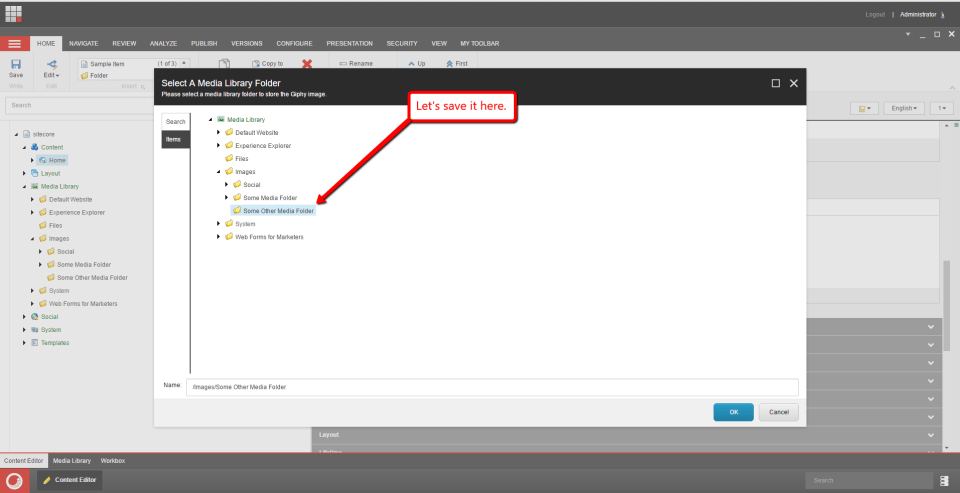
As you can see, the image was downloaded and saved into the Media Library in the selected folder, and then saved in the custom field on the Home item:

If you are curious, this is the image that was returned by the Giphy API:
If you have any thoughts on this, please share in a comment.
Download Images and Save to the Media Library Via a Custom Content Editor Image Field in Sitecore
Yesterday evening — a Friday evening by the way (what, you don’t code on Friday evenings? 😉 ) — I wanted to have a bit of fun by building some sort of customization in Sitecore but was struggling on what to build.
After about an hour of pondering, it dawned on me: I was determined to build a custom Content Editor Image field that gives content authors the ability to download images from a supplied URL; save the image to disk; upload the image into the Media Libary; and then set it on a custom Image field of an Item.
I’m sure someone has built something like this in the past and may have even uploaded a module that does this to the Sitecore Marketplace — I didn’t really look into whether this had already been done before since I wanted to have some fun by taking on the challenge. What follows is the fruit of that endeavor.
Before I move forward, I would like to caution you on using the code that follows — I have not rigorously tested this code at all so use at your own risk.
Before I began coding, I thought about how I wanted to approach this challenge. I decided I would build a custom Sitecore pipeline to handle this code. Why? Well, quite frankly, it gives you flexibility on customization, and also native Sitecore code is hugely composed of pipelines — why deviate from the framework?
First, I needed a class whose instances would serve as the custom pipeline’s arguments object. The following class was built for that:
using Sitecore.Data;
using Sitecore.Pipelines;

namespace Sitecore.Sandbox.Pipelines.DownloadImageToMediaLibrary
{
    public class DownloadImageToMediaLibraryArgs : PipelineArgs
    {
        public Database Database { get; set; }

        public string ImageFileName { get; set; }

        public string ImageFilePath { get; set; }

        public string ImageItemName { get; set; }

        public string ImageUrl { get; set; }

        public string MediaId { get; set; }

        public string MediaLibaryFolderPath { get; set; }

        public string MediaPath { get; set; }

        public bool FileBased { get; set; }

        public bool IncludeExtensionInItemName { get; set; }

        public bool OverwriteExisting { get; set; }

        public bool Versioned { get; set; }
    }
}
I didn’t just start off with all of the properties you see on this class — it was an iterative process where I had to go back, add more and even remove some that were no longer needed. You will see why I have these on it from the code below.
I decided to employ the Template method pattern in this code, and defined the following abstract base class which all processors of my custom pipeline will sub-class:
using Sitecore.Diagnostics;

namespace Sitecore.Sandbox.Pipelines.DownloadImageToMediaLibrary
{
    public abstract class DownloadImageToMediaLibraryProcessor
    {
        public void Process(DownloadImageToMediaLibraryArgs args)
        {
            Assert.ArgumentNotNull(args, "args");
            if(!CanProcess(args))
            {
                AbortPipeline(args);
                return;
            }

            Execute(args);
        }

        protected abstract bool CanProcess(DownloadImageToMediaLibraryArgs args);

        protected virtual void AbortPipeline(DownloadImageToMediaLibraryArgs args)
        {
            args.AbortPipeline();
        }

        protected abstract void Execute(DownloadImageToMediaLibraryArgs args);
    }
}
All processors of the custom pipeline will have to implement the CanProcess and Execute methods above, and also have the ability to redefine the AbortPipeline method if needed.
The main magic for all processors happen in the Process method above — if the processor can process the data supplied via the arguments object, then it will do so using the Execute method. Otherwise, the pipeline will be aborted via the AbortPipeline method.
The following class serves as the first processor of the custom pipeline.
using Sitecore.Data.Items;
using Sitecore.Diagnostics;
using Sitecore.IO;

namespace Sitecore.Sandbox.Pipelines.DownloadImageToMediaLibrary
{
    public class SetProperties : DownloadImageToMediaLibraryProcessor
    {
        private string UploadDirectory { get; set; }

        protected override bool CanProcess(DownloadImageToMediaLibraryArgs args)
        {
            Assert.IsNotNullOrEmpty(UploadDirectory, "UploadDirectory must be set in configuration!");
            Assert.IsNotNull(args.Database, "args.Database must be supplied!");
            return !string.IsNullOrWhiteSpace(args.ImageUrl)
                && !string.IsNullOrWhiteSpace(args.MediaLibaryFolderPath);
        }

        protected override void Execute(DownloadImageToMediaLibraryArgs args)
        {
            args.ImageFileName = GetFileName(args.ImageUrl);
            args.ImageItemName = GetImageItemName(args.ImageUrl);
            args.ImageFilePath = GetFilePath(args.ImageFileName);
        }

        protected virtual string GetFileName(string url)
        {
            Assert.ArgumentNotNullOrEmpty(url, "url");
            return FileUtil.GetFileName(url);
        }

        protected virtual string GetImageItemName(string url)
        {
            Assert.ArgumentNotNullOrEmpty(url, "url");
            string fileNameNoExtension = GetFileNameNoExtension(url);
            if(string.IsNullOrWhiteSpace(fileNameNoExtension))
            {
                return string.Empty;
            }

            return ItemUtil.ProposeValidItemName(fileNameNoExtension);
        }

        protected virtual string GetFileNameNoExtension(string url)
        {
            Assert.ArgumentNotNullOrEmpty(url, "url");
            return FileUtil.GetFileNameWithoutExtension(url);
        }

        protected virtual string GetFilePath(string fileName)
        {
            Assert.ArgumentNotNullOrEmpty(fileName, "fileName");
            return string.Format("{0}/{1}", FileUtil.MapPath(UploadDirectory), fileName);
        }
    }
}
Instances of the above class will only run if an upload directory is supplied via configuration (see the patch include configuration file down below); a Sitecore Database is supplied (we have to upload this image somewhere); an image URL is supplied (can’t download an image without this); and a Media Library folder is supplied (where are we storing this image?).
The Execute method then sets additional properties on the arguments object that the next processors will need in order to complete their tasks.
The following class serves as the second processor of the custom pipeline. This processor will download the image from the supplied URL:
using System.Net;

namespace Sitecore.Sandbox.Pipelines.DownloadImageToMediaLibrary
{
    public class DownloadImage : DownloadImageToMediaLibraryProcessor
    {
        protected override bool CanProcess(DownloadImageToMediaLibraryArgs args)
        {
            return !string.IsNullOrWhiteSpace(args.ImageUrl)
                && !string.IsNullOrWhiteSpace(args.ImageFilePath);
        }

        protected override void Execute(DownloadImageToMediaLibraryArgs args)
        {
            using (WebClient client = new WebClient())
            {
                client.DownloadFile(args.ImageUrl, args.ImageFilePath);
            }
        }
    }
}
The processor instance of the above class will only execute when an image URL is supplied and a location on the file system is given — this is the location on the file system where the image will live before being uploaded into the Media Library.
If all checks out, the image is downloaded from the given URL into the specified location on the file system.
The next class serves as the third processor of the custom pipeline. This processor will upload the image on disk to the Media Library:
using System.IO;

using Sitecore.Data.Items;
using Sitecore.Diagnostics;
using Sitecore.Resources.Media;
using Sitecore.Sites;

namespace Sitecore.Sandbox.Pipelines.DownloadImageToMediaLibrary
{
    public class UploadImageToMediaLibrary : DownloadImageToMediaLibraryProcessor
    {
        private string Site { get; set; }

        protected override bool CanProcess(DownloadImageToMediaLibraryArgs args)
        {
            Assert.IsNotNullOrEmpty(Site, "Site must be set in configuration!");
            return !string.IsNullOrWhiteSpace(args.MediaLibaryFolderPath)
                && !string.IsNullOrWhiteSpace(args.ImageItemName)
                && !string.IsNullOrWhiteSpace(args.ImageFilePath)
                && args.Database != null;
        }

        protected override void Execute(DownloadImageToMediaLibraryArgs args)
        {
            MediaCreatorOptions options = new MediaCreatorOptions
            {
                Destination = GetMediaLibraryDestinationPath(args),
                FileBased = args.FileBased,
                IncludeExtensionInItemName = args.IncludeExtensionInItemName,
                OverwriteExisting = args.OverwriteExisting,
                Versioned = args.Versioned,
                Database = args.Database
            };

            MediaCreator creator = new MediaCreator();
            MediaItem mediaItem;
            using (SiteContextSwitcher switcher = new SiteContextSwitcher(GetSiteContext()))
            {
                using (FileStream fileStream = File.OpenRead(args.ImageFilePath))
                {
                    mediaItem = creator.CreateFromStream(fileStream, args.ImageFilePath, options);
                }
            }

            if (mediaItem == null)
            {
                AbortPipeline(args);
                return;
            }

            args.MediaId = mediaItem.ID.ToString();
            args.MediaPath = mediaItem.MediaPath;
        }

        protected virtual SiteContext GetSiteContext()
        {
            SiteContext siteContext = SiteContextFactory.GetSiteContext(Site);
            Assert.IsNotNull(siteContext, string.Format("The site: {0} does not exist!", Site));
            return siteContext;
        }

        protected virtual string GetMediaLibraryDestinationPath(DownloadImageToMediaLibraryArgs args)
        {
            return string.Format("{0}/{1}", args.MediaLibaryFolderPath, args.ImageItemName);
        }
    }
}
The processor instance of the class above will only run when we have a Media Library folder location; an Item name for the image; a file system path for the image; and a Database to upload the image to. I also ensure a “site” is supplied via configuration so that I can switch the site context — when using the default of “shell”, I was being brought to the image Item in the Media Library after it was uploaded which was causing the image not to be set on the custom Image field on the Item.
If everything checks out, we upload the image to the Media Library in the specified location.
The next class serves as the last processor of the custom pipeline. This processor just deletes the image from the file system (why keep it around since we are done with it?):
using Sitecore.IO;

namespace Sitecore.Sandbox.Pipelines.DownloadImageToMediaLibrary
{
    public class DeleteImageFromFileSystem : DownloadImageToMediaLibraryProcessor
    {
        protected override bool CanProcess(DownloadImageToMediaLibraryArgs args)
        {
            return !string.IsNullOrWhiteSpace(args.ImageFilePath)
                && FileUtil.FileExists(args.ImageFilePath);
        }

        protected override void Execute(DownloadImageToMediaLibraryArgs args)
        {
            FileUtil.Delete(args.ImageFilePath);
        }
    }
}
The processor instance of the class above can only delete the image if its path is supplied and the file exists.
If all checks out, the image is deleted.
The next class is the class that serves as the custom Image field:
using System;
using System.Net;

using Sitecore.Data.Items;
using Sitecore.Diagnostics;
using Sitecore.Pipelines;
using Sitecore.Shell.Framework;
using Sitecore.Web.UI.Sheer;

using Sitecore.Sandbox.Pipelines.DownloadImageToMediaLibrary;

namespace Sitecore.Sandbox.Shell.Applications.ContentEditor
{
    public class Image : Sitecore.Shell.Applications.ContentEditor.Image
    {
        public Image()
            : base()
        {
        }

        public override void HandleMessage(Message message)
        {
            Assert.ArgumentNotNull(message, "message");
            if (string.Equals(message.Name, "contentimage:download", StringComparison.CurrentCultureIgnoreCase))
            {
                GetInputFromUser();
                return;
            }

            base.HandleMessage(message);
        }

        protected void GetInputFromUser()
        {
            RunProcessor("GetImageUrl", new ClientPipelineArgs());
        }

        protected virtual void GetImageUrl(ClientPipelineArgs args)
        {
            if (!args.IsPostBack)
            {
                SheerResponse.Input("Enter the url of the image to download:", string.Empty);
                args.WaitForPostBack();
            }
            else if (args.HasResult && IsValidUrl(args.Result))
            {
                args.Parameters["imageUrl"] = args.Result;
                args.IsPostBack = false;
                RunProcessor("ChooseMediaLibraryFolder", args);
            }
            else
            {
                CancelOperation(args);
            }
        }

        protected virtual bool IsValidUrl(string url)
        {
            if (string.IsNullOrWhiteSpace(url))
            {
                return false;
            }

            try
            {
                HttpWebRequest request = (HttpWebRequest)HttpWebRequest.Create(url);
                request.Method = "HEAD";
                request.GetResponse();
            }
            catch (Exception ex)
            {
                SheerResponse.Alert("The specified url is not valid. Please try again.");
                return false;
            }

            return true;
        }

        protected virtual void RunProcessor(string processor, ClientPipelineArgs args)
        {
            Assert.ArgumentNotNullOrEmpty(processor, "processor");
            Sitecore.Context.ClientPage.Start(this, processor, args);
        }

        public void ChooseMediaLibraryFolder(ClientPipelineArgs args)
        {
            if (!args.IsPostBack)
            {
                Dialogs.BrowseItem
                (
                    "Select A Media Library Folder",
                    "Please select a media library folder to store this image.",
                    "Applications/32x32/folder_into.png",
                    "OK",
                    "/sitecore/media library",
                    string.Empty
                );

                args.WaitForPostBack();
            }
            else if (args.HasResult)
            {
                Item folder = Client.ContentDatabase.Items[args.Result];
                args.Parameters["mediaLibaryFolderPath"] = folder.Paths.FullPath;
                RunProcessor("DownloadImage", args);
            }
            else
            {
                CancelOperation(args);
            }
        }

        protected virtual void DownloadImage(ClientPipelineArgs args)
        {
            DownloadImageToMediaLibraryArgs downloadArgs = new DownloadImageToMediaLibraryArgs
            {
                Database = Client.ContentDatabase,
                ImageUrl = args.Parameters["imageUrl"],
                MediaLibaryFolderPath = args.Parameters["mediaLibaryFolderPath"]
            };

            CorePipeline.Run("downloadImageToMediaLibrary", downloadArgs);
            SetMediaItemInField(downloadArgs);
        }

        protected virtual void SetMediaItemInField(DownloadImageToMediaLibraryArgs args)
        {
            Assert.ArgumentNotNull(args, "args");
            if(string.IsNullOrWhiteSpace(args.MediaId) || string.IsNullOrWhiteSpace(args.MediaPath))
            {
                return;
            }

            XmlValue.SetAttribute("mediaid", args.MediaId);
            Value = args.MediaPath;
            Update();
            SetModified();
        }

        protected virtual void CancelOperation(ClientPipelineArgs args)
        {
            Assert.ArgumentNotNull(args, "args");
            args.AbortPipeline();
        }
    }
}
The class above subclasses the Sitecore.Shell.Applications.ContentEditor.Image class — this lives in Sitecore.Kernel.dll — which is the “out of the box” Content Editor Image field. The Sitecore.Shell.Applications.ContentEditor.Image class provides hooks that we can override in order to augment functionality which I am doing above.
The magic of this class starts in the HandleMessage method — I intercept the message for a Menu item option that I define below for downloading an image from a URL.
If we are to download an image from a URL, we first prompt the user for a URL via the GetImageUrl method using a Sheer UI api call (note: I am running these methods as one-off client pipeline processors as this is the only way you can get Sheer UI to run properly).
If we have a valid URL, we then prompt the user for a Media Library location via another Sheer UI dialog (this is seen in the ChooseMediaLibraryFolder method).
If the user chooses a location in the Media Library, we then call the DownloadImage method as a client pipeline processor — I had to do this since I was seeing some weird behavior on when the image was being saved into the Media Library — which invokes the custom pipeline for downloading the image to the file system; uploading it into the Media Library; and then removing it from disk.
I then duct-taped everything together using the following patch include configuration file:
<configuration xmlns:patch="http://www.sitecore.net/xmlconfig/">
  <sitecore>
    <controlSources>
      <source mode="on" namespace="Sitecore.Sandbox.Shell.Applications.ContentEditor" assembly="Sitecore.Sandbox" prefix="sandbox-content"/>
    </controlSources>
    <overrideDialogs>
      <override dialogUrl="/sitecore/shell/Applications/Item%20browser.aspx" with="/sitecore/client/applications/dialogs/InsertSitecoreItemViaTreeDialog">
        <patch:delete/>
      </override>
    </overrideDialogs>
    <pipelines>
      <downloadImageToMediaLibrary>
        <processor type="Sitecore.Sandbox.Pipelines.DownloadImageToMediaLibrary.SetProperties, Sitecore.Sandbox">
          <UploadDirectory>/upload</UploadDirectory>
        </processor>
        <processor type="Sitecore.Sandbox.Pipelines.DownloadImageToMediaLibrary.DownloadImage, Sitecore.Sandbox" />
        <processor type="Sitecore.Sandbox.Pipelines.DownloadImageToMediaLibrary.UploadImageToMediaLibrary, Sitecore.Sandbox">
          <Site>website</Site>
        </processor>
        <processor type="Sitecore.Sandbox.Pipelines.DownloadImageToMediaLibrary.DeleteImageFromFileSystem, Sitecore.Sandbox" />
      </downloadImageToMediaLibrary>
    </pipelines>
  </sitecore>
</configuration>
One thing to note in the above file: I’ve disabled the SPEAK dialog for the Item Browser — you can see this in the <overrideDialogs> xml element — as I wasn’t able to set messaging text on it but could do so using the older Sheer UI dialog.
Now that all code is in place, we need to tell Sitecore that we have a new Image field. I do so by defining it in the Core database:
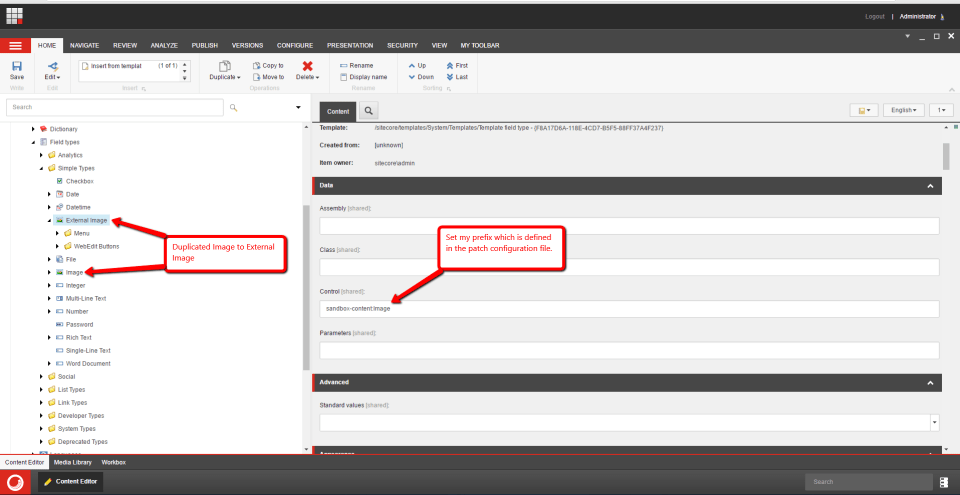
We also need a new Menu item for the “Download Image” link:

Let’s take this for a spin!
I added a new field using the custom Image field type to my Sample item template:

As you can see, we have this new Image field on my “out of the box” home item. Let’s click the “Download Image” link:
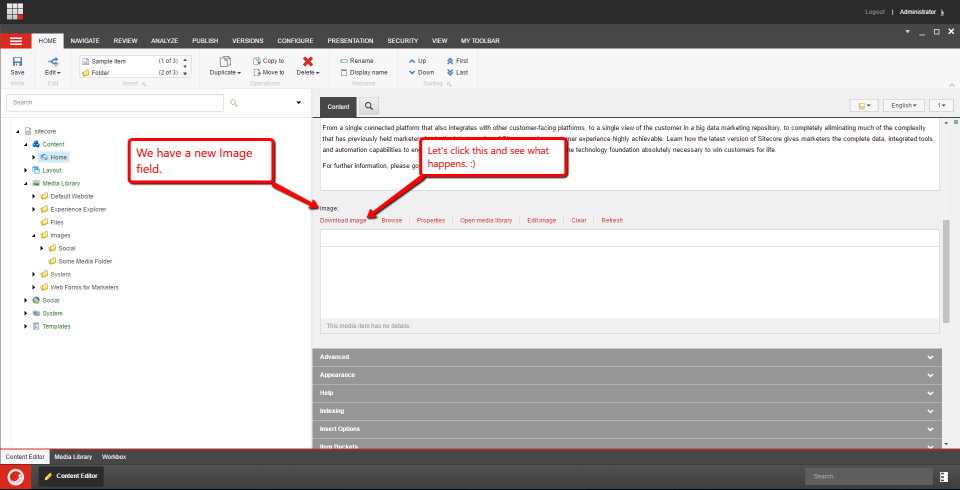
I was then prompted with a dialog to supply an image URL. I pasted one I found on the internet:
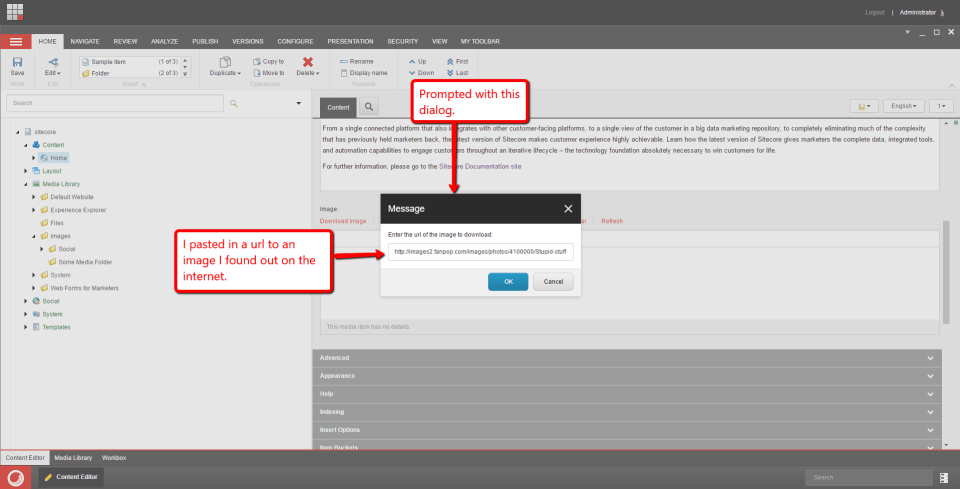
After clicking “OK”, I was prompted with another dialog to choose a Media Library location for storing the image. I chose some random folder:

After clicking “OK” on that dialog, the image was magically downloaded from the internet; uploaded into the Media Library; and set in the custom Image field on my home item:

If you have any comments, thoughts or suggestions on this, please drop a comment.
Addendum:
It’s not a good idea to use the /upload directory for temporarily storing download images — see this post for more details.
If you decide to use this solution — by the way, use this solution at your own risk 😉 — you will have to change the /upload directory in the patch include configuration file above.
Yet Another <httpRequestBegin> Pipeline Processor to Handle ‘Page Not Found’ (404 Status Code) in Sitecore
Last week I pair programmed with fellow Sitecore MVP Akshay Sura on a class that would serve as an <httpRequestBegin> pipeline processor to serve up ‘Page Not Found’ content along with a 404 status code when a user requests a page that does not exist as an Item in the Sitecore XP.
In this solution, the page does not redirect to the ‘Not Found’ page since this results in a 302 status code which isn’t ideal for SEO. Instead, the ‘Page Not Found’ content should appear on the page with the ‘Not Found’ request.
We decided to have our <httpRequestBegin> pipeline processor class not inherit from Sitecore.Pipelines.HttpRequest.ExecuteRequest — this lives in Sitecore.Kernel.dll — as can be seen in the following blog posts:
- Return a 404 Not Found status code when the ItemNotFound page is loaded by Sitecore MVP Ruud van Falier
- Return a 404 Not Found for invalid Sitecore item by someone at NTT Data
Why? The solutions in the above are a bit fragile given that they are subclassing Sitecore.Pipelines.HttpRequest.ExecuteRequest which is an example of tight coupling — code changes in Sitecore.Pipelines.HttpRequest.ExecuteRequest could potentially break code within the subclasses.
Further, the implementations of the RedirectOnItemNotFound() method in the above blog posts don’t redirect unless an Exception is encountered which is a bit awkward given the name of the method.
I’m not going to share the exact solution that Akshay and I had built in this blog post. Instead, I’m going to share one that is quite similar — actually the solution below is an enhancement of the solution we had come up with. I added some caching and a few other things (basically put more things into Sitecore configuration so that the solutions is more extendable/changeable):
using System;
using System.Collections.Generic;
using System.Linq;
using System.Web;

using Sitecore.Data;
using Sitecore.Data.Items;
using Sitecore.Diagnostics;
using Sitecore.Links;
using Sitecore.Pipelines.HttpRequest;
using Sitecore.Web;

using Sitecore.Sandbox.Caching;

namespace Sitecore.Sandbox.Pipelines.HttpRequest
{
    public class HandleItemNotFound : HttpRequestProcessor
    {
        private string TargetWebsite { get; set; }

        private string StatusDescription { get; set; }

        private List<string> RelativeUrlPrefixesToIgnore { get; set; }

        protected ICacheProvider CacheProvider { get; private set; }

        protected string CacheKey { get; private set; }

        public HandleItemNotFound()
        {
            RelativeUrlPrefixesToIgnore = new List<string>();
        }

        public override void Process(HttpRequestArgs args)
        {
            Assert.ArgumentNotNull(args, "args");
            bool shouldExit = Sitecore.Context.Item != null
                                || !string.Equals(Context.Site.Name, TargetWebsite, StringComparison.CurrentCultureIgnoreCase)
                                || StartsWithPrefixToIgnore(args.Url.FilePath);
            if (shouldExit)
            {
                return;
            }

            string notFoundPageItemPath = Sitecore.Context.Site.Properties["notFoundPageItemPath"];
            if (string.IsNullOrWhiteSpace(notFoundPageItemPath))
            {
                return;
            }

            Database database = GetDatabase();
            if (database == null)
            {
                return;
            }

            Item notFoundItem = database.GetItem(notFoundPageItemPath);
            if (notFoundItem == null)
            {
                return;
            }

            string notFoundContent = GetNotFoundPageContent(args, database, notFoundPageItemPath);
            if(!string.IsNullOrWhiteSpace(notFoundContent))
            {
                args.Context.Response.TrySkipIisCustomErrors = true;
                args.Context.Response.StatusCode = 404;
                if (!string.IsNullOrWhiteSpace(StatusDescription))
                {
                    args.Context.Response.StatusDescription = StatusDescription;
                }

                args.Context.Response.Write(notFoundContent);
                args.Context.Response.End();
                return;
            }

            Log.Warn("The 'Not Found Page: {0} shows no content when rendered!", notFoundItem.Paths.FullPath);
        }

        protected virtual bool StartsWithPrefixToIgnore(string url)
        {
            return !string.IsNullOrWhiteSpace(url) && RelativeUrlPrefixesToIgnore.Any(prefix => url.StartsWith(prefix));
        }

        protected virtual Database GetDatabase()
        {
            return Context.ContentDatabase ?? Context.Database;
        }

        protected virtual string GetNotFoundPageContent(HttpRequestArgs args, Database database, string notFoundPageItemPath)
        {
            Assert.ArgumentNotNull(args, "args");
            Assert.ArgumentNotNull(database, "database");
            Assert.ArgumentNotNullOrEmpty(notFoundPageItemPath, "notFoundPageItemPath");
            string cacheKey = GetCacheKey();
            string content = GetNotFoundPageContentFromCache();
            if(!string.IsNullOrWhiteSpace(content))
            {
                return content;
            }

            Item notFoundItem = database.GetItem(notFoundPageItemPath);
            if (notFoundItem == null)
            {
                return string.Empty;
            }

            string domain = GetDomain(args);
            string url = LinkManager.GetItemUrl(notFoundItem);
            try
            {
                content = WebUtil.ExecuteWebPage(string.Concat(domain, url));
                AddNotFoundPageContentFromCache(content);
                return content;
            }
            catch (Exception ex)
            {
                Log.Error(string.Format("{0} Error - domain: {1}, url: {2}", ToString(), domain, url), ex, this);
            }

            return string.Empty;
        }

        protected virtual string GetNotFoundPageContentFromCache()
        {
            Assert.IsNotNull(CacheProvider, "CacheProvider must be set in configuration!");
            return CacheProvider[GetCacheKey()] as string;
        }

        protected virtual void AddNotFoundPageContentFromCache(string content)
        {
            Assert.IsNotNull(CacheProvider, "CacheProvider must be set in configuration!");
            if(string.IsNullOrWhiteSpace(content))
            {
                return;
            }

            CacheProvider.Add(GetCacheKey(), content);
        }

        protected virtual string GetCacheKey()
        {
            Assert.IsNotNullOrEmpty(CacheKey, "CacheKey must be set in configuration!");
            return CacheKey;
        }

        protected virtual string GetDomain(HttpRequestArgs args)
        {
            Assert.ArgumentNotNull(args, "args");
            return args.Context.Request.Url.GetComponents(UriComponents.Scheme | UriComponents.Host, UriFormat.Unescaped);
        }
    }
}
The code in the Process() method above determines whether it should execute. It should only execute when Sitecore.Context.Item is null — this means that previous <httpRequestBegin> pipeline processors could not ascertain which Sitecore Item should be served up for the request — and if the relative url does not start with one of the prefixes to ignore — for example, we don’t want this code to run for media library Item requests which all start with /~/ in a stock Sitecore instance.
Further, the path to the ‘Page Not Found’ Item must be set on the site node within Sitecore configuration. If this is not set, then the code will not execute.
If the code should execute, it tries to grab the ‘Page Not Found’ content from cache — the class above reuses the CacheProvider class which I wrote for my post on storing data outside of the Sitecore XP but using the Sitecore API.
If this does not exist in cache, we basically make a request to the ‘Page Not Found’ Item using Sitecore.Web.WebUtil.ExecuteWebPage; put this content in cache; and then return it to the Process() method.
If there is content to display, we send it out to the response stream.
I then glued everything together using the following patch configuration file:
<?xml version="1.0" encoding="utf-8" ?>
<configuration xmlns:patch="http://www.sitecore.net/xmlconfig/">
  <sitecore>
    <pipelines>
      <httpRequestBegin>
        <processor patch:before="processor[@type='Sitecore.Pipelines.HttpRequest.ExecuteRequest, Sitecore.Kernel']"
                   type="Sitecore.Sandbox.Pipelines.HttpRequest.HandleItemNotFound, Sitecore.Sandbox">
          <TargetWebsite>website</TargetWebsite>
          <StatusDescription>Page Not Found</StatusDescription>
          <RelativeUrlPrefixesToIgnore hint="list">
            <Prefix>/~/</Prefix>
          </RelativeUrlPrefixesToIgnore>
          <CacheProvider type="Sitecore.Sandbox.Caching.CacheProvider, Sitecore.Sandbox">
            <param desc="cacheName">[404]</param>
            <param desc="cacheSize">500KB</param>
          </CacheProvider>
          <CacheKey>404Content</CacheKey>
        </processor>
      </httpRequestBegin>
    </pipelines>
    <sites>
      <site name="website">
        <patch:attribute name="notFoundPageItemPath">/sitecore/content/Home/404</patch:attribute>
      </site>
    </sites>
  </sitecore>
</configuration>
In the above configuration file, I am injecting this <httpRequestBegin> pipeline processor to execute before the Sitecore.Pipelines.HttpRequest.ExecuteRequest <httpRequestBegin> pipeline processor.
Let’s see this in action.
I set up an Item in Sitecore to serve as my ‘Page Not Found’ page Item:

After publishing and navigating to a page url that does not exist in my instance, I get the following:

As you can see, we get the rendered page content for the 404 Item yet stay on the original requested nonexistent page (/nope).
If you have any comments or thoughts on this, please share in a comment.
Add a New Sitecore Link Field Type Without Writing Any Custom Code
I’m sure others have blogged about doing something similar to the following — I probably have also blogged about this more than once but cannot remember everything I’ve blogged about given that I have a huge number of blog posts — but I figure this will be helpful to folks new to Sitecore or those who have seen this before but need some reminding.
The other day, I had to create a new Link field type that only gives content authors/editors the ability to insert links to Items within the Media Library. The following steps are what I used to make this happen. I didn’t need to write any custom code, and this would also work for other solutions similar to this though keep in mind that this solution will only work within the Content Editor — to make this work in the Experience Editor, you will have to write some custom code which I might show in a future blog post.
Step 1: Duplicate an existing field type.
Here I am duplicating ‘/sitecore/system/Field types/Link Types/General Link’ in the Core database:

Step 2: Delete button items that you don’t need.
I’ve deleted all buttons that are not related to Media library items, and also preserved the Follow and Clear button items:
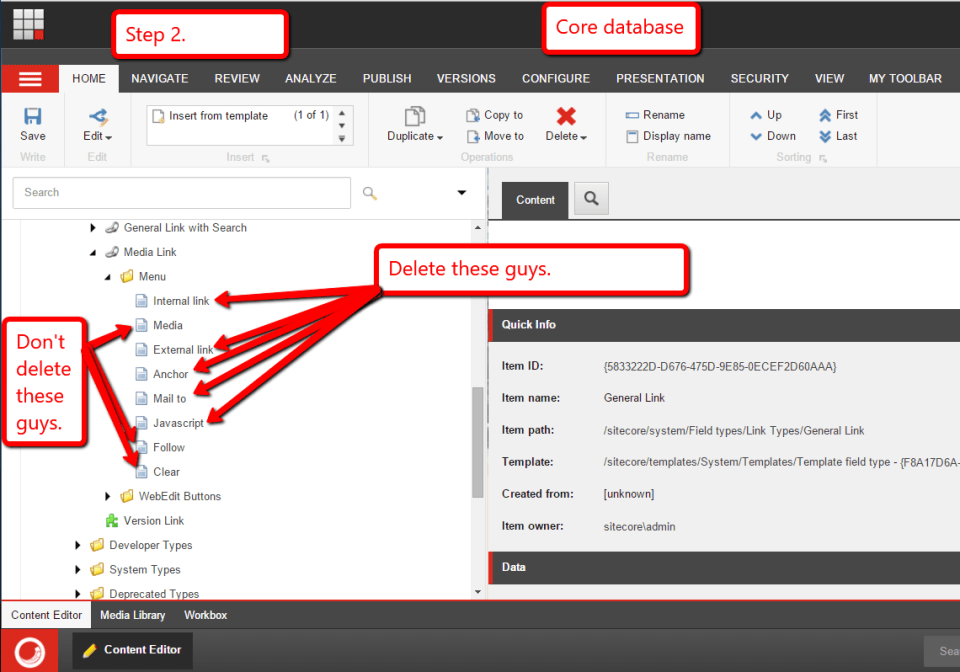
Step 3: Add a new field using the new type you have created in step 1.
Just add the new field on a template:

Step 4: Go to an item using the template from step 3.
As you can see, only the buttons that you preserved from step 2 are there:

Step 5: Click one of the buttons that you preserved from step 2.
Here, I clicked the ‘Insert media link’ button:

After clicking the ‘Insert’ button from the dialog in step 5, I see that a Media Library Item link was set within this new field:

Raw values:
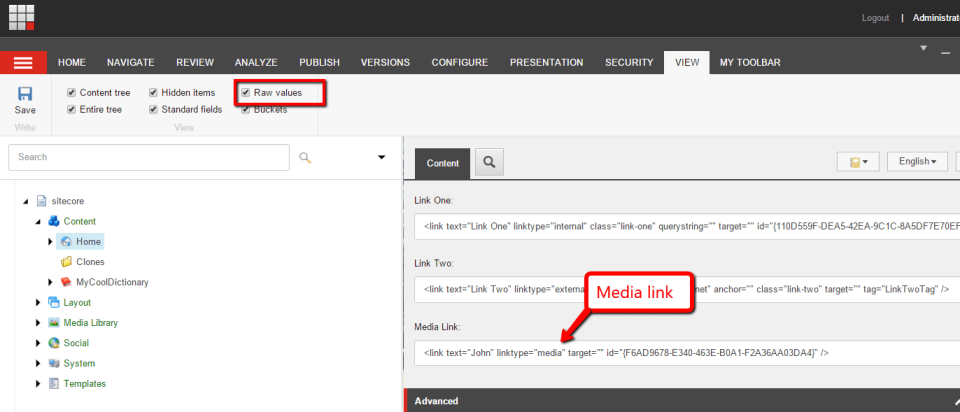
If you have any comments/thoughts/suggestions on this, please share in a comment.
 SitecoreJunkie.com