Home » Pipeline (Page 4)
Category Archives: Pipeline
Restart the Sitecore Client and Server Using Custom Pipelines
Last week Michael West asked me about creating shortcuts to restart the Sitecore client and server via this tweet, and I was immediately curious myself on what was needed to accomplish this.
If you are unfamiliar with restarting the Sitecore client and server, these are options that are presented to Sitecore users — typically developers — after installing a package into Sitecore:

Until last week, I never understood how either of these checkboxes worked, and uncovered the following code during my research:

Michael West had conveyed how he wished these two lines of code lived in pipelines, and that prompted me to write this article — basically encapsulate the logic above into two custom pipelines: one to restart the Sitecore client, and the other to restart the Sitecore server.
I decided to define the concept of a ‘Restarter’, an object that restarts something — this could be anything — and defined the following interface for such objects:
namespace Sitecore.Sandbox.Utilities.Restarters
{
    public interface IRestarter
    {
        void Restart();
    }
}
I then created the following IRestarter for the Sitecore client:
using Sitecore;
using Sitecore.Diagnostics;
using Sitecore.Web.UI.Sheer;

namespace Sitecore.Sandbox.Utilities.Restarters
{
    public class SitecoreClientRestarter : IRestarter
    {
        private ClientResponse ClientResponse { get; set; }

        public SitecoreClientRestarter()
            : this(Context.ClientPage)
        {
        }

        public SitecoreClientRestarter(ClientPage clientPage)
        {
            SetClientResponse(clientPage);
        }

        public SitecoreClientRestarter(ClientResponse clientResponse)
        {
            SetClientResponse(clientResponse);
        }

        private void SetClientResponse(ClientPage clientPage)
        {
            Assert.ArgumentNotNull(clientPage, "clientPage");
            SetClientResponse(clientPage.ClientResponse);
        }

        private void SetClientResponse(ClientResponse clientResponse)
        {
            Assert.ArgumentNotNull(clientResponse, "clientResponse");
            ClientResponse = clientResponse;
        }

        public void Restart()
        {
            ClientResponse.Broadcast(ClientResponse.SetLocation(string.Empty), "Shell");
        }
    }
}
The class above has three constructors. One constructor takes an instance of Sitecore.Web.UI.Sheer.ClientResponse — this lives in Sitecore.Kernel.dll — and another constructor takes in an instance of
Sitecore.Web.UI.Sheer.ClientPage — this also lives in Sitecore.Kernel.dll — which contains a property instance of Sitecore.Web.UI.Sheer.ClientResponse, and this instance is set on the ClientResponse property of the SitecoreClientRestarter class.
The third constructor — which is parameterless — calls the constructor that takes in a Sitecore.Web.UI.Sheer.ClientPage instance, and passes the ClientResponse instance set in Sitecore.Context.
I followed building the above class with another IRestarter — one that restarts the Sitecore server:
using Sitecore.Install;

namespace Sitecore.Sandbox.Utilities.Restarters
{
    public class SitecoreServerRestarter : IRestarter
    {
        public SitecoreServerRestarter()
        {
        }

        public void Restart()
        {
            Installer.RestartServer();
        }
    }
}
There really isn’t much happening in the class above. It just calls the static method RestartServer() — this method changes the timestamp on the Sitecore instance’s Web.config to trigger a web application restart — on Sitecore.Install.Installer in Sitecore.Kernel.dll.
Now we need to a way to use the IRestarter classes above. I built the following class to serve as a processor of custom pipelines I define later on in this post:
using Sitecore.Diagnostics;
using Sitecore.Pipelines;

using Sitecore.Sandbox.Utilities.Restarters;

namespace Sitecore.Sandbox.Pipelines.RestartRestarter
{
    public class RestartRestarterOperations
    {
        private IRestarter Restarter { get; set; }

        public void Process(PipelineArgs args)
        {
            Assert.ArgumentNotNull(args, "args");
            Assert.ArgumentNotNull(Restarter, "Restarter");
            Restarter.Restart();
        }
    }
}
Through a pipeline processor configuration setting, we define the type of IRestarter — it’s magically created by Sitecore when the pipeline processor instance is created.
After some null checks, the Process() method invokes Restart() on the IRestarter instance, ultimately restarting whatever the IRestarter is set to restart.
I then needed a way to test the pipelines I define later on in this post. I built the following class to serve as commands that I added into the Sitecore ribbon:
using Sitecore.Diagnostics;
using Sitecore.Pipelines;
using Sitecore.Shell.Framework.Commands;

namespace Sitecore.Sandbox.Commands.Admin
{
    public class Restart : Command
    {
        public override void Execute(CommandContext context)
        {
            Assert.ArgumentNotNull(context, "context");
            Assert.ArgumentNotNull(context.Parameters, "context.Parameters");
            Assert.ArgumentNotNullOrEmpty(context.Parameters["pipeline"], "context.Parameters[\"pipeline\"]");
            CorePipeline.Run(context.Parameters["pipeline"], new PipelineArgs());
        }
    }
}
The command above expects a pipeline name to be supplied via the Parameters NameValueCollection instance set on the CommandContext instance passed to the Execute method() — I show later on in this post how I pass the name of the pipeline to the command.
If the pipeline name is given, we invoke the pipeline.
I then glued everything together using the following configuration file:
<?xml version="1.0" encoding="utf-8"?>
<configuration xmlns:patch="http://www.sitecore.net/xmlconfig/">
  <sitecore>
    <commands>
      <command name="admin:Restart" type="Sitecore.Sandbox.Commands.Admin.Restart, Sitecore.Sandbox"/>
    </commands>
    <pipelines>
      <restartClient>
        <processor type="Sitecore.Sandbox.Pipelines.RestartRestarter.RestartRestarterOperations, Sitecore.Sandbox">
          <Restarter type="Sitecore.Sandbox.Utilities.Restarters.SitecoreClientRestarter, Sitecore.Sandbox"/>
        </processor>
      </restartClient>
      <restartServer>
        <processor type="Sitecore.Sandbox.Pipelines.RestartRestarter.RestartRestarterOperations, Sitecore.Sandbox">
          <Restarter type="Sitecore.Sandbox.Utilities.Restarters.SitecoreServerRestarter, Sitecore.Sandbox"/>
        </processor>
      </restartServer>
    </pipelines>
  </sitecore>
</configuration>
I’m omitting how I created custom buttons in a custom ribbon in Sitecore to test this. If you want to learn about adding buttons to the Sitecore Ribbon, please read John West’s blog post on doing so.
However, I did do the following to pass the name of the pipeline we want to invoke in the custom command class defined above:

I wish I could show you some screenshots on how this works. However, there really isn’t much visual to see here.
If you have any suggestions on how I could show this in action, or improve the code above, please share in a comment.
Perform a Virus Scan on Files Uploaded into Sitecore
Last week I took notice of a SDN forum post asking whether there are any best practices for checking files uploaded into Sitecore for viruses.
Although I am unaware of there being any best practices for this, adding a processor into the <uiUpload> pipeline to perform virus scans has been on my plate for the past month. Not being able to find an open source .NET antivirus library has been my major blocker for building one.
However, after many hours of searching the web — yes, I do admit some of this time is sprinkled with idle surfing — over multiple weeks, I finally discovered nClam — a .NET client library for scanning files using a Clam Antivirus server (I setup one using instructions enumerated here).
Before I continue, I would like to caution you on using this or any antivirus solution before doing a substantial amount of research — I do not know how robust the solution I am sharing actually is, and I am by no means an antivirus expert. The purpose of this post is to show how one might go about adding antivirus capabilities into Sitecore, and I am not advocating or recommending any particular antivirus software package. Please consult with an antivirus expert before using any antivirus software/.NET client library .
The solution I came up with uses the adapter design pattern — it basically wraps and makes calls to the nClam library, and is accessible through the following antivirus scanner interface:
using System.IO;

namespace Sitecore.Sandbox.Security.Antivirus
{
    public interface IScanner
    {
        ScanResult Scan(Stream sourceStream);

        ScanResult Scan(string filePath);
    }
}
This interface defines the bare minimum methods our antivirus classes should have. Instances of these classes should offer the ability to scan a file through the file’s Stream, or scan a file located on the server via the supplied file path.
The two scan methods defined by the interface must return an instance of the following data transfer object:
namespace Sitecore.Sandbox.Security.Antivirus
{
    public class ScanResult
    {
        public string Message { get; set; }

        public ScanResultType ResultType { get; set; }
    }
}
Instances of the above class contain a detailed message coupled with a ScanResultType enumeration value which conveys whether the scanned file is clean, contains a virus, or something else went wrong during the scanning process:
namespace Sitecore.Sandbox.Security.Antivirus
{
    public enum ScanResultType
    {
        Clean,
        VirusDetected,
        Error,
        Unknown
    }
}
I used the ClamScanResults enumeration as a model for the above.
I created and used the ScanResultType enumeration instead of the ClamScanResults enumeration so that this solution can be extended for other antivirus libraries — or calls could be made to other antivirus software through the command-line — and these shouldn’t be tightly coupled to the nClam library.
I then wrapped the nClam library calls in the following ClamScanner class:
using System;
using System.IO;
using System.Linq;

using Sitecore.Diagnostics;

using nClam;

namespace Sitecore.Sandbox.Security.Antivirus
{
    public class ClamScanner : IScanner
    {
        private ClamClient Client { get; set; }

        public ClamScanner(string server, string port)
            : this(server, int.Parse(port))
        {
        }

        public ClamScanner(string server, int port)
            : this(new ClamClient(server, port))
        {
        }

        public ClamScanner(ClamClient client)
        {
            SetClient(client);
        }

        private void SetClient(ClamClient client)
        {
            Assert.ArgumentNotNull(client, "client");
            Client = client;
        }

        public ScanResult Scan(Stream sourceStream)
        {
            ScanResult result;
            try
            {
                result = CreateNewScanResult(Client.SendAndScanFile(sourceStream));
            }
            catch (Exception ex)
            {
                result = CreateNewExceptionScanResult(ex);
            }

            return result;
        }

        public ScanResult Scan(string filePath)
        {
            ScanResult result;
            try
            {
                result = CreateNewScanResult(Client.SendAndScanFile(filePath));
            }
            catch (Exception ex)
            {
                result = CreateNewExceptionScanResult(ex);
            }

            return result;
        }

        private static ScanResult CreateNewScanResult(ClamScanResult result)
        {
            Assert.ArgumentNotNull(result, "result");
            if (result.Result == ClamScanResults.Clean)
            {
                return CreateNewScanResult("Yay! No Virus found!", ScanResultType.Clean);
            }

            if (result.Result == ClamScanResults.VirusDetected)
            {
                string message = string.Format("Oh no! The {0} virus was found!", result.InfectedFiles.First().VirusName);
                return CreateNewScanResult(message, ScanResultType.VirusDetected);
            }

            if (result.Result == ClamScanResults.Error)
            {
                string message = string.Format("Something went terribly wrong somewhere. Details: {0}", result.RawResult);
                return CreateNewScanResult(message, ScanResultType.Error);
            }

            return CreateNewScanResult("I have no clue about what just happened.", ScanResultType.Unknown);
        }

        private static ScanResult CreateNewExceptionScanResult(Exception ex)
        {
            string message = string.Format("Something went terribly wrong somewhere. Details:\n{0}", ex.ToString());
            return CreateNewScanResult(ex.ToString(), ScanResultType.Error);
        }

        private static ScanResult CreateNewScanResult(string message, ScanResultType type)
        {
            return new ScanResult
            {
                Message = message,
                ResultType = type
            };
        }
    }
}
Methods in the above class make calls to the nClam library, and return a ScanResult intance containing detailed information about the file scan.
Next I developed the following <uiUpload> pipeline processor to use instances of classes that define the IScanner interface above, and these instances are set via Sitecore when instantiating this pipeline processor — the ClamScanner type is defined in the patch configuration file shown later in this post:
using System.IO;
using System.Web;

using Sitecore.Diagnostics;
using Sitecore.Globalization;
using Sitecore.Pipelines.Upload;

using Sitecore.Sandbox.Security.Antivirus;

namespace Sitecore.Sandbox.Pipelines.Upload
{
    public class ScanForViruses
    {
        public void Process(UploadArgs args)
        {
            Assert.ArgumentNotNull(args, "args");
            foreach (string fileKey in args.Files)
            {
                HttpPostedFile file = args.Files[fileKey];
                ScanResult result = ScanFile(file.InputStream);
                if(result.ResultType != ScanResultType.Clean)
                {
                    args.ErrorText = Translate.Text(string.Format("The file \"{0}\" cannot be uploaded. Reason: {1}", file.FileName, result.Message));
                    Log.Warn(args.ErrorText, this);
                    args.AbortPipeline();
                }
            }
        }

        private ScanResult ScanFile(Stream fileStream)
        {
            Assert.ArgumentNotNull(fileStream, "fileStream");
            return Scanner.Scan(fileStream);
        }

        private IScanner Scanner { get; set; }
    }
}
Uploaded files are passed to the IScanner instance, and the pipeline is aborted if something isn’t quite right — this occurs when a virus is detected, or an error is reported by the IScanner instance. If a virus is discovered, or an error occurs, the message contained within the ScanResult instance is captured in the Sitecore log.
I then glued everything together using the following patch configuration file:
<?xml version="1.0" encoding="utf-8"?>
<configuration xmlns:patch="http://www.sitecore.net/xmlconfig/">
  <sitecore>
    <processors>
      <uiUpload>
        <processor mode="on" patch:before="processor[@type='Sitecore.Pipelines.Upload.CheckSize, Sitecore.Kernel']"
                   type="Sitecore.Sandbox.Pipelines.Upload.ScanForViruses, Sitecore.Sandbox">
          <Scanner type="Sitecore.Sandbox.Security.Antivirus.ClamScanner">
            <param desc="server">localhost</param>
            <param desc="port">3310</param>
          </Scanner>
        </processor>
      </uiUpload>
    </processors>
  </sitecore>
</configuration>
I wish I could show you this in action when a virus is discovered in an uploaded file. However, I cannot put my system at risk by testing with an infected file.
But, I can show you what happens when an error is detected. I will do this by shutting down the Clam Antivirus server on my machine:

On upload, I see the following:

When I opened up the Sitecore log, I see what the problem is:

Let’s turn it back on:

I can now upload files again:

If you have any suggestions on making this better, or know of a way to test it with a virus, please share in a comment below.
Choose Template Fields to Display in the Sitecore Content Editor
The other day I was going through search terms people had used to get to my blog, and discovered a few people made their way to my blog by searching for ‘sitecore hide sections in data template’.
I had built something like this in the past, but no longer remember how I had implemented that particular solution — not that I could show you that solution since it’s owned by a previous employer — and decided I would build another solution to accomplish this.
Before I move forward, I would like to point out that Sitecore MVP Andy Uzick wrote a blog post recently showing how to hide fields and sections in the content editor, though I did not have much luck with hiding sections in the way that he had done it — sections with no fields were still displaying for me in the content editor — and I decided to build a different solution altogether to make this work.
I thought it would be a good idea to let users turn this functionality on and off via a checkbox in the ribbon, and used some code from a previous post — in this post I had build an object to keep track of the state of a checkbox in the ribbon — as a model. In the spirit of that object, I defined the following interface:
namespace Sitecore.Sandbox.Utilities.ClientSettings
{
    public interface IRegistrySettingToggle
    {
        bool IsOn();

        void TurnOn();

        void TurnOff();
    }
}
I then created the following abstract class which implements the interface above, and stores the state of the setting defined by the given key — the key of the setting and the “on” value are passed to it via a subclass — in the Sitecore registry.
using Sitecore.Diagnostics;

using Sitecore.Web.UI.HtmlControls;

namespace Sitecore.Sandbox.Utilities.ClientSettings
{
    public abstract class RegistrySettingToggle : IRegistrySettingToggle
    {
        private string RegistrySettingKey { get; set; }

        private string RegistrySettingOnValue { get; set; }

        protected RegistrySettingToggle(string registrySettingKey, string registrySettingOnValue)
        {
            SetRegistrySettingKey(registrySettingKey);
            SetRegistrySettingOnValue(registrySettingOnValue);
        }

        private void SetRegistrySettingKey(string registrySettingKey)
        {
            Assert.ArgumentNotNullOrEmpty(registrySettingKey, "registrySettingKey");
            RegistrySettingKey = registrySettingKey;
        }

        private void SetRegistrySettingOnValue(string registrySettingOnValue)
        {
            Assert.ArgumentNotNullOrEmpty(registrySettingOnValue, "registrySettingOnValue");
            RegistrySettingOnValue = registrySettingOnValue;
        }

        public bool IsOn()
        {
            return Registry.GetString(RegistrySettingKey) == RegistrySettingOnValue;
        }

        public void TurnOn()
        {
            Registry.SetString(RegistrySettingKey, RegistrySettingOnValue);
        }

        public void TurnOff()
        {
            Registry.SetString(RegistrySettingKey, string.Empty);
        }
    }
}
I then built the following class to toggle the display settings for our displayable fields:
using System;

namespace Sitecore.Sandbox.Utilities.ClientSettings
{
    public class ShowDisplayableFieldsOnly : RegistrySettingToggle
    {
        private const string RegistrySettingKey = "/Current_User/Content Editor/Show Displayable Fields Only";
        private const string RegistrySettingOnValue = "on";

        private static volatile IRegistrySettingToggle current;
        private static object lockObject = new Object();

        public static IRegistrySettingToggle Current
        {
            get
            {
                if (current == null)
                {
                    lock (lockObject)
                    {
                        if (current == null)
                        {
                            current = new ShowDisplayableFieldsOnly();
                        }
                    }
                }

                return current;
            }
        }

        private ShowDisplayableFieldsOnly()
            : base(RegistrySettingKey, RegistrySettingOnValue)
        {
        }
    }
}
It passes its Sitecore registry key and “on” state value to the RegistrySettingToggle base class, and employs the Singleton pattern — I saw no reason for there to be multiple instances of this object floating around.
In order to use a checkbox in the ribbon, we have to create a new command for it:
using System.Linq;

using Sitecore.Data.Items;
using Sitecore.Diagnostics;
using Sitecore.Shell.Framework.Commands;

using Sitecore.Sandbox.Utilities.ClientSettings;

namespace Sitecore.Sandbox.Commands
{
    public class ToggleDisplayableFieldsVisibility : Command
    {
        public override void Execute(CommandContext context)
        {
            Assert.ArgumentNotNull(context, "context");
            ToggleDisplayableFields();
            Refresh(context);
        }

        private static void ToggleDisplayableFields()
        {
            IRegistrySettingToggle showDisplayableFieldsOnly = ShowDisplayableFieldsOnly.Current;
            if (!showDisplayableFieldsOnly.IsOn())
            {
                showDisplayableFieldsOnly.TurnOn();
            }
            else
            {
                showDisplayableFieldsOnly.TurnOff();
            }
        }

        public override CommandState QueryState(CommandContext context)
        {
            if (!ShowDisplayableFieldsOnly.Current.IsOn())
            {
                return CommandState.Enabled;
            }

            return CommandState.Down;
        }

        private static void Refresh(CommandContext context)
        {
            Refresh(GetItem(context));
        }

        private static void Refresh(Item item)
        {
            Assert.ArgumentNotNull(item, "item");
            Context.ClientPage.ClientResponse.Timer(string.Format("item:load(id={0})", item.ID), 1);
        }

        private static Item GetItem(CommandContext context)
        {
            Assert.ArgumentNotNull(context, "context");
            return context.Items.FirstOrDefault();
        }
    }
}
The command above leverages the instance of the ShowDisplayableFieldsOnly class defined above to turn the displayable fields feature on and off.
I followed the creation of the command above with the definition of the ribbon checkbox in the core database:

The command name above — which is set in the Click field — is defined in the patch configuration file towards the end of this post.
I then created the following data template with a TreelistEx field to store the displayable fields:

The TreelistEx field above will pull in all sections and their fields into the TreelistEx dialog, but only allow the selection of template fields, as is dictated by the following parameters that I have mapped in its Source field:
DataSource=/sitecore/templates/Sample/Sample Item&IncludeTemplatesForSelection=Template field&IncludeTemplatesForDisplay=Template section,Template field&AllowMultipleSelection=no
I then set this as a base template in my sandbox solution’s Sample Item template:
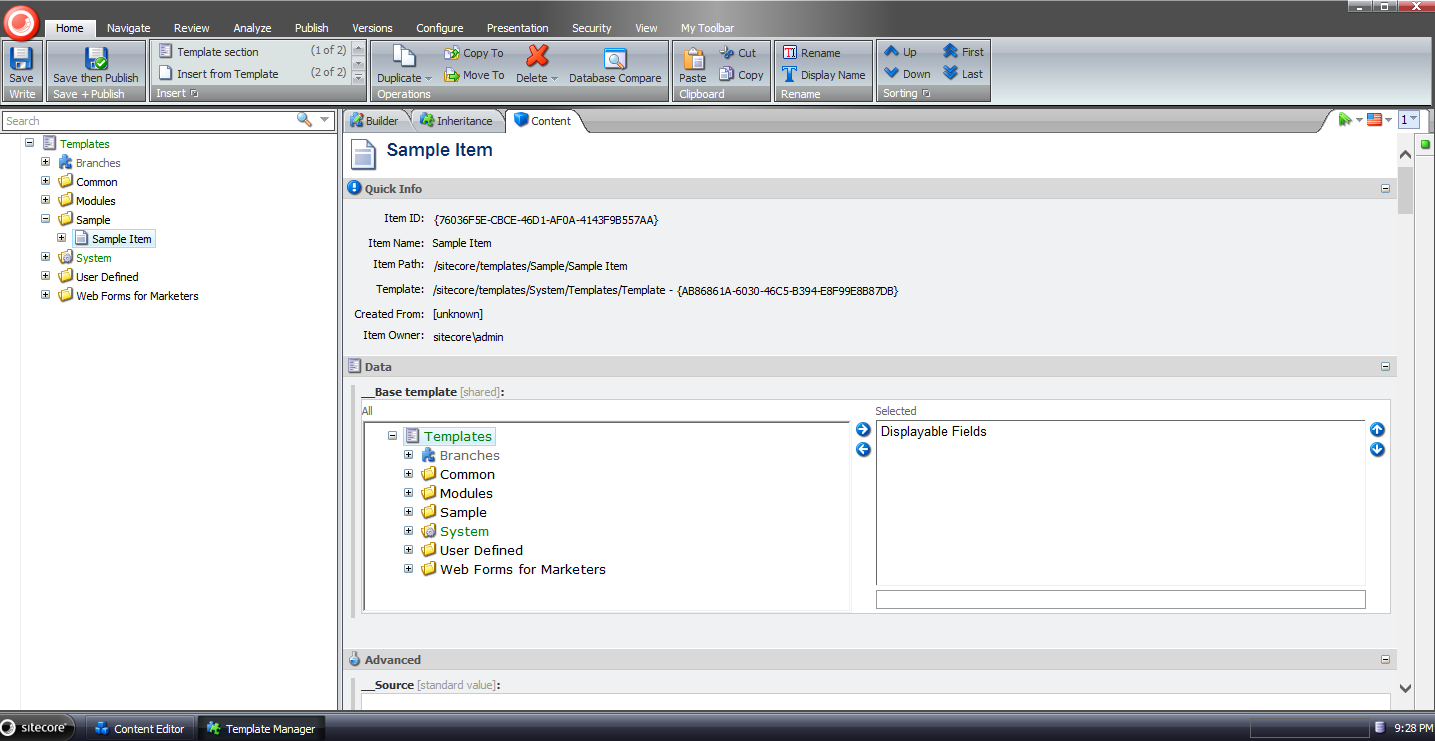
In order to remove fields, we need a <getContentEditorFields> pipeline processor. I built the following class for to serve as one:
using System;

using Sitecore.Configuration;
using Sitecore.Data.Fields;
using Sitecore.Data.Items;
using Sitecore.Data.Managers;
using Sitecore.Data.Templates;
using Sitecore.Diagnostics;
using Sitecore.Shell.Applications.ContentManager;
using Sitecore.Shell.Applications.ContentEditor.Pipelines.GetContentEditorFields;

using Sitecore.Sandbox.Utilities.ClientSettings;

namespace Sitecore.Sandbox.Shell.Applications.ContentEditor.Pipelines.GetContentEditorFields
{
    public class RemoveUndisplayableFields
    {
        public void Process(GetContentEditorFieldsArgs args)
        {
            Assert.ArgumentNotNull(args, "args");
            Assert.ArgumentNotNull(args.Item, "args.Item");
            Assert.ArgumentCondition(!string.IsNullOrWhiteSpace(DisplayableFieldsFieldName), "DisplayableFieldsFieldName", "DisplayableFieldsFieldName must be set in the configuration file!");
            if (!ShowDisplayableFieldsOnly.Current.IsOn())
            {
                return;
            }

            foreach (Editor.Section section in args.Sections)
            {
                AddDisplayableFields(args.Item[DisplayableFieldsFieldName], section);
            }
        }

        private void AddDisplayableFields(string displayableFieldIds, Editor.Section section)
        {
            Editor.Fields displayableFields = new Editor.Fields();
            foreach (Editor.Field field in section.Fields)
            {
                if (IsDisplayableField(displayableFieldIds, field))
                {
                    displayableFields.Add(field);
                }
            }

            section.Fields.Clear();
            section.Fields.AddRange(displayableFields);
        }

        private bool IsDisplayableField(string displayableFieldIds, Editor.Field field)
        {
            if (IsStandardValues(field.ItemField.Item))
            {
                return true;
            }

            if (IsDisplayableFieldsField(field.ItemField))
            {
                return false;
            }

            return IsStandardTemplateField(field.ItemField)
                    || string.IsNullOrWhiteSpace(displayableFieldIds)
                    || displayableFieldIds.Contains(field.ItemField.ID.ToString());
        }

        private bool IsDisplayableFieldsField(Field field)
        {
            return string.Equals(field.Name, DisplayableFieldsFieldName, StringComparison.CurrentCultureIgnoreCase);
        }

        private static bool IsStandardValues(Item item)
        {
            if (item.Template.StandardValues != null)
            {
                return item.Template.StandardValues.ID == item.ID;
            }

            return false;
        }

        private bool IsStandardTemplateField(Field field)
        {
            Assert.IsNotNull(StandardTemplate, "The Stardard Template could not be found.");
            return StandardTemplate.ContainsField(field.ID);
        }

        private static Template GetStandardTemplate()
        {
            return TemplateManager.GetTemplate(Settings.DefaultBaseTemplate, Context.ContentDatabase);
        }

        private Template _StandardTemplate;
        private Template StandardTemplate
        {
            get
            {
                if (_StandardTemplate == null)
                {
                    _StandardTemplate = GetStandardTemplate();
                }

                return _StandardTemplate;
            }
        }

        private string DisplayableFieldsFieldName { get; set; }
    }
}
The class above iterates over all fields for the supplied item, and adds only those that were selected in the Displayable Fields TreelistEx field, and also Standard Fields — we don’t want to remove these since they are shown/hidden by the Standard Fields feature in Sitecore — to a new Editor.Fields collection. This new collection is then set on the GetContentEditorFieldsArgs instance.
Plus, we don’t want to show the Displayable Fields TreelistEx field when the feature is turned on, and we are on an item. This field should only display when we are on the standard values item when the feature is turned on — this is how we will choose our displayable fields.
Now we have to handle sections without fields — especially after ripping them out via the pipeline processor above.
I built the following class to serve as a <renderContentEditor> pipeline processor to do this:
using System.Linq;

using Sitecore.Diagnostics;
using Sitecore.Shell.Applications.ContentManager;
using Sitecore.Shell.Applications.ContentEditor.Pipelines.RenderContentEditor;

namespace Sitecore.Sandbox.Shell.Applications.ContentEditor.Pipelines.RenderContentEditor
{
    public class FilterSectionsWithFields
    {
        public void Process(RenderContentEditorArgs args)
        {
            Assert.ArgumentNotNull(args, "args");
            args.Sections = GetSectionsWithFields(args.Sections);
        }

        private static Editor.Sections GetSectionsWithFields(Editor.Sections sections)
        {
            Assert.ArgumentNotNull(sections, "sections");
            Editor.Sections sectionsWithFields = new Editor.Sections();
            foreach (Editor.Section section in sections)
            {
                AddIfContainsFields(sectionsWithFields, section);
            }

            return sectionsWithFields;
        }

        private static void AddIfContainsFields(Editor.Sections sections, Editor.Section section)
        {
            Assert.ArgumentNotNull(sections, "sections");
            Assert.ArgumentNotNull(section, "section");
            if (!ContainsFields(section))
            {
                return;
            }

            sections.Add(section);
        }

        private static bool ContainsFields(Editor.Section section)
        {
            Assert.ArgumentNotNull(section, "section");
            return section.Fields != null && section.Fields.Any();
        }
    }
}
It basically builds a new collection of sections that contain at least one field, and sets it on the RenderContentEditorArgs instance being passed through the <renderContentEditor> pipeline.
In order for this to work, we must make this pipeline processor run before all other processors.
I tied all of the above together with the following patch configuration file:
<?xml version="1.0" encoding="utf-8"?>
<configuration xmlns:patch="http://www.sitecore.net/xmlconfig/">
  <sitecore>
    <commands>
      <command name="contenteditor:ToggleDisplayableFieldsVisibility" type="Sitecore.Sandbox.Commands.ToggleDisplayableFieldsVisibility, Sitecore.Sandbox"/>
    </commands>
    <pipelines>
      <getContentEditorFields>
        <processor type="Sitecore.Sandbox.Shell.Applications.ContentEditor.Pipelines.GetContentEditorFields.RemoveUndisplayableFields, Sitecore.Sandbox">
          <DisplayableFieldsFieldName>Displayable Fields</DisplayableFieldsFieldName>
        </processor>
      </getContentEditorFields>
      <renderContentEditor>
        <processor patch:before="processor[@type='Sitecore.Shell.Applications.ContentEditor.Pipelines.RenderContentEditor.RenderSkinedContentEditor, Sitecore.Client']"
                   type="Sitecore.Sandbox.Shell.Applications.ContentEditor.Pipelines.RenderContentEditor.FilterSectionsWithFields, Sitecore.Sandbox"/>
      </renderContentEditor>
    </pipelines>
  </sitecore>
</configuration>
Let’s try this out.
I navigated to the standard values item for my Sample Item data template, and selected the fields I want to display in the content editor:
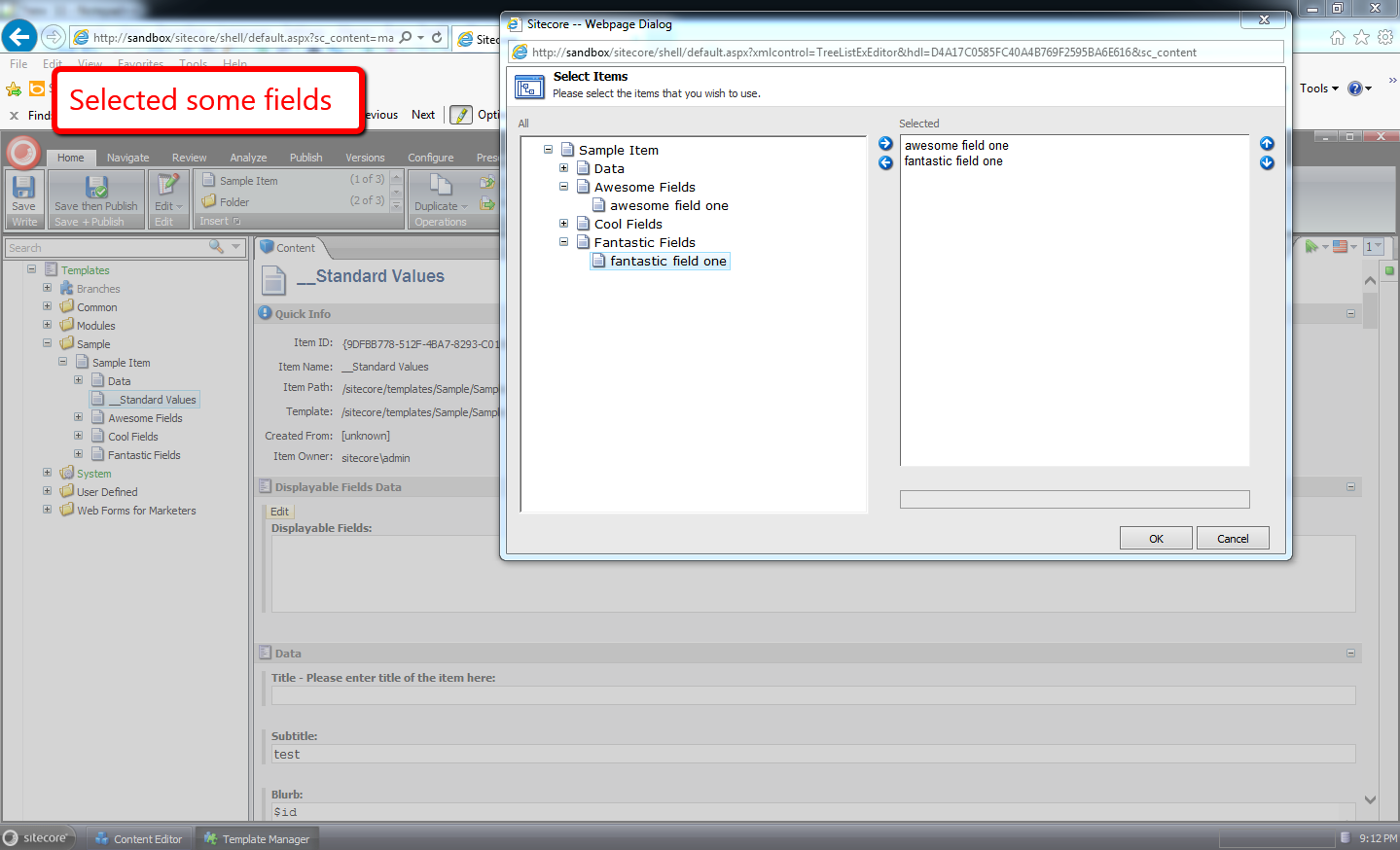
I then went to an item that uses this data template, and turned on the displayable fields feature:
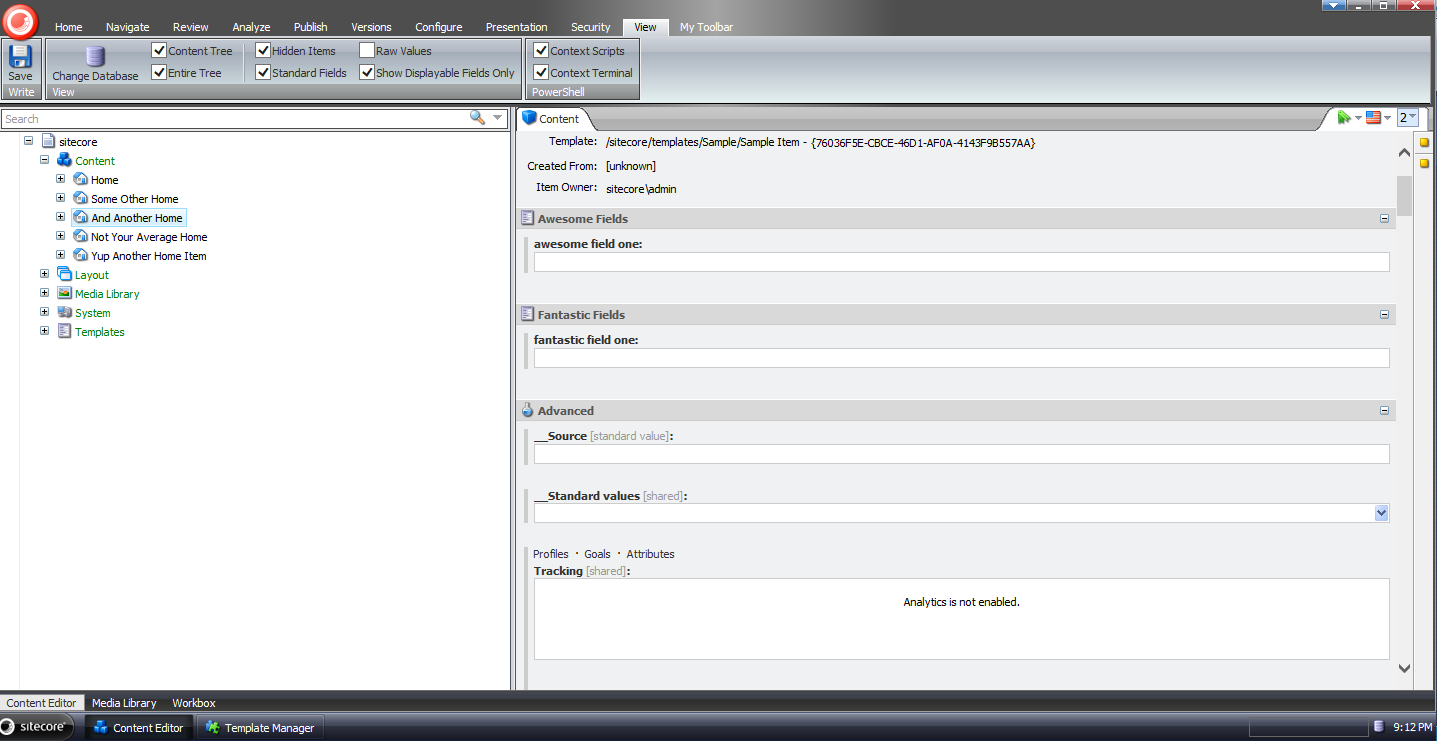
As you can see, only the fields we had chosen display — along with standard fields since the Standard Fields checkbox is checked.
I then turned off the displayable fields feature:
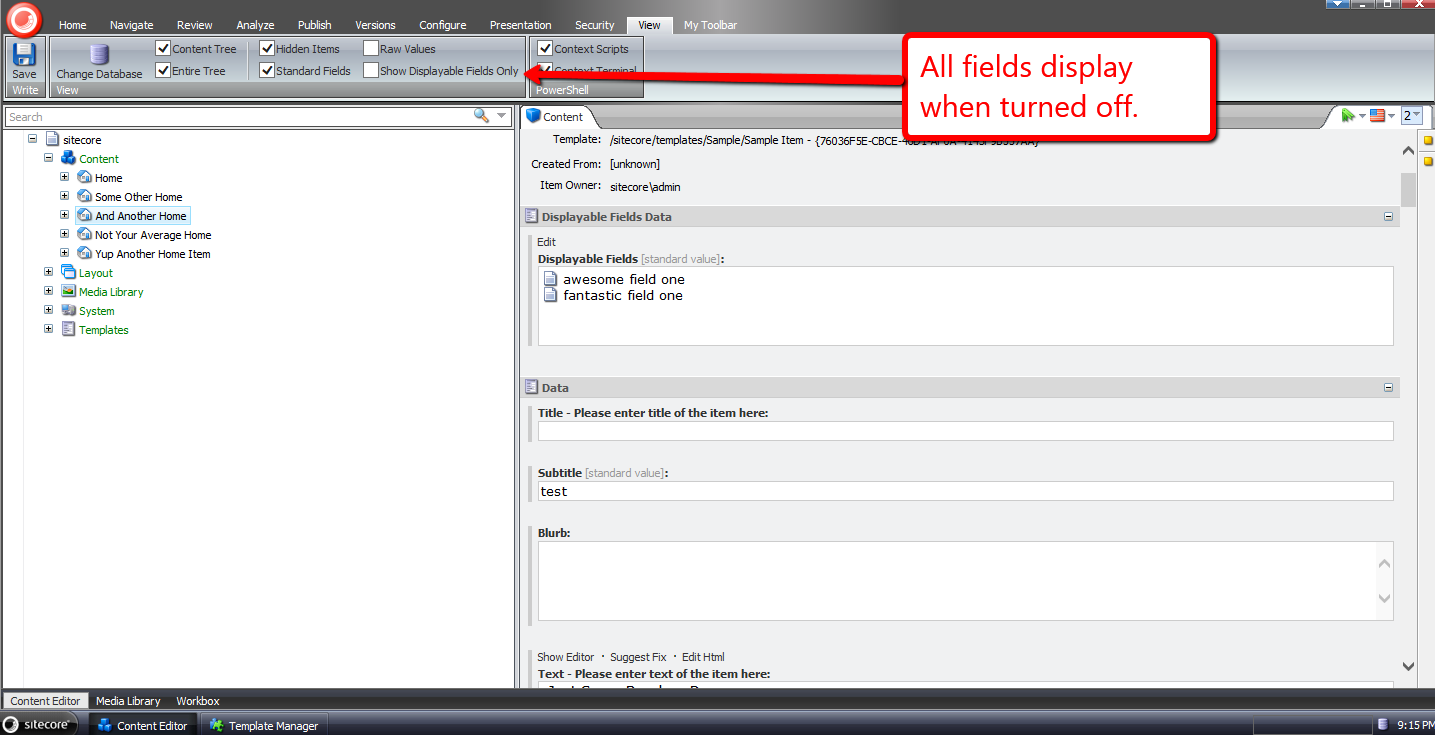
Now all fields for the item display.
I then turned the displayable fields feature back on, and turned off Standard Fields:
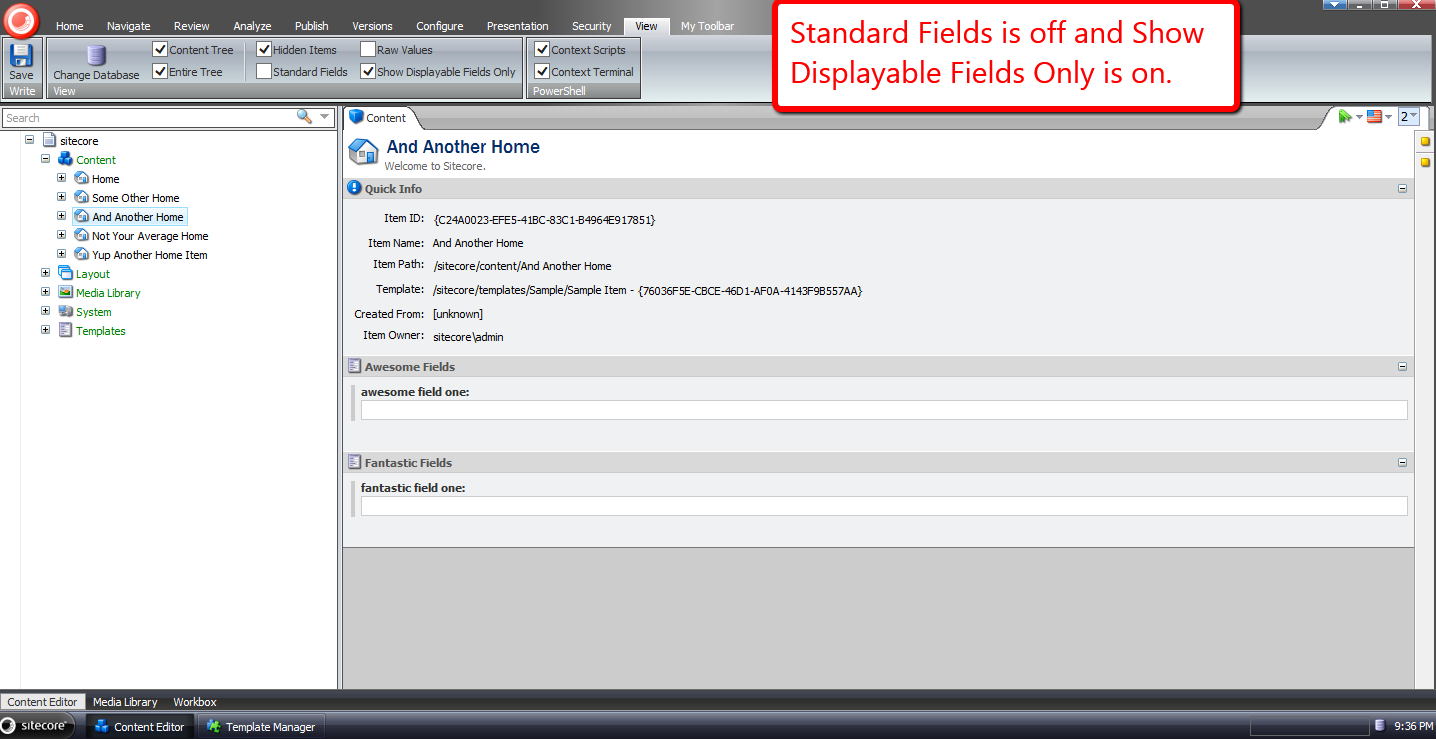
Now only our selected fields display.
If you have any thoughts on this, or ideas around making this better, please share in a comment.
Resolve Media Library Items Linked in Sitecore Aliases
Tonight I was doing research on extending the aliases feature in Sitecore, and discovered media library items linked in them are not served correctly “out of the box”:

As an enhancement, I wrote the following HttpRequestProcessor subclass to be used in the httpRequestBegin pipeline:
using Sitecore.Configuration;
using Sitecore.Data;
using Sitecore.Data.Items;
using Sitecore.Diagnostics;
using Sitecore.Pipelines.HttpRequest;
using Sitecore.Resources.Media;
using Sitecore.Web;

namespace Sitecore.Sandbox.Pipelines.HttpRequest
{
    public class MediaAliasResolver : HttpRequestProcessor
    {
        public override void Process(HttpRequestArgs args)
        {
            Assert.ArgumentNotNull(args, "args");
            if (!CanProcessAliases())
            {
                return;
            }

            string mediaUrl = GetMediaAliasTargetUrl(args);
            if (string.IsNullOrWhiteSpace(mediaUrl))
            {
                return;
            }

            Context.Page.FilePath = mediaUrl;
        }

        private static bool CanProcessAliases()
        {
            return Settings.AliasesActive && Context.Database != null;
        }

        private static string GetMediaAliasTargetUrl(HttpRequestArgs args)
        {
            Assert.ArgumentNotNull(args, "args");
            ID targetID = Context.Database.Aliases.GetTargetID(args.LocalPath);
            if (targetID.IsNull)
            {
                return string.Empty;
            }

            Item targetItem = args.GetItem(targetID);
            if (targetItem == null || !IsMediaItem(targetItem))
            {
                return string.Empty;
            }

            return GetAbsoluteMediaUrl(targetItem);
        }

        private static bool IsMediaItem(Item item)
        {
            Assert.ArgumentNotNull(item, "item");
            return item.Paths.IsMediaItem && item.TemplateID != TemplateIDs.MediaFolder;
        }

        private static string GetAbsoluteMediaUrl(MediaItem mediaItem)
        {
            string relativeUrl = MediaManager.GetMediaUrl(mediaItem);
            return WebUtil.GetFullUrl(relativeUrl);
        }
    }
}
The HttpRequestProcessor subclass above — after ascertaining the aliases feature is turned on, and the item linked in the requested alias is a media library item — gets the absolute URL for the media library item, and sets it on the FilePath property of the Sitecore.Context.Page instance — this is exactly how the “out of the box” Sitecore.Pipelines.HttpRequest.AliasResolver handles external URLs — and passes along the HttpRequestArgs instance.
I then wedged the HttpRequestProcessor subclass above into the httpRequestBegin pipeline directly before the Sitecore.Pipelines.HttpRequest.AliasResolver:
<?xml version="1.0" encoding="utf-8"?>
<configuration xmlns:patch="http://www.sitecore.net/xmlconfig/">
  <sitecore>
    <pipelines>
      <httpRequestBegin>
        <processor patch:before="processor[@type='Sitecore.Pipelines.HttpRequest.AliasResolver, Sitecore.Kernel']"
                   type="Sitecore.Sandbox.Pipelines.HttpRequest.MediaAliasResolver, Sitecore.Sandbox" />
      </httpRequestBegin>
    </pipelines>
  </sitecore>
</configuration>
Let’s take this for a spin.
I had already defined the following alias in Sitecore beforehand — the error page at the top of this post is evidence of that:
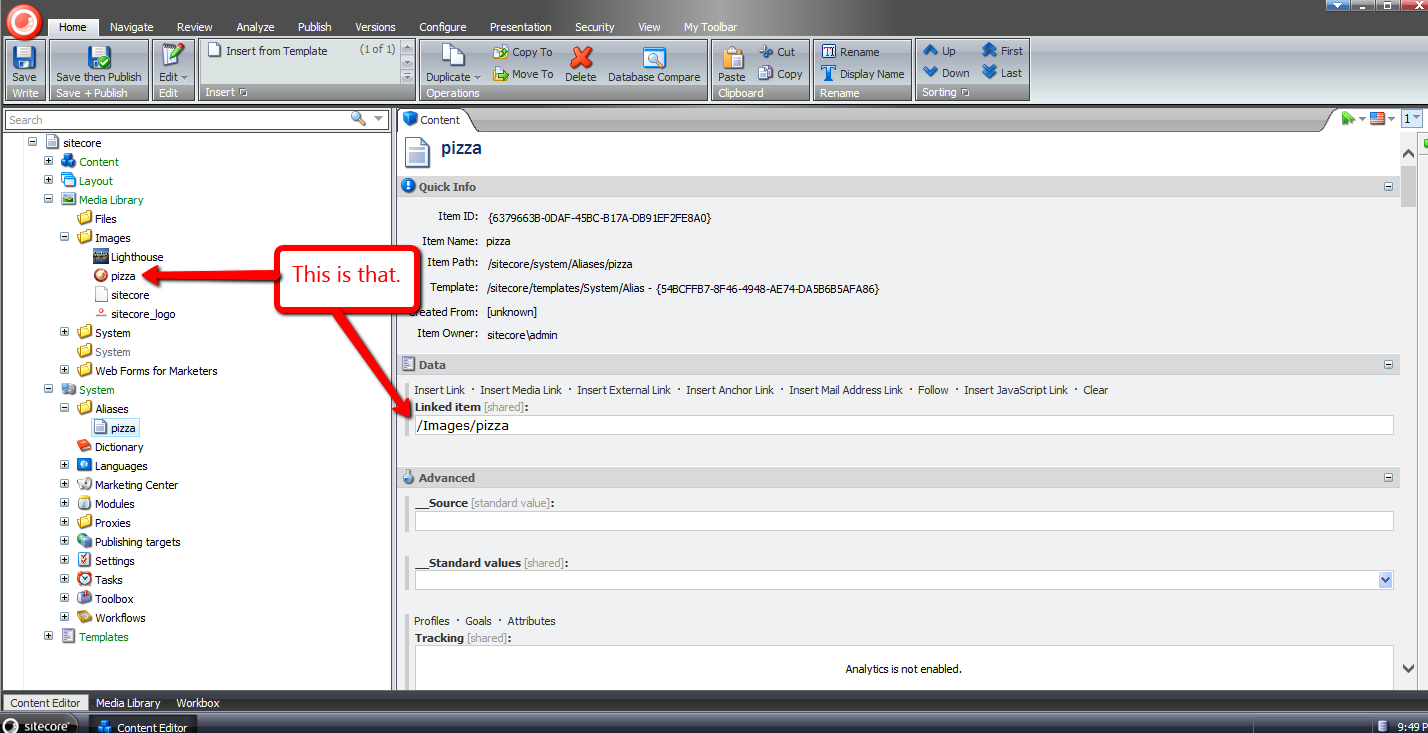
After navigating to http://sandbox/pizza — the URL to the pizza alias in my local Sitecore sandbox instance (don’t click on this link because it won’t go anywhere unless you have a website named sandbox running on your local machine) — I was brought to the media library image on the front-end:

If you have any recommendations on improving this, or further thoughts on using aliases in Sitecore, please share in a comment below.
Until next time, have a pizzalicious day!
Insert a New Item After a Sibling Item in Sitecore
Have you ever thought to yourself “wouldn’t it be nice to insert a new item in the Sitecore content tree at a specific place among its siblings without having to move the inserted item up or down multiple times to position it correctly?”
I’ve had this thought more than once, and decided to put something together to achieve this.
The following class consists of methods to be used in pipeline processors of the uiAddFromTemplate pipeline to make this happen:
using System.Collections.Generic;
using System.Linq;

using Sitecore.Configuration;
using Sitecore.Globalization;
using Sitecore.Data;
using Sitecore.Data.Items;
using Sitecore.Diagnostics;
using Sitecore.Shell.Applications.Dialogs.ItemLister;
using Sitecore.Shell.Framework;
using Sitecore.Web.UI.Sheer;

namespace Sitecore.Sandbox.Shell.Framework.Pipelines.AddFromTemplate
{
    public class InsertAfterItemOperations
    {
        private string SelectButtonText { get; set; }

        private string ModalIcon { get; set; }

        private string ModalTitle { get; set; }

        private string ModalInstructions { get; set; }

        public void StoreTemplateResult(ClientPipelineArgs args)
        {
            args.Parameters["Template"] = args.Result;
        }

        public void EnsureParentAndChildren(ClientPipelineArgs args)
        {
            AssertArguments(args);
            Item parent = GetParentItem(args);
            EnsureParentItem(parent, args);
            args.Parameters["HasChildren"] = parent.HasChildren.ToString();
            args.IsPostBack = false;
        }

        public void GetInsertAfterId(ClientPipelineArgs args)
        {
            AssertArguments(args);
            bool hasChildren = false;
            bool.TryParse(args.Parameters["HasChildren"], out hasChildren);
            if (!hasChildren)
            {
                SetCanAddItemFromTemplate(args);
                return;
            }

            Item parent = GetParentItem(args);
            EnsureParentItem(parent, args);
            if (!args.IsPostBack)
            {
                ItemListerOptions itemListerOptions = new ItemListerOptions
                {
                    ButtonText = SelectButtonText,
                    Icon = ModalIcon,
                    Title = ModalTitle,
                    Text = ModalInstructions,
                    Items = parent.Children.ToList()
                };

                SheerResponse.ShowModalDialog(itemListerOptions.ToUrlString().ToString(), true);
                args.WaitForPostBack();
            }
            else if (args.HasResult)
            {
                args.Parameters["InsertAfterId"] = args.Result;
                SetCanAddItemFromTemplate(args);
                args.IsPostBack = false;
            }
            else
            {
                SetCanAddItemFromTemplate(args);
                args.IsPostBack = false;
            }
        }

        private void SetCanAddItemFromTemplate(ClientPipelineArgs args)
        {
            Assert.ArgumentNotNull(args, "args");
            args.Parameters["CanAddItemFromTemplate"] = bool.TrueString;
        }

        private static Item GetParentItem(ClientPipelineArgs args)
        {
            AssertArguments(args);
            Assert.ArgumentNotNullOrEmpty(args.Parameters["id"], "id");
            return GetItem(GetDatabase(args.Parameters["database"]), args.Parameters["id"], args.Parameters["language"]);
        }

        private static void EnsureParentItem(Item parent, ClientPipelineArgs args)
        {
            if (parent != null)
            {
                return;
            }

            SheerResponse.Alert("Parent item could not be located -- perhaps it was deleted.");
            args.AbortPipeline();
        }

        public void AddItemFromTemplate(ClientPipelineArgs args)
        {
            Assert.ArgumentNotNull(args, "args");
            bool canAddItemFromTemplate = false;
            bool.TryParse(args.Parameters["CanAddItemFromTemplate"], out canAddItemFromTemplate);
            if (canAddItemFromTemplate)
            {
                int index = args.Parameters["Template"].IndexOf(',');
                Assert.IsTrue(index >= 0, "Invalid return value from dialog");
                string path = StringUtil.Left(args.Parameters["Template"], index);
                string name = StringUtil.Mid(args.Parameters["Template"], index + 1);
                Database database = GetDatabase(args.Parameters["database"]);
                Item parent = GetItem(database, args.Parameters["id"], args.Parameters["language"]);
                if (parent == null)
                {
                    SheerResponse.Alert("Parent item not found.");
                    args.AbortPipeline();
                    return;
                }

                if (!parent.Access.CanCreate())
                {
                    SheerResponse.Alert("You do not have permission to create items here.");
                    args.AbortPipeline();
                    return;
                }

                Item item = database.GetItem(path);
                if (item == null)
                {
                    SheerResponse.Alert("Item not found.");
                    args.AbortPipeline();
                    return;
                }

                History.Template = item.ID.ToString();
                Item added = null;
                if (item.TemplateID == TemplateIDs.Template)
                {
                    Log.Audit(this, "Add from template: {0}", new string[] { AuditFormatter.FormatItem(item) });
                    TemplateItem template = item;
                    added = Context.Workflow.AddItem(name, template, parent);
                }
                else
                {
                    Log.Audit(this, "Add from branch: {0}", new string[] { AuditFormatter.FormatItem(item) });
                    BranchItem branch = item;
                    added = Context.Workflow.AddItem(name, branch, parent);
                }

                if (added == null)
                {
                    SheerResponse.Alert("Something went terribly wrong when adding the item.");
                    args.AbortPipeline();
                    return;
                }

                args.Parameters["AddedId"] = added.ID.ToString();
            }
        }

        public void MoveAdded(ClientPipelineArgs args)
        {
            AssertArguments(args);
            Assert.ArgumentNotNullOrEmpty(args.Parameters["AddedId"], "AddedId");
            Item added = GetAddedItem(args);
            if (string.IsNullOrWhiteSpace(args.Parameters["InsertAfterId"]))
            {
                Items.MoveFirst(new [] { added });
            }

            SetSortorder(GetItemOrdering(added, args.Parameters["InsertAfterId"]));
        }

        private static void AssertArguments(ClientPipelineArgs args)
        {
            Assert.ArgumentNotNull(args, "args");
            Assert.ArgumentNotNull(args.Parameters, "args.Parameters");
            Assert.ArgumentNotNullOrEmpty(args.Parameters["database"], "database");
            Assert.ArgumentNotNullOrEmpty(args.Parameters["language"], "language");
        }

        private static Item GetAddedItem(ClientPipelineArgs args)
        {
            AssertArguments(args);
            Assert.ArgumentNotNullOrEmpty(args.Parameters["AddedId"], "AddedId");
            return GetItem(GetDatabase(args.Parameters["database"]), args.Parameters["AddedId"], args.Parameters["language"]);
        }

        private static Item GetItem(Database database, string id, string language)
        {
            Assert.ArgumentNotNull(database, "database");
            Assert.ArgumentNotNullOrEmpty(id, "id");
            Assert.ArgumentNotNullOrEmpty(language, "language");
            return database.Items[id, Language.Parse(language)];
        }

        private static Database GetDatabase(string databaseName)
        {
            Assert.ArgumentNotNullOrEmpty(databaseName, "databaseName");
            return Factory.GetDatabase(databaseName);
        }

        private static IList<Item> GetItemOrdering(Item added, string insertAfterId)
        {
            IList<Item> ordering = new List<Item>();
            foreach (Item child in added.Parent.GetChildren())
            {
                ordering.Add(child);
                bool shouldAddAfter = string.Equals(child.ID.ToString(), insertAfterId);
                if (shouldAddAfter)
                {
                    ordering.Add(added);
                }
            }

            return ordering;
        }

        private static void SetSortorder(IList<Item> items)
        {
            Assert.ArgumentNotNull(items, "items");
            for (int i = 0; i < items.Count; i++)
            {
                int sortorder = (i + 1) * 100;
                SetSortorder(items[i], sortorder);
            }
        }

        private static void SetSortorder(Item item, int sortorder)
        {
            Assert.ArgumentNotNull(item, "item");
            if (item.Access.CanWrite() && !item.Appearance.ReadOnly)
            {
                item.Editing.BeginEdit();
                item[FieldIDs.Sortorder] = sortorder.ToString();
                item.Editing.EndEdit();
            }
        }
    }
}
In the StoreTemplateResult method, we store the ID of the template selected in the ‘Insert from Template’ dialog. This dialog is launched by clicking the ‘Insert from Template’ menu option in the item context menu — an example of this can be seen in my test run near the bottom of this post.
The EnsureParentAndChildren method makes certain the parent item exists — we want to be sure another user did not delete it in another Sitecore session — and ascertains if the parent item has children.
Logic in the GetInsertAfterId method launches another dialog when the parent item does have children. This dialog prompts the user to select a sibling item to precede the new item. If the ‘Cancel’ button is clicked, the item will be inserted before all sibling items.
The AddItemFromTemplate method basically contains the same logic that can be found in the Execute method in the Sitecore.Shell.Framework.Pipelines.AddFromTemplate class in Sitecore.Kernel.dll, albeit with a few minor changes — I removed some of the nested if/else conditionals, and stored the ID of the newly created item, which is needed when reordering the sibling items (this is how we move the new item after the selected sibling item).
The MoveAdded method is where we reorder the siblings items with the newly created item so that the new item follows the selected sibling. If there is no selected sibling, we just move the new item to the first position.
I then put all of the above together using the following patch configuration file:
<?xml version="1.0" encoding="utf-8"?>
<configuration xmlns:patch="http://www.sitecore.net/xmlconfig/">
  <sitecore>
    <processors>
      <uiAddFromTemplate>
        <processor mode="on" patch:after="processor[@type='Sitecore.Shell.Framework.Pipelines.AddFromTemplate,Sitecore.Kernel' and @method='GetTemplate']"
                   type="Sitecore.Sandbox.Shell.Framework.Pipelines.AddFromTemplate.InsertAfterItemOperations, Sitecore.Sandbox" method="StoreTemplateResult"/>
        <processor mode="on" patch:after="processor[@type='Sitecore.Sandbox.Shell.Framework.Pipelines.AddFromTemplate.InsertAfterItemOperations, Sitecore.Sandbox' and @method='StoreTemplateResult']"
                   type="Sitecore.Sandbox.Shell.Framework.Pipelines.AddFromTemplate.InsertAfterItemOperations, Sitecore.Sandbox" method="EnsureParentAndChildren"/>
        <processor mode="on" patch:after="processor[@type='Sitecore.Sandbox.Shell.Framework.Pipelines.AddFromTemplate.InsertAfterItemOperations, Sitecore.Sandbox' and @method='EnsureParentAndChildren']"
                   type="Sitecore.Sandbox.Shell.Framework.Pipelines.AddFromTemplate.InsertAfterItemOperations, Sitecore.Sandbox" method="GetInsertAfterId">
          <SelectButtonText>Insert After</SelectButtonText>
          <ModalIcon>Applications/32x32/nav_up_right_blue.png</ModalIcon>
          <ModalTitle>Select Item to Insert After</ModalTitle>
          <ModalInstructions>Select the item you would like to insert after. If you would like to insert before the first item, just click 'Cancel'.</ModalInstructions>
        </processor>
        <processor mode="on" patch:instead="processor[@type='Sitecore.Shell.Framework.Pipelines.AddFromTemplate,Sitecore.Kernel' and @method='Execute']"
                   type="Sitecore.Sandbox.Shell.Framework.Pipelines.AddFromTemplate.InsertAfterItemOperations, Sitecore.Sandbox" method="AddItemFromTemplate" />
        <processor mode="on" patch:after="processor[@type='Sitecore.Sandbox.Shell.Framework.Pipelines.AddFromTemplate.InsertAfterItemOperations, Sitecore.Sandbox' and @method='AddItemFromTemplate']"
                   type="Sitecore.Sandbox.Shell.Framework.Pipelines.AddFromTemplate.InsertAfterItemOperations, Sitecore.Sandbox" method="MoveAdded" />
      </uiAddFromTemplate>
    </processors>
  </sitecore>
</configuration>
Let’s test this out.
This is how my content tree looked before adding new items:

I right-clicked on my Home item to launch its context menu, and clicked ‘Insert from Template’:

I was presented with the “out of the box” ‘Insert from Template’ dialog, and selected a template:
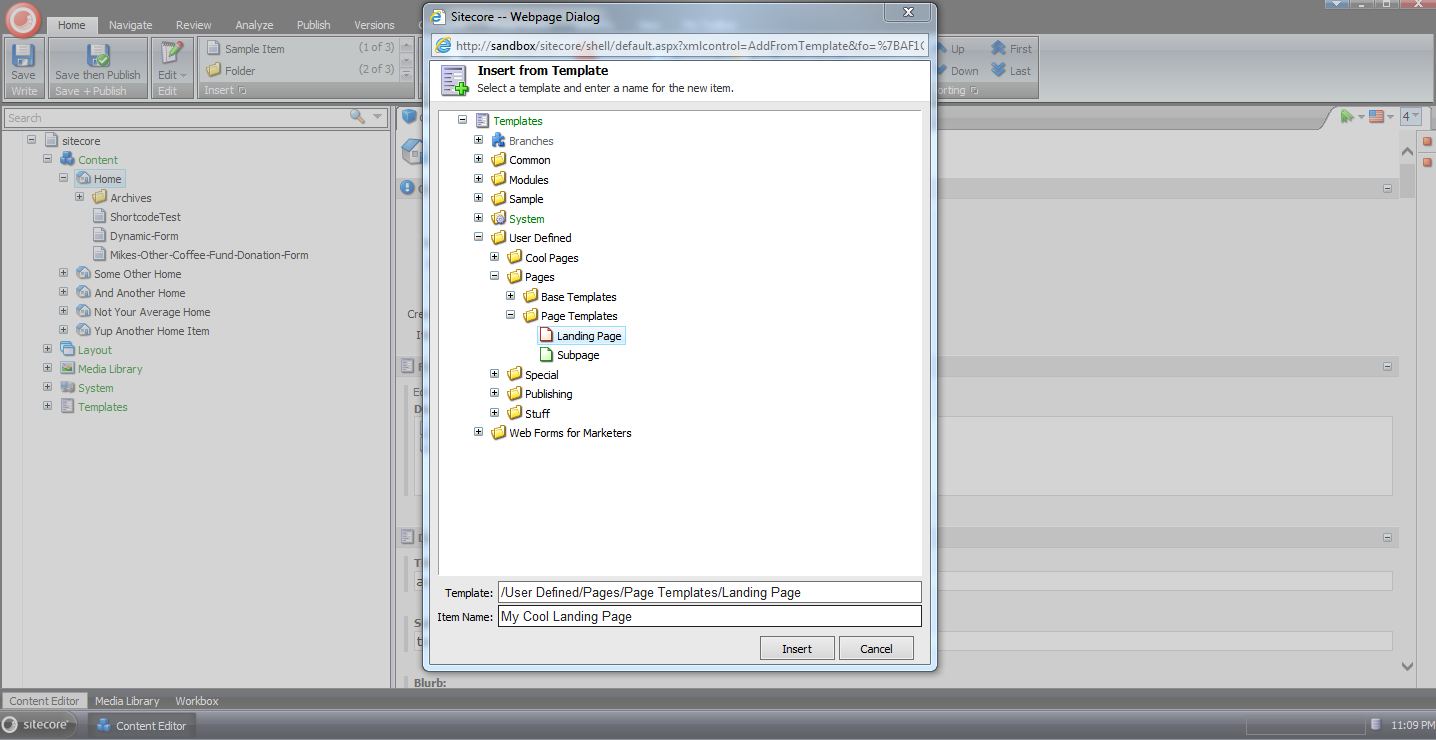
Next I was prompted to select a sibling item to insert the new item after:

As you can see the new item now resides after the selected sibling:

If you have any thoughts on this, or other ideas around modifying the uiAddFromTemplate pipeline, please share in a comment below.
Specify the Maximum Width of Images Uploaded to the Sitecore Media Library
Last week someone started a thread in one of the SDN forums asking how one could go about making Sitecore resize images larger than a specific width down to that width.
Yesterday an astute SDN visitor recommended using a custom getMediaStream pipeline processor to set the maximum width for images — a property for this maximum width is exposed via the GetMediaStreamPipelineArgs parameters object passed through the getMediaStream pipeline.
I thought I would try out the suggestion, and came up with the following getMediaStream pipeline processor:
using Sitecore.Diagnostics;

using Sitecore.Resources.Media;

namespace Sitecore.Sandbox.Resources.Media
{
    public class MaxWidthProcessor
    {
        public int MaxWidth { get; set; }

        public void Process(GetMediaStreamPipelineArgs args)
        {
            Assert.ArgumentNotNull(args, "args");
            if (!ShouldSetMaxWidth(args))
            {
                return;
            }

            args.Options.MaxWidth = MaxWidth;
        }

        private bool ShouldSetMaxWidth(GetMediaStreamPipelineArgs args)
        {
            Assert.ArgumentNotNull(args, "args");
            return MaxWidth > 0 && args.Options.MaxWidth < 1;
        }
    }
}
I then interlaced it into the getMediaStream pipeline before the ResizeProcessor processor — this is the processor where the magical resizing happens — using the following patch configuration file:
<?xml version="1.0" encoding="utf-8"?>
<configuration xmlns:patch="http://www.sitecore.net/xmlconfig/">
  <sitecore>
    <pipelines>
      <getMediaStream>
        <processor patch:before="processor[@type='Sitecore.Resources.Media.ResizeProcessor, Sitecore.Kernel']"
                   type="Sitecore.Sandbox.Resources.Media.MaxWidthProcessor, Sitecore.Sandbox">
          <MaxWidth>1024</MaxWidth>
        </processor>
      </getMediaStream>
    </pipelines>
  </sitecore>
</configuration>
The maximum width for images is set to 1024 pixels — the width I am using in my test below.
Let’s see how we did.
I decided to use one of my favorite images that ships with Sitecore for testing:

As you can see its width is much larger than 1024 pixels:

After uploading the lighthouse image into the media library, its width was set to the maximum specified, and its height was scaled down proportionally:

If you have any thoughts on this, or other ideas on resizing images uploaded to the media library, please drop a comment.
Unlock Sitecore Users’ Items During Logout
The other day I saw a post in one of the SDN forums asking how one could go about building a solution to unlock items locked by a user when he/she logs out of Sitecore.
What immediately came to mind was building a new processor for the logout pipeline — this pipeline can be found at /configuration/sitecore/processors/logout in your Sitecore instance’s Web.config — but had to research how one would programmatically get all Sitecore items locked by the current user.
After a bit of fishing in Sitecore.Kernel.dll and Sitecore.Client.dll, I found a query in Sitecore.Client.dll that will give me all locked items for the current user:

Now all we need to do is add it into a custom logout pipeline processor:
using System;
using System.Collections.Generic;
using System.Linq;

using Sitecore.Data.Items;
using Sitecore.Diagnostics;
using Sitecore.Pipelines.Logout;

namespace Sitecore.Sandbox.Pipelines.Logout
{
    public class UnlockMyItems
    {
        public void Process(LogoutArgs args)
        {
            Assert.ArgumentNotNull(args, "args");
            UnlockMyItemsIfAny();
        }

        private void UnlockMyItemsIfAny()
        {
            IEnumerable<Item> lockedItems = GetMyLockedItems();
            if (!CanProcess(lockedItems))
            {
                return;
            }

            foreach (Item lockedItem in lockedItems)
            {
                Unlock(lockedItem);
            }
        }

        private static IEnumerable<Item> GetMyLockedItems()
        {
            return Context.ContentDatabase.SelectItems(GetMyLockedItemsQuery());
        }

        private static string GetMyLockedItemsQuery()
        {
            return string.Format("fast://*[@__lock='%\"{0}\"%']", Context.User.Name);
        }

        private static bool CanProcess(IEnumerable<Item> lockedItems)
        {
            return lockedItems != null
                    && lockedItems.Any()
                    && lockedItems.Select(item => item.Locking.HasLock()).Any();
        }

        private void Unlock(Item item)
        {
            Assert.ArgumentNotNull(item, "item");
            if (!item.Locking.HasLock())
            {
                return;
            }

            try
            {
                item.Editing.BeginEdit();
                item.Locking.Unlock();
                item.Editing.EndEdit();
            }
            catch (Exception ex)
            {
                Log.Error(this.ToString(), ex, this);
            }
        }
    }
}
The class above grabs all items locked by the current user in the context content database. If none are found, we don’t move forward on processing.
When there are locked items for the current user, the code checks to see if each item is locked before unlocking, just in case some other account unlocks the item before we unlock it — I don’t know what would happen if we try to unlock an item that isn’t locked. If you know, please share in a comment.
I then injected the above pipeline processor into the logout pipeline using the following patch configuration file:
<?xml version="1.0" encoding="utf-8" ?>
<configuration xmlns:patch="http://www.sitecore.net/xmlconfig/">
  <sitecore>
    <processors>
      <logout>
        <processor patch:after="*[@type='Sitecore.Pipelines.Logout.CheckModified, Sitecore.Kernel']" type="Sitecore.Sandbox.Pipelines.Logout.UnlockMyItems, Sitecore.Sandbox"/>
      </logout>
    </processors>
  </sitecore>
</configuration>
Let’s test-drive this.
I first logged into Sitecore using my ‘mike’ account, and chose the Home item to lock:
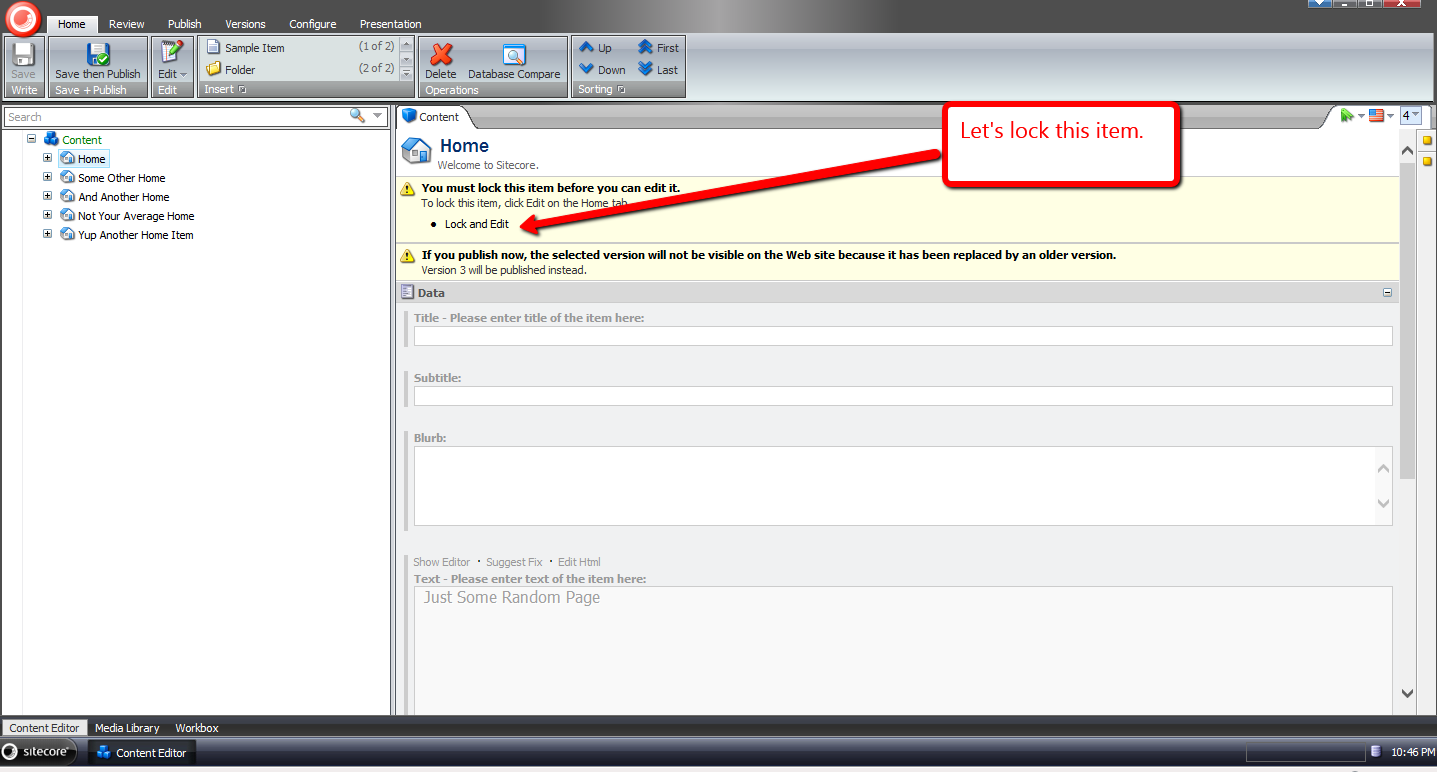
It is now locked:
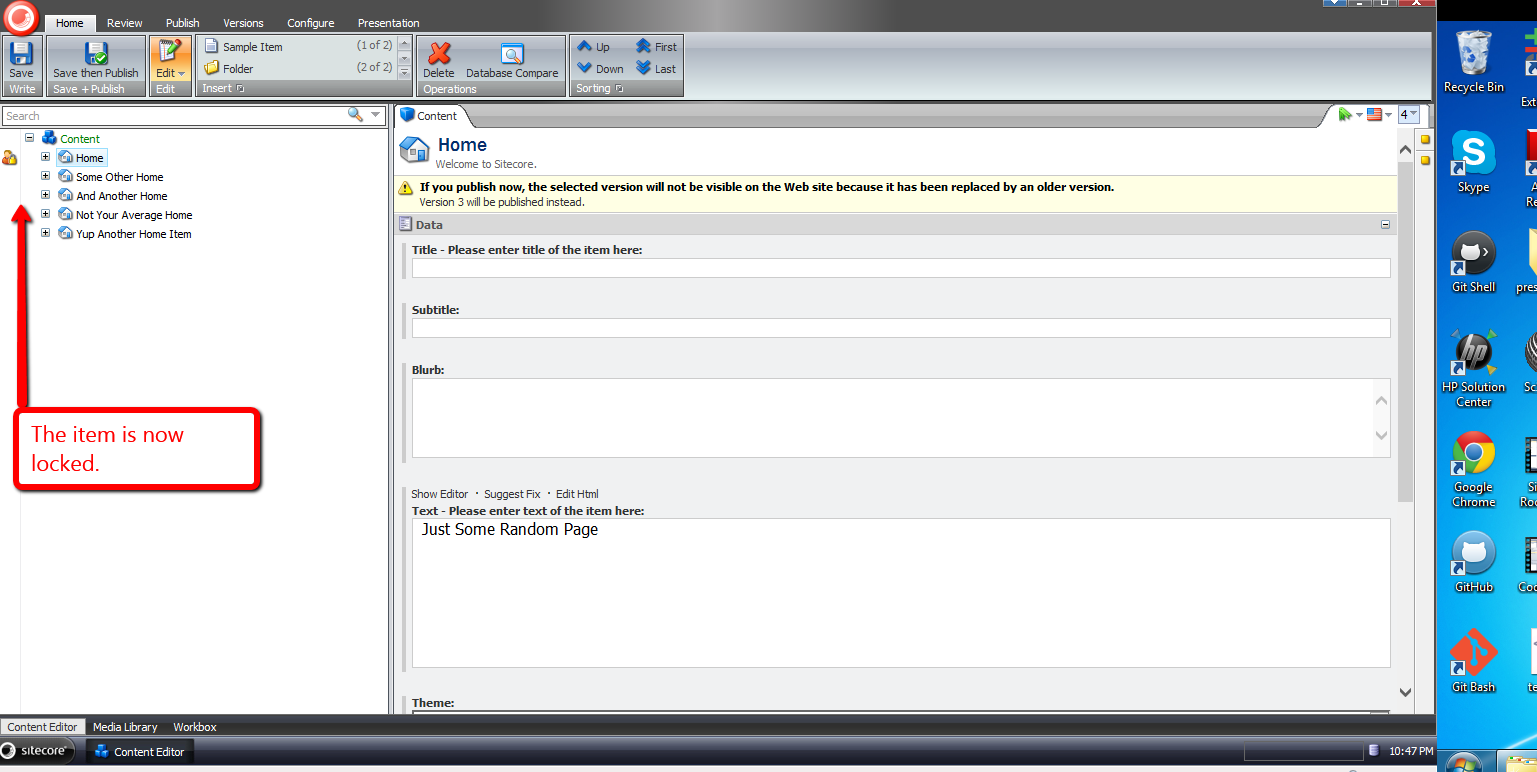
In another session, I logged in using another account, and saw that ‘mike’ had locked the Home item:

I switched back to the other session under the ‘mike’ user, and logged out:

When I logged back in, I saw that the Home item was no longer locked:

If you have any thoughts or suggestions on making this better, please share in a comment below.
Shortcodes in Sitecore: A Proof of Concept
Today I stumbled upon a post in one of the SDN forums asking whether anyone had ever implemented shortcodes in Sitecore.
I have not seen an implementation of this for Sitecore — if you know of one, please drop a comment — but am quite familiar with these in WordPress — I use them to format code in my blog posts using the [code language=”csharp”]//code goes in here[/code] shortcode — and felt I should take on the challenge of implementing a “proof of concept” for this in Sitecore.
I first created a POCO that will hold shortcode data: the shortcode itself and the content (or markup) that the shortcode represents after being expanded:
namespace Sitecore.Sandbox.Pipelines.ExpandShortcodes
{
    public class Shortcode
    {
        public string Unexpanded { get; set; }

        public string Expanded { get; set; }
    }
}
I thought it would be best to put the logic that expands shortcodes into a new pipeline, and defined a pipeline arguments class for it:
using Sitecore.Pipelines;

namespace Sitecore.Sandbox.Pipelines.ExpandShortcodes
{
    public class ExpandShortcodesArgs : PipelineArgs
    {
        public string Content { get; set; }
    }
}
There really isn’t much to this arguments class — we will only be passing around a string of content that will contain shortcodes to be expanded.
Before moving forward on building pipeline processors for the new pipeline, I saw that I could leverage the template method pattern to help me process collections of Shortcode instances in an abstract base class:
using System.Collections.Generic;
using System.Linq;
using System.Text.RegularExpressions;

using Sitecore.Diagnostics;

namespace Sitecore.Sandbox.Pipelines.ExpandShortcodes
{
    public abstract class ExpandShortcodesProcessor
    {
        public virtual void Process(ExpandShortcodesArgs args)
        {
            if (string.IsNullOrWhiteSpace(args.Content))
            {
                return;
            }

            IEnumerable<Shortcode> shortcodes = GetShortcodes(args.Content);
            if (shortcodes == null || !shortcodes.Any())
            {
                return;
            }

            args.Content = ExpandShortcodes(shortcodes, args.Content);
        }

        protected abstract IEnumerable<Shortcode> GetShortcodes(string content);

        protected virtual string ExpandShortcodes(IEnumerable<Shortcode> shortcodes, string content)
        {
            Assert.ArgumentNotNull(shortcodes, "shortcodes");
            Assert.ArgumentNotNull(content, "content");
            string contentExpanded = content;
            foreach (Shortcode shortcode in shortcodes)
            {
                contentExpanded = contentExpanded.Replace(shortcode.Unexpanded, shortcode.Expanded);
            }

            return contentExpanded;
        }
    }
}
The above class iterates over all Shortcode instances, and replaces shortcodes with their expanded content.
Each subclass processor of ExpandShortcodesProcessor are to “fill in the blanks” of the algorithm defined in the base class by implementing the GetShortcodes method only — this is where the heavy lifting of grabbing the shortcodes from the passed string of content, and the expansion of these shortcodes are done. Both are then set in new Shortcode instances.
Once the base class was built, I developed an example ExpandShortcodesProcessor subclass to expand [BigBlueText]content goes in here[/BigBlueText] shortcodes (in case you’re wondering, I completely fabricated this shortcode — it does not exist in the real world):
using System.Collections.Generic;
using System.Text.RegularExpressions;

namespace Sitecore.Sandbox.Pipelines.ExpandShortcodes
{
    public class ExpandBigBlueTextShortcodes : ExpandShortcodesProcessor
    {
        protected override IEnumerable<Shortcode> GetShortcodes(string content)
        {
            if(string.IsNullOrWhiteSpace(content))
            {
                return new List<Shortcode>();
            }

            IList<Shortcode> shortcodes = new List<Shortcode>();
            MatchCollection matches = Regex.Matches(content, @"\[BigBlueText\](.*?)\[/BigBlueText\]", RegexOptions.IgnoreCase);

            foreach (Match match in matches)
            {
                string innerText = match.Groups[1].Value.Trim();
                if (!string.IsNullOrWhiteSpace(innerText))
                {
                    shortcodes.Add
                    (
                        new Shortcode
                        {
                            Unexpanded = match.Value,
                            Expanded = string.Format(@"<span style=""font-size:56px;color:blue;"">{0}</span>", innerText)
                        }
                    );
                }
            }

            return shortcodes;
        }
    }
}
I followed the above example processor with another — a new one to expand [YouTube id=”video id goes in here”] shortcodes (this one is made up as well, although YouTube shortcodes do exist out in the wild):
using System.Collections.Generic;
using System.Text.RegularExpressions;

namespace Sitecore.Sandbox.Pipelines.ExpandShortcodes
{
    public class ExpandYouTubeShortcodes : ExpandShortcodesProcessor
    {
        protected override IEnumerable<Shortcode> GetShortcodes(string content)
        {
            if(string.IsNullOrWhiteSpace(content))
            {
                return new List<Shortcode>();
            }

            IList<Shortcode> shortcodes = new List<Shortcode>();
            MatchCollection matches = Regex.Matches(content, @"\[youtube\s+id=""(.*?)""\]", RegexOptions.IgnoreCase);

            foreach (Match match in matches)
            {
                string id = match.Groups[1].Value.Trim();
                if (!string.IsNullOrWhiteSpace(id))
                {
                    shortcodes.Add
                    (
                        new Shortcode
                        {
                            Unexpanded = match.Value,
                            Expanded = string.Format(@"", id)
                        }
                    );
                }
            }

            return shortcodes;
        }
    }
}
Next I built a renderField pipeline processor to invoke our new pipeline when the field is a text field of some sort — yes, all fields in Sitecore are fundamentally strings behind the scenes but I’m referring to Single-Line Text, Multi-Line Text, Rich Text, and the deprecated text fields — to expand our shortcodes:
using Sitecore.Diagnostics;
using Sitecore.Pipelines;
using Sitecore.Pipelines.RenderField;

using Sitecore.Sandbox.Pipelines.ExpandShortcodes;

namespace Sitecore.Sandbox.Pipelines.RenderField
{
    public class ExpandShortcodes
    {
        public void Process(RenderFieldArgs args)
        {
            if (!ShouldFieldBeProcessed(args))
            {
                return;
            }

            args.Result.FirstPart = GetExpandedShortcodes(args.Result.FirstPart);
        }

        private static bool ShouldFieldBeProcessed(RenderFieldArgs args)
        {
            Assert.ArgumentNotNull(args, "args");
            Assert.ArgumentNotNull(args.FieldTypeKey, "args.FieldTypeKey");
            string fieldTypeKey = args.FieldTypeKey.ToLower();
            return fieldTypeKey == "text"
                    || fieldTypeKey == "rich text"
                    || fieldTypeKey == "single-line text"
                    || fieldTypeKey == "multi-line text";
        }

        private static string GetExpandedShortcodes(string content)
        {
            Assert.ArgumentNotNull(content, "content");
            ExpandShortcodesArgs args = new ExpandShortcodesArgs { Content = content };
            CorePipeline.Run("expandShortcodes", args);
            return args.Content;
        }
    }
}
I cemented all the pieces together using a Sitecore configuration file — this should go in your /App_Config/Include/ folder:
<?xml version="1.0" encoding="utf-8"?>
<configuration xmlns:patch="http://www.sitecore.net/xmlconfig/">
  <sitecore>
    <pipelines>
      <expandShortcodes>
        <processor type="Sitecore.Sandbox.Pipelines.ExpandShortcodes.ExpandYouTubeShortcodes, Sitecore.Sandbox" />
        <processor type="Sitecore.Sandbox.Pipelines.ExpandShortcodes.ExpandBigBlueTextShortcodes, Sitecore.Sandbox" />
      </expandShortcodes>
      <renderField>
        <processor type="Sitecore.Sandbox.Pipelines.RenderField.ExpandShortcodes, Sitecore.Sandbox"
                   patch:after="processor[@type='Sitecore.Pipelines.RenderField.GetTextFieldValue, Sitecore.Kernel']" />
      </renderField>
    </pipelines>
  </sitecore>
</configuration>
Let’s see the above code in action.
I created a test item, and added BigBlueText and YouTube shortcodes into two different text fields:

I saved, published, and then navigated to the test item:

As you can see, our shortcodes were expanded.
If you have any thoughts on this, or ideas around a better shortcode framework for Sitecore, please share in a comment.
Navigate to Base Templates of a Template using a Sitecore Command
Have you ever said to yourself when looking at base templates of a template in its Content tab “wouldn’t it be great if I could easily navigate to one of these?”
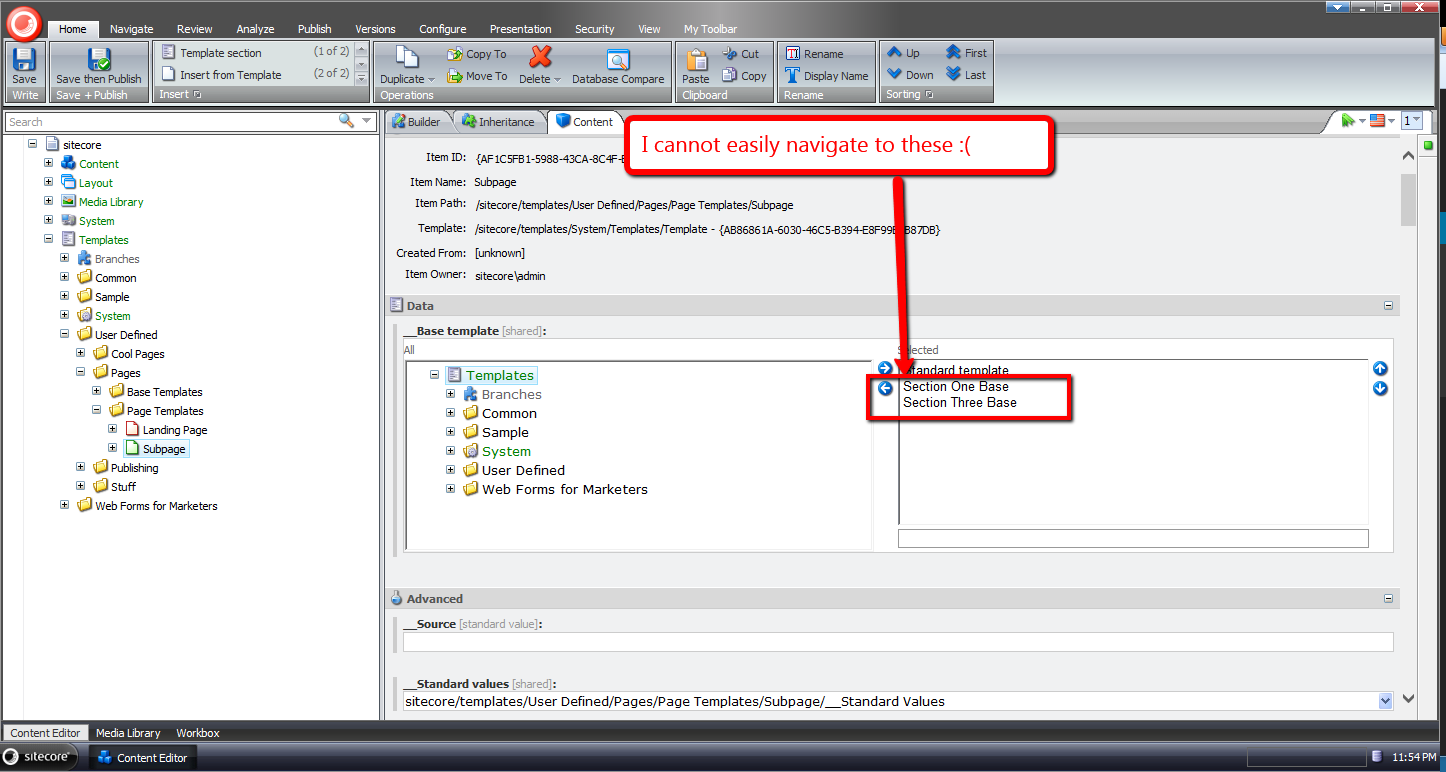
I have had this thought more than once despite having the ability to do this in a template’s Inheritance tab — you can do this by clicking one of the base template links listed:
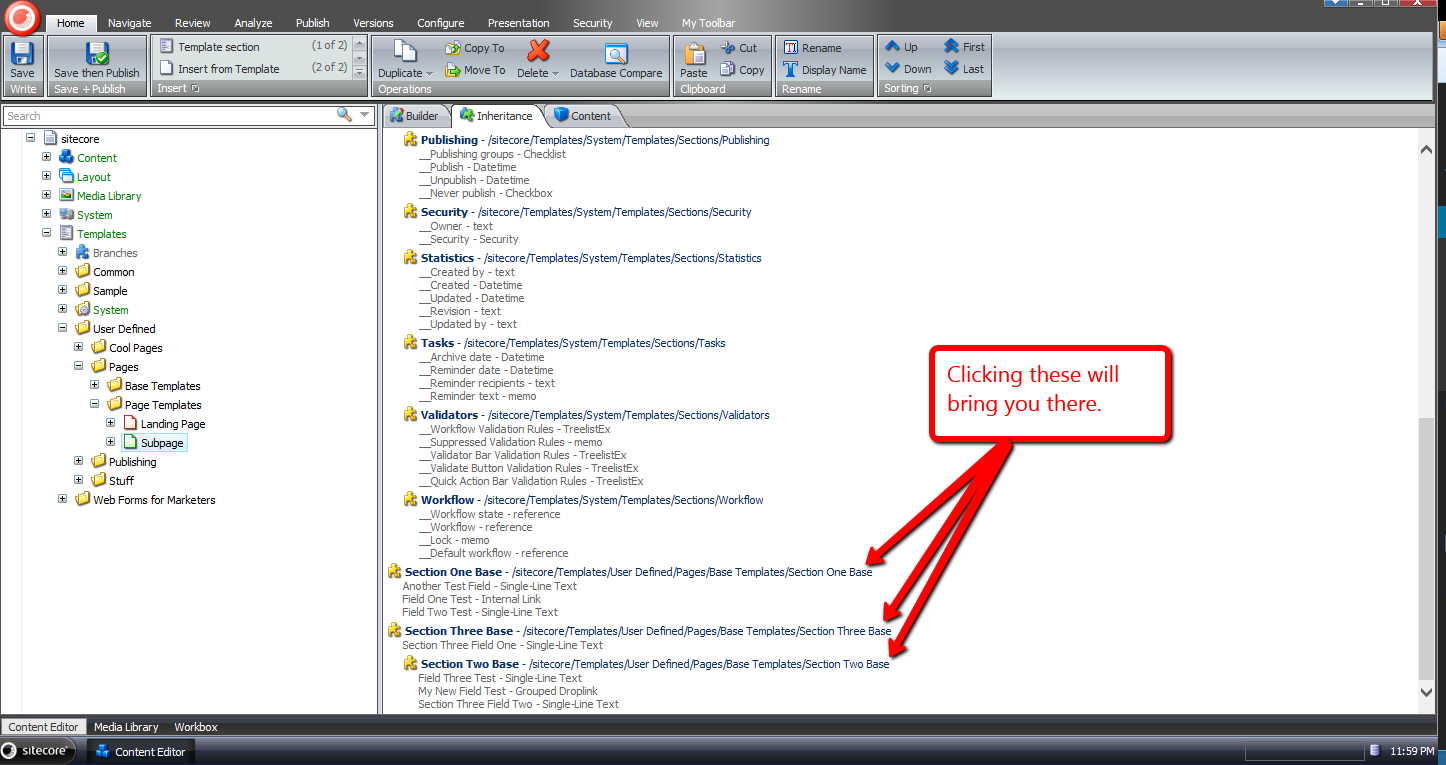
For some reason I sometimes forget you have the ability to get to a base template of a template in the Inheritance tab — why I forget is no doubt a larger issue I should try to tackle, albeit I’ll leave that for another day — and decided to build something that will be more difficult for me to forget: launching a dialog via a new item context menu option, and selecting one of the base templates of a template in that dialog.
I decided to atomize functionality in my solution by building custom pipelines/processors wherever I felt doing so made sense.
I started off by building a custom pipeline that gets base templates for a template, and defined a data transfer object (DTO) class for it:
using System.Collections.Generic;

using Sitecore.Data.Items;
using Sitecore.Pipelines;
using Sitecore.Web.UI.Sheer;

namespace Sitecore.Sandbox.Shell.Framework.Pipelines
{
    public class GetBaseTemplatesArgs : PipelineArgs
    {
        public TemplateItem TemplateItem { get; set; }

        public bool IncludeAncestorBaseTemplates { get; set; }

        private List<TemplateItem> _BaseTemplates;
        public List<TemplateItem> BaseTemplates
        {
            get
            {
                if (_BaseTemplates == null)
                {
                    _BaseTemplates = new List<TemplateItem>();
                }

                return _BaseTemplates;
            }
            set
            {
                _BaseTemplates = value;
            }
        }
    }
}
Client code must supply the template item that will be used as the starting point for gathering base templates, and can request all ancestor base templates — excluding the Standard Template as you will see below — by setting the IncludeAncestorBaseTemplates property to true.
I then created a class with a Process method that will serve as the only pipeline processor for my new pipeline:
using System;
using System.Collections.Generic;
using System.Linq;
using System.Text;

using Sitecore.Data.Items;
using Sitecore.Diagnostics;

namespace Sitecore.Sandbox.Shell.Framework.Pipelines
{
    public class GetBaseTemplates
    {
        public void Process(GetBaseTemplatesArgs args)
        {
            Assert.ArgumentNotNull(args, "args");
            Assert.ArgumentNotNull(args.TemplateItem, "args.TemplateItem");
            List<TemplateItem> baseTemplates = new List<TemplateItem>();
            GatherBaseTemplateItems(baseTemplates, args.TemplateItem, args.IncludeAncestorBaseTemplates);
            args.BaseTemplates = baseTemplates;
        }

        private static void GatherBaseTemplateItems(List<TemplateItem> baseTemplates, TemplateItem templateItem, bool includeAncestors)
        {
            if (includeAncestors)
            {
                foreach (TemplateItem baseTemplateItem in templateItem.BaseTemplates)
                {
                    GatherBaseTemplateItems(baseTemplates, baseTemplateItem, includeAncestors);
                }
            }

            if (!IsStandardTemplate(templateItem) && templateItem.BaseTemplates != null && templateItem.BaseTemplates.Any())
            {
                baseTemplates.AddRange(GetBaseTemplatesExcludeStandardTemplate(templateItem.BaseTemplates));
            }
        }

        private static IEnumerable<TemplateItem> GetBaseTemplatesExcludeStandardTemplate(TemplateItem templateItem)
        {
            if (templateItem == null)
            {
                return new List<TemplateItem>();
            }

            return GetBaseTemplatesExcludeStandardTemplate(templateItem.BaseTemplates);
        }

        private static IEnumerable<TemplateItem> GetBaseTemplatesExcludeStandardTemplate(IEnumerable<TemplateItem> baseTemplates)
        {
            if (baseTemplates != null && baseTemplates.Any())
            {
                return baseTemplates.Where(baseTemplate => !IsStandardTemplate(baseTemplate));
            }

            return baseTemplates;
        }

        private static bool IsStandardTemplate(TemplateItem templateItem)
        {
            return templateItem.ID == TemplateIDs.StandardTemplate;
        }
    }
}
Methods in the above class add base templates to a list when the templates are not the Standard Template — I thought it would be a rare occurrence for one to navigate to it, and decided not to include it in the collection.
Further, the method that gathers base templates is recursively executed when client code requests all ancestor base templates be include in the collection.
The next thing I built was functionality to prompt the user for a base template via a dialog, and track which base template was chosen. I decided to do this using a custom client processor, and built the following DTO for it:
using System;
using System.Collections.Generic;
using System.Linq;
using System.Text;
using Sitecore.Web.UI.Sheer;
using Sitecore.Data.Items;

namespace Sitecore.Sandbox.Shell.Framework.Pipelines
{
    public class GotoBaseTemplateArgs : ClientPipelineArgs
    {
        public TemplateItem TemplateItem { get; set; }

        public string SelectedBaseTemplateId { get; set; }
    }
}
Just like the other DTO defined above, client code must suppy a template item. The SelectedBaseTemplateId property is set after a user selects a base template in the modal launched by the following class:
using System.Collections.Generic;
using System.Linq;

using Sitecore.Data.Items;
using Sitecore.Data.Managers;
using Sitecore.Diagnostics;
using Sitecore.Pipelines;
using Sitecore.Shell.Applications.Dialogs.ItemLister;
using Sitecore.Web.UI.Sheer;

namespace Sitecore.Sandbox.Shell.Framework.Pipelines
{
    public class GotoBaseTemplate
    {
        public string SelectTemplateButtonText { get; set; }

        public string ModalIcon { get; set; }

        public string ModalTitle { get; set; }

        public string ModalInstructions { get; set; }

        public void SelectBaseTemplate(GotoBaseTemplateArgs args)
        {
            Assert.ArgumentNotNull(args, "args");
            Assert.ArgumentNotNull(args.TemplateItem, "args.TemplateItem");
            Assert.ArgumentNotNullOrEmpty(SelectTemplateButtonText, "SelectTemplateButtonText");
            Assert.ArgumentNotNullOrEmpty(ModalIcon, "ModalIcon");
            Assert.ArgumentNotNullOrEmpty(ModalTitle, "ModalTitle");
            Assert.ArgumentNotNullOrEmpty(ModalInstructions, "ModalInstructions");

            if (!args.IsPostBack)
            {
                ItemListerOptions itemListerOptions = new ItemListerOptions
                {
                    ButtonText = SelectTemplateButtonText,
                    Icon = ModalIcon,
                    Title = ModalTitle,
                    Text = ModalInstructions
                };

                itemListerOptions.Items = GetBaseTemplateItemsForSelection(args.TemplateItem).Select(template => template.InnerItem).ToList();
                itemListerOptions.AddTemplate(TemplateIDs.Template);
                SheerResponse.ShowModalDialog(itemListerOptions.ToUrlString().ToString(), true);
                args.WaitForPostBack();
            }
            else if (args.HasResult)
            {
                args.SelectedBaseTemplateId = args.Result;
                args.IsPostBack = false;
            }
            else
            {
                args.AbortPipeline();
            }
        }

        private IEnumerable<TemplateItem> GetBaseTemplateItemsForSelection(TemplateItem templateItem)
        {
            GetBaseTemplatesArgs args = new GetBaseTemplatesArgs
            {
                TemplateItem = templateItem,
                IncludeAncestorBaseTemplates = true,
            };
            CorePipeline.Run("getBaseTemplates", args);
            return args.BaseTemplates;
        }

        public void Execute(GotoBaseTemplateArgs args)
        {
            Assert.ArgumentNotNull(args, "args");
            Assert.ArgumentNotNullOrEmpty(args.SelectedBaseTemplateId, "args.SelectedBaseTemplateId");
            Context.ClientPage.ClientResponse.Timer(string.Format("item:load(id={0})", args.SelectedBaseTemplateId), 1);
        }
    }
}
The SelectBaseTemplate method above gives the user a list of base templates to choose from — this includes all ancestor base templates of a template minus the Standard Template.
The title, icon, helper text of the modal are supplied via the processor’s xml node in its configuration file — you’ll see this later on in this post.
Once a base template is chosen, its Id is then set in the SelectedBaseTemplateId property of the GotoBaseTemplateArgs instance.
The Execute method brings the user to the selected base template item in the Sitecore content tree.
Now we need a way to launch the code above.
I did this using a custom command that will be wired up to the item context menu:
using System.Collections.Generic;
using System.Linq;

using Sitecore.Data.Items;
using Sitecore.Data.Managers;
using Sitecore.Diagnostics;
using Sitecore.Shell.Framework.Commands;

using Sitecore.Sandbox.Shell.Framework.Pipelines;
using Sitecore.Web.UI.Sheer;
using Sitecore.Pipelines;

namespace Sitecore.Sandbox.Commands
{
    public class GotoBaseTemplateCommand : Command
    {
        public override void Execute(CommandContext context)
        {
            Context.ClientPage.Start("gotoBaseTemplate", new GotoBaseTemplateArgs { TemplateItem = GetItem(context) });
        }

        public override CommandState QueryState(CommandContext context)
        {
            if (ShouldEnable(GetItem(context)))
            {
                return CommandState.Enabled;
            }

            return CommandState.Hidden;
        }

        private static bool ShouldEnable(Item item)
        {
            return item != null
                    && IsTemplate(item)
                    && GetBaseTemplates(item).Any();
        }

        private static Item GetItem(CommandContext context)
        {
            Assert.ArgumentNotNull(context, "context");
            Assert.ArgumentNotNull(context.Items, "context.Items");
            return context.Items.FirstOrDefault();
        }

        private static bool IsTemplate(Item item)
        {
            Assert.ArgumentNotNull(item, "item");
            return TemplateManager.IsTemplate(item);
        }

        private static IEnumerable<TemplateItem> GetBaseTemplates(TemplateItem templateItem)
        {
            Assert.ArgumentNotNull(templateItem, "templateItem");
            GetBaseTemplatesArgs args = new GetBaseTemplatesArgs
            {
                TemplateItem = templateItem,
                IncludeAncestorBaseTemplates = false
            };

            CorePipeline.Run("getBaseTemplates", args);
            return args.BaseTemplates;
        }
    }
}
The command above is visible only when the item is a template, and has base templates on it — we invoke the custom pipeline built above to get base templates.
When the command is invoked, we call our custom client processor to prompt the user for a base template to go to.
I then glued everything together using the following configuration file:
<?xml version="1.0" encoding="utf-8" ?>
<configuration>
  <sitecore>
    <commands>
      <command name="item:GotoBaseTemplate" type="Sitecore.Sandbox.Commands.GotoBaseTemplateCommand, Sitecore.Sandbox"/>
    </commands>
    <pipelines>
      <getBaseTemplates>
        <processor type="Sitecore.Sandbox.Shell.Framework.Pipelines.GetBaseTemplates, Sitecore.Sandbox"/>
      </getBaseTemplates>
    </pipelines>
    <processors>
      <gotoBaseTemplate>
        <processor mode="on" type="Sitecore.Sandbox.Shell.Framework.Pipelines.GotoBaseTemplate, Sitecore.Sandbox" method="SelectBaseTemplate">
          <SelectTemplateButtonText>OK</SelectTemplateButtonText>
          <ModalIcon>Applications/32x32/nav_up_right_blue.png</ModalIcon>
          <ModalTitle>Select A Base Template</ModalTitle>
          <ModalInstructions>Select the base template you want to navigate to.</ModalInstructions>
        </processor>
        <processor mode="on" type="Sitecore.Sandbox.Shell.Framework.Pipelines.GotoBaseTemplate, Sitecore.Sandbox" method="Execute"/>
      </gotoBaseTemplate>
    </processors>
  </sitecore>
</configuration>
I’ve left out how I’ve added the command shown above to the item context menu in the core database. For more information on adding to the item context menu, please see part one and part two of my post showing how to do this.
Let’s see how we did.
I first created some templates for testing. The following template named ‘Meta’ uses two other test templates as base templates:

I also created a ‘Base Page’ template which uses the ‘Meta’ template above:

Next I created ‘The Coolest Page Template Ever’ template — this uses the ‘Base Page’ template as its base template:

I then right-clicked on ‘The Coolest Page Template Ever’ template to launch its context menu, and selected our new menu option:
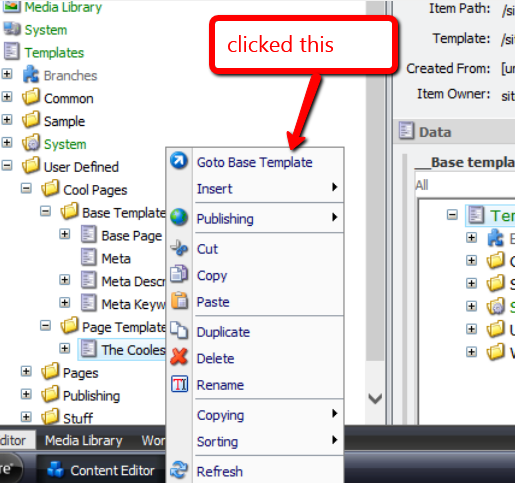
I was then presented with a dialog asking me to select the base template I want to navigate to:

I chose one of the base templates, and clicked ‘OK’:

I was then brought to the base template I had chosen:
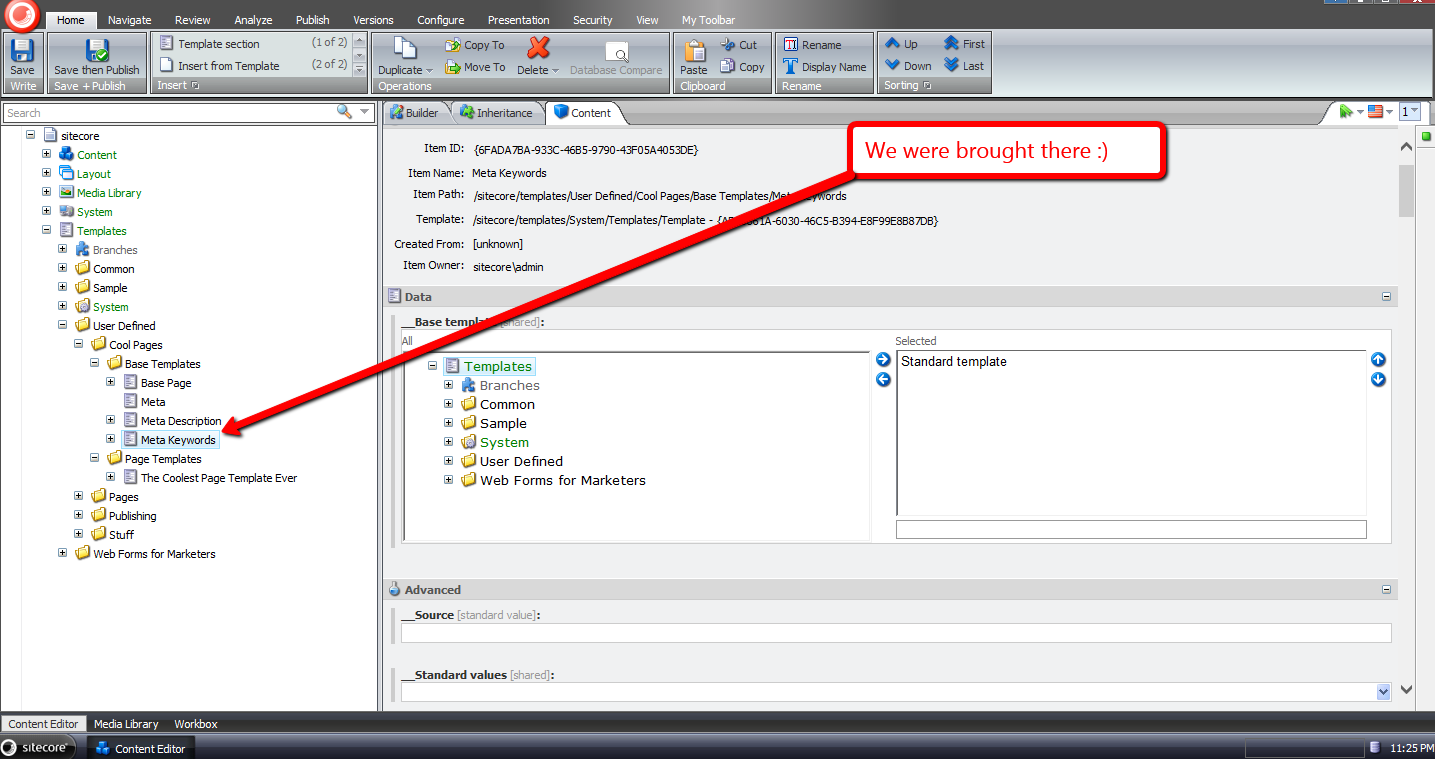
If you have any thoughts on this, please leave a comment.
Content Manage Links to File System Favicons for Multiple Sites Managed in Sitecore
Earlier today someone started a thread in one of the SDN forums asking how to go about adding the ability to have a different favicon for each website managed in the same instance of Sitecore.
I had implemented this in the past for a few clients, and thought I should write a post on how I had done this.
In most of those solutions, the site’s start item would contain a “server file” field — yes I know it’s deprecated but it works well for this (if you can suggested a better field type to use, please leave a comment below) — that would point to a favicon on the file system:

Content authors/editors can then choose the appropriate favicon for each site managed in their Sitecore instance — just like this:

Not long after the SDN thread was started, John West — Chief Technology Officer at Sitecore USA — wrote a quick code snippet, followed by a blog post on how one might go about doing this.
John’s solution is a different than the one I had used in the past — each site’s favicon is defined on its site node in the Web.config.
After seeing John’s solution, I decided I would create a hybrid solution — the favicon set on the start item would have precedence over the one defined on the site node in the Web.config. In other words, the favicon defined on the site node would be a fallback.
For this hybrid solution, I decided to create a custom pipeline to retrieve the favicon for the context site, and created the following pipeline arguments class for it:
using System.Web.UI;

using Sitecore.Pipelines;

namespace Sitecore.Sandbox.Pipelines.GetFavicon
{
    public class FaviconTryGetterArgs : PipelineArgs
    {
        public string FaviconUrl { get; set; }

        public Control FaviconControl{ get; set; }
    }
}
The idea is to have pipeline processors set the URL of the favicon if possible, and have another processor create an ASP.NET control for the favicon when the URL is supplied.
The following class embodies this high-level idea:
using System;

using System.Web.UI;
using System.Web.UI.HtmlControls;

using Sitecore;
using Sitecore.Configuration;
using Sitecore.Data.Fields;
using Sitecore.Data.Items;
using Sitecore.Diagnostics;
using Sitecore.Sandbox.Utilities.Extensions;

namespace Sitecore.Sandbox.Pipelines.GetFavicon
{
    public class FaviconTryGetter
    {
        private string FaviconFieldName { get; set; }

        public void TryGetFromStartItem(FaviconTryGetterArgs args)
        {
            Assert.ArgumentNotNull(args, "args");
            bool canProcess = !string.IsNullOrWhiteSpace(FaviconFieldName)
                                && Context.Site != null
                                && !string.IsNullOrWhiteSpace(Context.Site.StartPath);

            if (!canProcess)
            {
                return;
            }

            Item startItem = Context.Database.GetItem(Context.Site.StartPath);
            args.FaviconUrl = startItem[FaviconFieldName];
        }

        public void TryGetFromSite(FaviconTryGetterArgs args)
        {
            Assert.ArgumentNotNull(args, "args");
            bool canProcess = Context.Site != null
                                && string.IsNullOrWhiteSpace(args.FaviconUrl);

            if (!canProcess)
            {
                return;
            }

			/* GetFavicon is an extension method borrowed from John West. You can find it at  http://www.sitecore.net/Community/Technical-Blogs/John-West-Sitecore-Blog/Posts/2013/08/Use-Different-Shortcut-Icons-for-Different-Managed-Sites-with-the-Sitecore-ASPNET-CMS.aspx
            */
            args.FaviconUrl = Context.Site.GetFavicon();
        }

        public void TryGetFaviconControl(FaviconTryGetterArgs args)
        {
            Assert.ArgumentNotNull(args, "args");
            if(string.IsNullOrWhiteSpace(args.FaviconUrl))
            {
                return;
            }

            args.FaviconControl = CreateNewFaviconControl(args.FaviconUrl);
        }

        private static Control CreateNewFaviconControl(string faviconUrl)
        {
            Assert.ArgumentNotNullOrEmpty(faviconUrl, "faviconUrl");
            HtmlLink link = new HtmlLink();
            link.Attributes.Add("type", "image/x-icon");
            link.Attributes.Add("rel", "icon");
            link.Href = faviconUrl;
            return link;
        }
    }
}
The TryGetFromStartItem method tries to get the favicon set on the favicon field on the start item — the name of the field is supplied via one of the processors defined in the configuration include file below — and sets it on the FaviconUrl property of the FaviconTryGetterArgs instance supplied by the caller.
If the field name for the field containing the favicon is not supplied, or there is something wrong with either the context site or the start item’s path, then the method does not finish executing.
The TryGetFromSite method is similar to what John had done in his post. It uses the same exact extension method John had used for getting the favicon off of a “favicon” attribute set on the context site’s node in the Web.config — I have omitted this extension method and its class since you can check it out in John’s post.
If a URL is set by either of the two methods discussed above, the TryGetFaviconControl method creates an instance of an HtmlLink System.Web.UI.HtmlControls.HtmlControl, sets the appropriate attributes for an html favicon link tag, and sets it in the FaviconControl property of the FaviconTryGetterArgs instance.
I assembled the methods above into a new getFavicon pipeline in the following configuration include file, and also set a fallback favicon for my local sandbox site’s configuration element:
<?xml version="1.0" encoding="utf-8"?>
<configuration xmlns:patch="http://www.sitecore.net/xmlconfig/">
  <sitecore>
    <pipelines>
      <getFavicon>
        <processor type="Sitecore.Sandbox.Pipelines.GetFavicon.FaviconTryGetter, Sitecore.Sandbox" method="TryGetFromStartItem">
          <FaviconFieldName>Favicon</FaviconFieldName>
        </processor>
        <processor type="Sitecore.Sandbox.Pipelines.GetFavicon.FaviconTryGetter, Sitecore.Sandbox" method="TryGetFromSite" />
        <processor type="Sitecore.Sandbox.Pipelines.GetFavicon.FaviconTryGetter, Sitecore.Sandbox" method="TryGetFaviconControl" />
      </getFavicon>
    </pipelines>
    <sites>
      <site name="website">
        <patch:attribute name="favicon">/sitecore.ico</patch:attribute>
      </site>
    </sites>
  </sitecore>
</configuration>
Just as John West had done in his post, I created a custom WebControl for rendering the favicon, albeit the following class invokes our new pipeline above to get the favicon ASP.NET control:
using System.Web.UI;

using Sitecore.Pipelines;
using Sitecore.Sandbox.Pipelines.GetFavicon;
using Sitecore.Web.UI;

namespace Sitecore.Sandbox.WebControls
{
    public class Favicon : WebControl
    {
        protected override void DoRender(HtmlTextWriter output)
        {
            FaviconTryGetterArgs args = new FaviconTryGetterArgs();
            CorePipeline.Run("getFavicon", args);
            if (args.FaviconControl != null)
            {
                args.FaviconControl.RenderControl(output);
            }
        }
    }
}
If a favicon Control is supplied by our new getFavicon pipeline, the WebControl then delegates rendering responsibility to it.
I then defined an instance of the WebControl above in my default layout:
<%@ Register TagPrefix="sj" Namespace="Sitecore.Sharedsource.Web.UI.WebControls" Assembly="Sitecore.Sharedsource" %>
...
<html>
  <head>
  ...
  <sj:Favicon runat="server" />
  ...
For testing, I found a favicon generator website out on the internet — I won’t share this since it’s appeared to be a little suspect — and created a smiley face favicon. I set this on my start item, and published:

After clearing it out on my start item, and publishing, the fallback Sitecore favicon appears:
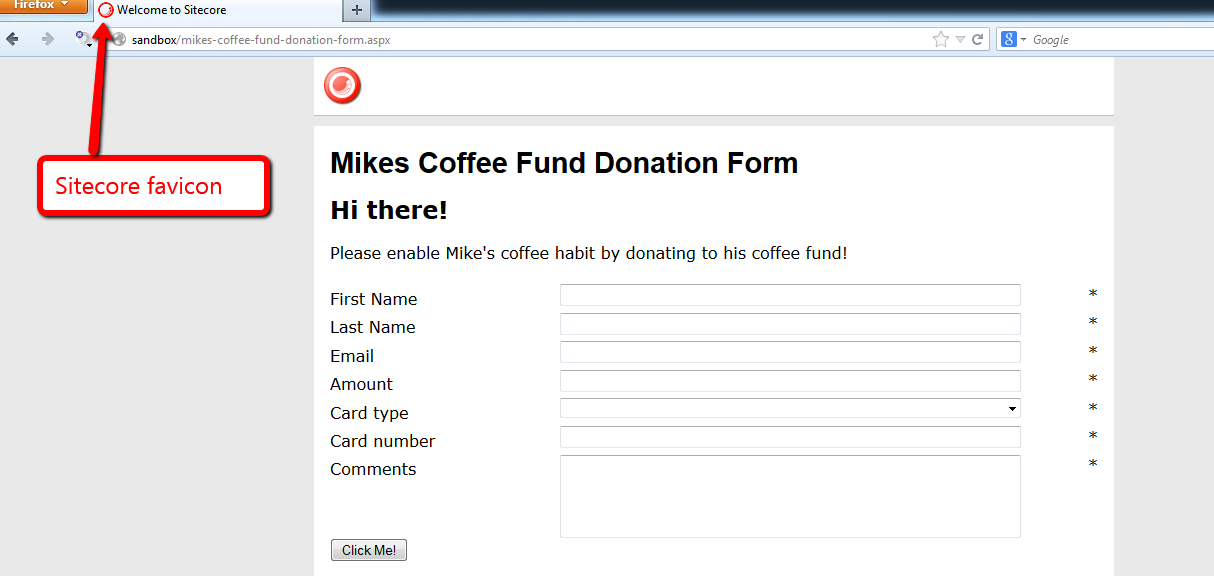
When you remove all favicons, none appear.

If you have any thoughts, suggestions, or comments on this, please share below.
 SitecoreJunkie.com